AV Access iDock C20 Compatibility Guide: Two Laptops, Two Monitors, Mac vs Windows
Quick answer
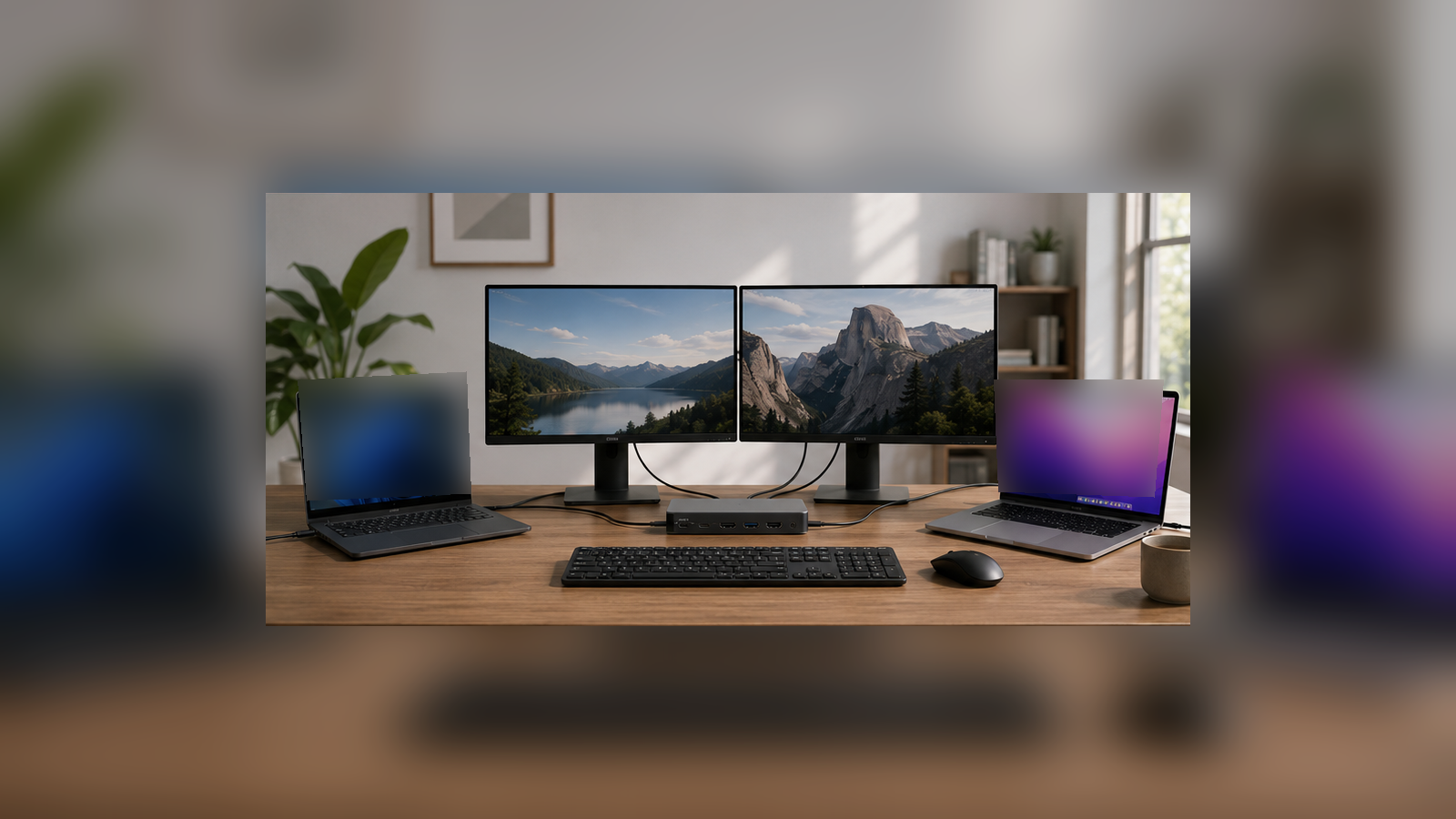
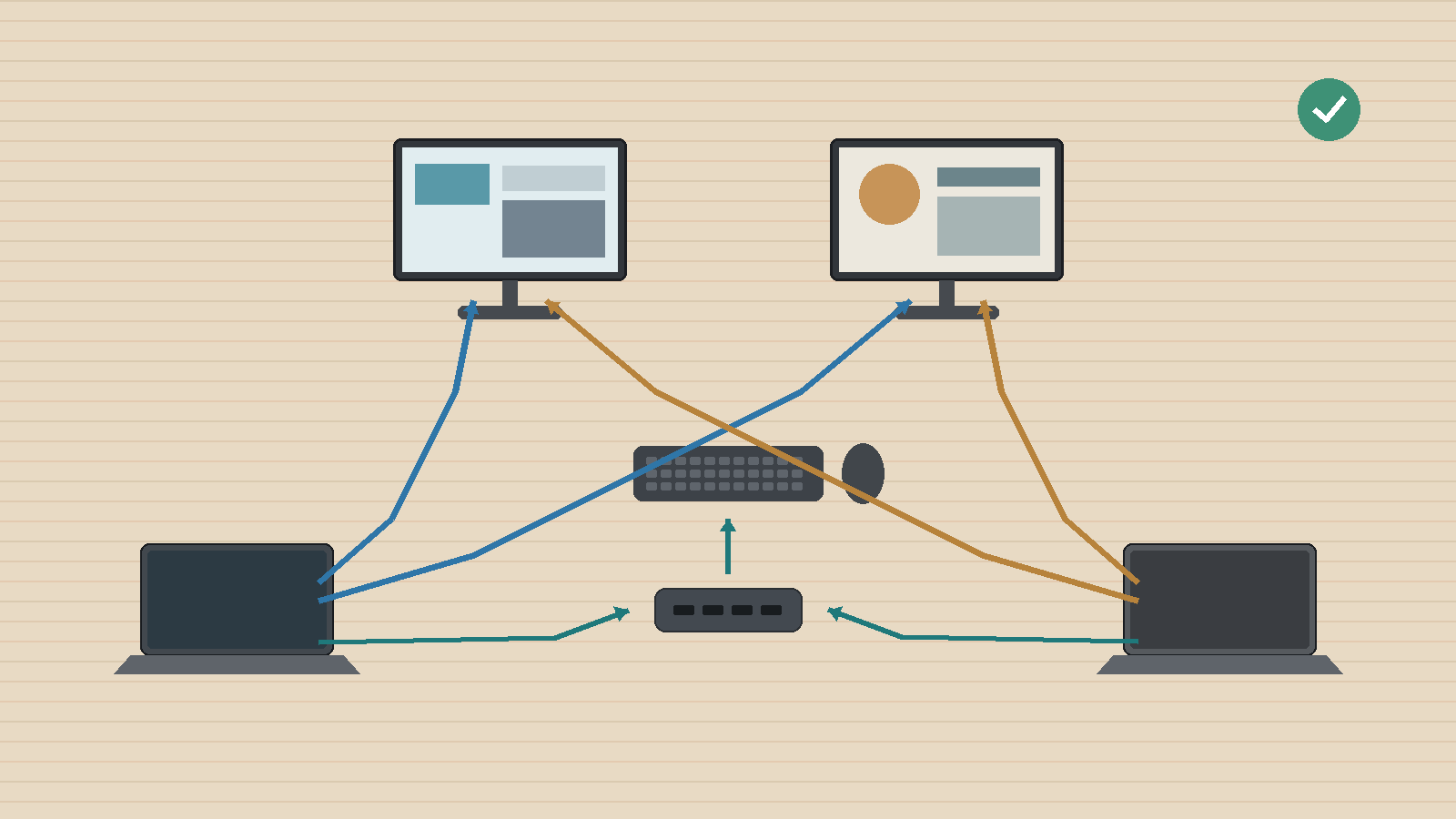
The AV Access iDock C20 is a KVM docking station for a specific desk layout:
two USB-C computers + two HDMI monitors + one shared keyboard and mouse + shared USB devices + Ethernet + one-button switching.
For two compatible Windows laptops, it is a strong fit. Each laptop connects to the C20 with one USB-C host cable, and the dock can switch both monitors and shared peripherals between them.
For Mac users, there is one major limitation to understand before buying: the C20 creates its dual-monitor output through DisplayPort MST.
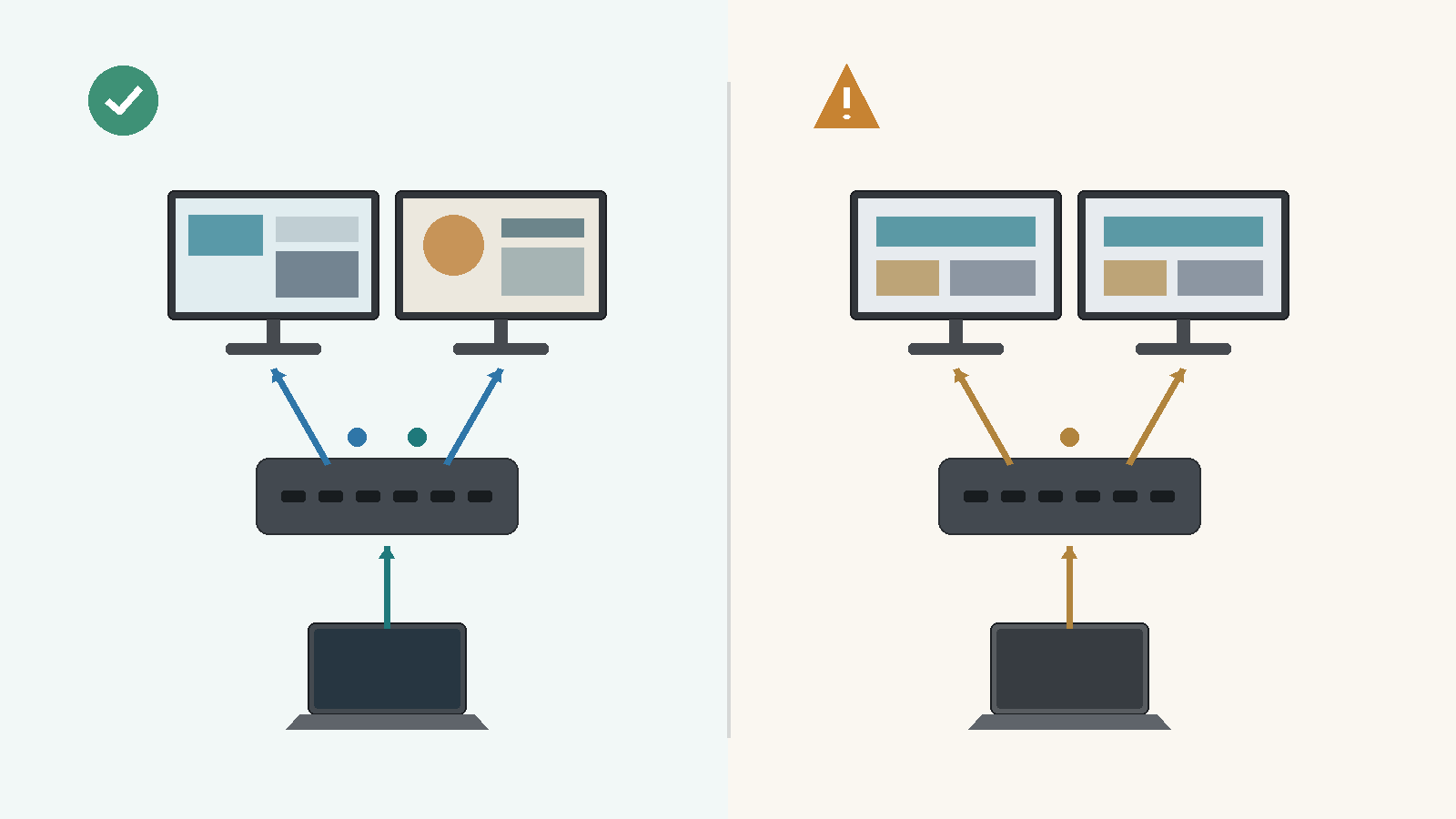
AV Access explicitly states that macOS does not support the C20's USB-C MST dual-extension path. With a Mac connected through the C20, the two external monitors show duplicate content instead of becoming two independent extended desktops.
That remains true even if the Mac itself can natively support two external displays through other supported connections.
So the important question is not:
Can my laptop support two monitors?
It is:
Can my laptop support two independent displays through the display architecture used by the C20?
What the iDock C20 actually combines
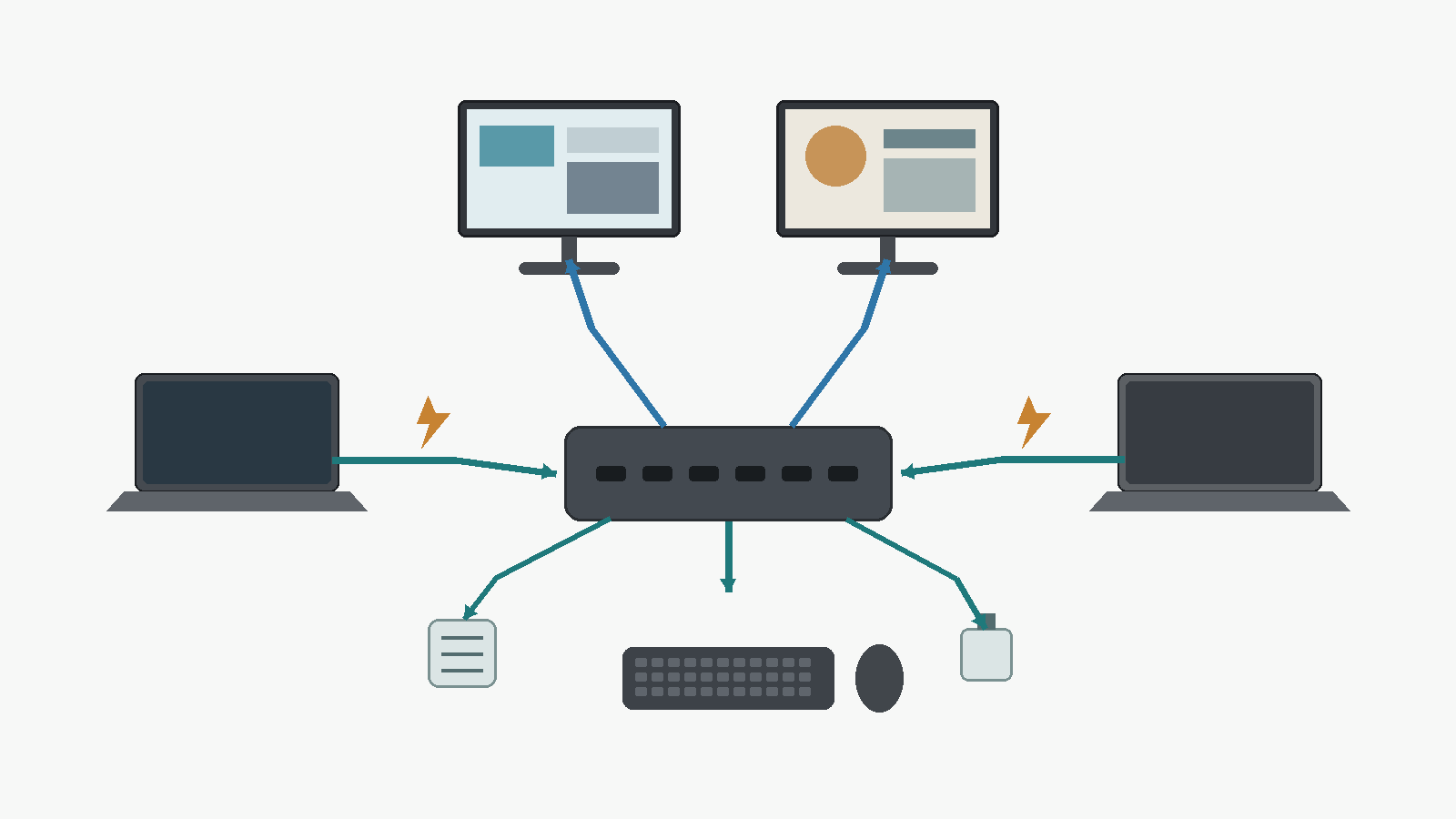
AV Access describes the iDock C20 as a 12-in-1 dual-monitor KVM docking station.
Its relevant specifications include:
- two USB-C computer connections
- two HDMI 2.0 outputs
- up to dual 4K at 60Hz on a compatible host
- up to 60W USB-C charging per laptop
- Gigabit Ethernet
- USB-A and USB-C peripheral connections
- SD card slot
- 3.5mm audio
- EDID emulation
- front-panel switching
- support for an optional wired remote
That architecture can replace several separate pieces of desk hardware.
Instead of using a dock for each laptop plus a USB switch and manual monitor-input changes, the C20 attempts to handle video, USB peripherals, Ethernet, charging, and switching in one device.
If you are still deciding whether your desk actually needs both docking and KVM-style switching, start with KVM vs Docking Station: Which Do You Actually Need?.
But the C20's convenience depends on both computers matching its host requirements.
Compatibility at a glance
| Scenario | Verdict | Main reason |
|---|---|---|
| Windows laptop + Windows laptop | Compatible with conditions | Both selected USB-C ports must support the required DP Alt Mode + MST path and requested display mode. |
| Windows laptop + MacBook | Compatible with a major Mac limitation | The Windows host may provide two independent extended displays; the Mac side cannot do so through the C20 MST path. |
| MacBook + MacBook | Poor fit if dual extension is required | The C20 MST path does not provide two independent extended external desktops on macOS. |
| Two independent Mac external displays required | Not compatible for this required mode | AV Access documents duplicate external-display behavior through the C20 Mac MST path. |
| USB-C host lacks required video / MST capability | Not compatible for the intended dual-monitor mode | USB-C connector shape alone does not establish the required display path. |
| Existing monitor inputs + USB switch already solve the desk | Keep existing gear | The C20 would add functions and complexity that this setup does not need. |
The mixed Windows/Mac case is especially important.
The C20 does not need both computers to behave identically. A Windows laptop may get two independent extended monitors while the Mac connected to the other host port gets duplicated external displays.
Windows: verify more than the USB-C connector
A Windows laptop having a USB-C port does not prove that it can drive the C20 correctly.
Check DisplayPort Alt Mode
AV Access tells users to verify that the host USB-C port supports DisplayPort Alt Mode.
USB-C describes the connector. It does not guarantee that every USB-C port carries video.
A port can support USB data and charging without supporting display output.
If your laptop has several USB-C ports, check the specification for the exact port you intend to connect.
SetupMeld's broader dock compatibility guide explains why the host port, cable, dock, display path, and power requirements all need to be checked separately.
Check the MST requirement
The second requirement is Multi-Stream Transport, or MST.
MST allows multiple display streams to travel through the DisplayPort connection used by the dock.
On a compatible Windows host, that enables the C20 to send independent images to its two HDMI outputs.
Before buying, verify both laptops separately.
Do not assume that because Laptop A works, Laptop B will behave the same way.
The safest pre-purchase checklist is:
- Does this USB-C port support DisplayPort Alt Mode?
- Does the laptop support the required MST multi-display path?
- Can the laptop drive the resolution and refresh rate I want on two displays?
- Is 60W USB-C charging enough for this computer?
If any answer is unknown, resolve it from the laptop manufacturer's specifications before treating the C20 as compatible.
Mac: native dual-display support does not remove the C20 limitation
The Mac situation is easy to misunderstand.
Some current Macs absolutely can support two external displays.
For example, Apple documents the M4 MacBook Air as supporting up to two external displays while also using its built-in display, subject to Apple's resolution and refresh-rate limits.
But that is the Mac's native display capability.
It does not mean every dock with two HDMI outputs can turn one USB-C connection into two independent Mac desktops.
AV Access states that the C20 relies on an MST-based dual-display path and that macOS does not support that path for two independent extended external screens.
Think of these as two separate checks:
Mac capability
Can this exact Mac model drive two external displays through supported native paths?
C20 compatibility
Can macOS use the C20's MST path to create two independent extended displays?
For the second question, AV Access says no.
This is also why a Mac user should not choose a dock simply because its specifications say dual 4K.
If your goal is a MacBook plus two genuinely independent external desktops, read SetupMeld's Can Your MacBook Run Two External Monitors? before choosing the switching hardware.
If you already own a dock and are seeing mirrored displays, one working display, a blank screen, or another dual-monitor failure, use MacBook Docking Station Dual Monitors Not Working to separate a Mac display-limit problem from an MST, DisplayLink, cable, port, or dock-path issue.
What happens on a mixed Mac + Windows desk?
Suppose your desk has:
- one Windows work laptop
- one MacBook
- two HDMI monitors
- one keyboard
- one mouse
The C20 may still be useful, but the experience will differ by computer.
When Windows is active
If the Windows laptop supports the required DP Alt Mode and MST path, the two external monitors can operate as independent extended displays.
When the Mac is active
The same two monitors will not become two independent extended desktops through the C20's MST path.
AV Access documents duplicate external-display behavior on macOS.
That means the C20 should not be purchased for a mixed Mac/Windows desk under the assumption that both computers will get the same dual-extended-monitor experience.
For a mixed desk, SetupMeld's existing MacBook + Windows Dual Monitor Setup: Choose the Right Architecture is the better starting point if two independent screens are mandatory on both computers.
Is 60W charging enough?
AV Access specifies up to 60W charging per laptop.
For many thin-and-light office laptops, that may be sufficient.
But 60W is not automatically enough for every USB-C computer.
If your laptop normally uses a higher-wattage adapter, compare its power requirements with the C20's 60W host-delivery limit.
A higher-power laptop may:
- charge more slowly
- lose battery charge under sustained heavy load
- or still need its original charger for demanding workloads
The useful specification is therefore power delivered to each laptop, not the wattage printed on the dock's power adapter.
What about 4K and high refresh rates?
AV Access lists dual 4K@60Hz support on compatible hosts and also advertises modes including 2560×1440@144Hz and 1080p at higher refresh rates.
Treat those as product capabilities, not a guarantee for every laptop-monitor combination.
Your actual result still depends on the complete path:
Laptop GPU → USB-C display capability → C20 → HDMI cable → monitor input
If one 4K monitor drops to a lower resolution, AV Access's own troubleshooting guidance recommends checking the laptop's simultaneous video-output limits and the monitor connection capabilities rather than assuming the C20 alone is the cause.
When the iDock C20 is a good fit
The C20 makes the most sense when:
- both computers are laptops or USB-C hosts
- both selected host ports support the required video path
- your Windows laptops support MST
- you want two shared HDMI monitors
- 60W per laptop is adequate
- you want shared USB peripherals and Ethernet
- you value one USB-C connection per computer
- you switch the whole desk between computers frequently
The cleanest case is two compatible Windows USB-C laptops.
Disclosure: SetupMeld may earn a commission if you purchase through links on this page, at no additional cost to you. Product inclusion is based on compatibility with the setup described, not commission rates.
When to choose another architecture
The C20 is a poor fit if your Mac must have two independent extended external displays through the same one-cable switching path.
In that situation, do not assume another MST dock will solve the problem.
Instead, evaluate an architecture that preserves the independent native display paths your Mac supports, or consider a DisplayLink-based solution if its software-based display path fits your workflow.
There is also a simpler option.
If your monitors already have enough inputs, each computer can connect directly to the displays while a small USB switch handles the keyboard and mouse.
That uses more cables, but it avoids forcing both computers through the same display architecture.
For some mixed Mac/Windows desks, keeping the existing monitor connections and adding only USB switching is the better compatibility decision.
If you are deciding between the C20, direct monitor inputs, a USB switch, a conventional KVM, or another shared-desk design, see Two Laptops, Two Monitors, One Keyboard and Mouse: The Best Ways to Share One Desk.
Bottom line
The AV Access iDock C20 is not simply a "two laptops, two monitors" box.
It is a USB-C MST KVM docking architecture.
For two compatible Windows laptops, that architecture can be a very clean way to share two HDMI monitors, USB peripherals, Ethernet, and charging with one-button switching.
For Mac users, the decision changes.
AV Access explicitly documents that the C20's MST path produces duplicated external displays on macOS rather than two independent extended desktops.
A Mac that natively supports two external displays does not override that C20-specific limitation.
So before buying, verify three things for each computer:
- the selected USB-C port's video capability;
- the display architecture required for two independent monitors;
- whether 60W charging meets the laptop's needs.
If both computers match the C20, it can simplify the desk substantially.
If they do not, especially on a Mac that requires two independent external desktops, keep the display paths that already work and choose a different switching architecture.
Sources & Verification
Last Checked: September 2, 2026
- AV Access — iDock C20 USB-C KVM Docking Station
Verified: host architecture, dual HDMI outputs, dual 4K@60Hz claim, 60W charging per laptop, Gigabit Ethernet, USB expansion, EDID emulation, high-refresh modes, switching method, DP Alt Mode/MST note, and macOS duplicate-display limitation. - AV Access Support Center — iDock C20 Troubleshootings
Verified: macOS mirrored dual-display behavior and AV Access's explanation of the SST/MST limitation; also consulted for lower-resolution troubleshooting. - Apple Support — MacBook Air (13-inch, M4, 2025) Technical Specifications
https://support.apple.com/en-us/122209
Verified: M4 MacBook Air native support for up to two external displays and native DisplayPort output over USB-C. - Apple Support — How many displays can be connected to MacBook Air?
https://support.apple.com/en-ca/122212
Verified: external-display support varies by exact Mac model, resolution, and refresh rate; M4 MacBook Air supports up to two external displays in addition to its built-in display.
Editorial Method
This is a documentation-based compatibility and decision guide, not a hands-on product review.
SetupMeld has not independently tested the iDock C20's switching time, charging behavior, EDID persistence, peripheral compatibility, sleep/wake behavior, or display performance.
Manufacturer documentation establishes the product's stated specifications and limitations. SetupMeld's role here is to explain what those documented conditions mean for a two-laptop, two-monitor desk.