KVM vs Docking Station: Which Do You Actually Need?
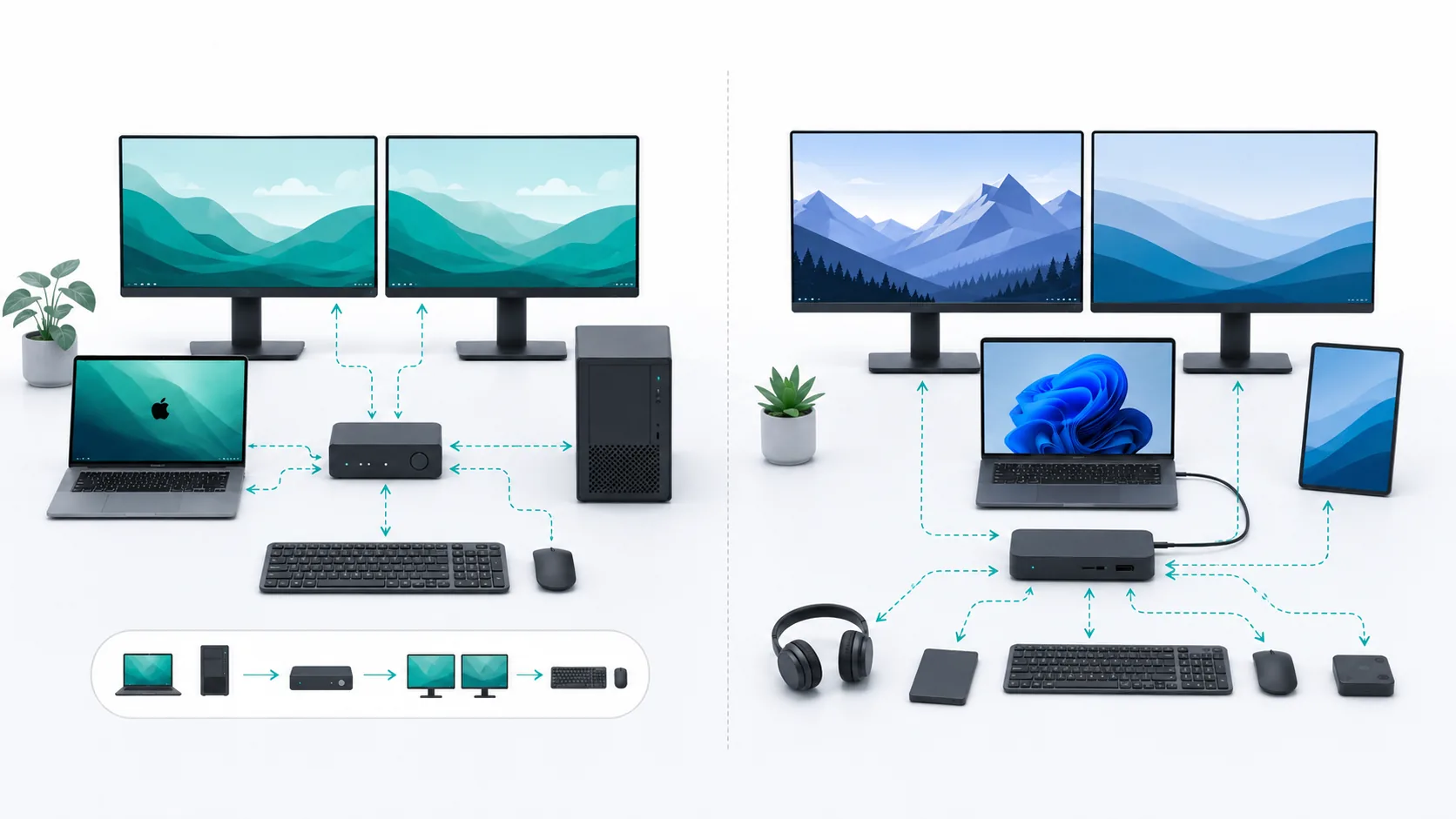
A docking station expands one computer. A KVM switch lets multiple computers share a keyboard, display, and mouse. Some desks need both functions, which can mean using a dock with a KVM or choosing a hybrid device. If your computers already have the ports they need and your monitors have enough inputs, you may need neither.
Start with the job your desk needs done:
- One computer needs more ports or charging: choose a dock.
- Multiple computers must share displays and keyboard/mouse: choose a KVM.
- Two laptops need shared displays, peripherals, and single-cable charging: evaluate a hybrid KVM dock or dock + KVM.
- Only keyboard and mouse need to move between computers: use a smaller USB peripheral switch or a separately verified software method.
- Existing monitor inputs and computer ports already work: keep your gear or buy nothing.
These are category answers, not product compatibility promises. The full path still has to support your display count, resolution, refresh rate, charging, Mac requirements, drivers, and USB devices.
KVM vs docking station at a glance
| Question | Docking station | KVM switch | Dock + KVM or hybrid | Peripheral switch / existing gear |
|---|---|---|---|---|
| Main job | Expand one host | Switch a shared console between hosts | Expand and switch | Share fewer things or switch manually |
| Computers | Usually one active host | Two or more | Two or more | Two or more |
| Shared displays | Not between computers by default | Yes, on exact models | Yes, when exact path supports it | Use monitor input controls |
| Shared keyboard/mouse | Connected to the dock's active host | Yes | Yes | Yes, without switching video |
| Laptop charging | Common on compatible docks; exact wattage varies | Not implied; exact USB-C models may include it | Often a design goal; exact PD varies | Keep original chargers |
| Single-cable laptop connection | Often | Only on exact USB-C models | Often, if host/video/PD conditions match | Usually no |
| Dual monitors | Exact host and dock required | Exact KVM and two host streams required | Every stage must support both displays | Each monitor needs enough inputs |
| Mac + Windows | Host/dock topology may differ by OS | Both hosts must supply compatible signals | Driver and topology can matter | Often the fewest cross-platform assumptions |
| Driver dependence | Native or driver-based, depending on dock | Product-specific; conventional models switch host video, while hybrids may add drivers | Product-specific | None for hardware USB switch/native video |
Start with the number of computers
One computer
With only one computer at the desk, a KVM has nothing to switch.
A dock makes sense when that computer is missing something you need:
- more display outputs;
- more USB ports;
- wired Ethernet;
- an SD card reader;
- charging through the same cable;
- faster connection and disconnection from a fixed desk.
If the computer's current ports and charger already cover the setup, Buy Nothing is a complete answer. A dock may tidy up cable handling, but that convenience should be a deliberate tradeoff rather than an automatic purchase.
Two or more computers
For a multi-computer desk, the next question is what must be shared.
- If the computers need to share displays and keyboard/mouse, a KVM is the direct category match.
- If they need to share only keyboard and mouse, a USB peripheral switch is smaller and simpler.
- If the monitors have multiple inputs, keep each computer's video connected and switch inputs on the monitors.
- If both laptops also need ports and charging, the desk may need both KVM and dock functions.
Choose a dock when the problem belongs to one host
A dock gives a laptop a stable desk connection to displays, USB devices, network, and power.
The word "dock" does not identify one universal display architecture. Before buying, verify:
- the exact laptop and its graphics/display limit;
- USB-C DisplayPort Alt Mode, USB4, or Thunderbolt support;
- the dock's supported display count, resolution, and refresh combinations;
- whether the display path is native, MST-based, or DisplayLink-based;
- Power Delivery to the host;
- current operating-system, driver, and firmware support;
- any reduced features when the dock is used with another manufacturer's laptop.
USB-C describes the connector, not its complete capabilities. USB-IF explicitly separates USB-C from USB4, USB 3.2, and USB Power Delivery. A cable may fit a port that does not provide the video or charging function the dock expects.
Windows cannot extend to displays that the hardware path does not support. Microsoft notes that the graphics adapter can limit monitor count. A passive splitter duplicates one signal; it does not create a second independent desktop.
Choose a KVM when multiple hosts must share the console
KVM stands for keyboard, video, and mouse. The device switches those shared parts of the desk between computers.
Check the following for an exact fit:
- number of computers;
- number of monitors;
- HDMI, DisplayPort, or USB-C inputs and outputs;
- required resolution and refresh rate for every display;
- number of independent display signals each computer can supply;
- keyboard and mouse compatibility;
- webcam, audio, storage, or other USB devices that must switch;
- EDID or monitor-identification behavior if consistent display state matters;
- switching controls and frequency;
- charging, only if the exact model documents it.
A conventional KVM can switch only the display signals the computers already produce. It cannot add a native display stream. Putting a two-monitor KVM after a laptop that supports only one native external display does not change that limit.
Some USB-C KVMs can charge laptops, but charging is a model-level feature rather than part of the generic KVM definition. Check the watts available to each host, the required power adapters, and whether both laptops charge at the same time.
Choose both—or a hybrid—when both jobs are real
Two work laptops can leave you with two distinct needs:
- Each laptop needs one-cable access to displays, network, USB devices, and charging.
- The desk needs to switch the shared displays and peripherals between laptops.
The dock handles the first need. The KVM handles the second.
One option is to place a dock before a KVM. That works only when the host, dock, KVM, cables, and monitors all support the target modes. It is flexible, but every added component creates another point to verify.
A hybrid KVM dock combines the two functions in one device. Manufacturer documentation for one exact current example describes two-host switching, dock ports, two 4K60 DisplayLink outputs, and different charging levels for the active and standby laptops. This confirms that the category exists. It does not mean every hybrid supports the same modes, or that this particular example fits your desk.
For a hybrid, check:
- exact host operating systems;
- native versus DisplayLink display path;
- required drivers and permissions;
- simultaneous charging behavior;
- number and speed of USB ports;
- monitor interfaces and supported modes;
- firmware and switching controls.
Use a smaller solution when video does not need to switch
If each computer already has its own display connection—or the monitors have enough inputs—video can stay outside the switching device.
A USB peripheral switch can move the keyboard and mouse between computers. Keeping video separate often avoids the more difficult KVM questions around display bandwidth, format conversion, EDID, and high-refresh support.
Software can also share a keyboard and mouse, but that route introduces questions about OS support, networking, security, and software maintenance. This guide does not recommend an unnamed tool. Verify the exact application and version before depending on it across Mac and Windows.
When switching is rare, separate keyboard and mouse sets may be simpler than hardware or software switching.
Mac + Windows: identify the display path
A dock that produces two extended displays on Windows may use a topology that does not produce the same result on macOS. Mixed-OS desks therefore need the display path identified before the hardware is chosen.
Native display paths
Start with the exact Mac model and chip. Apple publishes external-display limits by generation, and a hub does not automatically raise the Mac's native maximum. Check the exact Windows laptop and its graphics hardware in the same way.
Native HDMI, DisplayPort, or Thunderbolt paths are usually the cleanest option when both computers already support the display count you need.
MST
DisplayPort Multi-Stream Transport can carry multiple independent display streams from one compatible source through a hub or daisy chain.
Current Plugable support documentation lists Windows as supporting MST and macOS as not supporting MST for multiple independent extended displays. SetupMeld assigns the broad macOS statement medium confidence because the source is current device-manufacturer support rather than a direct Apple statement about MST.
If a dual-output dock depends on MST, verify its Mac behavior explicitly. A Windows result does not transfer to macOS.
DisplayLink
DisplayLink software creates virtual displays and sends encoded screen updates over USB to DisplayLink hardware. It offers a different route when native display limits are insufficient.
As of the verification date, Synaptics lists DisplayLink Manager 16.2 for macOS Tahoe 26. On macOS, DisplayLink Manager requires Screen Recording permission and background operation.
Driver tolerance is therefore part of the decision. A DisplayLink dock may solve the display-count problem, but its architecture is not the same as a native GPU display path. The exact device and workload still need verification.
Dual 4K and high refresh: verify the entire chain
"Supports 4K" does not tell you enough.
Write down the complete target, including:
- two displays;
- 3840×2160 each;
- 60 Hz each;
- extended mode;
- required color depth, HDR, variable refresh rate, or compression, if those features matter.
Then check every stage:
- Each computer can generate the required streams.
- Each host port exposes the required protocol and bandwidth.
- Any dock or adapter supports the exact combination.
- The KVM supports the number of displays, interfaces, resolution, and refresh rate.
- Every cable supports the mode and direction.
- Each monitor accepts the selected input mode.
High refresh and advanced display features often add more conditions. When a manufacturer does not document the exact mode, leave the result unknown rather than assuming a nearby specification applies.
Webcam, audio, storage, and EDID
A webcam or external SSD places different demands on the USB path than a keyboard and mouse.
If those devices must switch through a KVM or hybrid, check the USB hub speed, supported device classes, number of ports, and behavior when hosts change. Support for basic HID devices does not establish that the same product meets the needs of a high-bandwidth camera or storage device.
Monitor identification is model-specific too. Some KVMs document EDID copy, automatic, or default modes; others handle display reconnection differently. Strong claims about window persistence, wake behavior, or switching reliability require exact product documentation and a scoped test.
SetupMeld has not performed a hands-on product test for this article. Manufacturer documentation establishes the category and specification boundaries, not an observed reliability ranking.
Decision tree
1. How many computers use the desk?
- One: Go to step 2.
- Two or more: Go to step 3.
2. Does the computer lack ports, displays, network, or charging?
- Yes: Evaluate a docking station.
- No: Buy Nothing.
3. What must be shared?
- Keyboard/mouse only: Use a peripheral switch, separate peripherals, or a verified software method.
- Displays plus keyboard/mouse: Evaluate a KVM.
4. Do the laptops also need one-cable charging and port expansion?
- Yes: Evaluate a hybrid KVM dock or dock + KVM.
- No: A KVM or monitor-input + peripheral-switch setup may be enough.
5. Do the monitors already have enough inputs?
- Yes, and manual switching is acceptable: Keep Existing Gear; add only a USB switch if needed.
- No, or coordinated switching is required: Continue with an exact KVM/hybrid compatibility check.
6. Are dual 4K, high refresh, Mac + Windows, or DisplayLink involved?
- Yes: Verify every host, port, protocol, intermediary, cable, driver, and monitor before buying.
- No: You still need exact interface and USB compatibility, but the path is simpler.
What to keep before you buy
- Multi-input monitors: They may already provide the video-switching layer.
- OEM chargers: They remove uncertain Power Delivery requirements.
- Existing direct cables: Keep them if their exact capabilities match.
- A current dock: Assign it to the host it supports; it does not have to serve both computers.
- Separate peripherals: They may be the simplest solution for occasional switching.
Buy only after you have identified a verified bottleneck, and choose the smallest change that fixes it.
Pre-purchase checklist
- ☐ Exact computer models, OS versions, and firmware/drivers recorded
- ☐ Exact monitor models and inputs recorded
- ☐ Required display count, resolution, and refresh rate recorded
- ☐ Host-native display limits verified
- ☐ Native, MST, or DisplayLink path identified
- ☐ Every USB-C port and cable capability verified
- ☐ Shared USB/audio/network devices listed
- ☐ Charging watts per laptop verified
- ☐ Manual versus coordinated switching decided
- ☐ Exact KVM/dock display, USB, EDID, driver, and firmware conditions checked
- ☐ Keep Existing Gear and Buy Nothing considered
Before evaluating an exact dock, use the dock compatibility chain. If the real goal is to reuse one dock across two computers, compare the three one-dock, two-laptop architectures.
Sources & Verification
| Source | Source type | What it verifies | Relevant conditions | Last checked |
|---|---|---|---|---|
| StarTech.com: What is a KVM switch? | Manufacturer support | KVM core job and compatibility dimensions | Exact KVM required for any mode | 2026-08-14 |
| Dell: Set Up Your Docking Station | Manufacturer support | Dock ports, displays, charging, host, and firmware boundaries | Exact dock and laptop required | 2026-08-14 |
| Microsoft: How to use multiple monitors in Windows | OS-vendor support | Extend mode and docking display behavior | Hardware capability separate | 2026-08-14 |
| Microsoft: Troubleshoot external monitor connections | OS-vendor support | GPU monitor-count and splitter limits | Exact PC/GPU required | 2026-08-14 |
| Intel: Thunderbolt Technology | Technology-owner documentation | Thunderbolt 4 PC dual-4K/bandwidth minimums | Certified products and device conditions | 2026-08-14 |
| USB-IF: USB Type-C capability guidelines | Standards-owner guideline | USB-C is not a guarantee of USB4, PD, or other protocols | Host, device, and cable all matter | 2026-08-14 |
| VESA: DisplayPort | Standards-owner documentation | MST function | Compatible source/topology required | 2026-08-14 |
| Plugable: DisplayPort MST Explained | Manufacturer support | Current documented Windows/macOS MST behavior | Broad macOS statement at medium confidence | 2026-08-14 |
| Synaptics: How DisplayLink Works | Technology-vendor documentation | Driver-based virtual-display architecture | Exact device/workload separate | 2026-08-14 |
| Synaptics: DisplayLink macOS Software | Technology-vendor support | Current Manager/macOS support | Exact DisplayLink hardware required | 2026-08-14 |
| DisplayLink: First Time Configuration | Technology-vendor support | macOS permissions and background requirement | DisplayLink hardware/software path | 2026-08-14 |
| StarTech.com: 129UE-USBC-KVM-DOCK datasheet | Exact-product manufacturer datasheet | Two-host switching, two DisplayLink 4K60 outputs, dock ports, and 90 W/45 W host charging | Exact 129UE-USBC-KVM-DOCK; DisplayLink driver and documented host/power conditions apply; category example only, not a recommendation |
2026-08-14 |
| Apple: How many displays can be connected to MacBook Pro | Manufacturer support | Mac display limits vary by chip; hub does not raise maximum | Check exact Mac generation | 2026-08-14 |