Can You Share One Dock Between Two Laptops?
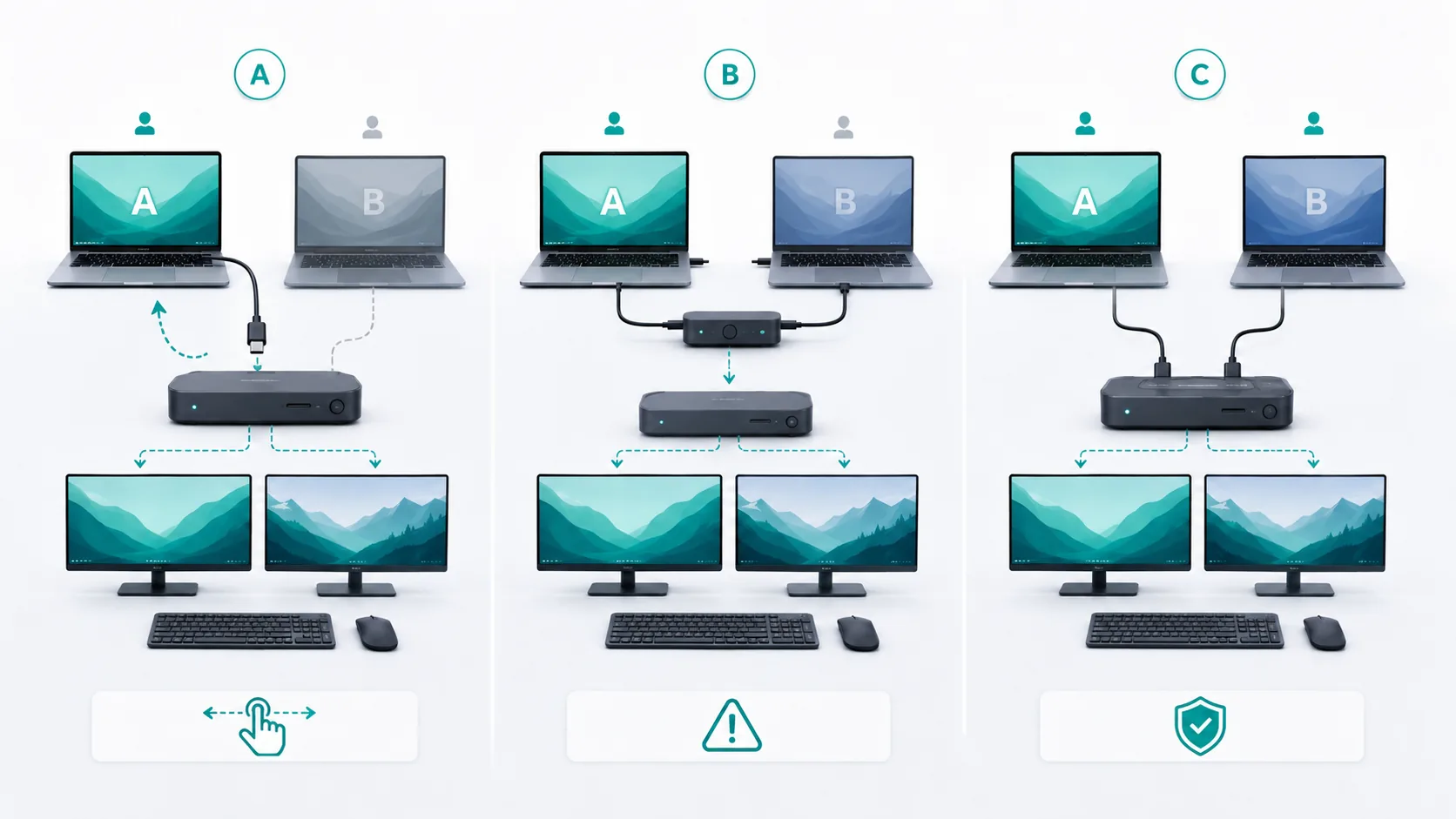
Yes, if “share” means one laptop at a time. The simplest option is often to move the dock's host connection from one laptop to the other. That can be a Keep Existing Gear or Buy Nothing answer, provided both laptops are independently compatible with the same dock and cable.
A normal single-host dock does not become a two-computer dock just because both laptops have USB-C. Electronic switching before a dock needs an exact supported switch and topology. A purpose-built dual-host KVM dock is a different architecture.
| Architecture | What actually happens | Purchase decision |
|---|---|---|
| A. Move the host connection manually | One laptop is physically connected to the dock at a time | Usually Buy Nothing if both host paths work |
| B. Put an electronic switch before the dock | A separate device selects which laptop reaches the dock | Do not buy until the exact switch-to-dock topology is documented |
| C. Use a dual-host KVM dock | The device is designed with two host connections and switching | Evaluate only an exact model and all display, data, power, and software conditions |
This page covers reusing one dock. Running two laptops with two monitors is a separate desk-architecture decision.
A. Manually move the dock host connection
Manual reconnection uses the least hardware:
Laptop A OR Laptop B -> dock host connection -> dock devices
Each laptop still needs its own dock compatibility check. Test Laptop A with the dock, then test Laptop B. For each computer, confirm the functions you need:
- USB data and connected peripherals;
- Ethernet or audio, if used;
- the required display count, resolution, refresh rate, and extended or mirrored mode;
- charging, if you expect the dock to provide it;
- the required operating-system, driver, and firmware support;
- the exact host cable and port.
“Both laptops have USB-C” is not a compatibility test. USB-IF documentation separates the USB-C connector from USB4, USB data rates, USB Power Delivery, and Alternate Modes. The plug can fit even when video, data speed, or charging support differs.
Only the connected laptop receives the dock's data and display functions. The other laptop is disconnected from the dock, so this is not simultaneous service. If the dock's Power Delivery is not verified for both computers, or if you want both batteries charging continuously, keep each original charger connected.
This works best when you switch occasionally and moving one cable is acceptable. It may not suit a desk where both laptops must remain connected, switching is constant, or reconnecting displays and USB devices disrupts the workflow. SetupMeld has not tested an exact reconnect cycle or sleep/wake setup for this article, so no reliability promise is made.
B. Electronically switch the dock between laptops
The intended connection is:
Laptop A + Laptop B -> exact host switch -> dock -> devices
Here, the switch sits in the most demanding part of the chain. It may need to carry USB data, one or more video paths, and Power Delivery through the same connection. Port direction matters as well. A device that selects one peripheral for two computers is not automatically designed to place a full dock downstream.
Before using a switch in this position, check that the exact manufacturer documentation covers:
- two laptop-facing host connections and one dock-facing connection, in the required direction;
- explicit support for a dock downstream, not merely a monitor or USB peripheral;
- USB version and bandwidth through the switch;
- native DisplayPort Alt Mode, USB4, or Thunderbolt video behavior as applicable;
- display count, resolution, refresh rate, and extend/mirror conditions;
- Power Delivery direction, maximum watts, and required power adapters;
- whether only the selected laptop charges or the inactive laptop also receives power;
- cable specifications and length limits;
- operating-system, driver, and firmware conditions;
- what happens to USB data and displays on the inactive host.
A “USB4,” “40 Gbps,” or “Thunderbolt-compatible” label is not sufficient. Intel's Thunderbolt 4 PC profile documents a 40 Gbps minimum and dual-4K baseline under certification conditions. It does not prove that an unspecified switch supports this two-host-to-dock topology or the required charging behavior.
SetupMeld has not verified an exact current pre-dock switch for this topology. Until an exact product documents the complete video, USB data, Power Delivery, direction, and downstream-dock path, the result remains UNKNOWN. This article does not recommend a passive splitter, generic bidirectional selector, or unnamed USB-C/USB4/Thunderbolt switch. Keep manually reconnecting the dock until an exact product documents the entire path.
C. Use a purpose-built dual-host KVM dock
A dual-host KVM dock has two computer connections:
Laptop A + Laptop B -> dual-host KVM dock -> selected host + shared devices
Host switching is part of the exact product specification, not an implied feature of a normal dock.
StarTech.com's 129UE-USBC-KVM-DOCK is a documented category example. Its manufacturer datasheet, verified on August 14, 2026, specifies two USB-C hosts, dock USB/network functions, two DisplayLink-based outputs up to 4K60, and charging rated at 90 W for the active laptop and 45 W for the standby laptop under the stated host-port and power conditions.
Those numbers apply only to that exact 129UE model and cannot be transferred to another KVM dock. Its display path requires DisplayLink software on Windows or macOS, so driver support, installation requirements, permissions, and the current OS version are part of compatibility. “Standby laptop receives 45 W” does not establish that the standby laptop also retains dock USB data or display access.
The example proves that the dual-host KVM-dock architecture exists, but it is not a current purchase recommendation. Current availability, the exact current OS-version matrix, repeated switching behavior, sleep/wake behavior, and high-bandwidth webcam or storage performance remain unknown from the stored evidence. Verify a candidate's current product page, manual, firmware, and software support before buying.
When one shared dock is not the smallest answer
Both laptops do not have to pass through the same box.
- Keep the dock with one laptop. If only one computer needs Ethernet, extra ports, or docked displays, leave it connected there and use direct connections with the other laptop.
- Keep both original chargers. This removes simultaneous-charging behavior from the dock or switch decision.
- Use two docks. If both laptops must stay connected, two independently compatible docks avoid asking one normal dock to switch hosts. Displays and peripherals may still need their own verified sharing path.
- Buy Nothing. If moving the host connection already fits the routine, no switching hardware is required.
The decision
- Choose manual host-cable movement when both laptops work with the dock independently and one-at-a-time service is acceptable.
- Choose no pre-dock electronic switch yet when the exact direction, dock topology, video, USB data, and Power Delivery behavior are not documented.
- Evaluate a purpose-built dual-host KVM dock when you need explicit host switching and accept its exact display, power, driver, and OS conditions.
- Use separate docks or original chargers when both laptops need to remain connected or powered.
The exact answer stays UNKNOWN until you know both laptop models, the dock model and revision, the host cable, required display mode, USB devices, charging needs, operating systems, drivers, and firmware.
Verify that each laptop independently passes the dock compatibility chain. Use KVM vs Docking Station to confirm the device category, or move to the MacBook + Windows Dual Monitor Setup guide when the wider display and peripheral architecture is the real problem.
Sources & Verification
| Source | Source type | What it verifies | Relevant conditions | Last checked |
|---|---|---|---|---|
| Dell: Set Up Your Docking Station | Manufacturer support | A dock connects one laptop to displays/peripherals and may charge it; exact model/host/firmware control | Exact dock and both laptops must be checked separately | 2026-08-14 |
| USB-IF: USB Type-C capability guidelines | Standards-owner guideline | USB-C does not guarantee USB4, data rate, Power Delivery, or Alternate Mode | Host, cable, intermediary, and dock all matter | 2026-08-14 |
| Intel: Thunderbolt Technology | Technology-owner documentation | Thunderbolt 4 PC profile baseline and its scope | Does not verify an unnamed switch-to-dock topology | 2026-08-14 |
| StarTech.com: KVM compatibility guidance | Manufacturer support | KVM function and exact compatibility dimensions | Exact interfaces, hosts, monitors, and USB devices required | 2026-08-14 |
| StarTech.com: 129UE-USBC-KVM-DOCK datasheet | Exact-product manufacturer datasheet | Two-host switching, dual DisplayLink 4K60, dock functions, 90 W/45 W charging | Exact 129UE model; DisplayLink, host USB-C PD, power, and OS conditions | 2026-08-14 |
| Microsoft: Troubleshoot external monitor connections | OS-vendor support | Hardware monitor-count boundary and splitter limitation | Windows 11/10; exact graphics hardware required | 2026-08-14 |
Sources below were last substantively verified on August 14, 2026. Current availability and any exact pre-dock switch remain unverified.