MacBook + Windows Dual Monitor Setup: Choose the Right Architecture
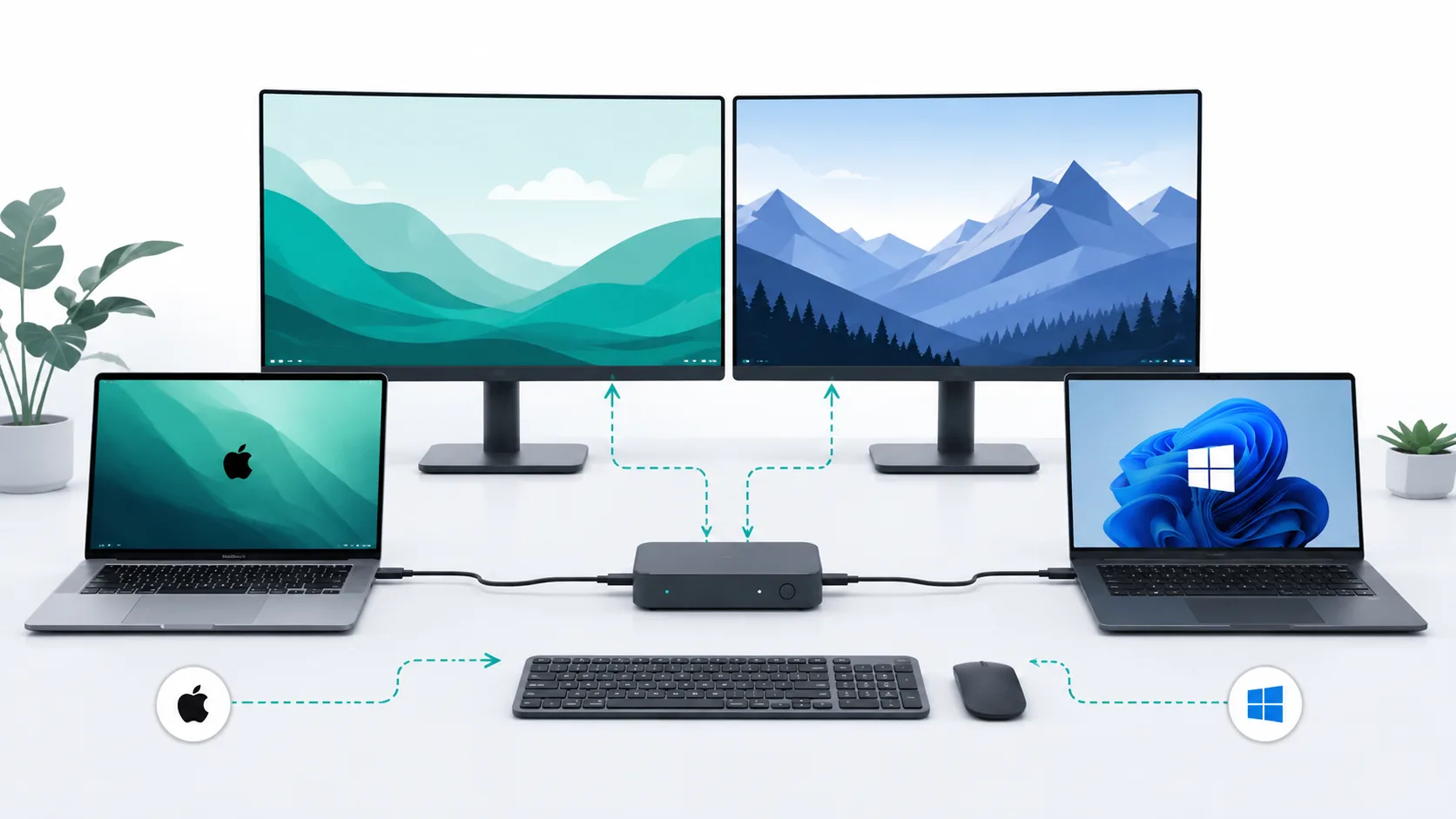
Sharing two monitors between a MacBook and a Windows laptop does not always require a large all-in-one dock or KVM. When both monitors have two inputs, the simpler option is often to connect each computer to its own set of monitor inputs, keep the original laptop chargers, and put only the keyboard and mouse on a USB switch.
Choose a dual-monitor KVM when you want both displays and the input devices to switch together. Add a dock when a laptop needs more ports, network access, or one-cable charging. Some desks need both devices, but many need neither.
What matters is the complete connection path, not the logo on the box. Every part of that path must carry two independent display streams at your target resolution and refresh rate.
Start with the exact MacBook—not the word “MacBook”
Display support varies by MacBook model, chip generation, and sometimes lid state. Find the exact model first, then check Apple's current Display Support specification before choosing a dock or KVM.
The reference Mac for this guide is a 14-inch MacBook Pro with M4 Pro, introduced in 2024. Apple documents support for up to two external displays at up to 6K and 60 Hz over Thunderbolt while the built-in display remains active. Two external 4K60 monitors therefore fall within the Mac's native ceiling, provided each monitor receives a supported independent display path.
Do not carry that conclusion over to a MacBook Air, a base-model MacBook Pro from another generation, or a Mac that supports its second external display only with the lid closed. For any other MacBook, its exact specification is the first gate.
The reference setup
The connection diagrams and recommendations below use this example:
| Component | Reference requirement |
|---|---|
| Mac | 14-inch MacBook Pro, M4 Pro, 2024 |
| macOS | macOS Tahoe 26, updated as of the verification date |
| Windows laptop | Windows 11 laptop with Thunderbolt 4, plus an OEM specification that confirms dual 4K60 output |
| Monitors | Two 3840×2160 60 Hz monitors, each with at least two compatible inputs |
| Shared devices | One wired USB keyboard and one wired USB mouse |
| Charging | Both laptops must stay powered during desk use |
| Switching | Manual monitor-input switching is acceptable; one-button switching is optional |
| Webcam and audio | Not required to switch in this example |
The Windows laptop is described by capability instead of model name for a reason. Windows can extend a desktop across multiple displays, but Microsoft notes that the computer's graphics adapter may limit how many monitors it supports. Thunderbolt 4 certification supplies a useful dual-4K baseline for PCs. The laptop manufacturer's specification must still confirm dual 4K60 output for the exact machine.
Nine things to check before buying anything
- Exact Mac model and chip. Check its supported external-display count and required lid state.
- Exact Windows model and GPU. Confirm the number of independent displays, not merely the number of ports.
- Monitor count. A dual-monitor KVM needs two monitor outputs and enough matching inputs from both computers.
- Resolution and refresh rate. “4K” is incomplete without the display count and refresh rate.
- Monitor inputs. Two inputs per monitor can eliminate the need for a video KVM.
- Video protocol. Identify native HDMI/DisplayPort/Thunderbolt, MST, or DisplayLink for every path.
- USB-C capabilities. USB-C is a connector shape. It does not, by itself, guarantee video, USB4 bandwidth, or Power Delivery.
- What must be shared. Keyboard and mouse only? Or also displays, webcam, audio, storage, and Ethernet?
- Charging. Decide whether keeping the original chargers is acceptable or whether single-cable charging is a real requirement.
Four valid architectures
| Architecture | What switches | Charging | Driver dependency | Complexity | Best fit |
|---|---|---|---|---|---|
| KVM-led | Displays and keyboard/mouse; possibly other USB/audio on exact models | Usually separate unless the exact KVM documents sufficient Power Delivery | Product-specific; conventional models switch host video, while hybrids may add drivers | Medium | Frequent, coordinated switching |
| Dock + KVM | Displays and peripherals through a KVM, with dock expansion before it | Can be integrated when each exact dock supports the host | Depends on dock architecture | High | One-button switching plus real dock/charging needs |
| Dock-led + peripheral switch | Monitor inputs separately; keyboard/mouse through USB or verified software | Dock may charge one host | Native if designed that way; software path optional | Low to medium | Only one laptop needs a dock |
| Minimal-change | Monitor inputs manually; keyboard/mouse separately or through USB switch | Keep original chargers | None for native video | Lowest hardware complexity | Existing monitors have enough inputs |
There is no universal winner. For this reference scenario, the computers can already generate the required display streams, the monitors have multiple inputs, and one-button switching is optional. That makes the minimal-change path the better fit.
Architecture D: Minimal-change setup
Here, each computer keeps its own video path.
Connection sequence
- Connect the Mac to Monitor 1 input A through a supported Thunderbolt/USB-C-to-DisplayPort path.
- Connect the Mac to Monitor 2 input A through HDMI or another supported independent Thunderbolt display path.
- Connect the Windows laptop's two verified display outputs—or a compatible Thunderbolt 4 dock—to Monitor 1 input B and Monitor 2 input B.
- Connect the keyboard and mouse to a USB peripheral switch. Connect one upstream USB cable from the switch to each computer.
- Keep the Mac's Apple charger and the Windows laptop's OEM charger connected.
- To change computers, switch both monitors to the other input and select the matching host on the USB switch.
Neither computer has to pass through the same dock, and laptop charging does not depend on an intermediary device. You do have to switch two monitor inputs and the USB switch manually. If you change computers only a few times each day, those extra button presses may be worth the simpler compatibility chain.
What you can keep
- Both monitors, if they have the required inputs and modes.
- Existing compatible video cables and adapters.
- Both original chargers.
- Your current keyboard and mouse.
- An existing dock, if one laptop genuinely needs it and its display path is verified.
If separate keyboards and mice already work for you, the correct answer may be Buy Nothing.
Architecture C: Use a dock only where it helps
One laptop may need a dock even when the other does not. For example, the Windows laptop might need Ethernet, more USB ports, and charging through one cable while the Mac already has adequate native outputs.
In that case, use a verified dock with the Windows laptop, keep the Mac on direct native display connections, and switch through the monitors' input controls plus a USB switch. The same dock does not have to serve both macOS and Windows.
Check the dock's exact:
- host protocol and supported computers;
- number of independent displays;
- resolution and refresh combinations;
- Power Delivery to the host;
- driver and firmware requirements;
- monitor output interfaces.
Two physical display connectors on a dock do not prove that every host can drive two extended displays through it.
Architecture A: Use a KVM when coordinated switching matters
A dual-monitor KVM fits desks where one control needs to move both displays and the keyboard/mouse between computers.
For the reference scenario, the KVM must support:
- two computers;
- two monitor outputs;
- two independent 4K60 video paths from each computer;
- the exact HDMI or DisplayPort interfaces used by the hosts and monitors;
- the keyboard and mouse, plus any additional USB devices you expect to switch;
- suitable monitor-identification and switching behavior for the exact setup.
A KVM cannot create the second display stream. Each computer must supply two compatible streams before they enter the KVM. The Windows laptop might use a dock for those outputs, while the Mac might use HDMI plus a Thunderbolt display path. Each conversion remains part of the compatibility chain.
Charging also needs a separate check. Some USB-C KVMs and hybrid KVM docks include Power Delivery, but that does not mean the KVM will charge either laptop in your setup. Wattage, the power adapter, and the host ports are exact-model conditions.
Architecture B: Dock + KVM
This path offers the most flexibility and brings the most complexity.
The dock can combine a laptop's displays, USB devices, network, and charging. The KVM then switches the shared displays and peripherals. This arrangement may be worthwhile when you need both a one-cable laptop connection and coordinated switching.
It also adds failure points:
- the host may not generate the required display streams;
- the dock may use a display topology that behaves differently on macOS and Windows;
- the KVM may not pass the target count, resolution, or refresh rate;
- the dock or KVM may not supply enough charging power;
- cables or adapters may reduce the supported mode;
- firmware, drivers, or monitor-identification behavior may affect reconnection.
Use this architecture only when those extra functions meet a real requirement. It is excessive if the only job is sharing a keyboard and mouse.
MST and DisplayLink are not the same solution
DisplayPort MST
Multi-Stream Transport allows a compatible DisplayPort source to carry multiple display streams through an MST hub or daisy chain. This is a native GPU display path.
Current Plugable support documentation lists Windows as supporting MST and macOS as not supporting it for multiple independent extended displays. That broad macOS statement comes from current device-manufacturer support, not an Apple-authored MST page, so SetupMeld treats the evidence as medium confidence and keeps the condition visible.
Do not assume a dual-output USB-C dock that uses MST will produce two independent extended displays on a Mac simply because it does so on Windows.
DisplayLink
DisplayLink works differently. Its software creates virtual displays, encodes screen updates, and sends them over USB to DisplayLink hardware.
As of the verification date, Synaptics lists DisplayLink Manager 16.2 as supporting macOS Tahoe 26. On macOS, the software requires Screen Recording permission and background operation.
DisplayLink can help when a native path does not provide enough displays, but it adds a driver, permissions, and questions tied to the exact device and workload. It is not a transparent substitute for native DisplayPort or Thunderbolt video. The reference M4 Pro already has native dual-display support, which makes DisplayLink optional rather than the default recommendation.
Charging: keep it separate until you prove it can be combined
Keeping the original chargers removes one entire compatibility variable.
Before moving to single-cable charging, verify:
- how much power the laptop requires;
- how much power the dock, KVM, or hybrid provides to each host;
- whether both laptops charge simultaneously;
- whether the device reserves part of its advertised input power for itself;
- whether the exact USB-C host port supports Power Delivery.
If any answer is missing, leave the OEM charger connected.
Troubleshoot in layers
When a two-computer, two-monitor setup fails, test one boundary at a time.
- Test each monitor directly with the Mac at the target resolution and refresh rate.
- Test both Mac displays together through the planned native paths.
- Repeat the direct test with the Windows laptop.
- Add the dock, if used, and repeat before connecting a KVM.
- Add the KVM or USB switch and test switching.
- Test sleep and wake on both computers.
- Add webcam, audio, storage, or Ethernet only after the required displays and input devices work.
Following that order makes it easier to tell whether the limit is in the host, cable, dock, KVM, monitor input, driver, or optional peripheral.
The decision in one minute
- Use existing monitor inputs + a USB switch when manual display switching is acceptable.
- Add a dock when a laptop actually needs ports, network, or verified charging.
- Add a dual-monitor KVM when both displays and input devices must switch together.
- Use Dock + KVM or a hybrid only when you need both host expansion and coordinated switching.
- Consider DisplayLink only after accepting its driver and permission requirements.
- Buy Nothing when your current inputs, cables, chargers, and peripherals already meet the workflow.
First confirm the Mac's exact external-display ceiling, then verify any proposed dock with the dock compatibility chain. If the hardware category is still unclear, compare KVM switches and docking stations.
Sources & Verification
| Source | Source type | What it verifies | Relevant conditions | Last checked |
|---|---|---|---|---|
| Apple: MacBook Pro 14-inch M4 Pro/Max (2024) Tech Specs | Manufacturer specification | Exact reference Mac ports and display ceiling | M4 Pro, 14-inch, 2024 | 2026-08-14 |
| Apple: How many displays can be connected to MacBook Pro | Manufacturer support | Display limits vary by chip; hubs do not raise the maximum | Use the section for the exact Mac | 2026-08-14 |
| Apple: Connect external displays with your Mac | OS-vendor guide | Check ports, display count, cables, and adapters | macOS 26; exact Mac required | 2026-08-14 |
| Microsoft: How to use multiple monitors in Windows | OS-vendor support | Extend mode and display arrangement | Windows 11/10; hardware support separate | 2026-08-14 |
| Microsoft: Troubleshoot external monitor connections | OS-vendor support | GPU monitor-count boundary; splitter limitation | Exact PC/GPU required | 2026-08-14 |
| Intel: Thunderbolt Technology | Technology-owner documentation | Thunderbolt 4 PC dual-4K and bandwidth minimums | Certified PC/accessory; device conditions apply | 2026-08-14 |
| USB-IF: USB Type-C language and capability guidelines | Standards-owner guideline | USB-C does not imply USB4, PD, or other capabilities | Check host, device, and cable | 2026-08-14 |
| VESA: DisplayPort | Standards-owner documentation | What MST does | Compatible source/topology required | 2026-08-14 |
| Plugable: DisplayPort MST Explained | Manufacturer support | Current documented Windows/macOS MST behavior | Broad macOS statement treated at medium confidence | 2026-08-14 |
| Synaptics: DisplayLink macOS Software | Technology-vendor support | Current DisplayLink Manager/macOS support | Exact DisplayLink hardware still required | 2026-08-14 |
| DisplayLink: First Time Configuration | Technology-vendor support | Screen Recording and background permissions | macOS with DisplayLink hardware | 2026-08-14 |
| Dell: Set Up Your Docking Station | Manufacturer support | Dock ports, display, PD, host, and firmware conditions | Exact dock and host required | 2026-08-14 |
| StarTech.com: What is a KVM switch? | Manufacturer support | KVM function and compatibility dimensions | Exact KVM required | 2026-08-14 |