Can Your MacBook Run Two External Monitors?
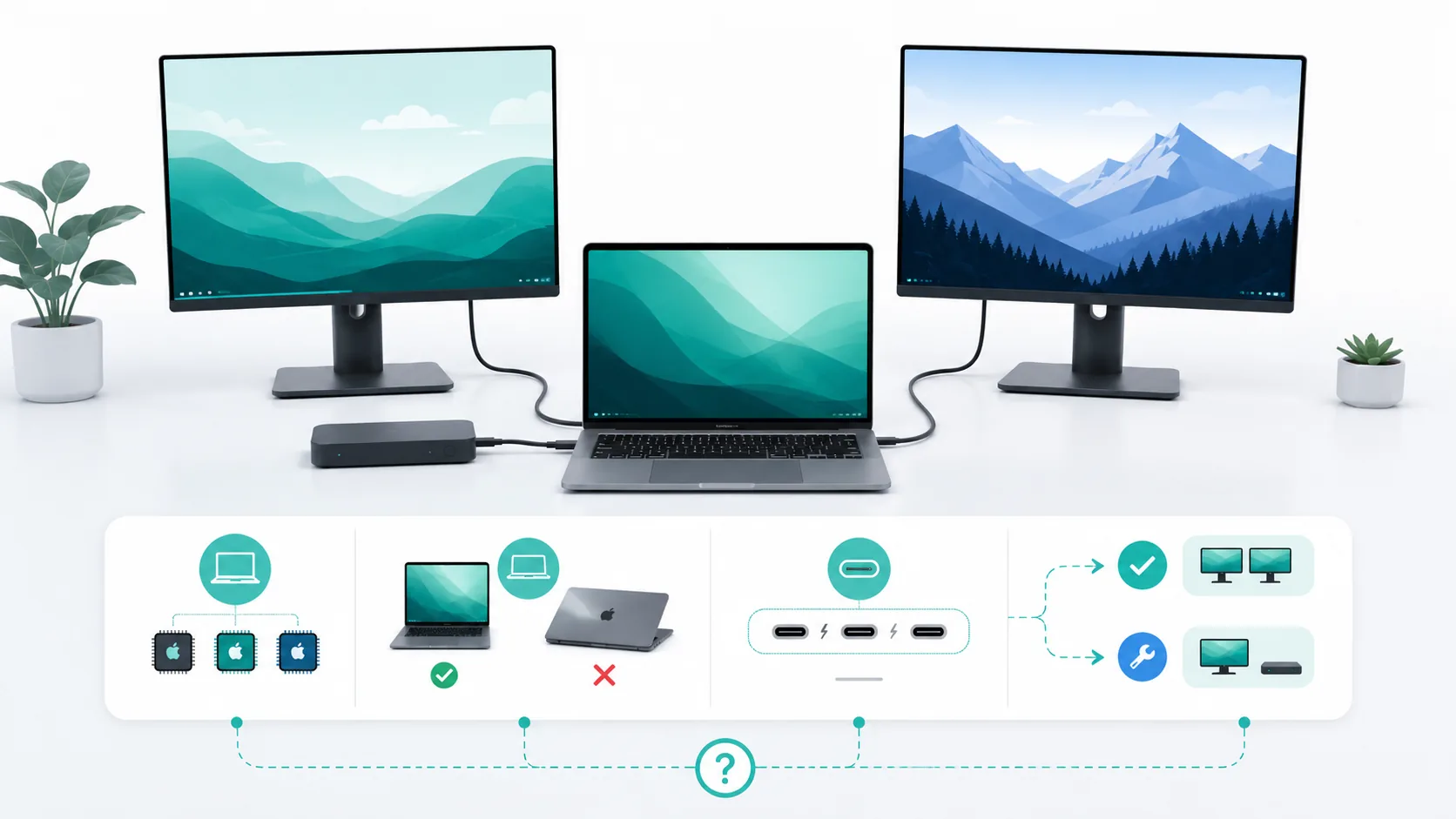
Yes, some current MacBooks can run two external displays and keep the built-in screen active. Base-M3 MacBook Air and MacBook Pro can also run two, but only with the lid closed and several Apple requirements in place. For a historical, unlisted, or unidentified MacBook, the honest answer is unknown until you check the exact model and chip.
Do not start by counting USB-C ports or monitor outputs on a dock. Start with four facts:
- The exact MacBook family, year, and chip tier.
- Whether the built-in display must remain active.
- Whether you need two independent desktops rather than mirrored copies.
- The resolution and refresh rate required from each monitor.
Apple's display specification sets the native ceiling. Cables, adapters, docks, and monitors still have to support the chosen path, but they cannot replace that first check.
A compact current and recent model guide
This is a current-and-recent decision table, not a complete Apple-silicon history. Every factual row comes from a directly applicable Apple section.
| Current or recent MacBook family | Built-in display plus two external displays? | Important condition |
|---|---|---|
| MacBook Air with M5 | Yes | Apple lists two external displays up to 6K at 60 Hz or 4K at 144 Hz. Closing the lid does not increase the count. |
| MacBook Air with M4 | Yes | Same two-display ceiling while the built-in screen remains active; use the documented Thunderbolt 4 path and mode limits. |
| MacBook Air with base M3 | No for built-in plus two | Two external displays require the lid closed, external input devices, power, macOS Sonoma 14.3 or later, and Apple's connection order. |
| MacBook Pro with base M5 | Yes | Apple lists two external displays up to 6K60 or 4K144 over supported Thunderbolt or HDMI paths. |
| MacBook Pro with M5 Pro | Yes | Apple documents a maximum of three external displays with the built-in screen active. |
| MacBook Pro with M5 Max | Yes | Apple documents a maximum of four external displays with the built-in screen active. |
| MacBook Pro with M4 or M4 Pro | Yes | Apple lists the built-in display plus two externals up to 6K60 or 4K144 under its current conditions. |
| MacBook Pro with M4 Max | Yes | Apple documents a maximum of four external displays with the built-in screen active. |
| MacBook Pro with base M3 | No for built-in plus two | Two external displays require the lid closed, external input devices, power, macOS Sonoma 14.6 or later, and Apple's connection order. |
| Historical or unlisted exact model | UNKNOWN here | Open Apple's current page for that exact model and chip. Do not inherit a nearby row. |
“Pro” and “Max” are not decoration. M5, M5 Pro, and M5 Max have different Apple-documented ceilings. Base M3 also has a different lid rule from the current M4/M5 rows. Keep the chip tier in the result.
What “two external monitors” means
First, count only the displays outside the laptop. If the built-in screen stays active beside two monitors, the Mac is driving three active displays. If two monitors work only after the lid closes, the system is driving two active displays in that configuration. Both may be called “dual monitors,” but they are different capabilities.
Extended and mirrored displays are different too. Two outputs can duplicate one desktop without creating two independent workspaces. The useful Apple result includes external display count, lid state, resolution, refresh rate, and allowed connection path—not merely the number of sockets you can fill.
Base M3: the lid condition carries the answer
For covered base-M3 MacBook Air and MacBook Pro models, Apple documents a specific sequence:
- Connect an external keyboard and mouse or trackpad.
- Use macOS Sonoma 14.3 or later on MacBook Air, or macOS Sonoma 14.6 or later on MacBook Pro.
- Connect the Mac to power. A USB-C display may provide it; otherwise use the applicable power adapter.
- Connect the first display, up to 6K at 60 Hz or 4K at 144 Hz.
- Close the laptop lid.
- Connect the second display, up to 5K at 60 Hz or 4K at 100 Hz.
If both external displays are connected and you open the lid, Apple says the secondary display goes dark or disconnects. That is why “M3 supports two monitors” is incomplete. If the built-in screen must stay active, this base-M3 path does not meet the requirement.
Apple also says that if a display connected through a hub or dock only mirrors the built-in display, connect it directly to a Mac port. That is a troubleshooting boundary, not proof that every dock is incompatible.
Find the native ceiling before choosing a dock
A supported hub or daisy chain may route multiple displays through one Thunderbolt port. Apple's current Air and Pro pages are equally clear that this does not raise the maximum display count. A dock can organize signals the Mac already supports. It cannot turn a lower native GPU ceiling into a higher one.
After the Mac passes, verify the rest of the path:
- the selected Mac port and native video protocol;
- the host cable and every adapter;
- the dock's exact macOS display table, if a dock is used;
- both monitor inputs;
- the required resolution, refresh rate, and extended mode.
The exact 14-inch M4 Pro MacBook Pro previously verified for this guide, for example, has Thunderbolt 5 USB-C ports with native DisplayPort output plus HDMI. That exact specification supports a native path; it does not transfer to another Mac by connector resemblance.
MST is not a Mac display-count shortcut
DisplayPort Multi-Stream Transport, or MST, carries multiple native DisplayPort streams from one compatible source through an MST hub or daisy-chain-capable display path.
VESA documents the transport. Plugable's support page, last substantively checked here on August 14, 2026, lists Windows as supporting MST and macOS as not using MST for multiple independent extended displays. SetupMeld keeps that broad macOS statement at medium confidence because it is manufacturer support documentation, not an Apple-authored MST statement.
A two-output USB-C dock working on Windows is not proof that it will create two independent Mac desktops. Check the dock's exact macOS topology and the Mac's native ceiling.
DisplayLink is a separate workaround architecture
DisplayLink does not raise the native GPU ceiling. Compatible DisplayLink hardware and software create a separate virtual-display path.
The non-Apple source record, last verified August 14, 2026, covers DisplayLink Manager 16.2 for macOS Tahoe 26. Its setup documentation requires Screen Recording permission and background operation. An exact device still needs its current resolution, refresh, OS, driver, permissions, media, security-policy, sleep/wake, and workload conditions checked.
An unnamed DisplayLink product is not treated here as equivalent to native output, and no reliability promise is made for an unspecified workload. Consider it only after the native limit is clear and the software/hardware tradeoff is acceptable.
Your decision in five steps
- Identify the exact MacBook and chip tier. Base M3, M3 Pro, and M3 Max are not one scope.
- Open Apple's exact display-support section. Record external count, built-in-display condition, resolution, refresh rate, and output combinations.
- Compare that result with your requirement. Two 4K60 screens is a different request from one high-refresh screen plus another display.
- Verify the complete native path. Check port, cable, adapter or dock, and monitor input after the host passes.
- If native support ends, choose deliberately. Accept fewer displays, accept a documented lid-closed path, or separately evaluate an exact DisplayLink setup.
You should finish with one of four outcomes:
- KEEP EXISTING GEAR / BUY NOTHING: The Mac and owned connection paths already meet the target.
- CHANGE THE CONDITION: Lid-closed use or a different display mode meets the workflow.
- EVALUATE DISPLAYLINK: Native support is insufficient, and the separate software/hardware conditions are acceptable.
- UNKNOWN: The exact Mac, target modes, or applicable Apple documentation has not been verified.
If the next question is how to combine this Mac with a Windows laptop, shared peripherals, charging, and two monitors, move to the separate desk-architecture guide. This page stops at the MacBook capability gate.
Next, use MacBook + Windows Dual Monitor Setup when you need a complete mixed-computer desk architecture. If a dock will sit in the path, run the exact model through the dock compatibility check before buying.
Sources & Verification
| Source | Source type | What it verifies | Exact locator / limitation | Last checked |
|---|---|---|---|---|
| Apple: How many displays can be connected to MacBook Air | Current manufacturer support | M4/M5 Air built-in-plus-two limits and hub maximum boundary | MacBook Air with M5 chip; MacBook Air with M4 chip; Two external displays; published 2026-03-10 | 2026-08-25 |
| Apple: How many displays can be connected to MacBook Pro | Current manufacturer support | M5/M4/base-M3 chip-tier ceilings, lid conditions, modes, and hub maximum boundary | Exact chip H2 plus child display-count heading; published 2026-03-10 | 2026-08-25 |
| Apple: Use dual monitors with MacBook Air and MacBook Pro with M3 | Current manufacturer support | Base-M3 lid, input, power, Sonoma, sequence, mode, and lid-open behavior | Check requirements; Connect displays; Arrange displays; published 2024-07-30 | 2026-08-25 |
| Apple: MacBook Pro 14-inch M4 Pro/Max (2024) Tech Specs | Exact-model manufacturer specification | Exact M4 Pro ports and native paths | Display Support; Charging and Expansion; exact-model scope | 2026-08-14 |
| Apple: Connect one or more external displays with your Mac | OS-vendor guide | Exact-model, port, cable, and adapter workflow | Before you begin; steps 2–4; macOS 26 edition | 2026-08-14 |
| VESA: DisplayPort | Standards-owner documentation | MST definition | One DP Output, Multiple Video Streams | 2026-08-14 |
| Plugable: DisplayPort MST Explained | Device-manufacturer support | Recorded Windows/macOS MST behavior | Which operating systems support DP MST; macOS statement remains MEDIUM confidence | 2026-08-14 |
| Synaptics: DisplayLink macOS Software and first-time configuration | Technology-vendor support | Recorded Manager 16.2/macOS Tahoe 26 support and permissions | Exact hardware/workload separate | 2026-08-14 |
Verification note: Apple documents 122212, 117373, and 101571 were directly retrieved and substantively verified on August 25, 2026. VESA, Plugable, Synaptics, the Apple exact M4 Pro specification, and the macOS guide were last substantively verified on August 14, 2026. SetupMeld has not performed hands-on device testing for this article.