Two Laptops, Two Monitors, One Keyboard and Mouse: The Best Ways to Share One Desk
Start with what is already on your desk
The simplest answer is often not “buy a KVM.”
Start with the equipment you already own. If both monitors have two usable video inputs, each laptop may be able to stay connected to both screens. Then the only thing left to share may be the keyboard and mouse.
Use this order:
- Check the existing monitor inputs.
- If video can stay direct, solve only the USB-peripheral problem.
- Add a full dual-monitor KVM only if frequent switching makes separate monitor and USB controls annoying.
- Consider a KVM-dock hybrid only after verifying both laptops, the display path, USB-C or Thunderbolt capabilities, operating-system behavior, and charging.
Buy Nothing and Keep Existing Gear are valid outcomes.
| Setup | Typical added cost | Complexity |
|---|---|---|
| Existing inputs + existing multi-device peripherals | $0 | Low |
| USB switch | roughly $25–$80 | Low |
| Shared dock | $0 if already owned; roughly $80–$250 if buying | Low–Medium |
| Dual-monitor KVM | roughly $100–$400 | Medium |
| KVM-dock hybrid | roughly $140–$425 | High |
These are representative U.S. price ranges as of August 27, 2026, not permanent prices. Prices change. SetupMeld does not rank these architectures by price, future affiliate availability, or commission potential.
Start with the gear you already have. Compatibility decides what can stay. Buying more hardware comes last.
Compare the five architectures
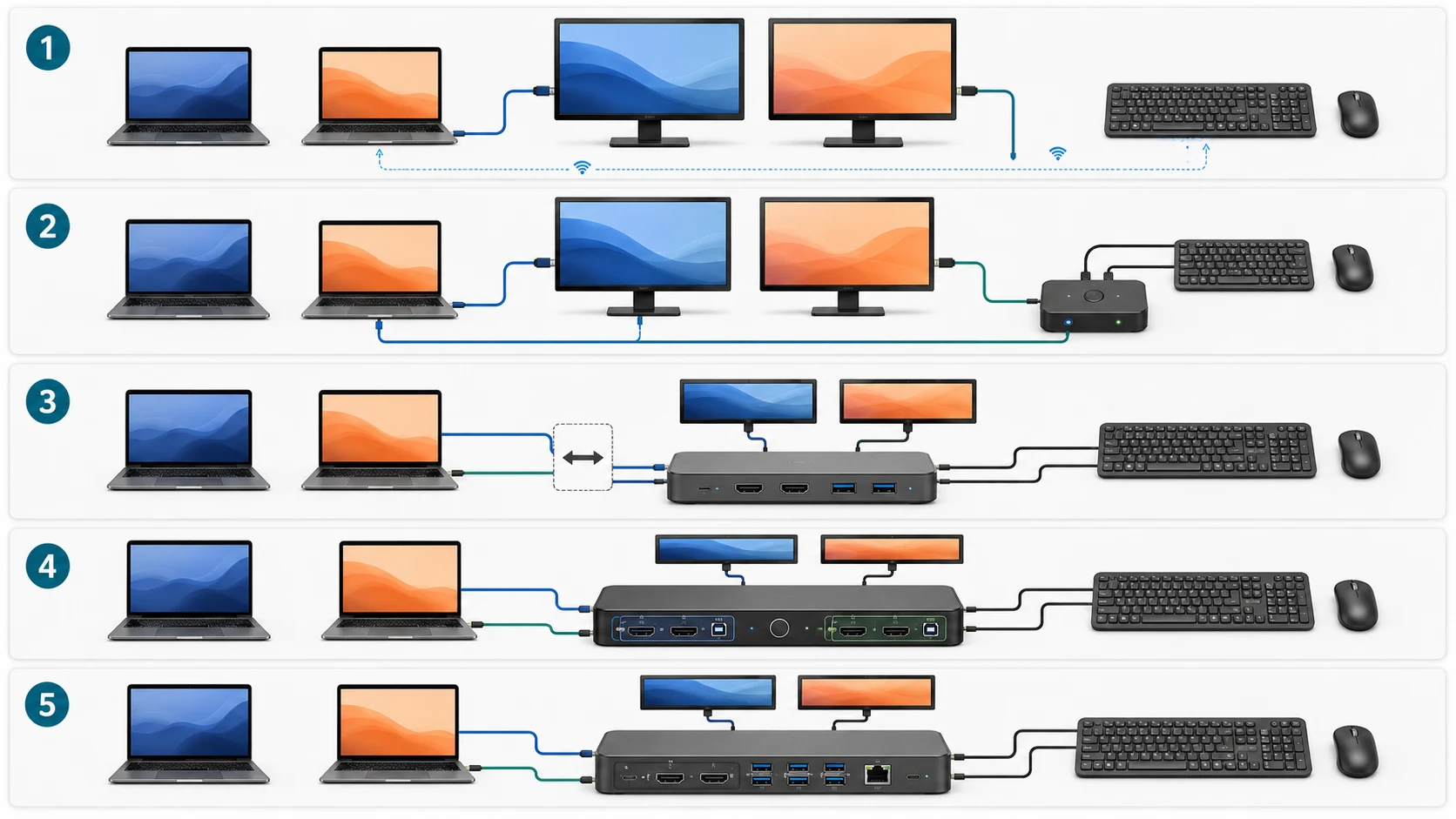
Existing monitor inputs + multi-device keyboard/mouse. Best fit: both monitors have enough inputs and your keyboard and mouse can pair with both computers. The advantage is zero added switching hardware. The risk is workflow friction because you may need to change two monitor inputs plus the peripherals separately. Choose it when you switch computers infrequently.
Some monitors can simplify this further with a built-in KVM. The DisplayNinja KVM-monitor list contains about 450 models, illustrating how common that architecture has become. The research snapshot used for this draft is dated August 23, 2026. A model count alone does not tell you how a particular monitor pairs its USB upstream ports with video inputs, so check the exact monitor manual before relying on that feature.
Monitor inputs + USB switch. Best fit: both laptops can stay directly connected to both displays, but ordinary USB peripherals need to move between hosts. The advantage is that video remains outside the switching hardware. The main risk is USB compatibility or bandwidth for devices such as webcams, storage, or audio interfaces. Choose it when the keyboard, mouse, and perhaps a few other USB devices are all that need one-button switching.
A UGREEN USB switch for two computers and four USB devices is an exact category example, not a recommendation. UGREEN describes its current switches as devices for sharing peripherals between two computers and explicitly notes that these switches do not transmit monitor video.
One shared dock. Best fit: you already own a dock that correctly drives both monitors and do not mind moving its host cable between laptops. The advantage is that one cable can move displays, USB devices, network access, and sometimes charging together. The risk is assuming that because a dock works with Laptop A, it will provide the same display and charging behavior with Laptop B. Choose this when switching is occasional.
A normal single-host dock is not automatically a two-computer switch. SetupMeld’s dedicated guide treats manual host-cable movement, an electronic switching layer, and a purpose-built dual-host KVM dock as separate architectures. For that deeper question, see Can You Share One Dock Between Two Laptops?.
Dual-monitor KVM. Best fit: both laptops already have suitable display outputs or docks, and you want one control to switch two monitors plus the keyboard and mouse. The advantage is coordinated switching. The main risk is video compatibility: the KVM must match the display count, connector type, resolution, refresh rate, and features you actually use. Choose it when you switch often enough that separate monitor and USB controls have become the problem.
This design keeps the KVM separate from the laptop’s docking function, so the KVM has fewer roles to perform. For the device-level distinction rather than repeating it here, see KVM vs Docking Station: Which Do You Actually Need?.
KVM-dock hybrid. Best fit: you want one device to handle docking, switching, dual displays, USB peripherals, and potentially charging for two laptops. The advantage is consolidation. The risk is also consolidation: the product must match both hosts, the display architecture, operating systems, peripherals, and charging needs. Choose it only after verifying those pieces and deciding that a simpler architecture will not meet your workflow.
The StarTech 129N-USBC-KVM-DOCK is an exact category example, not a recommendation. StarTech specifies two USB-C hosts, dual DisplayPort output, a five-port USB hub, Gigabit Ethernet, DisplayLink support, and simultaneous power delivery of up to 90 W to the active host and 45 W to the second computer.
Use this decision tree before buying anything
Do both monitors have an unused input that each laptop can use?
Yes → Keep video direct.
Then ask:
Can your existing keyboard and mouse switch between computers?
- Yes → Buy Nothing. Use the monitor input controls plus your existing multi-device peripherals.
- No → Add a USB switch. Keep the monitors direct and switch only the peripherals.
Laptop A ──────> Monitor 1 input A
         └─────> Monitor 2 input A

Laptop B ──────> Monitor 1 input B
         └─────> Monitor 2 input B

Keyboard ─┐
Mouse ────┼────> USB switch ─────> Laptop A / Laptop B
Other USB ┘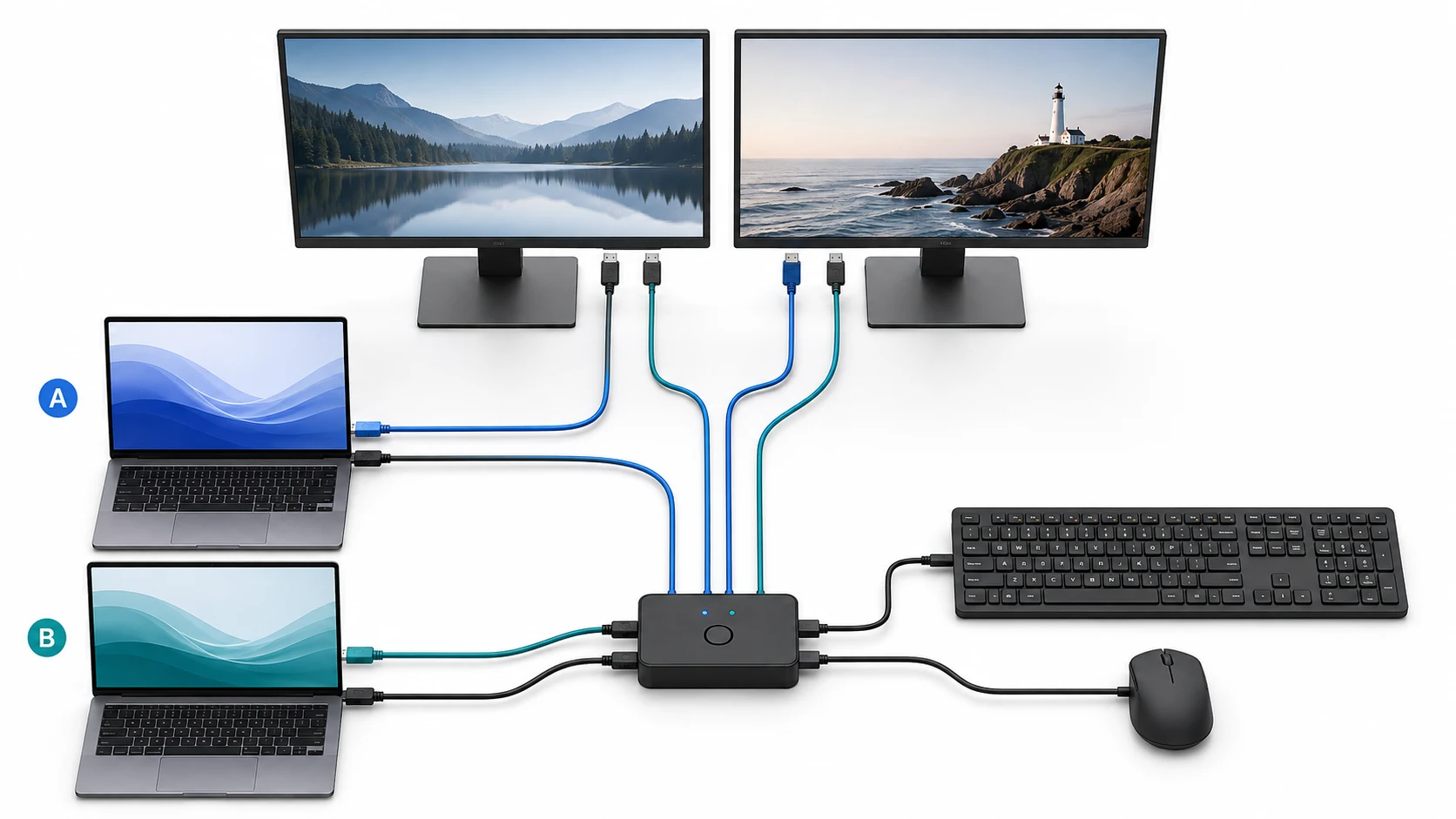
No → Ask whether one existing dock already drives both monitors correctly from both laptops.
- Yes, and you switch occasionally → Keep the shared dock. Move the host cable when needed.
- Yes, but you switch constantly → Consider a separate dual-monitor KVM.
- No → Verify laptop display support and dock compatibility before buying a more complex switching device.
Move to a KVM-dock hybrid only when you specifically need docking and switching combined and have checked both hosts end to end.
The important distinction is switching frequency. A few manual input changes per week are a different problem from moving between a work laptop and personal laptop many times every day.
Mac warning: two-display support is not the whole story
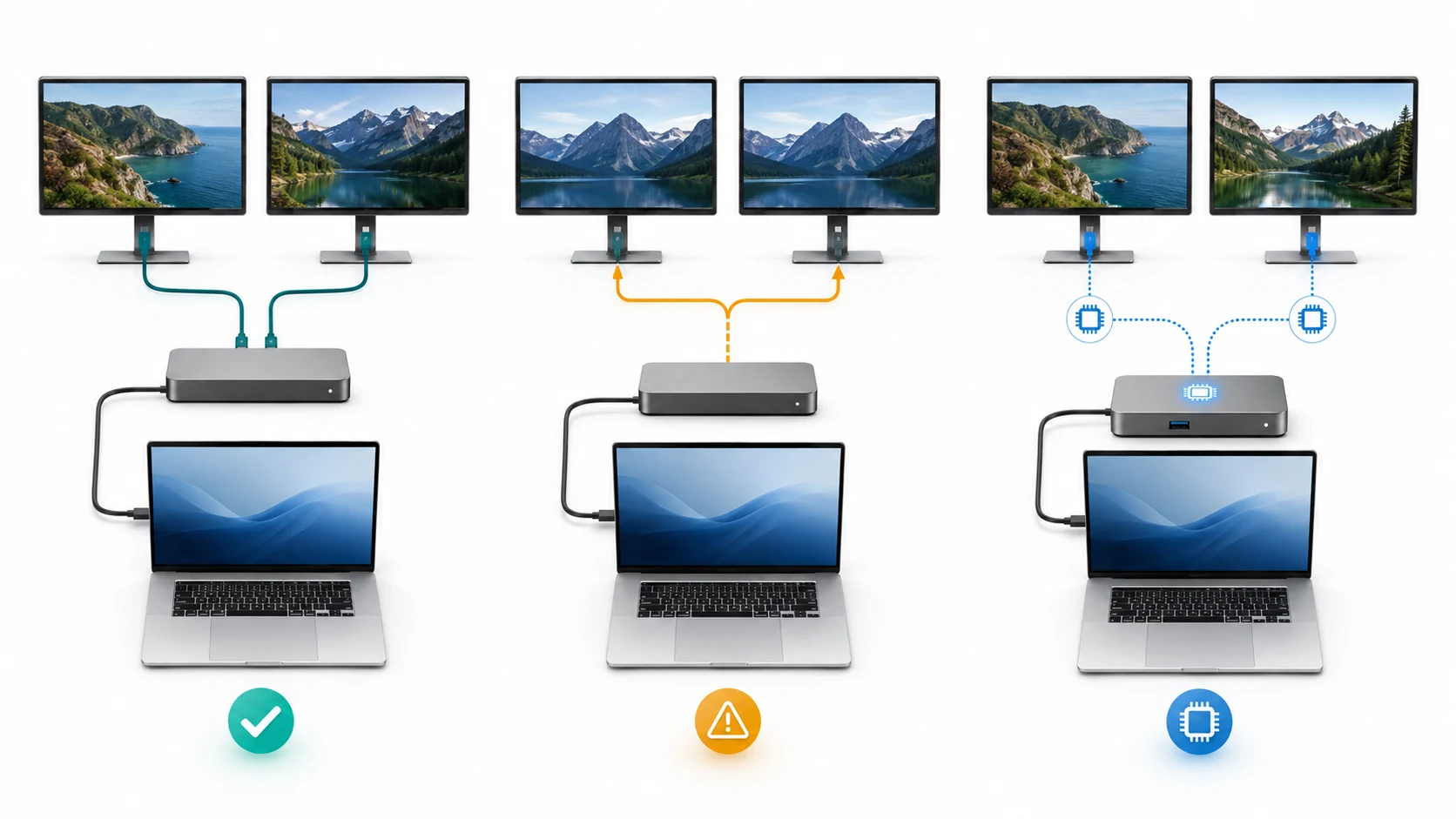
A Mac supporting two external displays does not automatically mean every dual-monitor USB-C dock can deliver two independent extended desktops.
Keep four concepts separate.
Native display support is what the Mac itself can drive under Apple’s documented conditions.
MST is used by many multi-display USB-C products to split a DisplayPort stream across displays. Cable Matters’ MST documentation notes that macOS does not natively support MST for independent extended displays through its MST hardware, which is why a topology that extends two displays on Windows may mirror them on a Mac.
DisplayLink uses USB plus a software layer instead of relying only on the same native display path. StarTech’s dual-host KVM dock is one example of a product using DisplayLink for multi-display operation across supported Windows and macOS hosts.
Thunderbolt provides a different high-bandwidth display and data path, but the Thunderbolt label does not erase the display limits of the exact computer.
Before choosing a dual-monitor switching architecture for a Mac, check Can Your MacBook Run Two External Monitors? and, for mirroring, a blank screen, or only one working display, MacBook Docking Station Dual Monitors Not Working. SetupMeld’s dock-compatibility guide also separates native video, MST, and DisplayLink instead of treating every dual-output USB-C dock as equivalent.
FAQ
Do I need a KVM for two laptops and two monitors?
Not necessarily. If both monitors can stay connected to both laptops, multi-device peripherals or a USB switch may be enough. A full KVM makes more sense when you want both displays and the USB peripherals to change computers together, especially if you switch frequently.
Can two laptops share one dock?
Yes, but a standard dock generally serves one active host connection at a time. The simplest architecture can therefore be moving the host cable between laptops, provided both computers are independently compatible with that dock. Purpose-built dual-host hardware is a different architecture. See Can You Share One Dock Between Two Laptops? for the detailed decision.
Why can the same dual-monitor dock behave differently on Windows and Mac?
Because “USB-C” does not define one universal dual-display method. A Windows configuration may use DisplayPort MST for independent extended displays while the same MST path does not produce two independent extended desktops on macOS. Other docks use DisplayLink or Thunderbolt, and the computer’s own display capabilities still matter.
Sources & Verification
Verification date: August 27, 2026.
The public draft intentionally keeps model-level technical detail out of this architecture hub.
- UGREEN — USB sharing switches. Current manufacturer documentation verifies the peripheral-only architecture: two computers can share multiple USB devices, while the switch does not carry monitor video.
- StarTech — 129N-USBC-KVM-DOCK. Manufacturer documentation verifies the dual-host KVM-dock example, including dual displays, USB, Ethernet, DisplayLink operation, and 90 W/45 W power delivery to the two connected hosts.
- Cable Matters — MST documentation. Manufacturer documentation verifies the key macOS warning: its MST display architecture does not provide native independent MST extended desktops on macOS.
- DisplayNinja — KVM Switch Monitor List. The list contains 450 monitors with built-in KVM capability. The source snapshot retained for this draft is dated August 23, 2026.
- SetupMeld existing guides. The detailed explanations of shared docks, dock compatibility, Mac display limits, MST/DisplayLink behavior, KVM-versus-dock selection, and peripheral sharing remain in their dedicated pages rather than being duplicated here.
The price ranges in this hub are representative August 27, 2026 price bands retained from the article’s research notes, not a product-price comparison or permanent market claim. They should be treated as cost-scale guidance only.