MacBook Docking Station Dual Monitors Not Working
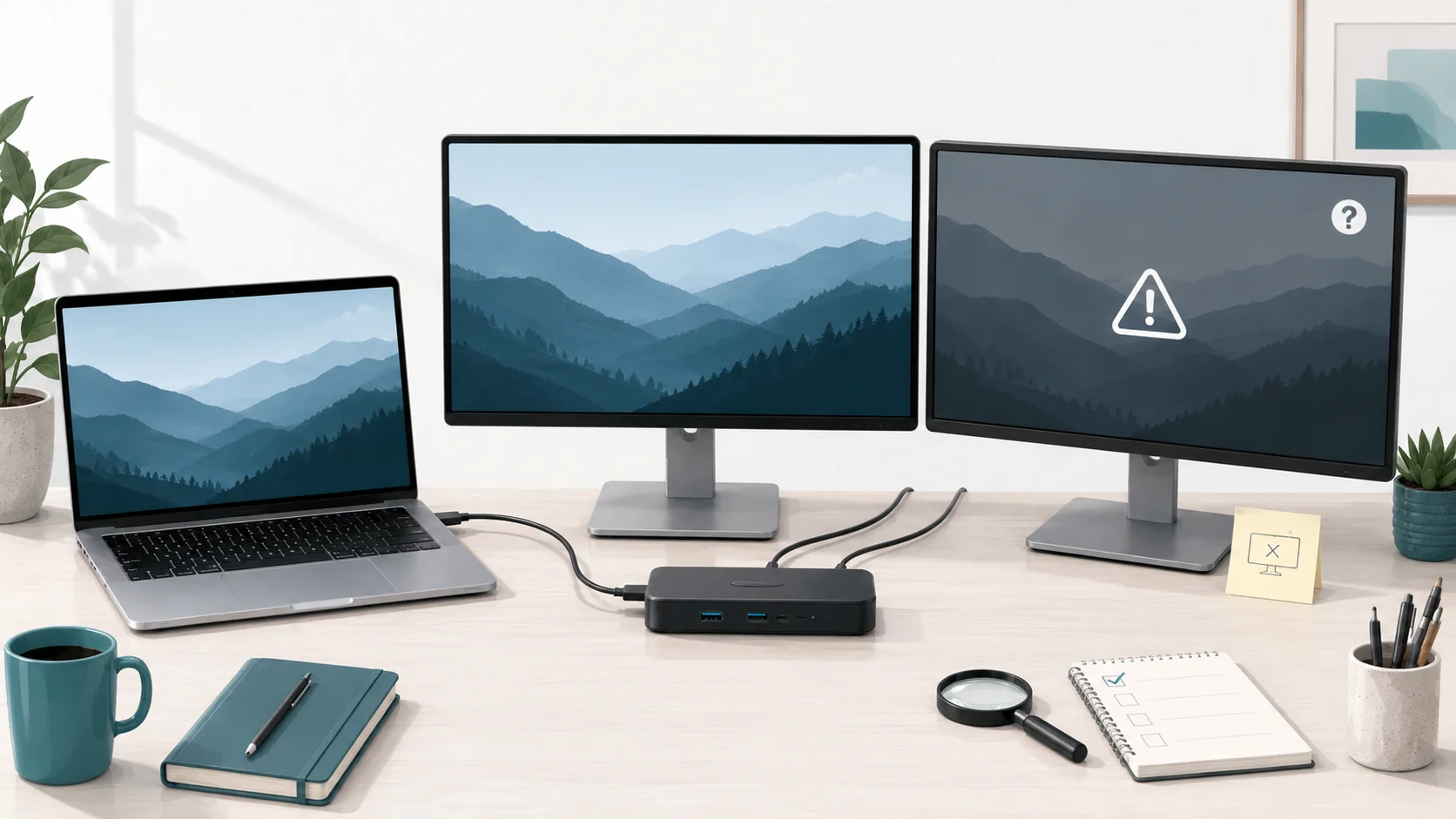
If your MacBook is connected to a dock with two monitors but you get only one external display, two mirrored displays, or one black screen, do not buy another dock yet. The problem is often an architecture mismatch rather than a failed dock.
Two HDMI or DisplayPort outputs on a dock can still expose only one native display stream to macOS. Your Mac may also have a native external-display ceiling the dock cannot raise. If the dock uses DisplayLink, meanwhile, extra outputs can depend on software and macOS permissions.
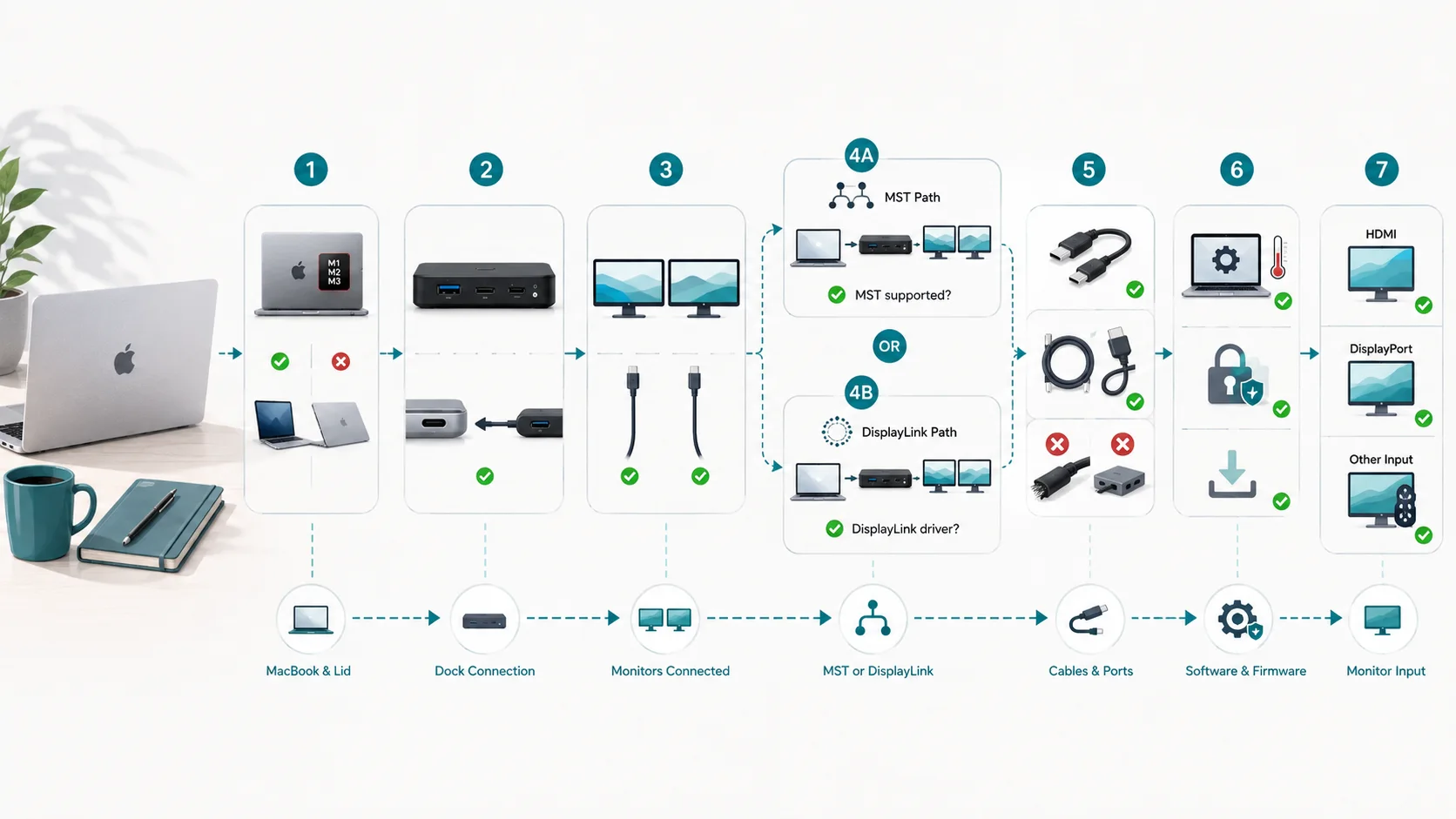
Work through the problem in this order: Mac display ceiling → exact chip/model → lid state → mirror vs. extend → dock architecture → native DisplayPort path → MST → DisplayLink → cable → port → driver/permissions → firmware → monitor input.
1. Identify the exact Mac and its native display ceiling
“MacBook Pro” is not specific enough. Find the exact model and chip first, then check Apple's current display-support page for that model.
A few examples show why this step comes first:
- M1 and M2 MacBook Air models natively support one external display.
- Base 13-inch M1 and M2 MacBook Pro models also natively support one external display.
- Base M3 MacBook Air and M3 MacBook Pro can support two external displays in Apple's documented configuration with the lid closed.
- Current M4/M5 MacBook Air and base M4/M5 MacBook Pro models support up to two external displays while using the built-in display.
- Current M5 Pro supports up to three external displays and M5 Max up to four, subject to Apple's stated resolution and refresh-rate combinations.
Apple explicitly says a supported hub or daisy chain can carry multiple supported displays over one Thunderbolt port but does not increase the Mac's maximum display count.
If your Mac natively supports only one external display and your dock relies on native DisplayPort/MST, no macOS toggle can create a second independent native desktop.
2. Check lid state before blaming the dock
Lid behavior varies by Mac generation. Apple's M3 guidance allows two external displays on supported base M3 MacBooks with the lid closed in the documented setup. Newer M4/M5 models have different limits and do not need the lid closed merely to reach their stated two-display allowance.
When the second monitor disappears only after you open the MacBook, verify the rule for your exact model before changing hardware.
3. See whether macOS is extending or mirroring
Open System Settings → Displays and note how many displays macOS actually detects.
- If two external display tiles appear, check whether either is set to mirror rather than extend.
- If two physical monitors show the same image but macOS shows only one external display, suspect the dock's display architecture, especially MST.
- If one monitor is completely absent, continue with the tests below.
4. Identify the dock architecture
Set aside “dual 4K” and the number of HDMI ports until you know how the dock produces those outputs.
Native Thunderbolt / DisplayPort: the dock carries native display streams supplied by the Mac. The Mac's own simultaneous-display ceiling still applies.
MST: Multi-Stream Transport splits a DisplayPort path into several outputs. Current Plugable technical documentation states that macOS does not support independent extended desktops through typical DisplayPort MST hubs; connected displays may mirror instead.
DisplayLink: a DisplayLink chip sends software-assisted display data over USB and requires DisplayLink Manager on macOS. It is not MST, nor is it an extra native DisplayPort stream from the Mac GPU.
Two video connectors on the dock can belong to any of these architectures.
5. Bypass the dock to test the native display path
Connect each monitor directly to the Mac one at a time through a known video-capable HDMI, USB-C, or Thunderbolt path. Apple recommends direct connection as a troubleshooting step when a display behind a hub or dock is not behaving correctly.
If either monitor fails directly, the dock is not yet the main suspect. Check that monitor, cable or adapter, input, and Mac port.
If both monitors work individually but fail only through the dock, focus on the Mac's display ceiling, dock topology, link bandwidth, or DisplayLink software path.
6. Apply the macOS limitation if the dock uses MST
MST is a common reason a dual-monitor USB-C dock works as two independent desktops on Windows but mirrors on a Mac.
This is separate from the Mac's overall display ceiling. A Mac that can drive two external displays can still fail to extend them through an MST-only dock path. A Mac limited to one native external display also does not gain a second native display just because the dock has two MST outputs.
If both panels light up but show the same external desktop, check the exact dock manual for MST before replacing cables or installing software.
7. Troubleshoot DisplayLink only if the dock uses it
First verify that the exact dock actually contains DisplayLink technology. Do not install DisplayLink software “just in case.”
As of August 25, 2026, Synaptics lists DisplayLink Manager 16.2, released July 17, 2026, for macOS Tahoe 26, Sequoia 15, and Sonoma 14, with macOS 27 Golden Gate listed as beta support.
Synaptics also documents macOS permission requirements. Screen Recording permission is needed so DisplayLink Manager can access the screen pixels required for software-assisted display output; expected operation can also depend on the app being allowed to run in the background.
For a blank DisplayLink output, confirm that the dock is detected, the installed version supports your macOS release, and the required permissions are enabled. Installing the driver cannot convert an MST-only dock into a DisplayLink dock.
8. Verify the host cable
The Mac-to-dock cable is part of the display path. USB-C shape alone does not prove video or high-speed data capability.
Apple says the cable or adapter must support the required display resolution and refresh rate, and USB-C video paths need the relevant DisplayPort Alt Mode or Thunderbolt capability. Use the dock's supplied host cable when possible; otherwise verify the replacement cable's actual specification.
9. Use the correct upstream port
Docks can have several similar-looking USB-C ports with different functions. Connect the Mac to the port the manual identifies as host, upstream, Thunderbolt upstream, or full-function USB-C input. A downstream data or charging port may not carry host video.
Then try another eligible Thunderbolt/USB-C port on the Mac to eliminate a local connection issue.
10. Check drivers and permissions only when the architecture requires them
A native Thunderbolt/DisplayPort dock normally does not need a DisplayLink graphics driver. A DisplayLink dock does.
On Apple-silicon Macs, also check whether macOS is asking you to allow a newly connected accessory. If the dock vendor provides a macOS utility, use only the one documented for the exact model and OS version.
11. Check dock firmware
Firmware can fix detection and link issues, but it cannot change the Mac's native display ceiling or turn an MST-only path into DisplayLink.
Once the topology should work on paper, check the exact dock support page for firmware and release notes. If the vendor does not document a current package for your exact model, leave firmware status UNKNOWN rather than using a similar model's updater.
12. Finish with monitor input and swap tests
Set each monitor to the actual connected input. Then test one dock output at a time and swap known-good cables, outputs, and monitors.
If the failure follows one cable, monitor, or dock port, you have isolated a physical path. If both displays work separately but not together, return to display ceiling and dock architecture rather than assuming both monitors failed.
Symptom shortcut
| Symptom | Check first |
|---|---|
| Two monitors show the same external image; macOS sees one display | MST architecture |
| One external works on an M1/M2 Air through a native/MST dock | Native Mac display ceiling |
| Base M3 gets two externals only with lid closed | Model-specific lid rule |
| DisplayLink screen is black after macOS change | DisplayLink version and permissions |
| Both work directly but not together through the dock | Dock topology / bandwidth / display ceiling |
| One monitor fails even directly | Cable, adapter, monitor input, or Mac port |
Before buying a replacement dock, write down the exact Mac model, dock model, macOS version, and whether the dock is native Thunderbolt/DP, MST, or DisplayLink. Also note whether each monitor works when connected directly. Those four facts usually separate a host-limit problem from a dock-path problem faster than swapping hardware at random.
Match the replacement architecture to the Mac's display capability. It should solve the identified constraint—native display count, MST incompatibility, DisplayLink requirement, or port/cable limitation—not merely offer more connectors. “Two HDMI ports” is not enough evidence. If the native display ceiling is still unclear, start with Can Your MacBook Run Two External Monitors?; for a broader dock-path check, use How to Check If a Docking Station Will Work With Your Laptop?.
Sources & Verification
| Source | URL | Source role | Last checked |
|---|---|---|---|
| Apple Support — How many displays can be connected to MacBook Pro | https://support.apple.com/en-ie/101571 | Current M5 Pro/M5 Max, M5, M4/M4 Pro/M4 Max, M3 and earlier MacBook Pro display ceilings; hub/daisy-chain ceiling note | 2026-08-25 |
| Apple Support — MacBook Pro (14-inch, M5) Tech Specs | https://support.apple.com/en-us/125405 | Exact base M5 external-display support and Thunderbolt display capability | 2026-08-25 |
| Apple Support — MacBook Pro (14-inch, M5 Pro or M5 Max) Tech Specs | https://support.apple.com/en-ie/126318 | Exact current M5 Pro / M5 Max external-display support | 2026-08-25 |
| Apple MacBook Air User Guide — Connect external displays to MacBook Air | https://support.apple.com/guide/macbook-air/connect-external-displays-apd8cdd74f57/2026/mac/26 | Current MacBook Air two-display behavior, cable and display-setting guidance | 2026-08-25 |
| Apple Support — MacBook Air (M2, 2022) Tech Specs | https://support.apple.com/en-us/111867 | Exact M2 Air native one-external-display limit | 2026-08-25 |
| Apple Support — MacBook Air (M1, 2020) Tech Specs | https://support.apple.com/en-us/111883 | Exact M1 Air native one-external-display limit | 2026-08-25 |
| Apple Support — MacBook Pro (13-inch, M2, 2022) Tech Specs | https://support.apple.com/en-us/111869 | Exact base 13-inch M2 MacBook Pro native one-external-display limit | 2026-08-25 |
| Apple Support — MacBook Pro (13-inch, M1, 2020) Tech Specs | https://support.apple.com/en-us/111893 | Exact base 13-inch M1 MacBook Pro native one-external-display limit | 2026-08-25 |
| Apple Support — Two displays on MacBook Air / MacBook Pro with M3 | https://support.apple.com/en-mide/117373 | M3 two-external-display clamshell/lid-state behavior | 2026-08-25 |
| Apple Support — If your external display is dark or low resolution | https://support.apple.com/en-lamr/102501 | Direct-connect test, cable/adapter capability, accessory authorization and display-ceiling troubleshooting | 2026-08-25 |
| Plugable Knowledge Base — Is my laptop compatible with MST products? | https://kb.plugable.com/is-my-laptop-compatible-with-plugable-multi-stream-transport-mst-products | Current technical explanation of macOS MST limitation vs. Windows/ChromeOS behavior | 2026-08-25 |
| Plugable Knowledge Base — DisplayLink vs. Alt Mode/MST | https://kb.plugable.com/question/1390565 | Architecture distinction: USB DisplayLink graphics vs native DP Alt Mode/MST | 2026-08-25 |
| Synaptics — DisplayLink macOS Software | https://www.synaptics.com/products/displaylink-graphics/downloads/macos | Current DisplayLink Manager version and supported macOS releases; 16.2 released 2026-07-17 | 2026-08-25 |
| DisplayLink Support — DisplayLink Manager first-time configuration | https://support.displaylink.com/knowledgebase/articles/2024872-displaylink-manager-first-time-configuration | macOS Screen Recording / application permission requirements and first-time configuration | 2026-08-25 |