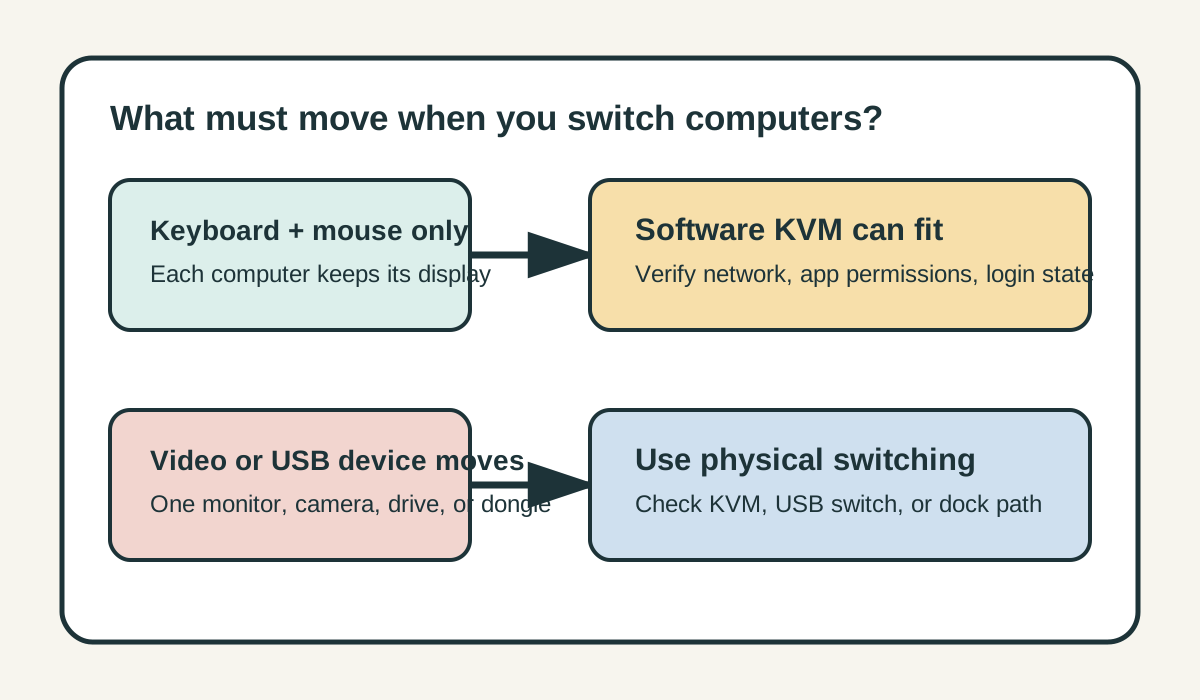
Use a software KVM when you only need one keyboard and mouse to move between computers that can stay on their own displays and communicate over an allowed network. It is not a replacement for a hardware KVM when the same physical monitor, webcam, USB drive, security key, or other USB device must move with you. Decide what must switch first; the product name comes second.
That distinction is why a software KVM can feel instant on one desk yet be the wrong architecture on another. It sends control across an app connection; it does not create a video path or electrically reattach a USB device to the other computer. SetupMeld has not tested the products or your setup.
Start with the non-negotiable requirement
| If this must change computers | Can software KVM be the complete answer? | What to check instead |
|---|
| Keyboard and mouse control while both computers keep usable displays | Usually, yes — after the app, network, and permissions are verified. | Use the operating-state checks below before rearranging hardware. |
| Clipboard text or files | Maybe — this is product- and policy-specific, not a guarantee from the phrase “software KVM.” | Read the exact product documentation and keep sensitive work data within approved policy. |
| One physical monitor’s picture | No. Software input sharing does not switch HDMI, DisplayPort, USB-C video, or the monitor input. | Use a monitor input switch or a KVM that documents the required display path. |
| A webcam, storage drive, smart-card reader, USB receiver, or security key | No. The device remains attached to its current host. | Use a compatible USB switch or KVM and verify its peripheral support. |
| Input at every lock screen or operating-system prompt | Do not assume it. This depends on product, version, operating system, and managed-device policy. | Keep a local input path or use an approved hardware solution; treat any undocumented state as unconfirmed. |
This is SetupMeld’s requirement × operating-state decision asset. The five rows are intentionally separate: a tool can pass normal signed-in input while still be the wrong choice for video, physical USB, or a locked/managed state. It avoids the category error of declaring a desk “KVM compatible” after testing only a mouse crossing.
Check the operating state before you rely on it
- Both computers are signed in and have their own usable screens. This is the normal software-KVM job. Keep each computer’s monitor connection unchanged while you test the input handoff.
- They can reach each other on the documented connection. Synergy’s current installation guidance requires at least two computers with their own monitors and an Ethernet or Wi-Fi connection on the same network. A blocked VLAN, firewall rule, VPN, or managed-device restriction is a failed prerequisite, not proof that the keyboard is bad.
- The app can run with the required permissions. Installation may need administrator permission and firewall exceptions. On a work computer, ask IT whether the app and its local-network path are permitted; do not weaken a security control to force the workflow.
- Lock, login, and elevated-prompt expectations are explicit. Do not buy or remove hardware because input worked after sign-in. Synergy documents a special Linux login-screen service for Synergy 1, which demonstrates that this state needs separate configuration rather than being a category-wide promise. For other operating systems or products, retain local input unless the exact vendor documents your required state.
- Network loss is an expected boundary. A software KVM depends on its connection path. If the computers are no longer reachable on that path, switch back to local input or a physical handoff; do not treat a network dependency as a video or USB fault.
A current Synergy path for the “software kvm synergy” question
Synergy is a concrete example of the software-KVM architecture, not a stand-in for every product. Its official site describes one mouse, keyboard, and clipboard moving across computers on a local network, and explicitly says it works like a software KVM without video. That makes it a fit only for the first row of the table: computers retain their own screens while a user moves input between them.
- Choose the input host. Connect the keyboard and mouse to the computer that will act as the Synergy server. The other computer is a client; neither computer’s monitor cable moves.
- Prove the local path. Install and activate Synergy on each computer, confirm they are on the same Ethernet or Wi-Fi network, and ensure the required firewall exception is permitted. Use Ethernet if Wi-Fi latency is an issue; Synergy’s support guidance describes Ethernet as the more stable option for cursor lag or disconnections.
- Connect and approve the client. In Synergy 1, the client uses the server IP address or hostname and the server accepts it. Arrange the client beside the server in the on-screen layout to match the real desk.
- Test the first useful outcome only. Move the pointer across one edge, then type in a normal text field on the client. Test clipboard separately, and leave monitor switching and physical USB-device tests for the hardware path.
Failure boundary: if the computers are not on an allowed local network, cannot receive the needed permission, or your work begins before sign-in, this path is not yet a proven replacement for your desk. Synergy’s normal setup documentation does not make the same-network requirement optional, and its Linux-before-login instructions are version- and operating-system-specific.
Keep the Synergy generation straight before isolating a failure
First identify the Synergy generation on every computer. Synergy’s current install guidance recommends Synergy 3 and says Synergy 2 has reached end of life. The server-IP, client-approval, and draggable-layout procedure above is specifically Synergy 1 documentation. It is useful when every computer is actually running Synergy 1; it is not a safe instruction to transplant into a Synergy 3 or mixed-version desk.
| What you observe | First isolation action | What not to conclude |
|---|
| All computers use Synergy 3 | Follow the current Synergy 3 installation path and confirm its documented local-network prerequisites. | Do not apply a Synergy 1 screen or server-setting label by guesswork. |
| All computers use Synergy 1 | Use the server/client, IP-or-hostname, approval, and layout path documented for Synergy 1. | Do not treat that legacy path as proof that Synergy 3 is configured the same way. |
| Versions differ, or one old client remains running | Record the version on each machine before changing cables or buying a switch; Synergy’s current lag guidance says Synergy 1 clients connecting to a Synergy 3 server can degrade Synergy 3 clients. | Do not label the keyboard, monitor, or USB switch as the cause until the software generations are no longer mixed. |
This version-first split is a SetupMeld isolation step, not a claim that mixed generations always fail. It keeps an app-version symptom separate from the hardware decision: if your desk also needs one physical display or USB device to move hosts, solve that separate requirement with the documented hardware path.
When a physical switch is the smaller, safer change
Choose hardware when your requirement is ownership of a signal or device, not merely control. A hardware KVM can be appropriate when one monitor must show the selected computer; a USB switch can be appropriate when a peripheral needs to enumerate on one host and then the other. Their exact video modes, USB roles, power behavior, host support, and known non-working combinations still vary by model.
Before buying, use the Compatibility Matrix to compare host support, display capability, interfaces, switching method, input channel, peripheral USB, clamshell, power delivery, and known non-working combinations. If the decision is only software input versus a USB handoff, the software-versus-USB-switch guide covers that narrower comparison. If your computers already have separate displays, the computer-pair software guide helps select an OS-specific route.
What if the software KVM does not work?
Do not open a hardware-replacement branch first. Keep video and physical USB unchanged, then check the first failed prerequisite: both computers signed in, same approved local network, correct server/client configuration, adjacent screen layout, and allowed firewall or accessibility permissions. Synergy’s official troubleshooting also calls out VPN software, outdated versions, anti-virus or port-manager allowances, and Linux Wayland support as possible boundaries. If the first failure is a lock screen, an administrator prompt, a managed-device policy, or a network that cannot be approved, document that state and keep a permitted local or hardware path rather than bypassing controls.
Evidence and scope
Official sources reviewed October 6, 2026. The conclusions above separate vendor-documented capabilities from SetupMeld’s decision method. SetupMeld does not perform in-house hardware testing.
- Synergy product page (official specification) — checked the keyboard/mouse/clipboard role and the explicit no-video boundary.
- Synergy installation guide (official support) — checked the own-monitor, same-network, administrator-permission, and firewall-exception prerequisites, plus the current Synergy 3 recommendation and Synergy 2 end-of-life boundary.
- Synergy 1 configuration guide (official support) — checked server/client roles, server address, client approval, and layout setup.
- Synergy Linux before/after-login guide (official support) — checked that its login-screen path is a specific Linux/Synergy 1 configuration, not a general software-KVM guarantee.
- Synergy cursor-lag guide (official support) — checked the Ethernet/Wi-Fi stability boundary and the current mixed-generation lag warning.
Four original public-user-report leads supplied for this topic were attempted on October 1, 2026, but the original Reddit pages could not be read in this review. They remain pending and are not used as evidence, a specification, or corroboration: r/buildapc 1swr6kp, r/buildapc 1wg83qa, r/sysadmin 1w1wd3w, and r/overemployed 1v2o1k2.
Originality accounting: 7 of 14 substantive information blocks (the requirement × operating-state matrix, state checks, connection-path isolation, version-first isolation table, hardware boundary, and failure-routing method) are SetupMeld’s source-supported decision work: 50%. Source lists, evidence disclosure, and generic definitions are excluded from that calculation.