Last verified September 11, 2026 · Published September 11, 2026
Keyboard and Mouse Sharing Software vs USB Switch: Which Is Better for Two Windows PCs?
For two Windows PCs, software is usually better when you want seamless pointer movement and both computers are allowed to communicate over the local network. A USB switch is usually better when you want a physical, network-independent way to hand the keyboard and mouse from one PC to the other.
Neither method is universally better.
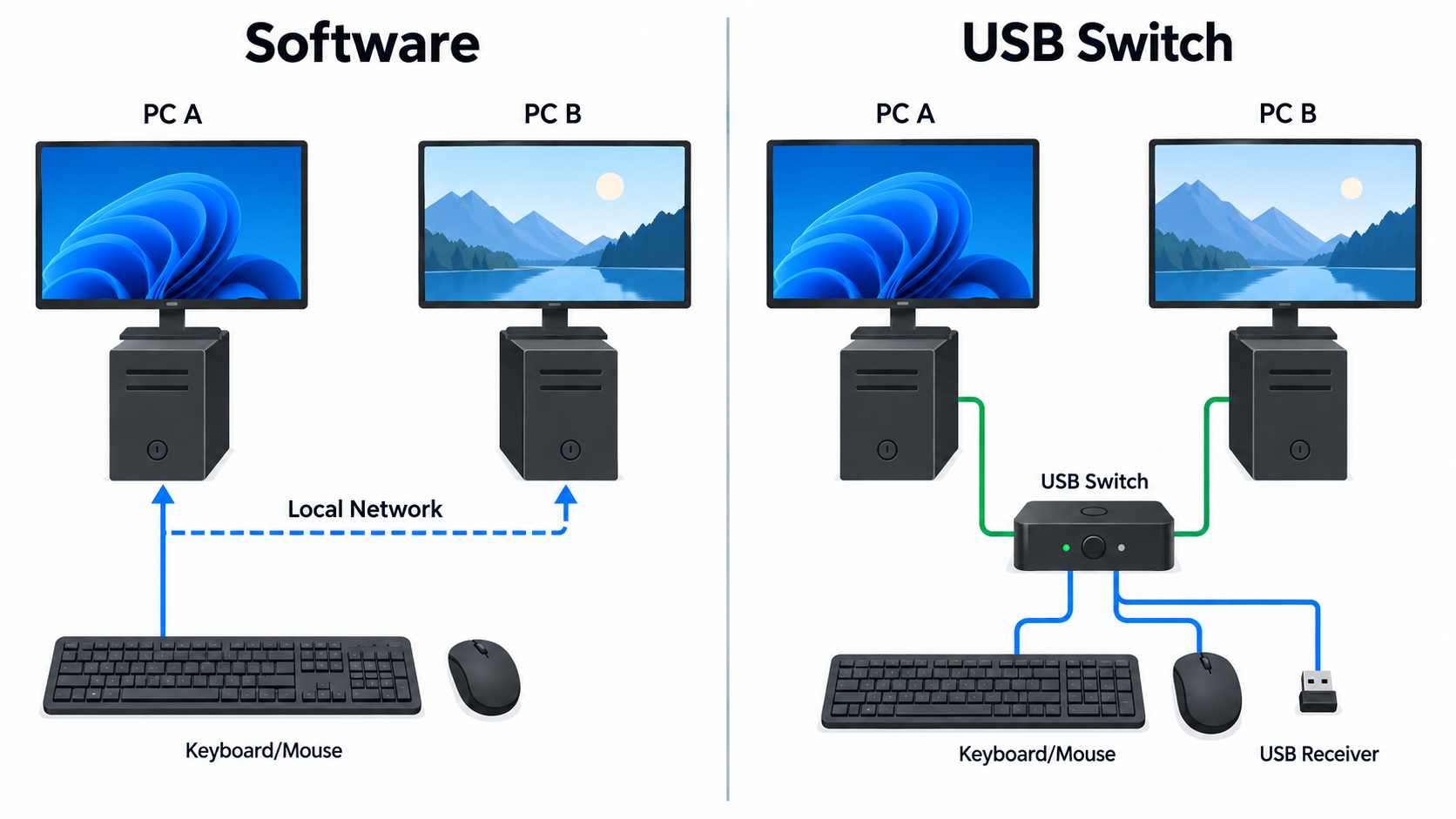
The real difference is architectural:
Software sharing sends keyboard and mouse input between computers over the network.
A USB switch physically changes which computer owns the attached USB devices.
If both PCs already have their own displays, either method can solve the input-sharing problem without adding a full KVM.
If the monitor also needs to switch computers, this is no longer just a software-versus-USB-switch decision. Use KVM vs USB Switch: Which Do You Actually Need? for that broader hardware boundary.
Quick verdict
Your situation
Better starting point
Why
Two personal Windows PCs on the same trusted LAN
Software
Seamless pointer movement without pressing a physical switch
Work PC blocks software installation
USB switch
The switch itself can work without installing a sharing utility
You do not want keyboard/mouse control to depend on the network
USB switch
Peripheral ownership is switched physically instead of over the LAN
You switch constantly between side-by-side PCs
Software
Moving the pointer across a screen edge can be more convenient than pressing a button
You also want to share a USB receiver or other ordinary USB peripheral
USB switch
The selected PC can own the connected USB device directly, within the switch and peripheral limits
You need clipboard or simple file-sharing extras
Software
Some input-sharing tools add those functions
You need monitor video to switch too
Neither alone answers the full problem
Move to a KVM or another video-switching architecture
One computer is a Mac
Use the cross-platform guide
The Windows-only decision changes
The most important difference: network input vs physical USB ownership
With software sharing, the keyboard and mouse remain associated with one computer or software service, and input is forwarded to the other PC over the network.
A simple layout looks like this:
Keyboard + mouse
      ↓
Primary Windows PC
      ↓
local-network input-sharing software
      ↓
Second Windows PC
With a USB switch, the physical devices connect to the switch instead:
Keyboard ─┐
Mouse ────┼─> USB switch ──> PC A
Receiver ─┘              └─> PC B
Press the switch and the attached USB devices move to the selected computer.
That one distinction explains most of the trade-offs.
Software sharing: best when seamless movement matters
For a Windows-only desk, Microsoft PowerToys Mouse Without Borders is the clearest software example.
Microsoft currently documents Mouse Without Borders as controlling up to four computers from one keyboard and mouse. It can also share clipboard content and transfer files, although those extra features have their own limitations.
The daily experience is the main reason to choose software.
Instead of pressing a hardware button, you can arrange the computers in the software and move the pointer through the edge of one screen to the next PC. If you work across two side-by-side Windows machines all day, that can feel more natural than repeatedly changing physical USB ownership.
What Mouse Without Borders depends on
The convenience comes with dependencies.
Both Windows PCs need supported PowerToys installations, and the computers need a working network path between them. Microsoft tells users to put the machines on the same network for initial troubleshooting and provides firewall and reconnect controls inside Mouse Without Borders.
Current PowerToys requirements include:
Windows 11, or Windows 10 version 2004 / build 19041 or newer;
a 64-bit x64 or ARM64 processor.
Initial Mouse Without Borders setup uses a generated security key plus the first computer's host name.
That is not difficult on a normal home LAN, but it matters on a work PC where software installation, local-network discovery, or firewall communication may be restricted.
Software can add useful extras
A physical USB switch only changes USB ownership. Software can do more.
Mouse Without Borders includes clipboard sharing and file-transfer features. Those may be useful if the two PCs are used together as one working environment rather than simply sharing a keyboard and mouse.
Do not choose software only for those extras, though. If the actual requirement is just input sharing, keep the decision focused on reliability, policy, and daily switching behavior.
USB switch: best when you want the LAN out of the input path
A USB switch does not send keyboard and mouse events over the local network.
The keyboard, mouse, receiver, or other compatible USB device connects to the switch, and the switch connects to both PCs. A physical selector determines which PC owns those USB devices.
Current manufacturer examples show the category clearly.
SABRENT documents the USB-SW30 as a USB 3.0 sharing switch for two computers with single-button switching, plug-and-play operation, and no additional driver required for the switch itself. IOGEAR's GUS402 similarly lets two computers share multiple USB peripherals through a remote selector button.
These are category examples, not SetupMeld product recommendations.
The main advantage is independence from the sharing network
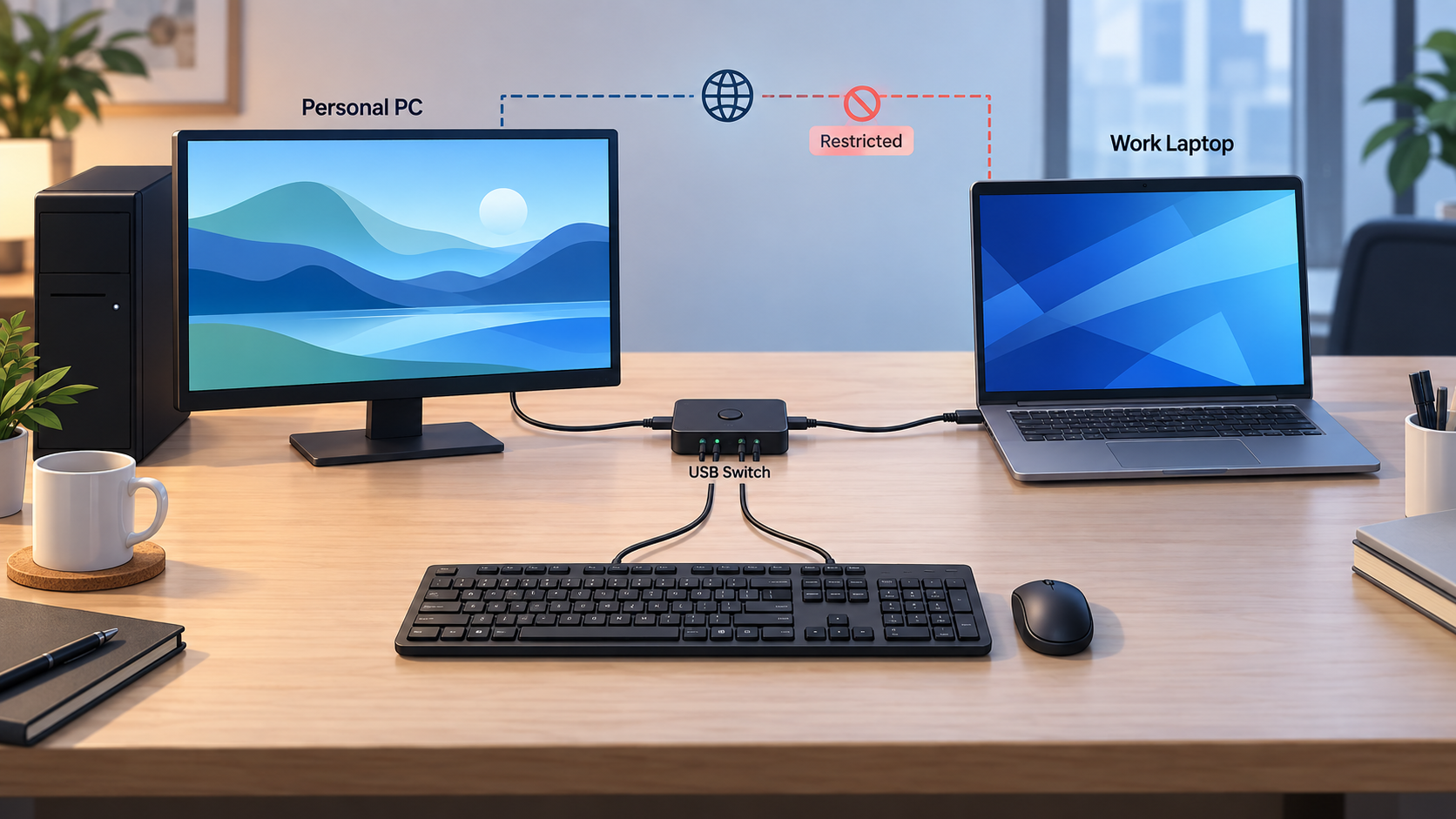
If your Wi-Fi changes, the PCs sit on different network segments, a VPN changes routing, or local-device communication is blocked, a USB switch does not need that network path to hand the keyboard and mouse to the other computer.
That makes the architecture easier to reason about:
Which PC physically owns this USB device right now?
For a work laptop or work desktop, that can also be easier than asking IT to allow another network service.
But hardware is not a policy bypass. The connected keyboard, mouse, receiver, storage device, or other peripheral may still be restricted by the employer, and some peripherals may require their own drivers.
Software vs USB switch: the practical trade-offs
1. Switching experience
Software wins when frequent switching matters.
Moving the pointer across a screen edge can be quicker and less disruptive than reaching for a hardware button dozens of times per day.
USB switch wins when deliberate ownership is preferable.
You press a button and know which PC owns the attached USB devices. There is less ambiguity about which machine should receive input.
This is not a latency claim. SetupMeld does not have evidence to say that one category is universally faster than the other.
2. Network dependency
Software: depends on the two PCs being able to communicate as required by the selected tool.
USB switch: no LAN input-sharing service is required.
If the desk is on a simple home network, software may be easy. If one machine is on an isolated corporate network or restrictive VPN, hardware may be the cleaner answer.
3. Installation and company policy
Software: both computers usually need the utility installed and allowed to run.
USB switch: the switch itself may not need a driver, but attached devices can still have driver or policy requirements.
If one Windows PC is employer-managed, do not disable security controls, firewall rules, or management policy just to make software sharing work.
4. Lock screen and elevated applications
Software behavior around login, UAC, and elevated applications is product-specific.
Mouse Without Borders has a documented Use Service option that adds control for scenarios involving the lock screen or elevated applications. Microsoft also explicitly warns that running it as a service creates additional security risk.
That means software should not be chosen on the assumption that it automatically controls every pre-login or elevated state.
A hardware USB switch has a simpler physical model, but even that does not justify a blanket promise about BIOS, firmware, BitLocker prompts, or every security state. Exact keyboard, receiver, firmware, and host behavior still matter.
5. Sharing more than a keyboard and mouse
A USB switch can be attractive when the shared object is a USB receiver or several ordinary USB peripherals rather than just logical keyboard/mouse input.
For example, SABRENT documents the USB-SW30 as hub-compatible and IOGEAR documents the GUS402 for sharing multiple USB devices.
Check bandwidth, power, and peripheral compatibility before adding storage, webcams, audio interfaces, or other demanding devices. A switch that is perfectly adequate for keyboard and mouse may not be the right path for every USB workload.
6. Clipboard and file handoff
Software can offer workflow features that a physical switch cannot.
Mouse Without Borders includes shared clipboard and file-transfer functions. If moving text between the two Windows PCs is part of the daily job, that can strengthen the case for software.
A USB switch does not merge the Windows clipboards. It only changes which host owns the USB devices.
Which method is better for a work PC and personal PC?
Start with policy, not convenience.
If the work PC allows PowerToys or another approved input-sharing tool and permits the required local-network communication, software may be appropriate.
If the work PC does not allow additional utilities, a physical USB switch may be easier because the switching logic is in the hardware rather than a network application.
But confirm that the employer allows the attached peripherals. A USB switch does not make an otherwise prohibited USB device acceptable.
For a locked-down machine, a good rule is:
keep the approved monitor and network configuration;
use approved keyboard/mouse hardware;
prefer the smallest allowed switching layer;
ask IT before installing input-sharing software or attaching unusual USB devices.
What if both PCs use one monitor?
This article only compares how the keyboard and mouse move between the Windows PCs.
Neither Mouse Without Borders nor a normal USB peripheral switch automatically changes HDMI, DisplayPort, or USB-C monitor video.
If both computers are connected to different inputs on the same monitor, you can still use either input-sharing method and change the monitor source separately.
you are comfortable with the software's security model.
Choose a USB switch when one or more of these matter more:
you do not want input sharing to depend on the LAN;
one PC cannot install the sharing utility;
you want physical, explicit device ownership;
you need to share a USB receiver or other compatible USB devices as well as keyboard/mouse;
pressing a button is acceptable.
Choose neither as the complete answer when the monitor video must switch too.
Bottom line
For two personal Windows PCs on the same trusted network, software is the more convenient starting point when you switch constantly between screens. Microsoft Mouse Without Borders is the obvious Windows-first example because it is designed for this exact multi-PC input-sharing job.
For a work PC, segmented network, restricted software environment, or desk where you simply prefer a physical selector, a USB switch is often the cleaner architecture. It removes the local network from the keyboard/mouse switching path and makes USB ownership explicit.
Do not choose based on which category sounds more advanced. Choose based on what you actually need to depend on:
network + software for seamless movement, or physical USB switching for a simpler host-ownership path.
Sources & Verification
Last checked: 2026-09-11
Microsoft Learn — Mouse Without Borders
https://learn.microsoft.com/en-us/windows/powertoys/mouse-without-borders Verified: control of up to four computers, keyboard/mouse sharing, clipboard/file features, security-key and host-name setup, same-network troubleshooting, firewall/reconnect controls, service mode, and Microsoft's service-mode security warning.
Microsoft Learn — Install PowerToys
https://learn.microsoft.com/en-us/windows/powertoys/install Verified: current Windows 11 / Windows 10 version 2004+ and x64/ARM64 PowerToys requirements.
SABRENT — USB 3.0 Sharing Switch (USB-SW30)
https://sabrent.com/products/usb-sw30 Verified: two-computer USB sharing, single-button switching, plug-and-play operation, no additional driver required for the switch itself, hub compatibility, and up to 5Gbps USB 3.0 data rate.
IOGEAR — GUS402 2x4 USB 2.0 Peripheral Sharing Switch
https://iogear.com/products/gus402 Verified: two-computer/four-device USB peripheral sharing, remote selector button, Windows 10/11 support, plug-and-play, and hot-plug behavior.
No hands-on testing is claimed. Network policy, Windows version, peripheral drivers, USB-device compatibility, employer policy, and exact hardware revisions still control the final result.