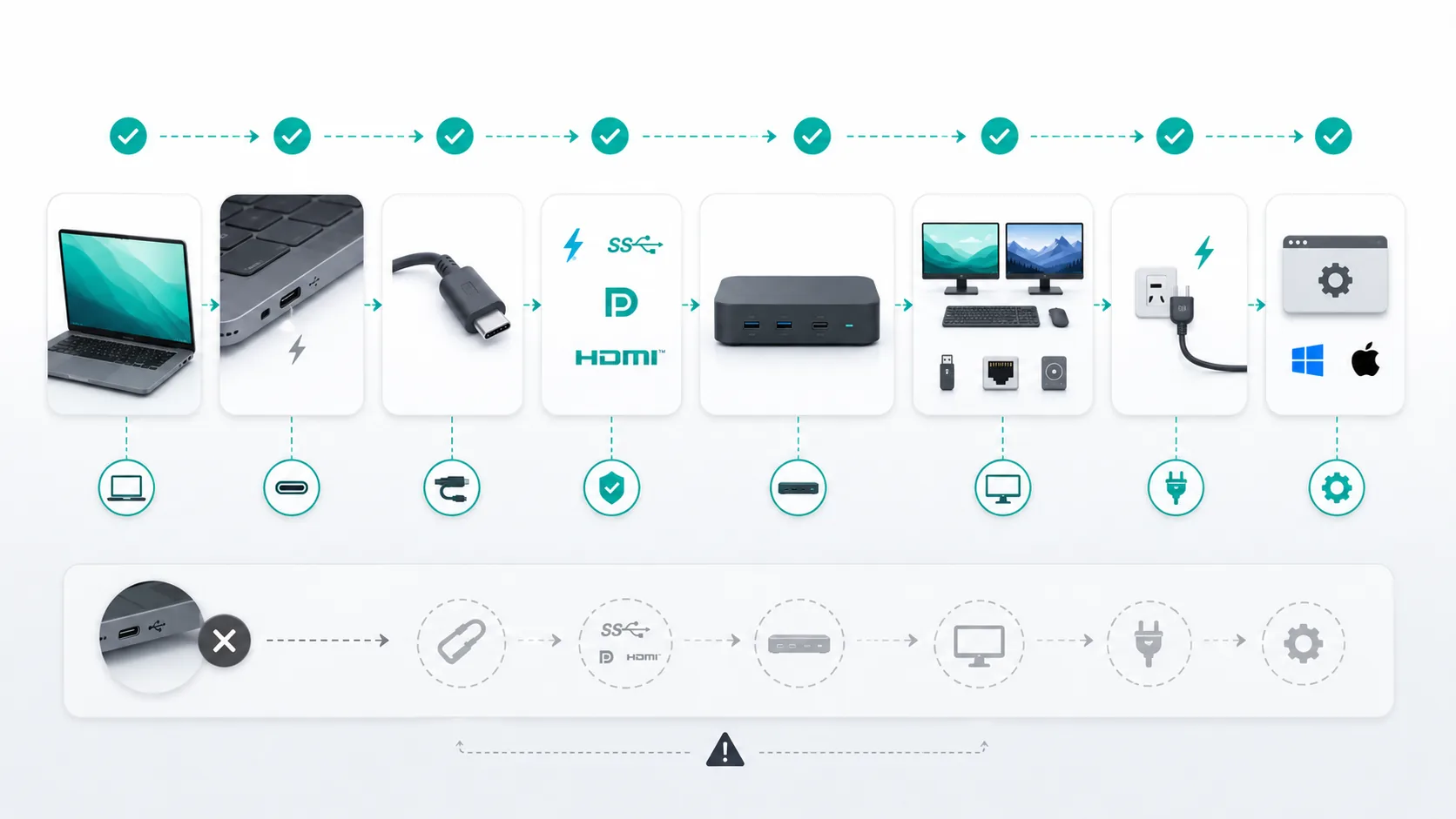
A dock is compatible only when every required link in the connection matches. “My laptop has USB-C” is not enough information. Neither is “the dock has two HDMI ports.”
Quick answer: To know if a docking station is compatible with your laptop, verify the exact laptop, USB-C video capability, DisplayPort Alt Mode or Thunderbolt path, dock display architecture, host cable, monitor requirements, charging wattage, operating system, drivers, and firmware.
For the protocol-level decision between the two most commonly confused host paths, use the USB4 vs Thunderbolt 4 compatibility guide before you match a dock to the rest of the chain.
Trace the whole path:
Laptop → host port → host cable → protocol → dock → displays / USB / network → power → OS / driver / firmware
One missing required capability can change the result from compatible to conditional, not compatible, or simply not enough information.
Use this matrix first: match your exact host connection, display count, resolution and refresh rate, output interfaces, USB needs, and charging requirement. A row is a Works candidate only when every required item matches. If an official limitation conflicts with your setup, treat it as Does not work. If a needed field is Not verified or depends on the host, treat the result as Depends on conditions.
Evidence rule: the specification matrix below is based on official specifications only. Official support evidence and public user reports are kept in a separate evidence layer below the matrix. Not verified means the specification source did not establish that field.
Methodology disclosure: SetupMeld does not perform in-house hardware testing. Compatibility evidence is based on manufacturer specifications, official support documentation, and traceable public user reports. These public user reports are not SetupMeld's own hardware tests.
Docking / KVM Compatibility Matrix v1
Scroll across for fields; scroll down for models. Focus the table and use arrow keys.
Matrix v1 specification count: 63 official-specification-backed fact cells and 9 fields marked Not verified.
Evidence layers: official support and public reports
The entries below do not change the specification matrix. Official-support limitations remain distinct from traceable public user reports. A public report records what that user observed under the stated setup; it is not a specification and is not a SetupMeld hardware test.
Scroll across for fields; scroll down for models. Focus the table and use arrow keys.
Evidence-layer summary: 8 models reviewed; 8 official support entries; 7 verified public-user-report summaries; 1 pending model; 17 qualifying independent reports. PARTIAL candidates are excluded.
Download the Matrix data
Schema version 1.1.0 · Data version 2026-09-16.3. Download the fact-level source as CSV or JSON, or download the generated wide view as CSV or JSON. Read the changelog for release history.
License: The dataset is available under CC BY 4.0; reuse is allowed with attribution.
Citation format: SetupMeld, Docking Station Compatibility Matrix, data version 2026-09-16.3, https://setupmeld.com/guides/docking-station-laptop-compatibility/, cell source: [cell source URL or source set].
Start with the result you need
Before reading product pages, write down what the dock must do. A useful requirement looks like this:
- two extended 3840×2160 displays at 60 Hz;
- Ethernet plus a keyboard, mouse, webcam, and external SSD;
- charging through the dock, or permission to keep the laptop's original charger;
- Windows 11 or an exact macOS version;
- one host cable between the laptop and dock.
“Dual monitors” and “4K support” are incomplete. Display count, resolution, refresh rate, and extended-versus-mirrored mode belong in the same requirement. If HDR, variable refresh rate, color depth, or compression matters, record that too.
Docking Station Compatibility Checklist
| Link | What to verify | A result that is not enough |
|---|
| Laptop | Exact model/SKU, GPU or chip, OS, native external-display limit | “It is a recent laptop” |
| Host port | Exact USB version, DisplayPort Alt Mode, USB4 or Thunderbolt, and Power Delivery role | “It has USB-C” |
| Host cable | Required/included cable, data/video/power capability, direction if applicable | “It fits” |
| Protocol | Native DisplayPort/Thunderbolt, MST, or DisplayLink | “The dock supports displays” |
| Dock | Exact model/revision, host requirements, display matrix, USB/network ports | “It has two HDMI ports” |
| Outputs and devices | Display inputs/modes, adapters, USB device needs, Ethernet | “Everything plugs in” |
| Power | Dock power adapter, documented host output, laptop requirement | “It supports PD” |
| Software | Supported OS, driver, permissions, BIOS, and dock firmware | “It is universal” |
Connector shape is easy to see, which makes it easy to overvalue. USB-IF separates the USB-C connector from USB4, USB 3.2, USB Power Delivery, and Alternate Mode. Manufacturers decide which capabilities a port or cable implements.
Two USB-C-shaped ports can therefore behave differently. A charge-only or lower-capability cable should not be substituted without checking its specification.
USB-C Video Capability: DisplayPort Alt Mode, Thunderbolt, or DisplayLink?
Dock display outputs come from different architectures. They are not interchangeable.
Native DisplayPort or Thunderbolt video
The laptop's GPU supplies the display streams. The host port, dock, adapters, cables, and monitors must all support the target modes. A native-video dock does not erase the laptop's display ceiling.
Microsoft notes that a Windows graphics adapter can limit monitor count. Apple publishes MacBook Pro limits by exact chip generation and says a hub does not automatically raise the supported maximum. Check the exact computer, not the family name.
Thunderbolt 4 provides a stronger starting point than unspecified USB-C: Intel's PC certification baseline includes 40 Gbps and support for two 4K monitors. It is still not an exact dock verdict. The host, dock, certified cable, display matrix, and power conditions must match.
DisplayPort MST
Multi-Stream Transport can carry multiple independent display streams from one compatible DisplayPort source through a supported hub or daisy chain.
OS support matters. Plugable's documentation, last substantively checked here on August 14, 2026, lists Windows as supporting MST and macOS as not supporting it for multiple independent extended displays. SetupMeld treats that broad macOS statement at medium confidence because it is manufacturer support documentation, not an Apple-authored MST statement.
If a dual-output dock relies on MST, do not transfer its Windows result to a Mac.
DisplayLink
DisplayLink takes a separate, driver-based route. Its software creates virtual displays, encodes screen updates, and sends them over USB to compatible DisplayLink hardware.
The recorded macOS support evidence covers DisplayLink Manager 16.2 with macOS Tahoe 26 and requires Screen Recording permission plus background operation. That does not prove current support for another release, the performance of every DisplayLink dock, or suitability for every workload.
Ask which path the dock uses: native video, MST, or DisplayLink. Then decide whether that path's conditions are acceptable.
Two HDMI ports do not prove two extended displays
The number of physical outputs sits downstream of the laptop and protocol limits. To verify two displays, match all of these:
- The exact laptop can generate the required number of streams.
- The selected host port exposes the protocol the dock expects.
- The host cable supports that path.
- The dock's display table lists the exact count, resolution, refresh rate, and OS/topology combination.
- Each adapter, cable, and monitor input supports the selected mode.
A passive splitter is not a fix for an independent-display shortage. Microsoft distinguishes duplication from an extended desktop: copying one signal to two screens does not create a second workspace.
Check USB, network, and power separately
Working video does not prove that every other dock feature fits. List what will be connected: basic keyboard and mouse, high-bandwidth storage, webcam, audio interface, Ethernet, or other devices. Then check the exact dock ports, host connection, supported operating system, and any bandwidth-sharing conditions documented by the manufacturer.
Charging is another independent requirement. Compare the dock's documented power output to the exact laptop's applicable charging requirement, including the dock's required power adapter and host-cable conditions. Do not invent a match from the phrase “Power Delivery.”
Keeping the OEM charger is a valid solution. It removes charging from the dock compatibility question and may let you keep an otherwise suitable dock.
Cross-brand does not mean automatic—or impossible
Do not assume that a dock from one laptop manufacturer either fully supports or categorically rejects another brand. Check both exact products' support pages. Features can depend on the host port, operating system, driver, BIOS, dock firmware, and vendor utilities.
Physical connection is not the same as an OEM-supported feature set. Without an applicable support matrix or exact documentation, mark the cross-brand behavior unknown. Do not fill the gap with a nearby model or another generation.
Classify the result honestly
After completing the chain, use one of these outcomes:
- Documented match: The exact official product documents support every required link and mode. This establishes documented capability, not SetupMeld-observed reliability.
- Conditional: The path works only with a named cable, driver, firmware, OS version, lid state, power adapter, or other explicit condition.
- Not compatible: A required protocol, display mode, OS, or power feature is explicitly unsupported.
- Not enough information: A required product identity or capability is missing. Stop here rather than guessing.
- Keep Existing Gear / Buy Nothing: Direct laptop ports, existing peripherals, and the OEM charger already meet the actual requirement.
For an unnamed laptop and dock, the answer is not enough information. That answer prevents an unsupported purchase promise.
Troubleshoot one layer at a time
When a documented setup does not behave as expected, reduce it to the shortest path.
- Test one display directly from the laptop at the target mode.
- Confirm the laptop's required host port and cable.
- Add the dock and one display.
- Add the second display before adding optional USB devices.
- Add Ethernet and peripherals one at a time.
- Check the exact laptop BIOS, graphics/USB drivers, dock driver if required, and dock firmware.
- Test dock charging separately from display and data behavior.
This does not replace manufacturer support. It helps locate the boundary that needs documentation or repair.
If you are still deciding which device category solves the desk problem, compare KVM switches and docking stations. For a Mac, establish the exact two-external-monitor ceiling first; MacBook Air owners who have reached a purchase decision can then use the M1–M5 dock selection guide. When the goal is to reuse one dock across two hosts, continue with the one-dock, two-laptop architecture guide.
Sources & Verification
The general compatibility sources above were last substantively verified on August 14, 2026. The eight model-specific specification rows were checked against the linked official manufacturer sources on September 13, 2026; the public user-report layer was re-reviewed on September 16, 2026. These public reports are traceable third-party observations, not SetupMeld's own hardware tests.