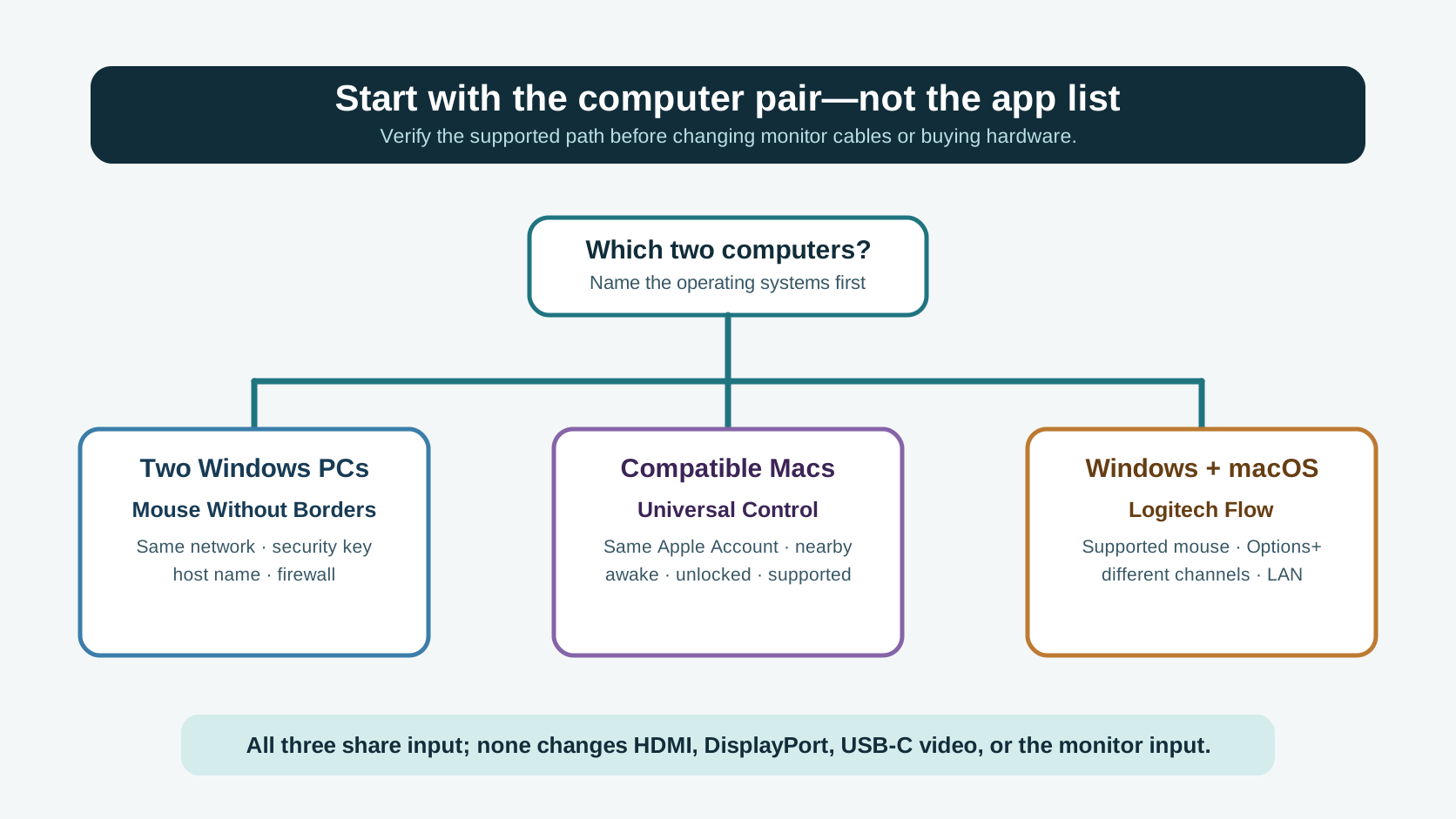
Keyboard and mouse sharing software is the right tool when both computers may run the same supported app, can reach each other on the required local connection, and can keep their own displays. Start with the computer pair: use Mouse Without Borders for Windows PCs, Universal Control for nearby compatible Macs signed in to the same Apple Account, or Logitech Flow for a supported Windows-and-macOS pair.
Do not choose the app by its feature list first. Confirm the operating-system pair and the connection prerequisites, then test pointer movement before clipboard or file transfer. None of these input-sharing paths changes HDMI, DisplayPort, USB-C video, or a monitor's selected input.
Choose software by the two computers you actually have
| Computer pair | Documented software path | Verify before setup | Keep separate |
|---|
| Two Windows PCs | Microsoft PowerToys Mouse Without Borders | PowerToys on both machines; security key; host name; same network; firewall access | Monitor input and video cabling |
| Two nearby compatible Macs | Apple Universal Control | Supported system versions; same Apple Account; devices awake, unlocked, and nearby | Each Mac's screen and apps |
| Windows and macOS | Logitech Flow with supported peripherals | Latest Logi Options+ on both computers; a Flow-supported mouse paired on different channels; same Wi-Fi or Ethernet network | Monitor input and any unsupported keyboard or mouse |
This is a compatibility map, not a claim that every machine in a category will work. The exact operating-system version, app version, security policy, peripheral model, and network path still decide whether a documented route is available.
Pass three gates before rearranging the desk
- Pair gate: name both operating systems. A Windows-only app is not a Mac solution, and an Apple-only feature is not a Windows solution.
- Permission gate: verify that each computer may install and run the tool. On a managed work computer, do not weaken employer controls, firewall rules, or network segmentation to force a personal workflow.
- Path gate: record how the computers discover each other: same local network, Apple account and proximity, or the vendor's documented peripheral channels. If you cannot state that path, do not troubleshoot a mouse yet.
Those three gates are SetupMeld's preflight order. They keep an unsupported pairing from being misdiagnosed as a bad keyboard, and they avoid changing monitor wiring before the input path has proven itself.
For two Windows PCs: Mouse Without Borders
Microsoft documents Mouse Without Borders as a PowerToys feature for controlling up to four computers with one keyboard and mouse. The first connection uses a generated security key and the first computer's name; after the connection, the cursor can move past a screen edge to move control to the other computer.
Microsoft's first troubleshooting checks are specific: put the machines on the same network, recheck the security key and host name, and check whether the firewall is blocking the connection. Its documentation also distinguishes a working pointer from transfer features: clipboard file transfer has a 100 MB limit, supports one file rather than folders or multiple files, and may need a ZIP archive for a multi-file transfer.
If this is already a Windows connection failure, use the focused Mouse Without Borders troubleshooting sequence. Do not replace the peripherals before checking the documented key, name, network, and firewall path.
For compatible Macs: Universal Control
Apple documents Universal Control as using one Mac's keyboard, mouse, or trackpad with up to two other nearby Macs or iPads. Each device keeps its own screen and apps; the pointer moves between devices and typing follows the connected device.
Apple's setup boundary matters more than a generic "Mac support" label: each device must meet Universal Control requirements and be signed in to the same Apple Account. Apple then directs you to turn on the nearby-device keyboard-and-pointer setting, keep devices awake and unlocked, and push the pointer through the edge in the other device's direction to connect.
This is input sharing, not display extension. Arrange the virtual device layout to match the physical desk, but leave your display-cable and monitor-input decisions in their own layer.
Logitech says Flow can work between two computers across Windows and macOS when the mouse is Flow-supported; a Flow-supported keyboard follows the mouse. Its documented setup calls for the latest Logi Options+ on both computers, the mouse paired to the computers on different channels, and both computers on the same Wi-Fi or Ethernet network.
That makes the mouse model a first-class compatibility check. A Bluetooth mouse that can pair with two computers is not automatically a Flow-supported mouse, and a separate keyboard does not automatically follow. Confirm the exact supported device before promising seamless switching.
If Flow is already failing, use the Logitech Flow troubleshooting checks for pairing, discovery, pointer handoff, and transfer to isolate the first failed step.
Use a four-step test that isolates failures
- Keep video unchanged. Leave each computer on its current display connection and monitor input.
- Test one crossing. Move the pointer from computer A to B, then type into a text field on B.
- Test the extra separately. Test clipboard next; if the product documents file transfer, test one small non-sensitive file only after input works.
- Classify the first failure. A failure before the pointer crosses belongs to pairing, account, network, or firewall setup. A pointer that crosses but will not type points to the input-sharing app or focus. A switched pointer with an unchanged screen is usually an expected video boundary.
This order is the page's original connection-isolation method. It produces one useful failure location at a time instead of mixing input, clipboard, file transfer, and display switching into a single vague "sharing software does not work" report.
When software is not the fit
Stop at the first failed prerequisite: unsupported computer pair, prohibited installation, blocked local communication, or an existing mouse that the vendor does not list as compatible. At that point, a documented multi-device peripheral or a physical USB handoff may be the smaller change. See how to share a mouse while keeping each display separate for that input-only decision.
If the actual requirement is to move the monitor, keyboard, and mouse together, software has solved only the input portion. Check the site's compatibility Matrix before changing the video-and-USB architecture.
What this page adds to the fixed benchmark
The traceable Lifehacker material reviewed on September 22, 2026, groups software, multi-device peripherals, and display-switching hardware; the historically read Duet material describes an input-sharing product; and the reviewed Reddit thread records varied individual software experiences. This page does not treat unavailable or unread material as absent. Its added value is the current official-source pairing map, the three-gate preflight, and the four-step failure-isolation order—so readers can rule out an unsupported route before changing hardware.
Sources & verification
Official sources checked September 28, 2026. No SetupMeld hands-on testing is claimed.
- Microsoft Learn: Mouse Without Borders (official support) — checked control of up to four computers, security-key and host-name setup, same-network and firewall troubleshooting, transfer limits, and known issues.
- Apple Support: Universal Control (official support) — checked compatible-device requirements, same Apple Account, nearby-device setup, separate screens and apps, and pointer/keyboard behavior.
- Logitech Flow (official specification) — checked Windows/macOS support, Flow-supported devices, Logi Options+, distinct mouse channels, and same Wi-Fi or Ethernet setup.
- Duet Help Center: Keyboard & Mouse Sharing (historical benchmark material read September 22, 2026; current body not accessible in this review) — not used here for current technical claims.
- Reddit r/software discussion (public user reports) — read only as varied individual experience, not as a specification or a compatibility verdict.
Software compatibility can change with operating-system and app versions, local-network policy, account status, peripheral firmware, and device support lists. Recheck the exact product documentation before relying on a feature for managed or business-critical equipment.