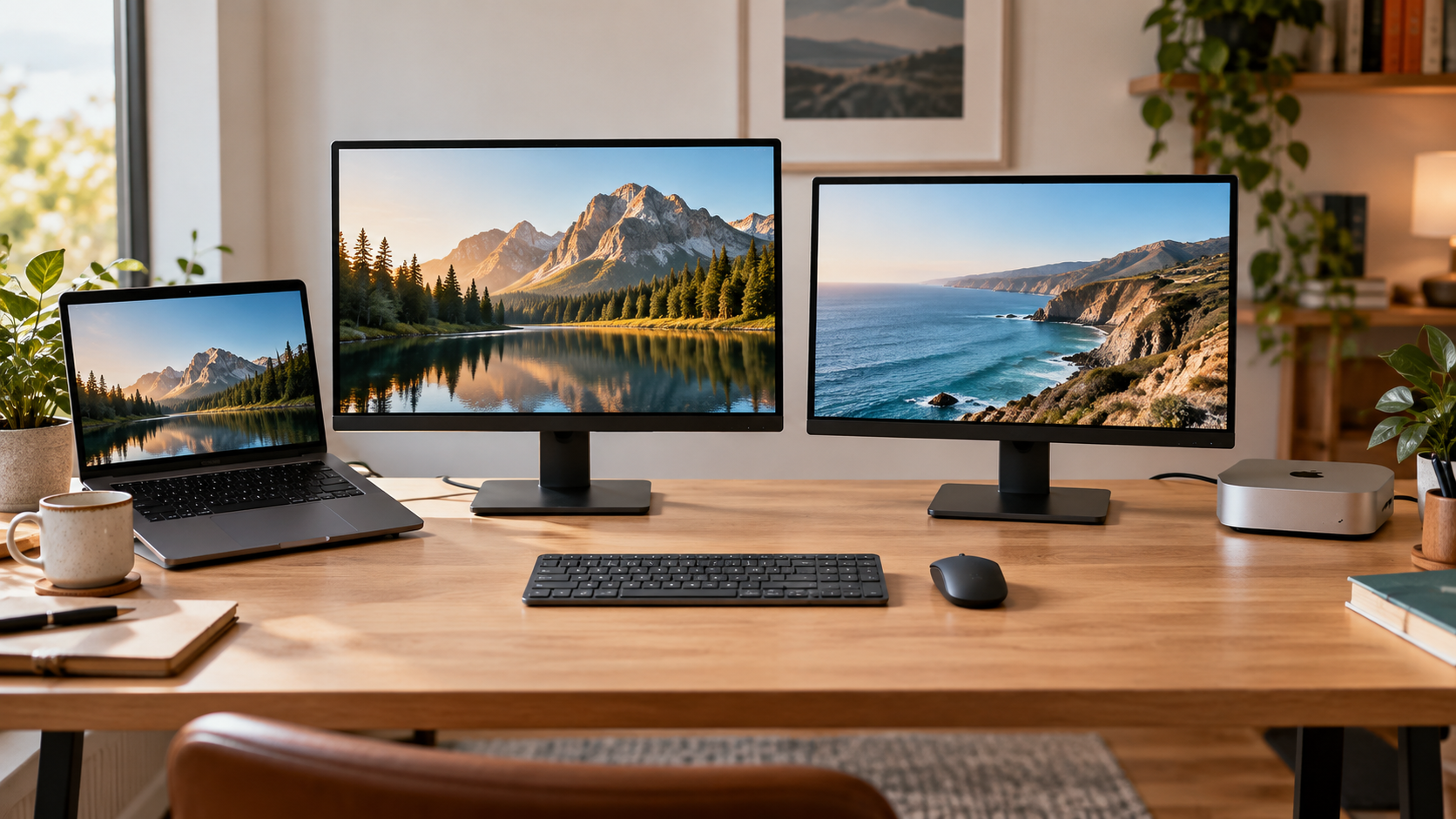
If you only want one mouse and keyboard to control two computers while each computer keeps its own monitor connection, start with the smallest switching layer: use software when both computers can run it and communicate on the same network; use multi-device peripherals when a work computer blocks software or host-to-host traffic; use a USB switch or KVM only when the display must change too.
That distinction matters because sharing input and switching video are different jobs. A mouse-sharing app can move the pointer and keyboard focus between computers, but it does not change HDMI, DisplayPort, USB-C video, or the monitor's active input.
The quick decision
| Your actual requirement | Start here | What it does not solve |
|---|
| One mouse and keyboard, separate screens, two Windows PCs | Mouse Without Borders or another approved software path | It depends on a supported install, network path, security key, and firewall configuration. |
| A managed work PC cannot install sharing software | Approved multi-device mouse and keyboard, or a physical USB switch | Basic device switching does not move the monitor input or create a shared clipboard. |
| Windows and macOS must share one input set | Logitech Flow, Duet KMS, or another cross-platform option that fits both hosts | Exact app, account, subscription, permissions, and supported-device requirements vary. |
| The monitor, mouse, and keyboard must change together | USB switch plus the monitor's own inputs, or a KVM | A mouse-sharing app alone cannot switch the video path. |
Download the two-computer mouse-sharing decision checklist (CSV). Fill it in before changing the desk so an input problem is not mistaken for a video problem.
Write down which of these you are actually trying to share:
- Input only: one mouse and keyboard should control computer A or computer B, while each machine keeps its own display.
- Input plus video: one action should change the active monitor input and move the keyboard and mouse to the same computer.
- Input plus data: you also need clipboard or file transfer between the machines.
For input-only setups, keep both video cables connected directly to the computers and their displays. This removes a whole class of KVM bandwidth and display-handshake problems. If video is part of the requirement, use the KVM versus USB switch decision instead of trying to make a software mouse tool do a video switcher's job.
A unit check for monitor planning
Screen size is a desk-planning measurement, not proof that a sharing method can carry a video signal. The exact conversion is 1 inch = 2.54 cm: a 24-inch diagonal is 60.96 cm (24 × 2.54), and a 27-inch diagonal is 68.58 cm (27 × 2.54). Use those numbers only to compare physical space; keep the video paths and the monitor's supported resolution and refresh rate as separate checks.
When software is the right way to share a mouse
Software is the smoothest option when you move between the computers constantly and both hosts are allowed to run the same sharing utility. The cursor can cross a screen edge instead of asking you to press a channel button every time.
Microsoft's current PowerToys documentation says Mouse Without Borders can control up to four computers from one keyboard and mouse. Its documented setup uses a security key and computer name, and its troubleshooting path asks you to verify that the machines are on the same network and that a firewall is not blocking the connection. The documentation also describes shared clipboard and file-transfer features, with a 100 MB file limit and single-file restrictions for copy, paste, and drag-and-drop.
That gives you a useful preflight checklist:
- Confirm that the same approved utility can be installed on every host.
- Confirm that the hosts are allowed to communicate on the required local network.
- Keep the security key, computer name, and firewall rule in the setup record.
- Test pointer movement first, then clipboard, then a small file. Do not assume that a working pointer proves every transfer feature works.
- If the connection fails, use the vendor's reconnect and firewall checks before replacing the mouse.
For a Windows-only problem that has already turned into a connection failure, continue with Mouse Without Borders troubleshooting. This page is the architecture decision; the troubleshooting page owns the broken-connection sequence.
When a work computer blocks software
Do not design a desk around software that the employer's policy will not allow. The practical alternative is a multi-device mouse and keyboard, if the exact peripherals and connection method are approved. In that architecture the mouse pairs directly with more than one host and you select the active host on the device. The computers do not need to relay input to each other over the LAN just to change hosts.
The trade-off is deliberate rather than mysterious: you may need to change the mouse and keyboard channels separately, and the monitor still stays on its current input. If pressing two host buttons is acceptable, this is often a smaller and more policy-friendly solution than adding an input-sharing service.
Check the exact model instead of generalizing from the words “multi-device.” Logitech's Flow page, for example, describes supported mice and keyboards moving between Windows and macOS, with Logi Options+ installed on both computers, separate mouse channels, and both computers on the same Wi-Fi or Ethernet network. That is a different dependency from basic device-level Easy-Switch, so confirm which mode the product actually supports.
Cross-platform sharing needs a separate check because a Windows-only utility is not a Mac solution. Logitech Flow documents cross-computer control between Windows and macOS, while Duet's Keyboard & Mouse Sharing help page documents a KMS mode that shares input but does not provide a second display. Duet's documented setup requires both computers to use the same Duet account, an active Pro subscription, and current app versions.
Do not treat those products as interchangeable guarantees. The supported operating systems, account requirements, subscription status, permissions, and display behavior are product-specific. If you have a Mac and Windows PC, use the Mac-and-PC keyboard and mouse guide for the cross-platform decision.
What public user reports add
Official documentation defines the supported path, but public reports show which variables can change the experience. In one Reddit discussion about sharing a mouse and keyboard across a Windows desktop and MacBook, different users described Wi-Fi latency, dropped Synergy or Barrier connections, Deskflow or CursorHop working in their own setups, Logitech software working for some multi-device combinations, and a USB or hardware KVM being useful as a fallback. Those are individual reports, not specifications; they do not prove that any one tool will work for your hosts.
The practical lesson is to record the host operating systems, network path, monitor arrangement, and whether the goal includes clipboard, file transfer, or video switching. If a report does not include those details, treat it as a lead for a test, not as a compatibility verdict.
A low-risk test order
Use this order so a failed experiment does not force you to rebuild the desk:
- Leave video alone. Keep each computer connected to its own display input.
- Test the existing gear. If your mouse or keyboard already has a supported multi-host mode, switch one device at a time.
- Try approved software. Install on both hosts only if policy allows it; verify the network, security key, and firewall conditions.
- Test the actual extras. Check clipboard and a small file separately from pointer movement.
- Add physical switching only for the remaining gap. A USB switch is for USB peripherals; a KVM is for coordinated keyboard, video, and mouse switching.
This order protects the working part of the setup. It also makes the failure visible: input-only problems stay in the software or peripheral layer, while a screen-switching problem points to monitor inputs, USB upstream, or KVM cabling.
Bottom line
To share a mouse between two computers without switching the monitor, keep the video paths separate and choose the smallest input-sharing method your hosts permit. Use software for frequent cursor-edge switching and clipboard needs when the network and installation policy are acceptable. Use multi-device peripherals when the computers must remain independent or a work PC cannot run sharing software. Move to a USB switch or KVM only when the monitor also has to change.
What the dated benchmark pages actually compare
The audit found a dated comparison gap in most results. These two source pages supply a useful time-stamped contrast, but their dates do not guarantee current compatibility:
| Source date | What the page compares | What it helps decide |
|---|
| November 12, 2025 | Lifehacker lists five approaches: Mouse Without Borders, Universal Control, Synergy, a KVM, and a multi-device Bluetooth keyboard. | Choose between network software, Apple-only control, a physical video/input switch, and device-level switching. |
| March 22, 2024 | BZBGEAR lists BG-UHD-KVM41A (4K@60Hz, up to four computers) beside BG-MKVM41R (1080p@60Hz, up to four computers). | Decide whether the requirement includes a shared video path and whether the display target fits the device's stated limit. |
This is a dated source comparison, not a claim that either product is current for every host. Recheck the exact model, operating system, ports, and display path before purchase.
Sources & Verification
Last checked: September 22, 2026.
- Microsoft Learn: Mouse Without Borders — verified up-to-four-computer control, security-key and host-name setup, same-network and firewall troubleshooting, clipboard/file-transfer behavior, 100 MB file limit, and known issues.
- Logitech Flow — verified Windows/macOS cross-computer control, supported-device requirement, Logi Options+ on both hosts, separate mouse channels, and same Wi-Fi or Ethernet setup.
- Duet Display Help: Keyboard & Mouse Sharing — verified KMS input-only behavior, same-account/Pro/current-version prerequisites.
- Reddit r/software: sharing one mouse and keyboard — public user reports kept separate from official specifications; reports vary by host, network, and monitor setup.
- Lifehacker: Five Ways to Share Your Mouse and Keyboard Between Multiple Computers — dated November 12, 2025 comparison list used in the audit.
- BZBGEAR: How can I share a mouse and keyboard between computers — dated March 22, 2024 two-KVM comparison used in the audit.
No hands-on testing is claimed. Product support, network behavior, permissions, file transfer, pre-login behavior, and monitor switching remain specific to the exact hosts, software versions, peripherals, and connection paths.