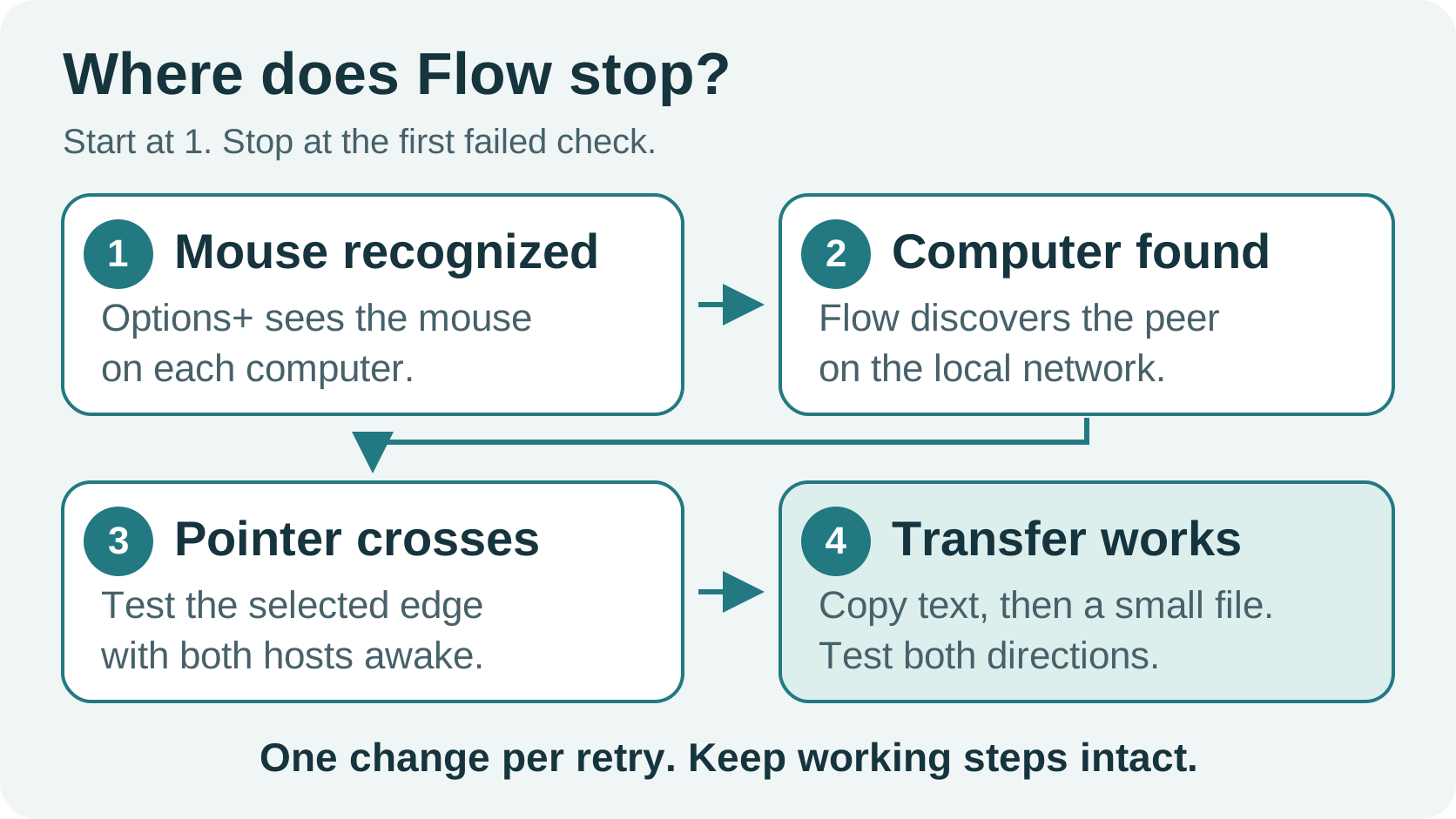
If Logitech Flow is not working, do not begin with a blanket reinstall. First identify which of four jobs is failing: Logi Options+ seeing the mouse on a computer, Flow discovering the other computer, the pointer crossing to that computer, or clipboard/file transfer after the pointer already crosses. Each job has a different first check.
For a normal Flow setup, Logitech’s setup guidance (checked September 29, 2026) says to install Logi Options+ on every computer, pair the same Flow-compatible mouse to each computer through different Easy-Switch channels, and put the computers on the same wired or wireless network. If the mouse is missing in Options+ on one host, fix pairing there before diagnosing the network. If the mouse is visible but the other computer is NOT FOUND, test local discovery and security policy. If the pointer crosses but a file does not arrive, treat transfer as a separate feature instead of undoing a working pointer setup.
1. Name the failed gate before changing anything
| What you see | The failure is probably in | First controlled check |
|---|
| The mouse is absent from Logi Options+ on one computer | Pairing, Bluetooth, receiver, or that computer's app/device recognition | Confirm that exact mouse appears in Logi Options+ on each computer and that each connection uses a different Easy-Switch channel. |
| The mouse appears on both computers, but Flow cannot find the other one | Peer discovery or local-network policy | Confirm Flow is enabled on both hosts, both hosts are on the same local network, and a managed network is not blocking the documented local discovery path. |
| The other computer is visible, but the pointer will not cross | Flow configuration, screen-edge direction, or a current state boundary | Recheck the Flow screen layout and test while both computers are awake, unlocked, and signed in. |
| The pointer crosses, but clipboard or a file does not complete | The transfer feature, not basic mouse handoff | Test a short text snippet, then one small closed file; record which one fails and in which direction. |
This is the page's main diagnostic rule: manual channel switching does not prove Flow discovery, and pointer handoff does not prove clipboard or file transfer. A working Easy-Switch button proves that the peripheral can change its own channel; it does not by itself prove that Flow has discovered a peer. A moving pointer proves input handoff; it does not by itself prove a file-transfer path.
2. Run the four-gate check in this order
Gate 1 — the same mouse is recognized on every host
Open Logi Options+ on each computer. Verify that the exact mouse intended for Flow appears there. Pair that one mouse to each computer using different Easy-Switch channels, as Logitech documents (checked September 29, 2026). Do not use a separately paired keyboard as proof that the mouse-side Flow relationship is ready.
Write down the connection on each host before changing it: for example, “Mac: Bolt receiver, channel 1” and “Windows laptop: Bluetooth, channel 2.” This small record prevents an easy mistake after a receiver or mouse upgrade: the physical switch still works, but one host has been paired differently from the Flow configuration you are trying to repair.
Gate 2 — each computer can discover the other locally
With the mouse visible in Options+, enable/check Flow on every participating computer and confirm the machines are on the same wired or wireless network. Internet access alone does not prove local discovery; the relevant question is whether the computers can discover one another locally.
On a work or school network, stop at the policy boundary. Logitech’s port-information article (checked September 29, 2026) documents local discovery/communication ports for Flow. Give that article, the two host names, operating systems, and the symptom (other computer not found) to the network administrator. Do not disable endpoint protection or broaden firewall rules permanently just to make a personal workflow work.
Gate 3 — pointer handoff works while the computers are usable
Once Flow sees both computers, test the screen edge selected in the Flow layout. Keep both machines awake, unlocked, and signed in for this test. Check whether Flow is set to switch at the screen edge or requires you to hold Ctrl at the edge. Logitech’s Flow controls and sleep/login guidance were checked September 29, 2026. A sleep, lock, or login state changes the conditions from the setup check; it is not evidence that the mouse pairing disappeared.
If the Mac is part of the pair, recheck the relevant Logi Options+ permissions before repeating the test. Logitech’s macOS permissions guidance (checked September 29, 2026) names Accessibility, Input Monitoring, Bluetooth, USB accessories, and Login Items. Only change the permission that is missing or blocked; then reopen the app if macOS asks for it. Do not treat a Mac permission prompt as a general Windows network diagnosis.
If the pointer crosses but the keyboard stays behind, check Keyboard Link in the Flow settings, select a Flow-supported keyboard, and confirm it appears in Options+ on both computers. This is a separate keyboard-follow check; it does not require rebuilding working peer discovery. Logitech’s Keyboard Link troubleshooting, checked September 29, 2026.
Gate 4 — test transfer separately and in a safe size
After the pointer crosses, confirm that Copy and Paste is enabled in Flow. Use copy on one computer and paste on the other; dragging files across computers is not supported. Logitech’s transfer guidance, checked September 29, 2026.
Copy a plain-text note in each direction. Then try one small, closed, non-sensitive file. Record the direction and exact result: text succeeds / text fails / file starts / file completes / file leaves a placeholder or errors.
This isolates a common false conclusion: “Flow is fixed” can mean only the pointer is fixed. Conversely, a file transfer problem should not cause you to rebuild a healthy device-discovery setup. Use a normal supported sharing method for work files while you keep the Flow issue scoped; do not test with confidential material just because a transfer begins.
3. Use one change per retry
When Flow broke after a new mouse, new receiver, or app update, make the before/after difference explicit rather than changing everything at once.
- Preserve a baseline: note the mouse model, receiver/Bluetooth method, Easy-Switch channel, app version, computer OS, and whether each computer is on Wi-Fi or Ethernet.
- Change one variable: for example, reconnect one host through its intended receiver, or repair the mouse connection on one host.
- Repeat only the failed gate from the table above.
- If a reinstall becomes necessary, use Logitech's current support path first and keep the before/after record. A more aggressive removal of leftover local configuration has helped individual users after a receiver migration, but that is a reported workaround—not a vendor-confirmed procedure or a promise for your setup.
The purpose is not to create a perfect lab test. It is to avoid losing the one working relationship that tells you where the break began. If macOS ↔ one Windows computer works but another Windows computer remains NOT FOUND, for example, you have evidence that the mouse and at least one Flow relationship are alive; focus the next check on the undiscovered host instead of replacing all hardware.
4. User-reported symptoms: weak evidence, not compatibility verdicts
These three reports are weak evidence. Exact host models are missing, and the file-transfer report also lacks an identified mouse model and full connection path. They illustrate symptoms only; none is counted as a qualified compatibility report, assigned single or corroborated strength, or used to establish that your setup will work. The underlying causes remain unverified.
One original r/logitech report records an MX Master 4, a macOS laptop, a Windows 10 desktop, and a Windows 11 laptop on the same UniFi LAN. The poster reported that Flow worked between macOS and Windows 10 but did not discover Windows 11, even though manual Easy-Switch still worked. That is useful because it keeps “the mouse switches” separate from “the peer is registered in Flow.” It is not proof that Windows 11 generally breaks Flow, because it is one person's hardware, app version, and network path.
Another original report begins after an MX Master 3 → MX Master 3S and Unifying → Bolt migration. The poster reported that two computers could no longer find one another; later, they said a careful removal of remaining local Options+ data followed by reinstalling helped. Keep that only as a last, recorded troubleshooting lead after the four gates—not as the page's first instruction.
A third original report separates transfer from input handoff: on the poster's Windows 10 → Mac path, a file copy/paste operation reportedly left only a .pending file on macOS, even though the operation appeared to start. Comments added another individually reported case where text still copied while a file did not. These reports illustrate why the small text-then-file test can be useful; they do not establish a universal file-transfer defect or predict what will happen on another OS/version combination.
5. When to stop troubleshooting Flow
Stop and choose a different input-sharing method when a managed network or endpoint policy will not permit the required local discovery path, when the needed OS/app/peripheral combination is unsupported, or when your real requirement is video switching rather than pointer sharing. Flow can share input across computers; it does not change HDMI, DisplayPort, USB-C video, or the monitor input by itself.
For the broader “one keyboard and mouse across two computers” decision—including software, multi-device peripherals, and a USB switch—use Keyboard and Mouse Sharing Software: Choose by Computer Pair. For a Mac-and-PC desk that needs an overview before committing to Flow, see How to Share One Keyboard and Mouse Between a Mac and PC.
If your requirement includes moving the display and USB devices together, compare the documented host, display, and USB paths in the docking station and KVM compatibility Matrix before selecting replacement hardware. That Matrix evaluates hardware paths; it is not a Flow software compatibility list.
Decision in one sentence
When Logitech Flow is not working, identify the first failed gate—mouse recognition, peer discovery, pointer handoff, or transfer—and test only that layer before reinstalling software or replacing hardware.
Sources and verification
| Fact or example used | Source type | Source and scope |
|---|
| Flow setup prerequisites and troubleshooting boundary | official_support | Logitech: What is Logitech Flow and how do I set it up and troubleshoot it?, read 2026-09-29. |
| Local discovery/communication port context | official_support | Logitech: Flow for Logi Options+ port information, read 2026-09-29. |
| Relevant macOS permissions | official_support | Logitech: Logi Options+ permissions on macOS, read 2026-09-29. |
| MX Master 4: Flow discoverability differs by one host in a three-computer setup | public_user_report; weak evidence, not counted | Original Reddit report, t3_1v26eup, opened in browser 2026-09-29. |
| Bolt migration and reported local-configuration cleanup outcome | public_user_report; weak evidence, not counted | Original Reddit post and comment thread, t3_1o1b9jc, opened in browser 2026-09-29. |
Windows-to-Mac .pending file report; text/file distinction in comments | public_user_report; weak evidence, not counted | Original Reddit post and comments, t3_1vndp4v, opened in browser 2026-09-29. |
This is a documentation-and-public-report guide. SetupMeld did not perform an in-house hardware test. The four-gate sequence is an editorial troubleshooting method that keeps official requirements, one person's reported conditions, and an unverified cause distinct.