Dual-Monitor KVM: One Monitor Works but the Second Stays Black
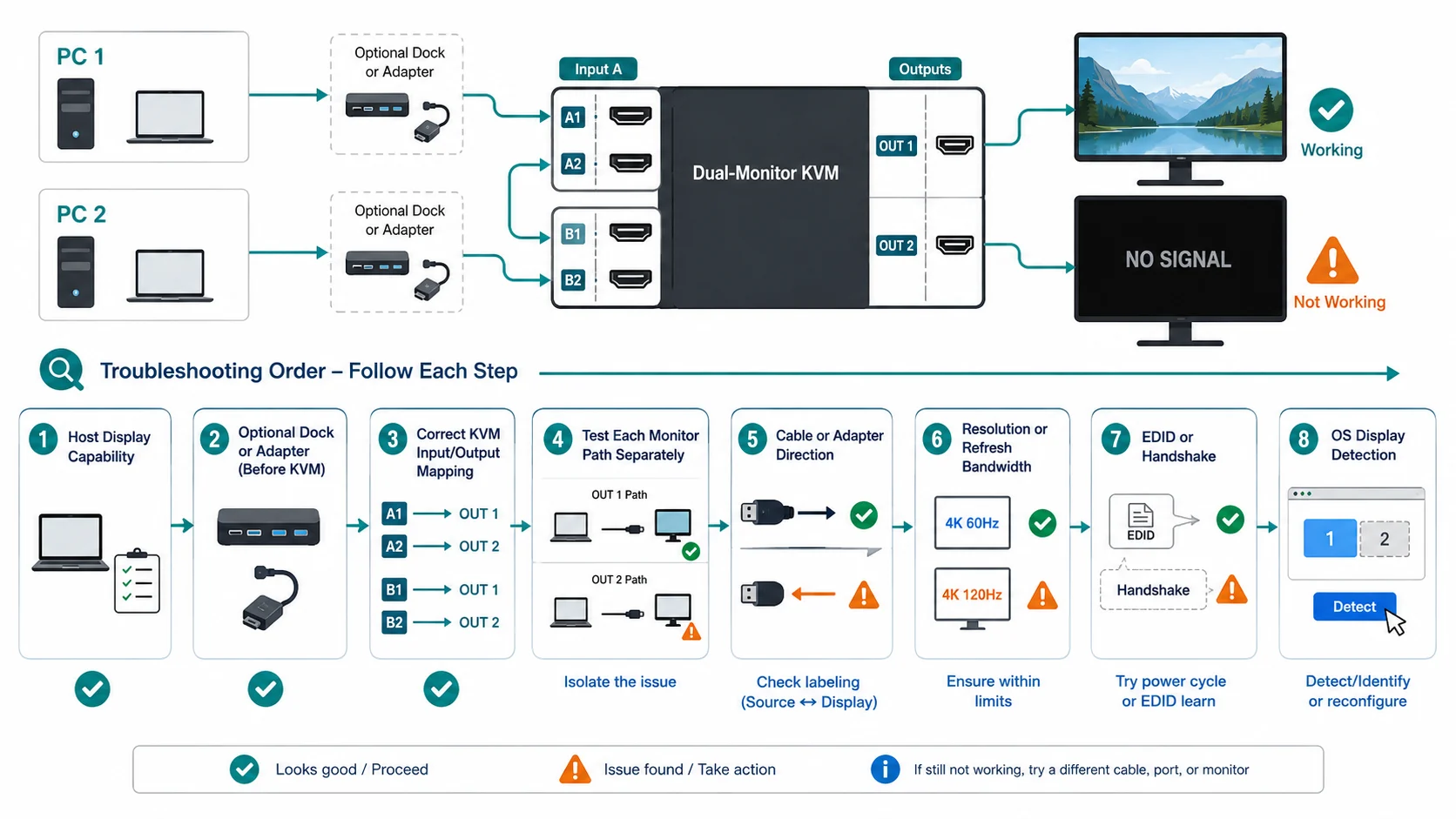
If one monitor works through a dual-monitor KVM but the second stays black, do not start by replacing the KVM. A dual-monitor KVM has two separate video paths to satisfy, and the failure can be before the KVM, inside its input/output mapping, or after it.
Use this order:
- Prove each host can output two displays.
- Decide whether a laptop needs a dock or adapter before the KVM.
- Verify the KVM’s exact input/output mapping.
- Test each monitor path separately.
- Check cable and adapter direction.
- Reduce resolution/refresh rate as a diagnostic.
- Check EDID/handshake behavior only where the KVM documents it.
- Check OS display detection/settings.
- Re-read the exact KVM specification.
That order prevents you from treating every black second screen as a KVM failure.
1. Can each computer actually output two independent displays?
This is the first gate.
A dual-monitor KVM can switch two display signals, but a conventional KVM does not create a second native display stream that the computer cannot produce.
Check the exact desktop, laptop, GPU, or Mac model. Apple publishes model-specific display limits; for Windows PCs, use the computer or GPU manufacturer’s specification as well as Windows display settings.
Do not infer dual-display support from connector count alone. Test the host without the KVM, then confirm it can run both monitors at once through the intended outputs or dock/adapter. If it cannot, the KVM cannot solve that upstream limit. The KVM versus docking station guide explains why switching and display expansion are different jobs.
2. Does the laptop need a dock or adapter before the KVM?
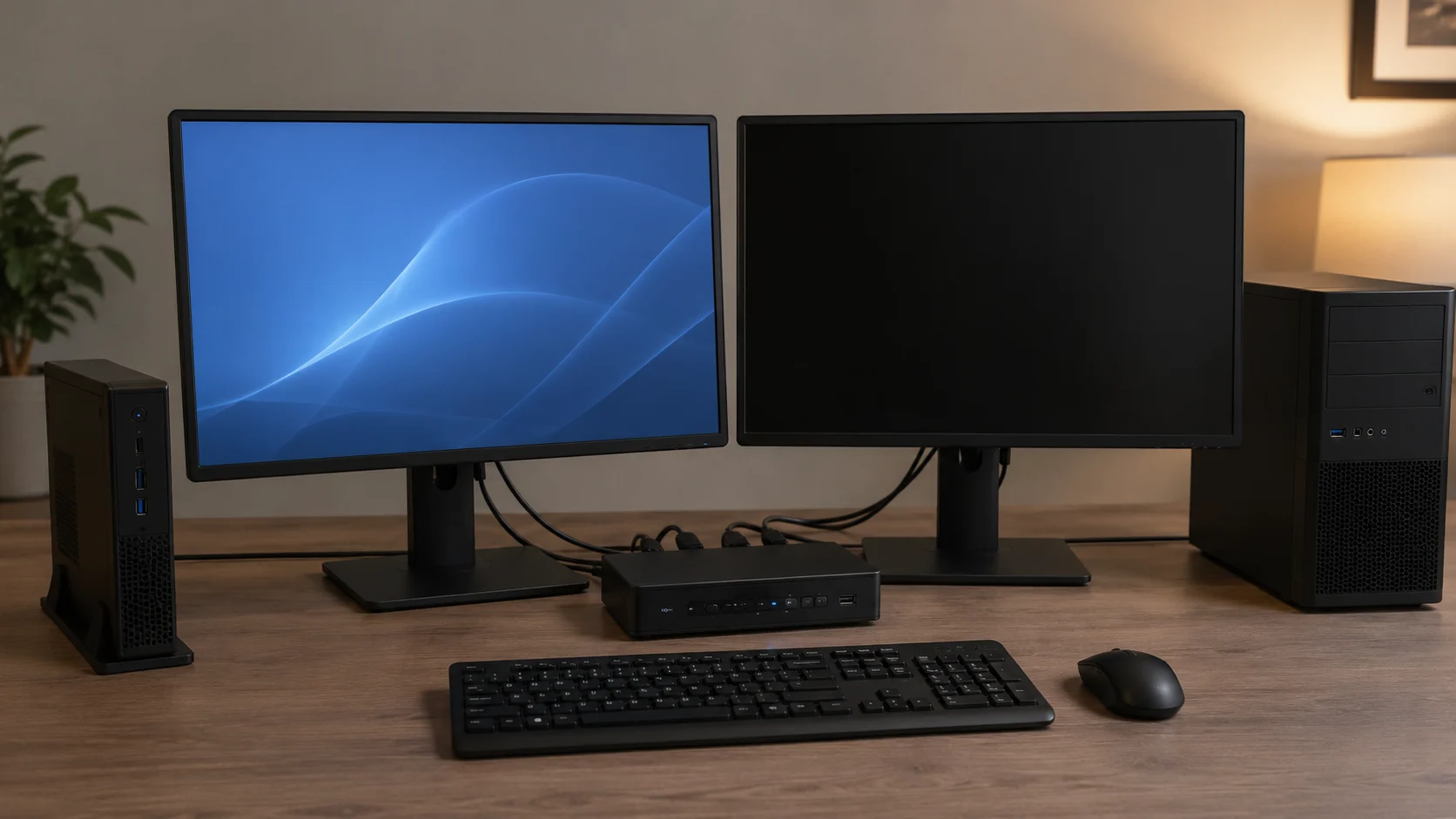
A laptop may need a dock or adapter before the KVM to provide the physical outputs the switch expects. Use the dock compatibility checklist for that upstream path, and review the MacBook and Windows dual-monitor architecture when the two hosts differ. Verify that the exact laptop, host port, dock/adapter, OS, and target display modes support two independent outputs. Native DisplayPort, MST, and DisplayLink paths are not interchangeable.
If the KVM expects two HDMI inputs per host, that host must deliver two compatible signals. Follow the exact product diagram if its topology differs.
3. Verify the KVM’s input/output mapping
Multi-monitor KVMs often group the video inputs by computer.
Many multi-monitor KVMs group video inputs by computer, but labels and architectures vary. TESmart’s first-party troubleshooting tells users to confirm the A/B display mapping and then cross-test inputs and outputs.
Trace every cable from host to KVM to monitor against the exact manual. A second-display cable placed in the wrong host group can leave one screen black or tied to the wrong computer.
4. Test each monitor path separately
Bypass the KVM first:
Computer -> same cable/adapter -> black-screen monitorIf the monitor is still black, the fault is upstream of the KVM or in the monitor/cable/adapter. If it works directly, restore the KVM and swap one element at a time: known-good monitor, output cable, then input cable. TESmart documents this cross-test approach to isolate the host output, cable, dock/adapter, KVM input/output, or monitor.
5. Check cable type and adapter direction
A connector that physically fits can still be wrong for the signal direction.
AV Access, a KVM manufacturer, notes in its troubleshooting guidance that many video adapters are not bidirectional. The signal path must make sense from:
computer -> KVM input -> KVM output -> monitorPay particular attention to DisplayPort/HDMI conversion, USB-C adapters that require DP Alt Mode, and active adapters with fixed source/display sides. A splitter duplicates a signal rather than creating a second independent desktop. Test any unique second-path adapter outside the KVM.
6. Lower resolution and refresh rate as a diagnostic
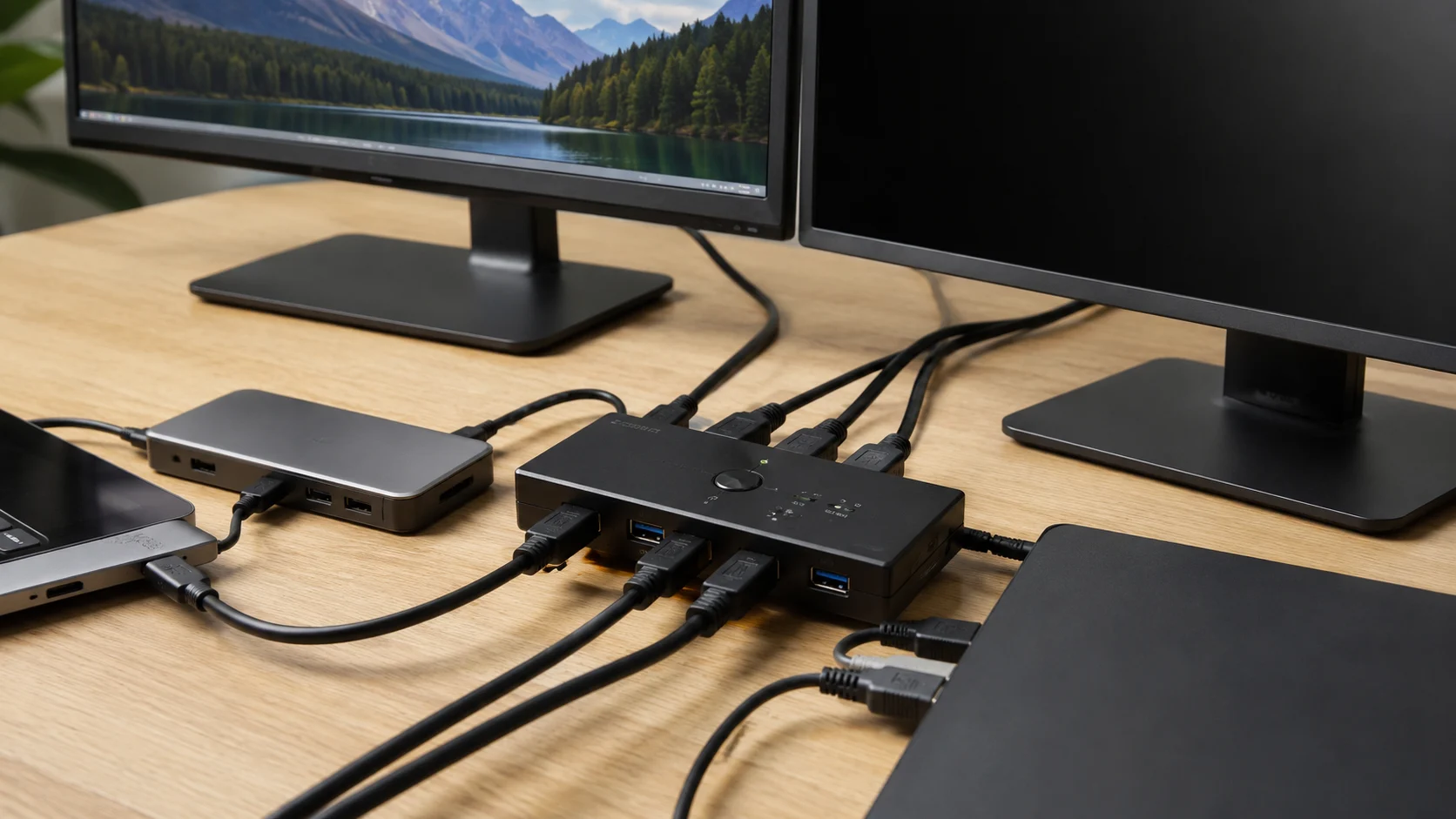
A KVM may support a mode only up to a documented combination of resolution, refresh rate, color format, or cable length.
StarTech, for example, sells exact dual-monitor KVM models with explicit limits such as dual 4K at 60 Hz. That specification belongs to that product; it is not a promise for every dual-monitor KVM.
If the second monitor is black at a demanding mode, temporarily select a lower known-supported resolution/refresh rate. Windows exposes refresh controls under Settings > System > Display > Advanced display.
If both screens then work, the chain can pass two displays, but you have not proved which component limits the higher mode. Check the host, adapter, cable, KVM, and monitor specifications.
7. Treat EDID and handshake problems as model-specific
Some KVMs pass EDID through, emulate it, or provide EDID learning. Do not use “EDID issue” as a generic explanation.
StarTech documents EDID emulation on specific KVMs, showing that EDID handling can matter but is model-specific. If your manual documents EDID copy, learn, emulation, reset, or a status indicator, follow that procedure. Otherwise, do not borrow a reset sequence from another brand.
8. Check whether the operating system detects the second display
Once the hardware path is plausible, check the OS.
Windows
Open:
Settings > System > Display > Multiple displays > Detect
Microsoft documents this as the manual detection path. Also use Windows + P and choose Extend for two independent desktops. If Windows detects both monitors, inspect the second display’s mode before assuming the KVM cannot see it.
macOS
Open System Settings > Displays. Apple says properly connected displays are detected automatically; its Mac help also provides Detect Displays with the Option key. Confirm the exact Mac supports the requested display count and mode. For a MacBook behind a dock, follow MacBook Docking Station Dual Monitors Not Working.
9. Re-read the exact KVM specification
A “dual monitor” label is not enough. Verify inputs required per host, outputs, simultaneous dual-display resolution/refresh limits, interface versions, adapter/cable restrictions, EDID behavior, and any MST/DSC/HDR/VRR/HDCP or driver requirements that matter.
If your exact mode or topology is undocumented, keep the result UNKNOWN.
A useful decision point
If both hosts drive both monitors directly and only one KVM path still fails after cross-testing, the switch or exact compatibility becomes a stronger suspect. If a laptop cannot produce two streams, fix the host-side architecture instead—or keep the monitors on separate inputs and switch only keyboard/mouse. That can be a Keep Existing Gear answer.
FAQ
Can a dual-monitor KVM make a one-display laptop run two monitors? Not by itself. A conventional KVM switches the display signals supplied to it. If the laptop needs a supported dock, adapter, or driver-based display architecture to produce a second independent output, that requirement exists before the KVM.
Why does the second monitor work on one computer but not the other? That usually points upstream toward the failing host’s second output, dock/adapter path, cable, input mapping, or supported display mode. Cross-test that host path before blaming the shared monitor output.
Sources & Verification
Last Checked: 2026-08-28
- Apple Support — Connect displays to your Mac<br />https://support.apple.com/en-us/102555<br />Verified: model-dependent external-display support, proper cabling/adapters, automatic display detection, display settings.
- Microsoft Support — How to use multiple monitors in Windows<br />https://support.microsoft.com/en-us/windows/hardware/display-graphics/how-to-use-multiple-monitors-in-windows<br />Verified: Detect display, Extend/Duplicate modes, Windows multi-monitor configuration.
- Microsoft Support — Troubleshoot external monitor connections in Windows<br />https://support.microsoft.com/en-us/windows/troubleshoot-external-monitor-connections-in-windows-5b46f4a4-9634-06bb-7622-f960facdfd49<br />Verified: external-display troubleshooting order and isolation of docks/dongles/adapters.
- Microsoft Support — Change the refresh rate on your monitor in Windows<br />https://support.microsoft.com/en-US/Windows/Hardware/Display-Graphics/change-the-refresh-rate-on-your-monitor-in-windows<br />Verified: Advanced display refresh-rate controls and display-dependent available rates.
- TESmart Support — Dual/Triple Monitor KVM Switch Only One Monitor Can Display<br />https://support.tesmart.com/hc/en-us/articles/23966762622233-Dual-Triple-Monitor-KVM-Switch-Only-one-monitor-can-display<br />Verified: direct-bypass testing, cross-testing, input/output mapping isolation for one-black-screen failures.
- StarTech.com — 2-Port Dual-Monitor DisplayPort KVM Switch, P2DD46A22-KVM-SWITCH<br />https://www.startech.com/en-us/kvm-switches-accessories/p2dd46a22-kvm-switch<br />Verified as an exact example only: dual-display mode limits and documented EDID emulation. Not used as a generic product recommendation.
- AV Access — KVM Switch Troubleshooting<br />https://www.avaccess.com/blogs/guides/kvm-switch-troubleshooting/<br />Verified: adapter direction warning and the distinction between a splitter/mirrored signal and independent extended-display paths.