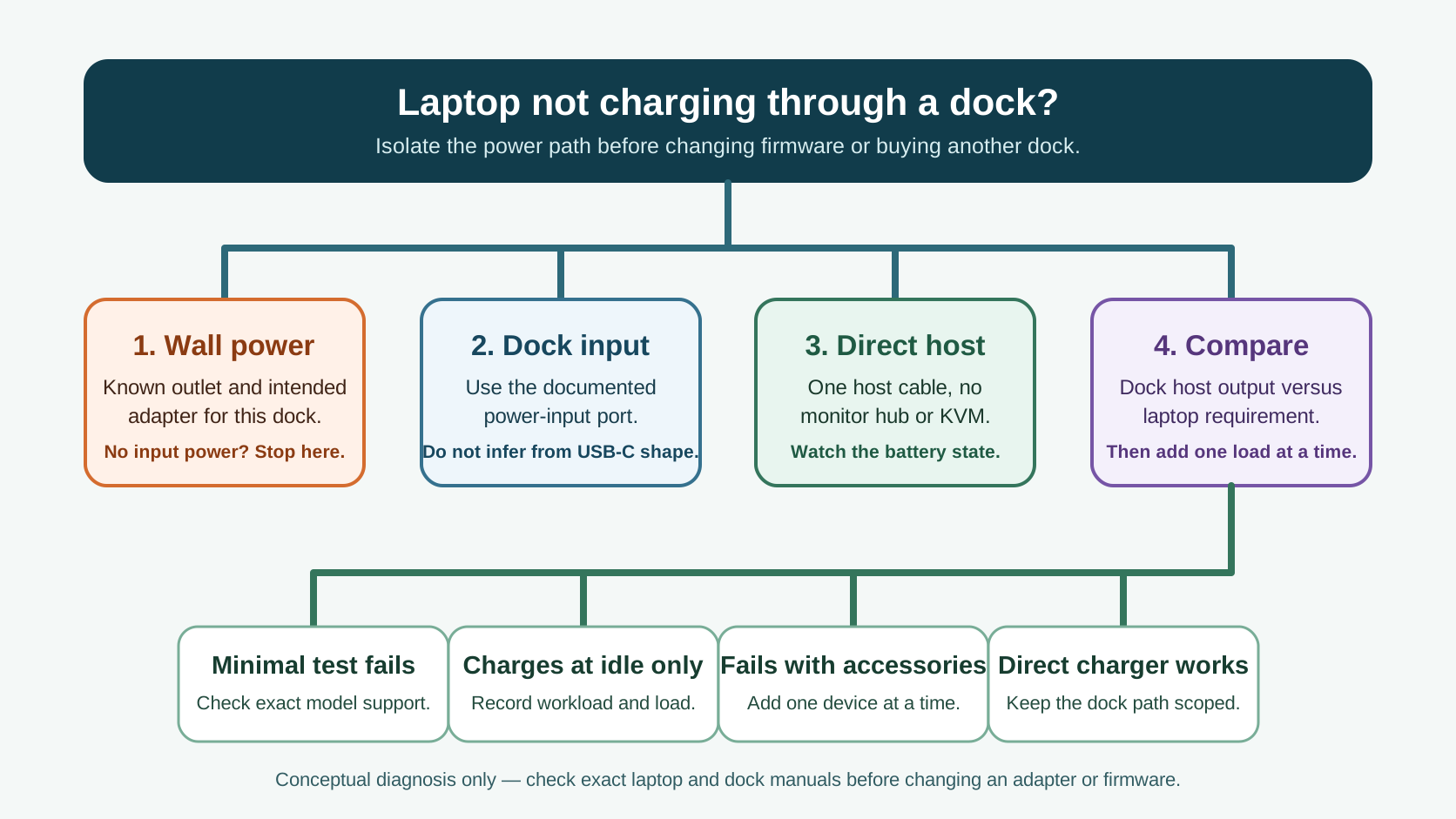
If the dock still drives a monitor or USB device, do not replace it yet. Treat charging as its own path: start at wall power and the dock's intended input, then test one direct host cable with the laptop's normal workload removed. Compare the dock's documented host-power output with the laptop's documented charging requirement only after that small test identifies a power shortfall.
This guide is for a laptop that is connected to a powered dock or hub but stays uncharged, charges slowly, or loses battery under load. It does not claim that every USB-C or Thunderbolt dock can charge every laptop. Exact behavior depends on the laptop, dock revision, power adapter, host port, cable, connected load, firmware, and operating system.
First, separate the charging path from the rest of the dock
| What you observe | First conclusion to test | Keep separate |
|---|
| Nothing on the dock works | Dock input power, the intended adapter, outlet, and power-input port | A driver update cannot restore missing AC input. |
| Video and USB work, but the battery does not rise | The host-power path or available power budget | Display success is not proof that charging is sufficient. |
| The laptop says slow charger or drains under load | Dock output versus laptop requirement plus the dock's own load | A battery-health diagnosis until direct charging is compared. |
| The dock works with one laptop but not another | Exact host support, port capability, and power requirement | That the dock is universally compatible or defective. |
This is SetupMeld's power-path isolation asset. Write down the result of each step as works, fails, or not checked. Do not change the charger, host cable, dock firmware, and laptop settings in one pass: that removes the observation that identifies which path is actually failing.
1. Run a minimal power test
- Save work and disconnect external storage, displays, Ethernet, and high-draw USB accessories from the dock.
- Connect the dock to the wall with the power adapter and input port documented for that exact dock. Do not use an unidentified USB-C charger merely because it fits.
- Connect the dock directly to the laptop with the intended host cable. Remove extension cables, monitor hubs, KVMs, and adapters for this test.
- Check the operating system and, where available, firmware/BIOS power information. Note whether it says not charging, slow charger, or shows power connected while the battery percentage still falls.
- Compare with the laptop's original charger connected directly to the laptop. A direct-charge result helps keep a dock-path problem separate from a battery or laptop charging-port problem.
If the direct charger also fails, stop treating this as a dock-only fault and use the laptop maker's charging procedure. If direct charging works but the minimal dock connection does not, keep the adapter label, dock model, host port, cable, battery message, and load state for the next model-specific support step.
2. Read the power budget, not the connector shape
A USB-C connector can carry data, video, and negotiated power, but its shape does not state what the exact dock will provide to the laptop. Use the dock manual to find its documented host-power output and the laptop documentation to find its applicable charging requirement. Keep the original charger attached when that comparison is unknown or does not meet the workload.
Dell documents this boundary for its USB-C powered docks and hubs: when a laptop adapter is routed through a powered peripheral, the adapter must cover the dock, its connected devices, and the laptop. Dell also notes that some of the adapter's capacity is consumed before power reaches the laptop. That is Dell support guidance for the listed Dell and third-party powered-dock scenario—not a universal wattage formula for another maker's dock.
| Comparison result | What it means | Safe next step |
|---|
| Dock input is not documented or adapter is not its intended unit | The starting power condition is unknown | Identify the exact dock and use its documented adapter/input before troubleshooting software. |
| Dock output is below the laptop's documented need for this workload | Slow charging or battery drain can be an expected limit | Use the laptop's own adapter, or choose an explicitly compatible higher-power dock. |
| Documented values appear sufficient, but minimal test still fails | The result is not explained by connector shape alone | Check the host port, cable, dock/laptop firmware, and model-specific support record. |
| Charging returns only after accessories are removed | The load changes the observed result | Add back one display or USB device at a time and retain the first failing combination. |
Some ports on a dock are for peripherals, not for powering the dock or the laptop. Dell's WD19-family support record, for example, says its listed docks use the included AC adapter in the port marked with the power icon; the female USB-C port in that scenario is for peripherals and does not power the system. Use that only for the listed Dell models. On another dock, follow that dock's port diagram and manual instead of inferring the role from port shape.
A powered dock may pass video and USB while still leaving too little power for the laptop, so a working monitor is not a charging confirmation. Conversely, a dock that has no input power has not reached the host-power test at all. The correct order is wall power → dock input → direct host connection → minimal charging observation → controlled accessory load.
One original public report: useful scope, not a specification
In an original 2024 ThinkPad community thread, an owner reported a ThinkPad T490 connected to a ThinkPad Thunderbolt 3 Gen 2 Dock (40AN) with a 90 W charger. The dock otherwise worked, but charging was slow at idle and the battery discharged under load; the original poster later reported that a 135 W ThinkPad power supply restored normal charging. This is one traceable user outcome for that reported host, dock, adapter, and workload—not a rule for all Lenovo docks, a stated dock specification, or SetupMeld testing.
That case illustrates why the minimal test must preserve the adapter label and load state. It does not establish a repair for an unverified combination. If a different laptop is not charging, use its manual and the exact dock manual before substituting an adapter or buying hardware.
4. Update or replace only after the failed path is named
Do not install a firmware package because any dock is not charging. First record whether the dock has its expected input power, whether the laptop receives a charging indication with no accessories, whether the battery rises at idle, and what changes when one device returns. Then consult the exact laptop and dock support pages for supported firmware and power boundaries.
Dell's current support documents also give two model-specific examples of why scope matters: certain docks are designed for their included adapter and a Dell UD22 may not supply enough power for a laptop that needs more than its documented output under load. Those documents support checking the precise model boundary; they do not diagnose a Lenovo, HP, Apple, or third-party dock.
Only reach a replacement decision after the documented host-power output, laptop requirement, and your actual load have been compared. At that decision point, use the SetupMeld dock and laptop Compatibility Matrix to check display capability, interfaces, USB devices, Power Delivery, and known limits together. For a Dell-specific dock that has no power at all, use Dell Docking Station Not Turning On; for a dock that works except for the monitor, use Dell Dock Monitor Not Detected.
Sources & verification
Official support and the original user thread were checked October 7, 2026. SetupMeld does not perform in-house hardware testing. Manufacturer support defines only its documented models and conditions; the public report describes one author's stated setup and outcome.
Originality accounting: 7 of 12 substantive information blocks are SetupMeld's symptom split, minimal test, power-budget decision table, port-role boundary, controlled add-back sequence, evidence scope, and replacement boundary: 58%. Source lists, disclosures, and generic definitions are excluded.