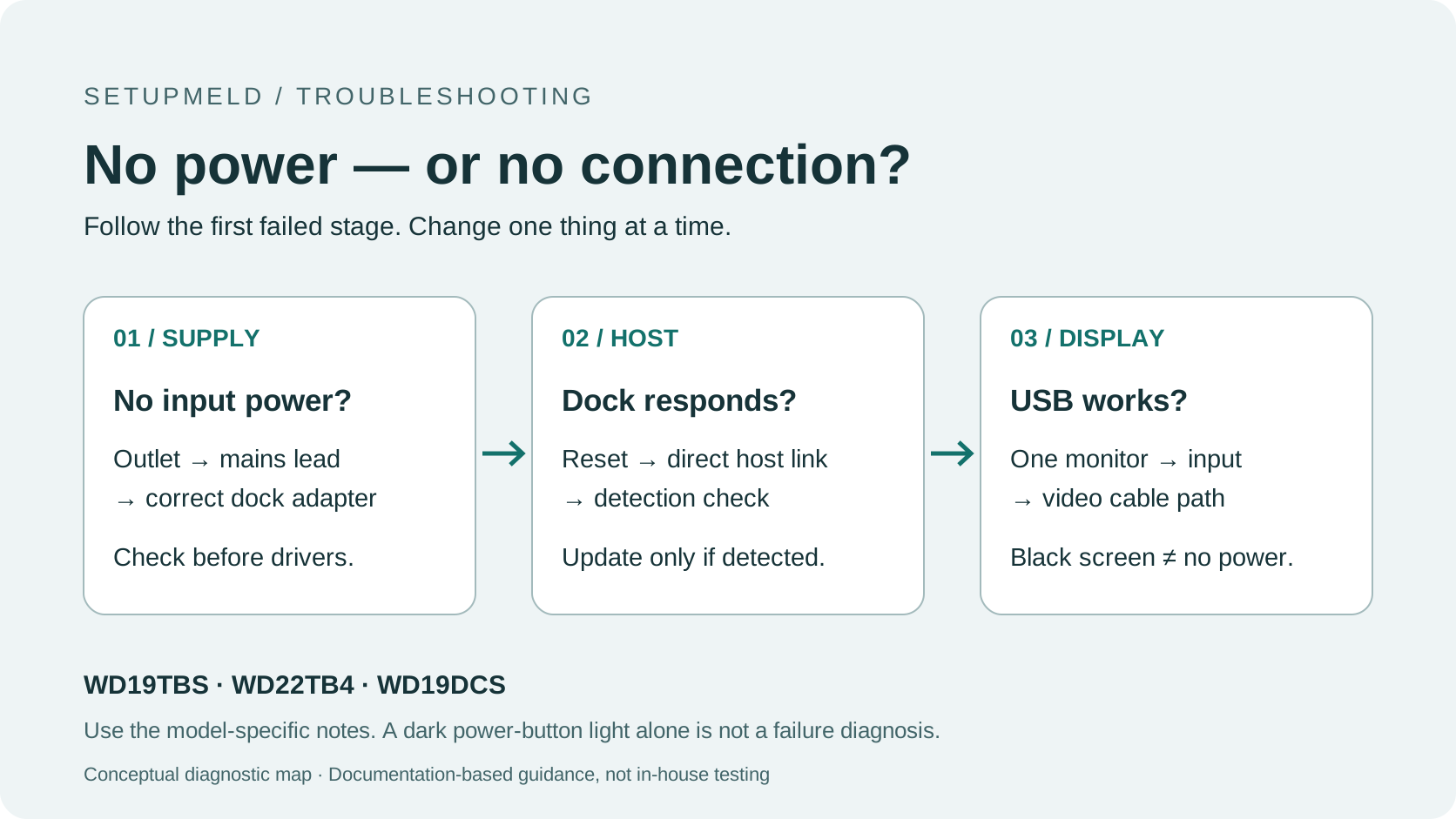
Check power before drivers
Check the dock’s power-adapter light and outlet first. Disconnect the laptop, peripherals and dock power; hold the dock button for at least 30 seconds. Reconnect dock power before the laptop. Three brief button-light flashes are a normal self-test—not a fault code. A dark button afterward does not prove the dock is dead.
This guide covers WD19TBS, WD22TB4 and WD19DCS. The reset and light interpretation above come from Dell’s diagnostic-indicator guide. Official documentation and original user reports were checked September 30, 2026. This is documentation-based troubleshooting, not a SetupMeld hardware test.
1. Decide what “not turning on” means
Before changing anything, note what still works. These observations select a troubleshooting branch; they do not identify a failed component by themselves.
| What you observe | Start here | Do not assume |
|---|
| No adapter light and no response from the dock | Wall outlet → mains lead → correct dock adapter | That reinstalling a driver can establish missing input power |
| The dock responds to power, but the computer does not connect | Reset, then reconnect the host directly and inspect the cable light | That a successful self-test proves the host connection works |
| A keyboard or mouse works through the dock, but the monitor is black | Host-to-display path, monitor input and video cable | That a black screen means the whole dock has no power |
| Only pressing the dock button fails to start the laptop | Try the laptop’s own power button | That remote power-button support and docking support are identical |
Keep “dock has no power” separate from “laptop is not charging.” Record charging, USB and video independently. One working function does not certify the other two.
2. Check the power path, then reset once
Trace the adapter back to this dock so you do not inspect the laptop’s separate charger by mistake. If its light is off, reseat the mains lead at the adapter and outlet, try a known-working outlet, and, if available, a known-good compatible Dell dock adapter. These are Dell’s power-path checks; matching the plug alone is not enough. Do not open the power brick or keep using damaged wiring.
- Save work and safely disconnect storage. Unplug the laptop’s host cable and all peripherals from the dock.
- Disconnect the dock’s AC adapter. Hold the dock’s power button for at least 30 seconds.
- Reconnect power to the dock while the laptop remains disconnected. Watch for the three-flash self-test.
- Reconnect the host cable directly to the laptop. Use the laptop’s own button to start it.
The order follows Dell’s WD19/WD22 reset procedure; disconnecting peripherals and the minimum hold time are in its diagnostic guide. Do not reconnect the entire desk yet: first establish whether the host and dock communicate.
WD19TBS: verify the adapter and mains lead
Dell specifies a 180 W adapter for the WD19TBS. That is the adapter rating, not a promise that the laptop receives 180 W. Check the label against the WD19TBS specifications, then use the shared reset above.
If the dock passes that check but its button cannot start your computer, try the computer’s button. Dell limits the dock button’s power/sleep functions to supported Dell systems; an unsupported or non-Dell host can therefore have a button limitation without proving dock failure. See the WD19TBS button description.
One original user outcome: on December 30, 2025, a WD19TBS owner using a Dell Latitude 7410 reported no adapter light and no recovery after a reset. On January 1, 2026, the same author confirmed that a bad power cord was the cause; the host and adapter-light details are in the original thread. This is one user report, not a measured failure rate. The author did not identify which cord segment failed, so it does not establish a bad power brick.
WD22TB4: distinguish startup activity from a connection failure
The WD22TB4 uses a 180 W adapter, per its product specifications. Dell’s no-power guide describes three initial light flashes and roughly five seconds of fan activity when AC is applied, followed by both stopping. That brief sequence is expected, not proof of a shutdown fault.
After the reset, reconnect directly to a compatible host and check whether the dock is recognized. If startup activity is absent even with a known-good compatible adapter, Dell directs you to support. If startup activity is present but host detection fails, move to the connection checks below rather than repeatedly reinstalling firmware.
Unresolved user example: a February 25, 2026 WD22TB4 report describes slow blinking and lost connections. The author later said the firmware installer did not recognize the dock. No confirmed fix was visible in the reviewed discussion. Its similar r/techsupport post is by the same author, not independent corroboration. The reported repeated blinking is not a fault code established by the Dell sources used here.
WD19DCS: check its own adapter and dual-cable conditions
Use the WD19DCS’s specified 240 W adapter, not an adjacent desk’s unidentified charger. Dell’s WD19DCS troubleshooting table also explains an important exception: on a non-Precision computer without dual-C docking support, only one of the two dock cables functions and its LED lights.
Therefore, write down the exact laptop model before treating one dark cable as a broken dock. On a compatible dual-C host both cable LEDs should light, according to Dell’s diagnostic guide. Do not force a two-cable conclusion onto a host that does not support it. Use the reset sequence above, then compare the observed connection with the host’s documented docking support.
At this compatibility branch, use the dock and host Compatibility Matrix to separate host support, USB, display capability and power. A connector that fits is not a complete compatibility check.
3. Read the result before adding devices back
Use a small observation log: adapter light / startup response / host cable light / USB / video / charging. Record “not checked” rather than treating a missing observation as a failure.
- Nothing changed: continue isolating the power path; a repeated reset with the same unverified supply adds little information.
- The dock responds, but the host does not: keep displays and peripherals out of the test. Reseat the direct host connection and verify that laptop port’s documented docking support.
- The host recognizes the dock: reconnect one simple peripheral, test it, then add one display. Note the exact addition after which failure returns.
- Only video remains broken: stop labeling this a no-power result. Check one monitor’s selected input and cable path before adding the second display.
This is an isolation sequence, not a claim that any one observation proves the dock fully healthy. Its purpose is to avoid changing the adapter, laptop, displays and software simultaneously.
4. Update only after power and detection are established
For a recognized dock on a supported Windows/Dell system, Dell’s update guide calls for applicable dock firmware, host drivers/BIOS and Windows updates. Keep the dock connected. In Dell Command Update, check Settings → Update Filter → What to display → All updates for system model. Restart when instructed and power-cycle the dock only after the firmware operation has finished.
If the updater cannot see the dock, record its exact message and return to host detection. The WD19TBS updater documentation explicitly lists an undetected dock as an error condition and requires adequate host power. Do not bypass its checks or flash a different model’s package. For a managed work laptop, ask IT to perform approved updates; do not disable security controls.
5. Use one controlled swap to narrow the suspect
| Keep unchanged | Change one thing | What the result can tell you |
|---|
| Dock and host disconnected from each other | Use a verified compatible, known-good Dell adapter | If startup returns, the original supply path needs investigation. It does not identify the cord versus the brick. |
| Powered dock and minimal peripheral setup | Try another known-compatible host, if available | If only the original host fails, investigate that host’s port/support/software. Do not condemn the dock from one host alone. |
| Host, dock and adapter | Reconnect one peripheral or display at a time | A repeatable failure after one addition narrows the branch; it does not by itself prove that accessory is defective. |
If you have no verified spare, stop at the last observation you can support. Buying a replacement merely to complete this table is not required.
When to stop and what to send IT or Dell
Stop DIY troubleshooting if there is damaged wiring, an unsafe power connection, or repeated failure after the applicable power/reset checks. Do not open the dock’s power supply. Send a short record that lets support reproduce the same branch:
- Dock model, laptop model and adapter label—not just “Dell dock.”
- Whether it ever worked on this exact host, and what changed before failure.
- The six observations from the log above, including which were not checked.
- The reset order used, the single swap performed, and the result.
- Any updater error, without claiming an update completed when detection failed.
If support confirms a hardware fault or the host cannot support the required connection, use the compatibility and replacement decision guide before choosing another dock. Do not replace hardware solely because its button light stays dark.
Sources & Verification
Reviewed September 30, 2026. Linked Dell manuals supply model specifications; Dell support documents supply reset, indicator and updater limits. Reddit links are original public-user reports: the WD19TBS result is a single scoped case; the unresolved WD22TB4 cross-posts count as one weak symptom report. Neither is entered as a Matrix specification or represented as SetupMeld testing.