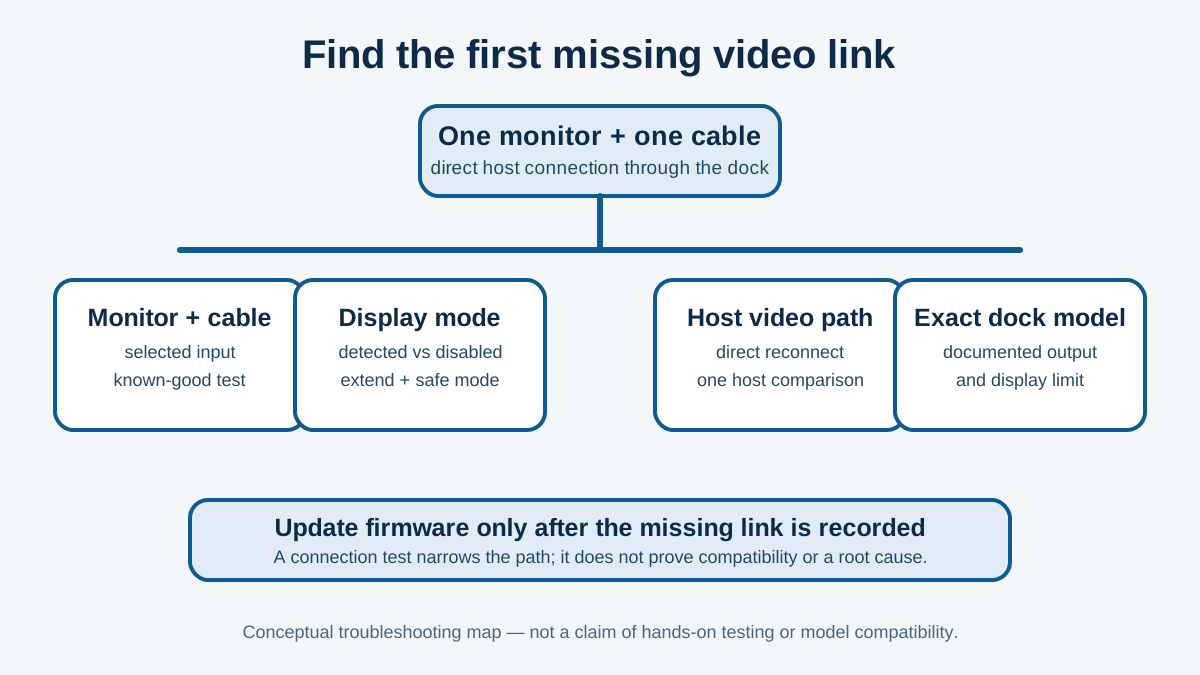
If the dock still powers or passes USB but Windows cannot see the monitor, isolate the video path before updating firmware. Test one known-good monitor and cable on the dock, confirm the monitor input and Windows display mode, then reconnect one display at a time. A black screen, a detected-but-disabled screen, and a dock with no host detection are different faults.
This is the display-only companion to the broader Dell dock troubleshooting guide. If the dock has no input power or no peripheral response, start instead with the Dell dock not turning on guide. Dell procedures in this guide are model-scoped where stated; the same connector shape does not prove the same video capability.
First, sort the symptom you actually have
| What you observe | Check before changing software | Keep separate |
|---|
| The monitor says no signal and is absent from Windows | Monitor input, one video cable, dock output, and host video path | A dock that is not detected at all |
| Windows lists the monitor, but it is dark or disabled | Whether the display is set to Extend and its selected resolution/refresh rate | A physical no-signal fault |
| The monitor appears as a generic display or at the wrong mode | One direct reconnect, then the monitor/cable path and exact dock documentation | A claim that the panel or dock is defective |
| USB, Ethernet, charging, and every display fail together | Dock input power and direct host detection | A display-only troubleshooting path |
This symptom sort is SetupMeld's diagnostic asset. Write down whether the dock is powered, whether one basic USB device works, whether Windows lists the screen, and whether the monitor's own menu shows the selected input. It prevents a driver change from hiding a cable, display-mode, or host-video clue.
1. Reduce the desk to one screen
- Save work and disconnect the second monitor, adapters, display daisy chains, KVMs, and nonessential USB devices. Keep the dock on its intended adapter and connect its host cable directly to the laptop.
- Connect one known-good monitor to one documented dock video output with one known-good cable. Select that physical input in the monitor's on-screen menu; do not assume auto-select chose the dock.
- Check whether the monitor is absent from Windows, present but disabled, or present at an unexpected mode. Only after recording that result should you try a different cable or a different dock output.
- If the monitor itself is suspect, use its applicable self-test or built-in diagnostic before treating the dock as the failed component. Dell's monitor guidance uses those checks to distinguish a screen issue from the connected computer or graphics settings.
Dell's multiple-monitor guidance starts with this kind of isolation: a known-good monitor or TV, firm cable seating, then the monitor's own diagnostics. It also advises reconnecting displays one at a time when a later display is not responding. That is a controlled test sequence, not proof that every Dell dock supports the requested number, resolution, or refresh rate.
2. If Windows sees the screen, check its display mode
A listed monitor is not the same as an active desktop. Select the external screen in Windows display settings and verify that it is not set to disconnect. Use Extend only if that is the intended desktop layout. Then choose a resolution and refresh rate the exact laptop, dock, cable, and monitor path document together. Do not treat a temporary picture at a lower mode as evidence that the full planned multi-monitor setup is supported.
For a third or fourth screen, Dell advises reconnecting every monitor one at a time and confirming the computer's simultaneous-display support in its documentation. This is the point to compare the entire requested path—host support, display count × resolution × refresh rate, interfaces, USB, clamshell behavior, Power Delivery, and known limitations—in the Compatibility Matrix.
3. If the screen is absent, prove the video path in order
| Test | A result that narrows the problem | What it does not prove |
|---|
| Same monitor and cable on another known-good path | The screen and cable can show a picture in that other path | That the Dell dock output or host video path is compatible |
| One monitor on a different documented dock output | Whether the symptom follows one output/cable path | That all two- or three-display combinations fit the dock |
| Same dock on a second, supported host | Whether the first host is the unique failing side of this comparison | A universal diagnosis for either host |
| One direct host-cable reconnect after the minimal test | Whether the display re-enumerates in that one state | A firmware, driver, or hardware root cause |
Only update BIOS, graphics, chipset, dock firmware, or monitor software after this record identifies the affected model and path. Dell lists outdated BIOS, chipset, graphics, and monitor drivers as possible display-detection factors, but its WD19/WD22TB4 intermittent-blanking procedure is a narrower, named symptom with model-specific prerequisites. Do not flash that package just because a monitor is generally missing.
4. Keep Dell model boundaries visible
For WD19DCS, Dell's symptom table directs a display-only investigation through the monitor input, cable seating and condition, host resolution settings, then a known-good monitor and cable. That is useful for that named family; it is not a maximum-display specification for a WD22TB4, UD22, or another laptop.
Dell also maintains dock-specific display articles, including a UD22 article for a missing DisplayPort monitor or a two-display limit. Read the article matching the exact dock before changing a connection layout. If its documented host, interface, or display limit cannot meet the desk's requirement, that is a compatibility decision—not a repair step—and is when to consider a different supported architecture.
What original user reports show—and do not show
Three independent original reports are useful as scoped context, not as product facts. One Alienware x16 R1 owner with a WD22TB4 described a USB-C-connected monitor identified only as a generic wired display after a cold start; unplugging and reconnecting the dock-to-laptop cable restored the reported 2560 × 1440 at 120 Hz result. A Latitude 7530 owner described a WD22TB4 with three named monitors that were all absent after restart; reconnecting the host cable sometimes helped, but no verified root cause or final resolution was reported. An XPS 9710 owner described a WD22TB4 where a USB-C/Thunderbolt-connected second 4K monitor stopped being detected after a graphics-driver change while a DisplayPort screen remained active.
Each is a single public-user outcome with a different host, display connection, software state, and result. They are not corroboration, a failure rate, a Dell specification, a supported remedy, or SetupMeld testing. Their shared lesson is only the safe one: capture the full connection path before moving on to firmware or replacement.
When to stop and escalate
Stop when you can name the first failed link: the monitor's selected input, one cable, one dock output, Windows display mode, the host's video path, or a documented model limit. Do not open the dock, use damaged cables, turn off managed-device security, or substitute a firmware package for another Dell dock.
Give Dell support or IT the laptop model, dock model, monitor model, every cable and port used, operating-system state, requested display mode, and the one-screen test result. If the documented path cannot provide what the desk requires, use the Compatibility Matrix to compare a supported replacement path; do not buy a second dock merely to repeat an unverified configuration.
Sources & verification
Official support and original public-user reports were checked October 5, 2026. SetupMeld does not perform in-house hardware testing. Official Dell material defines the support boundaries; public reports describe only each author's named setup and outcome.
Originality accounting: 7 of 11 substantive blocks are SetupMeld's symptom sort, minimal one-screen test, display-mode boundary, controlled video-path table, model boundary, evidence interpretation, and escalation rule: 64%. Source lists, disclosures, and generic definitions are excluded.