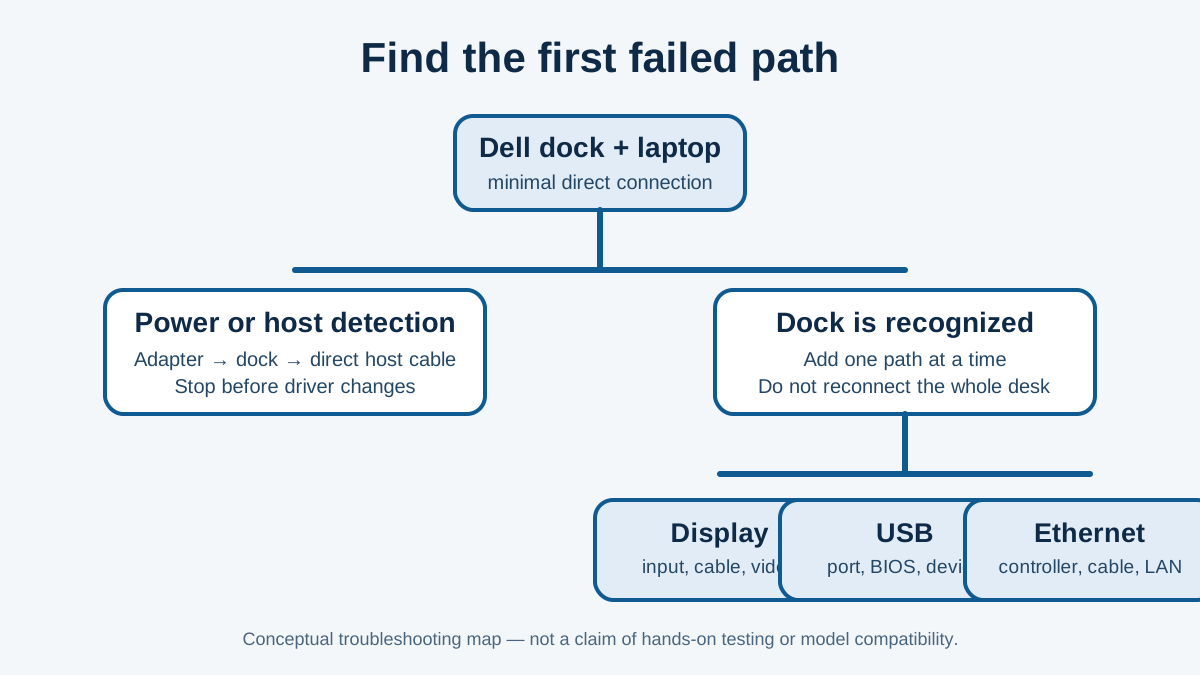
Do not update or replace a Dell dock until you know which path failed. Test dock power and direct laptop detection with everything else disconnected. If the laptop sees the dock, add back one display, USB device and Ethernet cable at a time. A display-only, USB-only or network-only failure needs a different next check from a dock that never powers on.
This guide uses current Dell support material for the WD19S, WD19DCS and WD22TB4 families where Dell names them. It also links to the separate Dell dock not turning on guide for WD19TBS, WD22TB4 and WD19DCS input-power diagnosis. It is not a claim that every Dell dock has the same ports, firmware or host support.
Two-minute triage: choose the failed path before changing anything
| First visible symptom | One bounded test | Where it sends you |
|---|
| The dock has no power response, or the adapter/cable indicator does not behave as expected | Disconnect the host and accessories; use the dock's intended Dell adapter and a known-working outlet. | Input-power path. Use the no-power guide before changing display or driver settings. |
| The dock is powered but the computer does not recognize it through a direct host connection | Remove extensions and other devices. Check for a Windows device warning or an organization-managed policy boundary. | Host-recognition path. Dell documents a Group Policy case for USB-C and Thunderbolt docks; do not treat it as a cable diagnosis. |
| USB works, but one or both monitors do not | Keep the working USB path unchanged and test one monitor path at a time. | Display path. Check selected monitor input, cable, display mode and host capability before a firmware change. |
| USB and displays work, but Ethernet does not | Check whether the dock network controller appears before changing network settings. | LAN path. Use Dell's model-matched controller procedure if it applies. |
This is a diagnostic order, not a claim that one symptom proves one cause. It separates power, host recognition, display and network facts so that a repair for one path does not hide the evidence for another.
Start with the symptom split
| What still works? | Test first | Do not assume |
|---|
| Nothing: no power response and no peripheral response | Dock adapter, wall outlet and the exact dock model | That a driver or firmware update can restore missing input power |
| The dock has power, but the laptop does not detect it | One direct dock-to-laptop connection with displays and accessories removed | That a lit dock proves the host USB-C or Thunderbolt path works |
| Keyboard or mouse works, but a monitor is black or blanking | Monitor input, one display cable and the documented display branch | That the whole dock has failed |
| USB works but Ethernet does not | Whether the dock network controller appears before changing network settings | That a second USB Ethernet adapter is a neutral test during a dock firmware procedure |
This symptom split is SetupMeld's diagnostic asset. Record each function as works, fails or not checked. That prevents changing the laptop, cable, monitor and firmware at the same time, then losing the one observation that could identify the failing path.
1. Prove power and host detection with a minimal setup
- Save work and disconnect storage. Remove displays, USB devices, Ethernet and the laptop from the dock.
- Connect the dock to its intended Dell power adapter and a known-working outlet. Do not substitute an unidentified adapter just because its connector fits.
- With the dock powered, connect its host cable directly to the laptop. Leave extensions, adapters, monitor hubs and KVMs out of this test.
- Check whether the operating system sees the dock or one basic USB device through it. If it does, keep the same host connection and add one function back at a time.
If the dock has no power response, use the model-specific no-power guide rather than treating a display or driver step as a power repair. Dell's diagnostic-indicator guidance covers the dock, cable and adapter LEDs on named wired dock families; its power-button LED is not by itself a proof that the dock has no power.
Read the power and host-cable boundary before replacing a dock
An undersized power adapter warning is a power-budget and initialization branch, not proof that the dock itself has failed. Dell's WD19/WD19S guidance says to use the dock's own correct adapter, power the dock and computer before connecting the host, and allow the listed docks time to initialize. Its WD19S manual separately ties an unlit cable LED with no external display or USB/data to the docking connection and directs a reconnect before escalation.
Do not infer video, data or charging support from a USB-C plug shape or from a cable that merely fits. For the direct-host test, keep the dock's captive host cable and remove adapters, monitor hubs, KVMs and extensions. If the computer still does not recognize the dock, Dell documents a managed-Windows Group Policy case in which USB-C or Thunderbolt devices cannot install; that is a policy/IT branch, not a reason to buy a random replacement cable.
Use the adapter label and the exact dock manual to establish the needed rating. A Dell laptop's own adapter may still be required when the dock documentation says the host needs more power than the dock can supply. Never open an adapter or substitute an unidentified one because its connector fits.
Model starting points: use the matching branch, not a generic dock recipe
| Dock family | Start with this bounded check | Do not transfer this to another family |
|---|
| WD19 / WD19S / WD19DCS | Confirm the dock has its intended adapter; for an undersized-adapter alert, Dell specifies a power-on order and initialization wait. For WD19S, use its symptoms table for cable-LED and display/USB observations. | Its charging and cable-LED guidance is model-manual scope, not a universal USB-C rule. |
| WD22TB4 | Keep a display-only symptom separate from a missing Ethernet controller and use the specific Dell support procedure that names WD22TB4. | A WD19 blanking or Ethernet firmware step is not a general fix for every WD22TB4 symptom. |
| D6000 | Start with the D6000 user guide and its connection type. Dell's D6000 documentation distinguishes USB-C Power Delivery from its USB-A connection path. | Do not apply WD19/WD22TB4 Thunderbolt-specific steps to the D6000 without an exact Dell document. |
A model table is a routing aid, not a purchase list. Compare host support, display count × resolution × refresh rate, interfaces, USB, Power Delivery and known non-working combinations in the Compatibility Matrix only when the evidence points to a hardware mismatch.
2. Add back one path at a time
| Add next | What to observe | Boundary for the next step |
|---|
| One basic USB device | Whether Windows sees it through the dock | If it fails while direct laptop USB works, keep the host and dock model separate from a monitor diagnosis. |
| One display | Selected monitor input, picture and audio separately | If USB still works, troubleshoot the display path; do not call it a no-power failure. |
| Ethernet | Whether the dock network controller appears and its cable link is present | Keep dock recognition separate from the router, firewall or network-policy branch. |
| Charging | Whether the laptop reports charging with the intended dock adapter | Record laptop, dock and adapter labels; do not turn a charging result into a display-support claim. |
Only add a second display after the first is stable. Before a purchase or a replacement, compare host support, display count × resolution × refresh rate, interfaces, switching, USB, clamshell support, Power Delivery and known non-working combinations in the Compatibility Matrix. A matching USB-C connector does not establish the complete video-and-power path.
If USB works but the monitor does not
For the WD19DCS, Dell's troubleshooting table directs readers to check the selected monitor input, cable seating and condition, the host's resolution settings, and then test a known-good monitor and cable if possible. Its instructions are model-scoped: do not use them as a universal maximum-display specification for another Dell dock or laptop.
Dell also documents a narrower intermittent-blanking case for WD19 and WD22TB4 docks: a display that goes black for roughly three to four seconds can involve Display Stream Compression, and Dell names specific minimum dock firmware versions for that issue. That remedy is for the stated blanking symptom and affected dock family—not a reason to flash firmware whenever a Dell dock is generally “not working.” Follow the exact Dell support page for the matching dock and keep its normal update prerequisites intact.
One public-user report, kept separate from specification: a WD19S owner reported using the dock with a Dell Latitude 5520 and a Microsoft Surface Laptop. Keyboard and mouse still worked, while the Latitude stopped passing video; the other laptop and a separate dock helped isolate the report to a host/display path. The author said simply opening the Thunderbolt BIOS settings preceded recovery, but did not identify a changed setting, display model, cable, operating-system state or repeatable cause. It is useful context for isolating paths, but is a weak, single report, not a Dell-supported repair or compatibility conclusion.
If the USB ports do not work
Dell's WD19DCS support table says to verify the dock is securely connected, try the device in another dock port, check that the system BIOS has USB enabled where that option exists, and confirm Windows detects the device with the needed driver. It also specifies a power-cycle order: disconnect the host Type-C cable, remove dock power, reconnect dock power, then reconnect the host. Use that order only as a model-supported isolation step; do not reclassify a power-off reset as proof that every Dell USB issue has one cause.
For a managed work laptop, involve IT before changing BIOS, Thunderbolt security or device-control policy. Do not disable security controls to force an accessory to enumerate.
If Ethernet is the only failed path
Dell has a specific Ethernet-controller procedure for WD19S, WD19DCS and WD22TB4 docks when the Realtek Gigabit Ethernet controller is missing from Device Manager. It tells users not to attach a USB Ethernet adapter or another network interface while running its firmware procedure, because that can prevent the update from installing. First record whether the dock's controller appears; then use the firmware utility and reconnection sequence from Dell's model-matched support page.
If the controller appears but there is still no network connection, keep the next test at the Ethernet path: cable seating and link lights, then the network equipment or policy. A working monitor or USB keyboard does not rule in or out a LAN-only failure.
What a qualified user case can—and cannot—show
In a separate original report, a WD19TBS owner using a Dell Latitude 7410 reported no adapter light and no recovery after a reset. The same author later confirmed a bad power cord as the outcome. This is a single, scoped public-user power-path case: it supports checking a cord in that user's setup, but not a failure rate, a failed power brick, or a diagnosis for a different Dell dock. The full case and its model-specific reset path remain in the no-power guide.
When to stop troubleshooting
Stop changing variables when you can state the first failure precisely: “dock has no input power,” “host does not detect the dock with a direct connection,” “only one display is blanking,” or “only the Ethernet controller is missing.” Do not open a power adapter, use damaged wiring or flash a package for another model.
Give Dell support or IT the dock model, laptop model, adapter label, operating system, direct connection tested, the works/fails/not-checked symptom log and any exact update error. Consider replacement only after that failing path is known. If the documented host or dock cannot deliver the display, USB or power behavior your desk needs, consult the Compatibility Matrix at that hardware-decision point.
Sources & verification
Official support and original public-user reports were checked October 10, 2026. SetupMeld does not perform in-house hardware testing. Dell documents define model scope and procedures; public reports describe only the named author's setup and outcome.
Originality accounting: 10 of 15 substantive blocks are SetupMeld's two-minute triage, symptom split, minimal test, controlled add-back table, power/host-cable boundaries, model routing table, branch boundaries, evidence interpretation and stop/replacement rules: 67%. Source lists, disclosures and generic definitions are excluded.