The short answer
A DisplayPort KVM switch is a good fit when the switch, host outputs, cables, and monitor inputs all document the same exact mode. Start with the tuple—not the word “4K”: monitor count × resolution × refresh rate × color depth × connection path.
For one 3840 × 2160 display at 60 Hz, 8-bit RGB active-pixel data is:
3840 × 2160 × 60 × (8 bits × 3 RGB channels) ÷ 1,000,000,000
= 11.943936 Gb/s
Two such displays begin at 23.887872 Gb/s of active pixels, before blanking, transport encoding, compression, audio, or USB traffic. That is a planning estimate, not a guaranteed link rate. Download the DisplayPort KVM bandwidth audit (CSV), then check the manufacturer’s mode table for the actual KVM.
The practical choice is simple: pick the model whose official page names your monitor count and refresh rate, confirm whether it needs MST or DisplayPort Alt Mode, and keep a direct, known-good DP cable path wherever possible. A “DP 1.4” label by itself is not a promise that every 4K high-refresh combination will pass through a KVM.
For the physical wiring shared by two hosts, use KVM Switch for Two Computers: Connect It Without Losing a Display. If two monitors are already connected but one is black or unstable, use KVM Switch Dual Monitor: A Signal-Path Audit for Two Computers. This guide stays on the DisplayPort mode and link-budget decision.
A five-step setup you can actually follow
- Write the target mode. Record one or two monitors, the exact pixel dimensions, refresh rate, color depth if known, and whether the displays are extended or mirrored. “Dual 4K” is incomplete.
- Check the host outputs. A USB-C port must expose DisplayPort Alt Mode or Thunderbolt for a video-adapter path. A laptop with one video output may need a dock, MST hub, or different KVM design to create a second independent display path.
- Match the official KVM table. Find the exact model’s input count, output count, and documented mode. IOGEAR’s GCS62DP page documents DisplayPort 1.2 and up to 4096 × 2160 at 60 Hz; StarTech’s SV431DPU3A2 page documents 3840 × 2160 at 30 Hz. Those are different buying decisions even though both pages use “4K.”
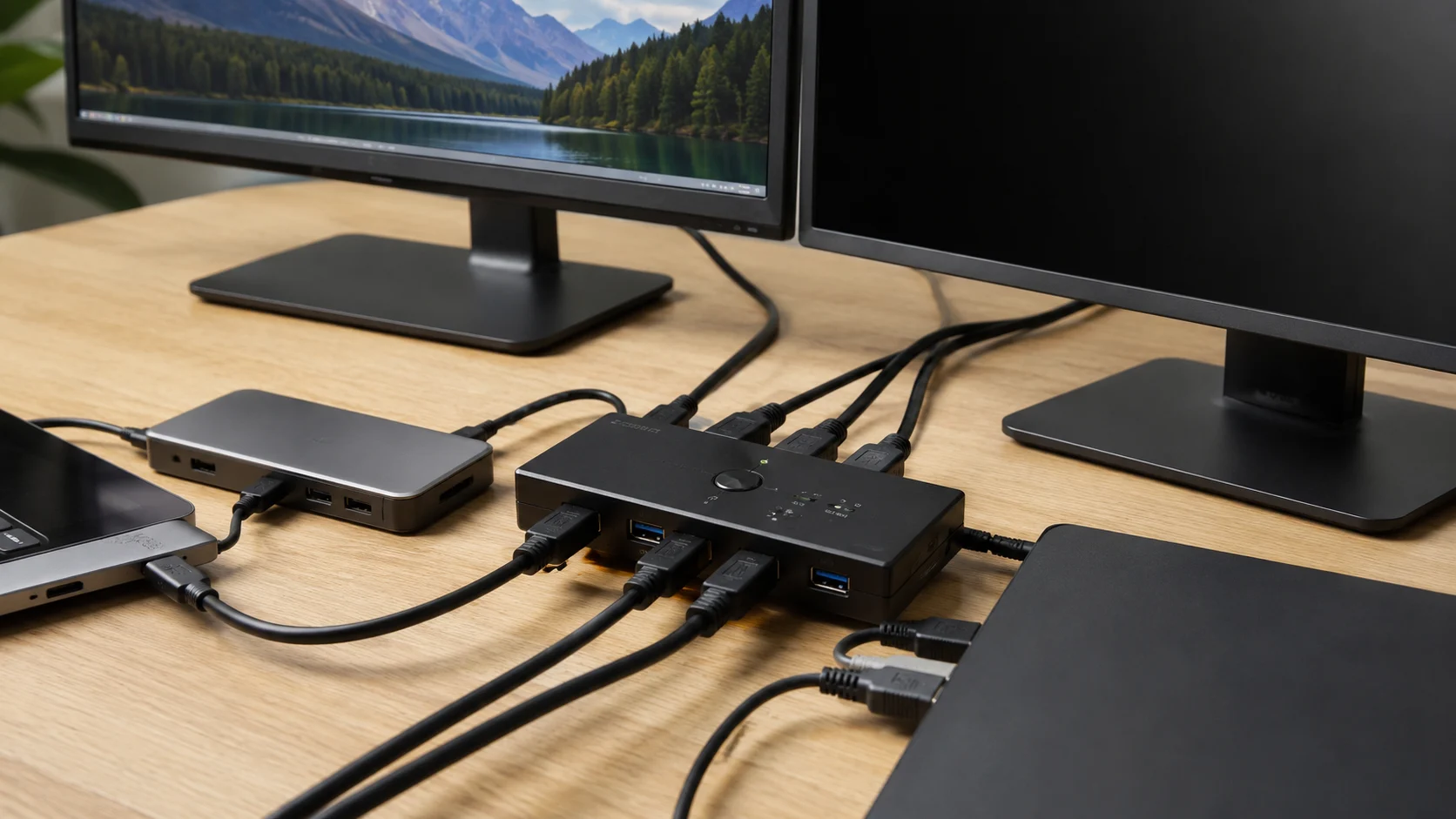
- Wire one host first. Connect the host’s DP outputs to the KVM inputs, the KVM output or outputs to the monitor or monitors, and the host USB/data cable to the KVM. Connect the keyboard and mouse to the KVM’s dedicated ports. If the product calls for MST or a particular adapter direction, follow that exact requirement.
- Test in two passes. First confirm a stable image at the documented baseline mode. Then switch to the target high-refresh mode and repeat the test on the second host. If the fault follows a cable or adapter when moved to the known-good input, replace that component before blaming the KVM.
Before purchasing, compare the host, display, and switching fields in SetupMeld’s compatibility matrix for KVM and dock setups. It cannot turn an undocumented mode into a verified one, but it keeps the compatibility question separate from the connector shape.
The bandwidth arithmetic and what it does not prove
The downloadable CSV uses one repeatable calculation:
width × height × refresh × bits per channel × 3 RGB channels ÷ 1e9
It intentionally counts active pixels only. A 4K60 8-bit RGB display comes out to 11.943936 Gb/s; 4K120 doubles that to 23.887872 Gb/s; 2560 × 1440 at 144 Hz is 12.740198 Gb/s; 3440 × 1440 at 165 Hz is 19.616256 Gb/s; and 8K60 is 47.775744 Gb/s on the same simplified basis.
These figures do not certify a DisplayPort link. Transport overhead, blanking intervals, DSC, HDR/color depth, audio, and the KVM’s own signal handling change the real requirement. They are useful because they expose an under-specified shopping claim: if a page says “4K” without a refresh rate, you still do not know which row of the table you need.
Dated comparison: four different DisplayPort KVM jobs
The comparison below was checked against the linked manufacturer pages on September 18, 2026. The date is a verification date, not a claimed product release date.
| Model | Officially documented signal or use | What that means for the buyer | Checked |
|---|
| IOGEAR GCS62DP | Two-port DisplayPort 1.2 KVM; up to 4096 × 2160 at 60 Hz; one shared display path | A one-monitor 4K60 baseline. It is not evidence for dual-monitor or 4K120 use. | 2026-09-18 |
| StarTech SV431DPU3A2 | Four computers, one DisplayPort monitor; 3840 × 2160 at 30 Hz; the page notes an active-adapter requirement for some conversions | Useful when four hosts matter more than high refresh. Do not buy it for a 4K60 or gaming-high-refresh requirement without a different model. | 2026-09-18 |
| AV Access 8KSW21DP-DM | Dual-monitor DisplayPort KVM; page lists 8K60 and several 4K or ultrawide high-refresh modes, 13.5 Gbps transmission, and a host-MST requirement for certain dual-monitor paths; it also says there is no EDID emulation | The most demanding path here. Confirm the host supports MST, use the specified DP cables, and do not assume EDID behavior that the page says is absent. | 2026-09-18 |
| ATEN CS782DP guidance | DisplayPort 1.2 class, 4K at 60 Hz; the article warns that full DCI 4K (4096 × 2160) should be connected directly to the monitor for that use case | Good for a documented 4K60 workflow, but a poor fit for a user whose requirement is full DCI 4K through the KVM. | 2026-09-18 |
The comparison shows why “best DisplayPort KVM” is the wrong first question. The real question is which exact mode and monitor count must survive the switch.
Who should not use a generic DisplayPort KVM path
- A dual-monitor laptop with no second video-capable path. A USB-C port without DisplayPort Alt Mode or Thunderbolt cannot be treated as a video input just because its connector is USB-C.
- A host that cannot provide the required MST topology. The AV Access dual-monitor page calls out MST for the relevant path; a switch with two outputs does not create a second independent signal from a host that cannot supply it.
- A full-DCI 4K workflow that must pass through the switch. ATEN’s guidance specifically says to connect the machine directly to the monitor for full DCI 4K. Treat that as a boundary, not as a generic “4K works” claim.
- A high-refresh gaming setup with an undocumented mode. If the official table omits the refresh rate, color format, or monitor count, the requirement is still unverified. Do not infer 4K120 or 4K240 from “DP 1.4” alone.
- A chain full of adapters. StarTech flags an active-adapter requirement for some conversions. Every adapter becomes another link to identify and test.
What to do when the screen goes black
Power off the KVM, unplug it, reboot the hosts, and reconnect the cables in the documented order. Then reduce the test to one host, one monitor, and one direct DP cable. If that works, add the second display or adapter one item at a time.
Use the KVM’s physical button or remote while diagnosing; keyboard hotkeys depend on the USB/data path and the model’s emulation behavior. If the image follows a particular cable or adapter after a swap, replace that part. If it fails only when the second monitor is added, return to the host’s MST or second-output requirement instead of repeatedly changing the KVM switch.
Decision in one sentence
Buy a DisplayPort KVM only after the exact mode tuple is written down and found in the official model table; use the CSV to expose the pixel-data demand, then treat MST, EDID, adapters, and monitor count as separate compatibility checks.
Sources & verification
Last checked: 2026-09-18.
| Official source | Source type | Used to verify | Last checked |
|---|
| IOGEAR GCS62DP | Official specification | DisplayPort 1.2, two-computer single-display use, and up to 4096 × 2160 at 60 Hz | 2026-09-18 |
| StarTech SV431DPU3A2 | Official specification | Four-host single-display use, 3840 × 2160 at 30 Hz, and active-adapter limitation | 2026-09-18 |
| AV Access 8KSW21DP-DM | Official specification | Dual-monitor modes, 8K60 and listed high-refresh modes, MST requirement, cable requirement, and no-EDID-emulation limitation | 2026-09-18 |
| ATEN DisplayPort switch guidance | Official support and product guidance | DisplayPort 1.2 class, 4K60 context, and full-DCI-4K direct-monitor limitation | 2026-09-18 |
Evidence note: SetupMeld does not currently perform in-house hardware testing. Product capability in this guide comes from manufacturer specifications and support guidance; the calculation table is a transparent arithmetic aid, not a hardware test result.