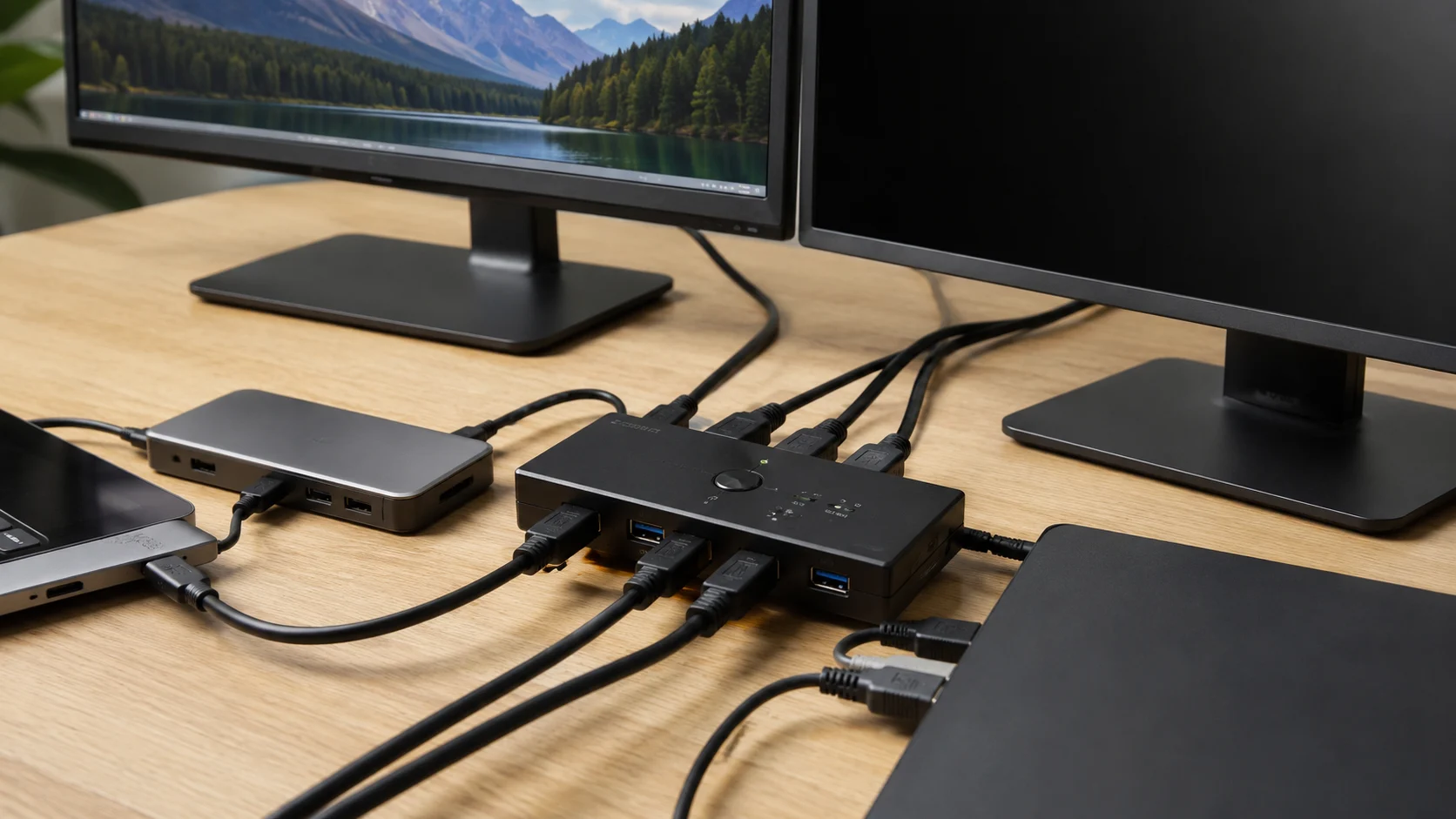
The short answer
Yes—a dual-monitor KVM can let two computers share two displays, a keyboard, and a mouse, but only when every link in the display chain is capable of carrying the mode you want. Each computer must be able to supply the KVM with two independent display signals, the KVM must document the required input/output topology, and the USB host path must be connected separately from the video paths.
The safest setup order is host capability → exact KVM model → signal map → one-host test → peripheral test. If either computer cannot produce two independent displays, or the KVM does not document your interface and resolution/refresh combination, stop. Keep video on the monitors’ own inputs and switch only USB, or put a verified dock in front of the KVM.
Draw the path before buying or plugging in
Use one row for each computer. Do not count sockets; record what each socket actually carries.
Computer A video 1 ──> KVM A / Display 1 ──> Monitor 1
Computer A video 2 ──> KVM A / Display 2 ──> Monitor 2
Computer A USB host ──> KVM USB A ──> keyboard, mouse, or hub

Computer B video 1 ──> KVM B / Display 1 ──> Monitor 1
Computer B video 2 ──> KVM B / Display 2 ──> Monitor 2
Computer B USB host ──> KVM USB B ──> keyboard, mouse, or hub
On a traditional dual-monitor KVM, the two video links and the USB data link are separate requirements. TESmart’s dual-monitor support documentation describes one KVM cable per computer plus an additional video cable; the exact connector mix belongs to the specific model, not to the phrase “dual-monitor KVM.” TESmart dual-monitor connection guidance (official support, checked 2026-09-18).
The worksheet
Fill this in before you compare products. Blank cells are Unconfirmed, not permission to guess.
| Check | Computer A | Computer B | Monitors / KVM | Stop condition |
|---|
| Exact computer model and OS | | | | Host limit is unknown |
| Independent display paths available | | | 2 target displays | Fewer paths than displays |
| Port protocol (HDMI, DisplayPort, USB-C DP Alt Mode, or dock output) | | | KVM input protocol | Connector fits but protocol is unconfirmed |
| Adapter or dock, including source/target direction | | | KVM input mapping | Direction or capability is undocumented |
| Target resolution × refresh rate | | | KVM output limit | Exact combination is missing from the spec |
| USB host connection | | | Dedicated keyboard/mouse ports | Host USB path does not enumerate |
| Extra devices (camera, storage, audio, hub) | | | General USB ports | Device class or power behavior is undocumented |
Download the live worksheet at kvm-switch-dual-monitor-signal-audit.csv.
Three decisions that prevent most failed setups
1. Can each host really drive two displays?
A dual-monitor KVM switches the streams it receives. It does not create a missing stream. Apple’s current display guidance says the number of external displays depends on the exact Mac model and on the resolution and refresh rate of each display; check the model-specific specification before you count a USB-C or Thunderbolt port as a second screen path. Apple: Connect displays to your Mac (official support, checked 2026-09-18).
Windows has a useful verification step before the KVM is involved: use Settings → System → Display → Identify, then choose Detect under Multiple displays and Extend with Windows + P. If the host cannot show two independent displays directly, the KVM is not the place to solve that limitation. Microsoft: How to use multiple monitors in Windows (official support, checked 2026-09-18).
If the laptop needs a dock or a DisplayLink adapter, treat that as a separate, driver-dependent display architecture. Synaptics documents DisplayLink Manager as the software used to enable DisplayLink displays on macOS; it is not the same thing as native USB-C video. Synaptics DisplayLink macOS software (official support, checked 2026-09-18).
2. Does the exact KVM match the host mix?
“Two monitors” describes the outcome, not the wiring. For example, AV Access lists the KD-E10 for one USB-C laptop and one desktop using HDMI + DisplayPort + USB-B on the desktop side. Its official page lists two HDMI outputs and dual 4K at 60 Hz, but also warns that macOS USB-C MST behavior can result in duplicated content rather than two independent desktops. AV Access KD-E10 (official specification, checked 2026-09-18).
That is a different problem from a two-laptop dock. AV Access’s iDock C20 manual lists two USB-C host inputs, two HDMI outputs, dual 4K at 60 Hz over MST, 60 W charging, six USB-A ports, an SDXC slot, and Gigabit Ethernet. Those figures are for the iDock C20 hardware and manual; they are not category-wide guarantees. AV Access iDock C20 manual (official specification, checked 2026-09-18).
For the broader two-computer wiring decision, see KVM Switch for Two Computers: Connect It Without Losing a Display. That page handles the one-monitor and two-monitor topology split; this page stays focused on the dual-monitor signal audit and failure branches.
If the same setup uses DisplayPort and the failure appears only at a particular resolution or refresh rate, continue to DisplayPort KVM Switch: Check the Link Budget Before You Buy for a mode-by-mode active-pixel calculation and model limits.
Use the model’s own diagram to answer four questions:
- How many video inputs are required per host?
- Which input protocol is expected on each path?
- Are both outputs driven by one selected host, or can the model split the displays between hosts?
- Does the documented resolution × refresh combination match both monitors?
If any answer is missing, mark the row Unconfirmed and do not borrow a shortcut, hotkey, or port map from another model.
3. Is the peripheral path actually part of the plan?
Connect the keyboard and mouse to the KVM’s dedicated control ports first. Add a camera, storage device, audio device, or hub only after video switching is stable. Some models reserve emulation behavior for the dedicated keyboard/mouse ports; a general USB port may still pass data without supporting the same hotkeys. Keep the two functions separate in your worksheet: video switching and USB-device switching.
If several USB devices become intermittent, power the hub before attaching it to the KVM and add devices one at a time. That is a diagnostic branch, not a promise that every KVM can power every hub or storage device. If a wireless peripheral is Bluetooth-only, keep a direct host connection or use a documented receiver path; do not assume that a KVM will share Bluetooth pairing just because it switches USB.
A connection sequence that exposes the fault instead of hiding it
- Verify each host without the KVM. Confirm that Computer A and Computer B can each drive the two target displays in Extended mode.
- Label the monitors and KVM outputs. Call them Display 1 and Display 2 on paper and use the same labels on the cables.
- Connect one host’s first video path, then its second. Repeat for the other host. Keep the host-side labels consistent.
- Connect one USB host cable from each computer. Test only the keyboard and mouse in the dedicated control ports.
- Switch between hosts. Wait for the displays to settle before adding any hub, camera, drive, or audio device.
- Add extra USB devices individually. If one device destabilizes the chain, remove it and test that device directly on the computer.
- Test the target display mode on both hosts. If one mode fails, temporarily choose a lower documented mode to separate a bandwidth problem from a mapping problem. Do not treat the lower mode as proof that the original mode is supported.
The one-black-screen decision tree
Both monitors fail on one host
Bypass the KVM with the same computer, adapter or dock, cables, and monitor. If the monitor still fails directly, the fault is upstream. If it works directly, restore only the KVM input and output links and test again. This isolates the host, adapter, cable, KVM input, and KVM output without changing several variables at once.
The same physical monitor is black for both hosts
Keep the monitors and computers unchanged. Swap only the two KVM output cables. If the black screen follows the KVM output, suspect that output path; if it follows the cable or monitor, suspect that component. TESmart’s support procedure uses this kind of cross-test rather than replacing the switch first. TESmart: Dual/Triple Monitor KVM black-screen cross-testing (official support, checked 2026-09-18).
The blank screen follows one host
Swap the host’s KVM input position while leaving the computer and cable unchanged. Then swap only the input cable. If the failure follows the computer, check its output port, graphics-card path, dock, or adapter. A desktop with a discrete graphics card may not drive the motherboard video sockets; the cable must be connected to the active graphics output. If the failure follows the cable or adapter, check its direction and protocol before blaming the KVM.
The picture flashes, changes color, or drops at the target mode
Check the exact monitor input rating, cable, adapter, KVM mode, and host output as one chain. A product page that says “4K” is not enough: the refresh rate, color format, interface generation, and number of simultaneous displays still matter. Lower the mode only as a diagnostic, then return to the official specification to decide whether the target mode is supported.
When to stop and change the topology
Stop troubleshooting the KVM when any of these conditions is true:
- a host cannot produce two independent displays;
- the KVM’s official documentation omits your input protocol or target mode;
- a Mac/dock combination is documented to mirror the two outputs when you need an extended desktop;
- the keyboard works only from a general USB port but your workflow depends on model-specific hotkeys;
- a camera, storage device, or hub is unstable and its required power or data class is not documented.
The reversible fallback is to leave video connected directly to each monitor and switch only the keyboard and mouse. If the laptop needs port expansion, add a dock whose host and display behavior is documented before placing another switch in the chain.
A dated, model-scoped comparison
The following comparison was checked on September 18, 2026. It is deliberately model-scoped so that a category label does not turn into a false promise.
| Official model | Host arrangement | Display path documented by the manufacturer | Other verified limits or features | Best fit / stop sign |
|---|
| AV Access KD-E10 | 1 USB-C laptop + 1 desktop | 2 HDMI outputs; dual 4K@60Hz; desktop uses HDMI + DP + USB-B | 100 W PD; macOS USB-C MST note says displays may duplicate | Laptop + desktop; stop if you require extended Mac displays from a non-MST path |
| AV Access iDock C20 | 2 USB-C laptops | 2 HDMI outputs; dual 4K@60Hz over MST | 60 W charging; 6 USB-A; SDXC; Gigabit Ethernet | Two-laptop dock/KVM; stop if either host’s USB-C path lacks the documented display capability |
| TESmart HKS202-P23 support example | 2 hosts with model-specific KVM cables | 2 video paths per host plus the KVM’s monitor outputs | Port map and cable arrangement are model-specific | Traditional dual-monitor KVM; stop if your model’s diagram differs |
One reproducible bandwidth check
AV Access lists the KD-E10’s dual-display example as up to 3840 × 2160 at 60 Hz, 4:4:4, 8-bit per output; the KD-E10 manual repeats those output limits and the DP/HDMI input modes. Using the active-pixel calculation requested for this page:
3840 pixels × 2160 lines × 60 frames/s × (8 bits × 3 color channels)
= 11,943,936,000 bits/s ≈ 11.94 Gb/s per display

11.94 Gb/s × 2 displays ≈ 23.89 Gb/s of active pixel data
This is a payload estimate from the official resolution, refresh, and color-depth values. It excludes blanking intervals, protocol encoding, HDCP, and other transport overhead, so it is not a promise that a cable or KVM link needs exactly 23.89 Gb/s of rated bandwidth. Use the exact model specification for the final support decision. AV Access KD-E10 manual (official specification, checked 2026-09-18).
Sources & Verification
| Source | Type | Used to verify | Last checked |
|---|
| TESmart HKS202-P23 FAQ | Official support | Two video paths plus USB data path per computer for the cited dual-monitor family | 2026-09-18 |
| TESmart black-screen troubleshooting | Official support | Direct bypass and cross-testing order | 2026-09-18 |
| AV Access KD-E10 | Official specification | Host mix, two HDMI outputs, dual 4K@60Hz, 100 W PD, macOS MST limitation, and 4:4:4 8-bit example | 2026-09-18 |
| AV Access KD-E10 manual | Official specification | DP/HDMI input modes, 4:4:4 8-bit output limit, and dual-monitor wiring details | 2026-09-18 |
| AV Access iDock C20 manual | Official specification | Two USB-C hosts, dual 4K@60Hz MST, 60 W charging, USB/SD/LAN details | 2026-09-18 |
| Apple: Connect displays to your Mac | Official support | Model-dependent display count and mode checks | 2026-09-18 |
| Microsoft: How to use multiple monitors in Windows | Official support | Identify, Detect, Arrange, and Extend steps | 2026-09-18 |
| Synaptics DisplayLink macOS software | Official support | DisplayLink Manager as a driver-based macOS display path | 2026-09-18 |
Evidence note: This is a documentation-based guide. SetupMeld did not perform in-house hardware testing. Compatibility claims are separated into manufacturer specifications/support documentation and practical troubleshooting branches; a troubleshooting branch is not a universal specification.