Last verified October 10, 2026 · Published September 18, 2026
KVM Switch Two Computers: Connect It Without Losing a Display
A KVM switch for two computers works when each host can supply the display signals the switch expects, the KVM matches the monitors' interface and mode, and the shared USB devices are plugged into the right ports. For one shared monitor, each computer normally needs one video path. For two shared monitors, each computer normally needs two independent video paths. Put the keyboard and mouse in the KVM's dedicated control ports if you need hotkeys; use a powered USB hub for extra peripherals; keep a camera direct when a USB 2.0 path is unreliable.
The shortest safe plan is: count the monitors, count the required host outputs, map the signal direction, then verify the exact KVM model. Stop and change the topology if either computer cannot produce the required number of independent displays.
The answer changes with the monitor count
One monitor shared by two computers
Use a 2-port, 1-monitor KVM if the two computers can each provide one compatible video signal. Connect one video path from Computer A and one from Computer B to the KVM, then connect the KVM's monitor output to the shared display. Connect the KVM's host USB cables and put the keyboard and mouse in its dedicated keyboard/mouse ports.
This is the simpler case. It does not prove that the same KVM can run two monitors.
Two monitors shared by two computers
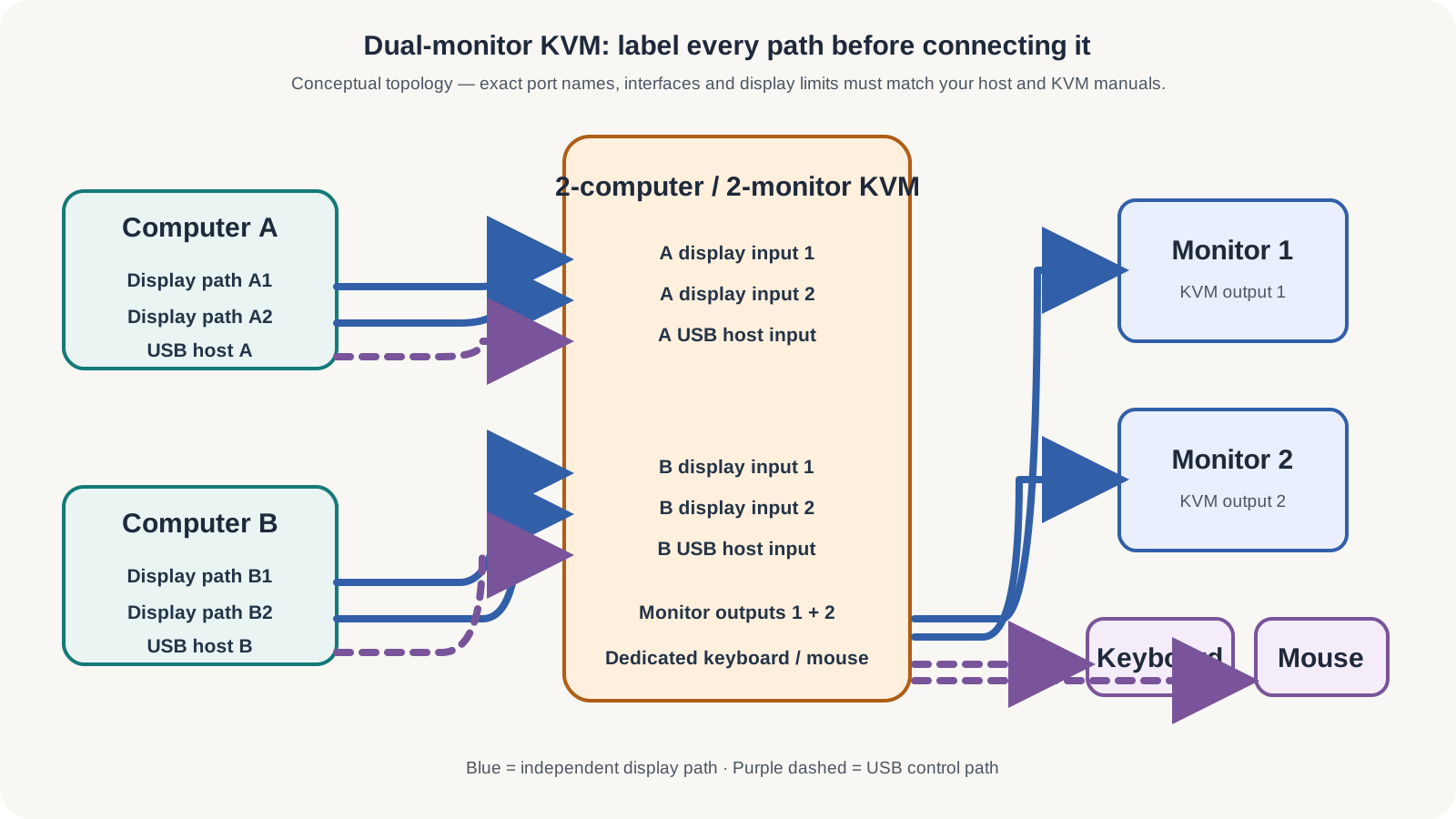
Treat this as four host-to-switch video paths, not two. Each computer must feed two independent signals into a dual-monitor KVM, and both KVM outputs must reach the two monitors. TESmart's dual-monitor FAQ states this requirement for its dual-monitor models; the rule is a wiring gate, not a promise that every KVM uses the same connector layout.
If a laptop has only one native display output, find the second supported output before buying the KVM. That may be another USB-C port with DisplayPort Alt Mode, a dock, or a documented adapter path. A dual-monitor KVM switches the streams it receives; it does not create a missing native stream.
Two computers, two monitors, one keyboard and mouse: wire it line by line
Use this map only when the exact switch is a two-computer, two-monitor KVM and its manual documents two video inputs for each host. The port labels and connector types vary; the path count does not.
For two shared monitors, label four host-to-KVM video paths and two USB host paths before you connect them.
Connect Computer A display path 1 to the KVM input labeled for Computer A / Display 1, then connect Computer A display path 2 to its Display 2 input.
Repeat those two display connections for Computer B, using the Computer B / Display 1 and Display 2 inputs.
Connect one USB host cable from each computer to its matching KVM host USB port.
Connect Monitor 1 and Monitor 2 to their matching KVM outputs. Then put the keyboard and mouse in the dedicated control ports if the exact manual requires those ports for hotkeys.
A dual-monitor KVM switches the streams it receives; it does not create a missing display stream. If either computer cannot supply two independently supported display paths, stop at that host and use a one-monitor plan, direct monitor inputs plus a USB switch, or a separately documented dock path.
Draw the path before you plug anything in
Write the complete path for each computer:
Computer port → adapter or dock (if required) → KVM input → KVM output → monitor input
Computer USB  → KVM host USB            → keyboard/mouse or USB hub
Host capability. Record the exact computer model, operating system, and the number of independent displays it can drive. Do not count sockets only; identify what each port actually carries.
KVM topology. Record whether the switch is 1-monitor or 2-monitor, and whether its ports are HDMI, DisplayPort, USB-C, or a mixture. For two monitors, record the two input labels for each host.
Mode target. Decide whether both monitors should follow the selected computer, or whether one monitor should show each computer. Those modes use different switching behavior and are not universal across models.
Cable and adapter direction. A USB-C or DisplayPort connector can look right while the signal path is wrong. VESA's DisplayPort guidance says to use an adapter appropriate to the source and target; do not assume a DisplayPort-to-HDMI adapter works in reverse.
Peripheral path. Put keyboard and mouse in the dedicated control ports. Reserve the standard USB 2.0/3.0 port for a hub or other devices when the manual allows it.
The useful artifact is a one-page map, not a shopping list. If a line in the map has no verified capability, mark it Unconfirmed instead of filling the gap with a connector shape.
Mac + PC: make the host-display check before selecting a KVM
A Mac + PC desk has two separate host limits. Do not purchase from a port count or an “M-series” label alone: identify the exact Mac model and verify its external-display configuration with Apple, then do the same for the PC's graphics/USB-C or dock documentation. The KVM must pass a display path that both hosts can actually supply.
Question
Mac side
PC side
Safe decision
Can this host provide the required number of independent external displays?
Check the exact Apple model's display-support page. For example, Apple states that M4 MacBook Air models can support up to two external displays, subject to their resolution and refresh configuration; this is not a rule for every MacBook Air or every Apple-silicon Mac.
Check the exact graphics/host specification and any dock's documented display mode.
If either answer is one native display path, do not expect a conventional two-monitor KVM to manufacture a second independent desktop.
Does the proposed dock/adapter path explicitly support the intended extended-desktop mode?
Do not treat a connector, “USB-C,” or “MST” label as proof of two extended desktops on macOS. Confirm the exact host plus dock/adapter path in the vendor documentation.
Confirm the PC's graphics capability and the dock/adapter's documented mode; do not borrow a Mac result.
Keep the path Unconfirmed until both sides document it. A KVM is downstream switching, not display-capability conversion.
What if one host fails the display-count check?
Use one shared monitor, or leave video direct to the monitors and share only USB peripherals.
Use the same topology change rather than buying a more expensive KVM.
Change the topology; do not turn a missing host capability into a KVM support claim.
Apple's published limits are model-scoped and can depend on the display configuration. This article does not claim that an M-chip family has one universal monitor count, and it does not treat a third-party DisplayLink or MST workaround as equivalent to the Mac's native display capability.
Four decisions that cause most “it works on one computer” failures
1. Shared control versus parallel work
A conventional KVM shares a selected keyboard and mouse between the two hosts. That is ideal when one person moves from Computer A to Computer B and wants the display and peripherals to follow.
It is not the same as operating both computers independently at once. If the desk needs simultaneous input—such as gaming on one host while monitoring another—keep separate keyboards and mice, use a peripheral-only switch, or leave video on the monitors' own inputs. Buying a dual-monitor KVM does not remove that operating-mode tradeoff.
2. Extended desktop versus split desktop
Some exact dual-monitor models offer more than one display mode. In one mode, both screens follow the selected computer. In another, each screen can show a different computer while a keyboard/mouse-focus control chooses which host receives input.
Do not copy a shortcut from one model to another. The current TESmart HKS202-EP23 FAQ documents a right-Alt focus switch for its split arrangement, while another model's support page documents different hotkey behavior. The concept is portable; the keystroke is not.
3. Dedicated control ports versus the general USB port
The standard USB port is useful for a hub, webcam, printer, or storage device where the exact KVM supports it. It may not have the emulation logic required for hotkey switching. TESmart's support documentation explicitly says that hotkeys work on the dedicated keyboard/mouse ports, not on the general USB 2.0/3.0 port.
Make the keyboard and mouse switch reliably first, then add the hub and other devices one at a time. If a camera becomes unstable after it moves behind the KVM, test it directly on the computer before blaming the display path. A port label alone does not certify a camera, cable, hub, or KVM combination.
4. Exact model limits versus category labels
“Dual-monitor KVM” and “4K” are not enough specifications. For a current exact example, TESmart lists the HKS202-E23 with HDMI 2.0, USB 2.0, EDID, two-computer/two-monitor switching, and up to 3840×2160 at 60 Hz. That number belongs to the HKS202-E23 configuration.
The same brand's HKS202-EP23 support FAQ gives a different boundary: up to 3840×2160 at 30 Hz and no 4K60 or 5120×1440. The useful conclusion is not that one page is wrong. It is that model suffixes, interface mixes, and generations matter. Copy the exact model number into your checklist and verify the complete resolution × refresh combination.
A connection sequence that isolates mistakes
Connect power to the KVM and, if needed, to a powered USB hub.
Connect both monitors to the KVM outputs and label them Display 1 and Display 2.
Connect Computer A's first video path, then its second path; repeat for Computer B. Keep the host and display labels consistent.
Connect one USB host cable from each computer to the KVM.
Connect only the keyboard and mouse to the dedicated control ports and test switching.
Add the hub, camera, audio device, or storage device individually.
Test the target resolution and refresh rate on both computers. If one mode fails, lower the mode temporarily and re-check the exact chain.
If a monitor is black, bypass the KVM with the same computer, adapter, and cable. If it is still black, the fault is upstream. If it works directly, restore one link at a time: KVM input, KVM output, cable, then the second host path.
When to stop and change the plan
Stop troubleshooting the KVM and change the topology when:
a host cannot produce the required number of independent displays;
the exact KVM does not document your interface and resolution/refresh combination;
the camera or storage device needs a bandwidth or device class the KVM does not document;
the keyboard only works from a general USB port but your workflow depends on hotkeys;
a laptop needs charging or port expansion that the KVM does not provide.
At that point, keep video on direct monitor inputs and switch only USB peripherals, or put a verified dock before the KVM. The smallest reversible solution is usually safer than adding another adapter without a documented signal path. For a broader dock-versus-KVM choice, use the site's KVM versus docking station guide; for a display that stays black, use the dual-monitor KVM troubleshooting guide.
For a cable label, use the international-foot definition rather than treating the two units as interchangeable text. NIST defines 1 ft as exactly 0.3048 m. Therefore a worked 6 ft example is:
6 ft × 0.3048 m/ft = 1.8288 m ≈ 1.83 m
That is a length conversion, not a claim that a particular KVM includes a 6 ft cable.
Sources & Verification
Last checked: 2026-10-10. Specifications below are model-scoped; they are not a claim that all KVM switches or all Mac/PC hosts share these limits.
Evidence note: SetupMeld does not currently perform in-house hardware testing. Compatibility conclusions on this guide are based on manufacturer specifications and official support documentation; they are not SetupMeld test results.
Originality accounting: 10 of 16 substantive blocks are SetupMeld's monitor-count split, labeled dual-monitor wiring map, ordered signal map, Mac + PC condition table, four decision checks, isolation sequence, stop conditions, worksheet and unit conversion: 63%. Source lists, disclosures and generic definitions are excluded.