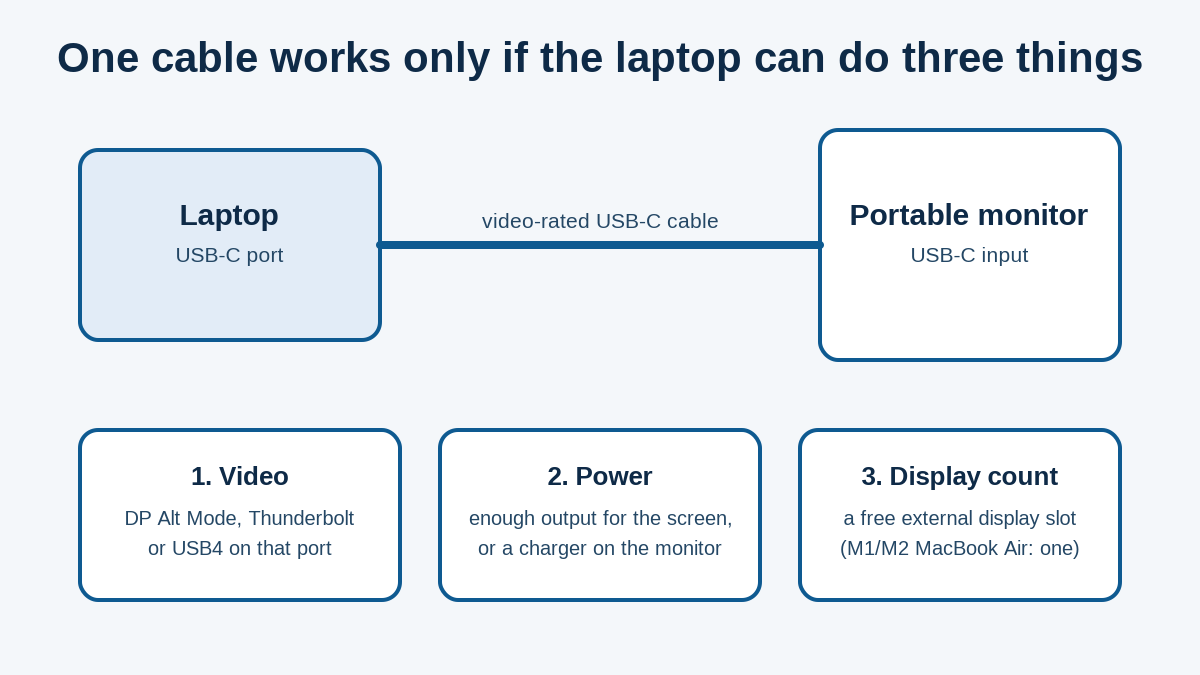
A USB-C portable monitor is sold as "one cable, no power brick." Whether you actually get that depends on your laptop more than on the monitor. Three things on the laptop side decide it: whether the USB-C port carries video, how much power it can hand to the screen, and how many external displays the laptop supports at all. This guide shows you how to check those three things, then compares four portable monitors whose makers publish full port and power specifications. SetupMeld has not tested these monitors itself. Every number below comes from the manufacturer document linked in Sources.
USB-C Portable Monitor for a Laptop: Which Ones Work on One Cable
The short answer
- Check the laptop port first. A portable monitor with only USB-C inputs needs a laptop USB-C port that supports DisplayPort Alternate Mode (or Thunderbolt/USB4, which carry DisplayPort). A USB-C port that only handles data or charging will not show a picture.
- Use a cable that carries video. Microsoft notes that the laptop, the display, and the cable all have to support the DisplayPort alternate mode. A charge-only USB-C cable can leave a new portable monitor black even when the laptop port is fine. Start with the cable that came in the box, if there is one.
- One cable works best on a low-power screen. The two ThinkVision 14-inch models below list a maximum draw under 10 W, and the ASUS ZenScreen MB16ACV lists 6.64 W at 5 V / 3 A.
- On a base M1 or M2 MacBook Air, the portable monitor is your external display. Apple lists one external display for those models. If you already use a desk monitor, you can't add a portable one alongside it over native USB-C.
1. Check your laptop before you pick a monitor
Does the USB-C port carry video?
VESA, the group behind DisplayPort, describes DisplayPort over USB-C as using the USB Type-C "Alternate Mode" so that video, SuperSpeed USB, and power share one connector. Microsoft's Windows USB-C troubleshooting page says the alternate mode "must be supported on the PC's hardware and software, and the connected device or dongle," and that you "might also need a specific USB-C cable."
How to check on your own laptop:
- Windows laptops: look at the laptop maker's spec sheet for that exact model. You want "DisplayPort Alt Mode," "DP 1.4," "Thunderbolt," or "USB4" listed against a specific USB-C port. Some laptops have two USB-C ports and only one of them carries video. If the sheet says USB4 or Thunderbolt, see USB4 vs Thunderbolt 4 for what each label guarantees.
- Windows warning: if Windows shows "Display connection might be limited" when you plug in the monitor, Microsoft's listed causes are a port without DisplayPort alt mode, a cable that doesn't support it, a hub or dock in between, or too many alternate-mode devices connected. Plug the monitor straight into the laptop with the bundled cable before you try anything else.
- MacBooks with Apple silicon: Apple says displays connect to the Thunderbolt ports, so the port itself is rarely the problem. The display count is (see below).
Can the port power the screen?
A portable monitor with a single USB-C port, like the ASUS MB16ACV, gets its power from the same cable that carries the picture. ASUS lists that model at 5 V, 3 A input and 6.64 W power consumption, which is why the laptop port has to supply enough power for it. If your laptop maker lists a lower output for that USB-C port, plan on a monitor with a second USB-C port so you can plug a charger into the screen instead.
Lenovo adds a useful caveat to all three ThinkVision spec sheets: the listed power-delivery capacity "may decline with downstream USB ports connected or higher brightness setting." So if a screen flickers or cuts out only at high brightness, a power shortfall is worth ruling out before you assume it's faulty.
How many external displays does the laptop support?
- MacBook Air M1 and M2: Apple's tech specs list one external display (up to 6K at 60 Hz) alongside the built-in screen. A portable monitor uses that one slot.
- MacBook Air M4 and M5: Apple lists up to two external displays with the built-in display on, and says closing the lid doesn't raise that number.
- Windows laptops: the limit depends on the graphics chip and how the ports are wired. Check the maker's spec sheet.
If you need more screens than your laptop supports natively, see Can Your MacBook Run Two External Monitors? before buying anything.
2. Four portable monitors with published USB-C specs
| Model | Size / resolution | Brightness (listed) | USB-C ports | Power figures (listed) | Best fit |
|---|---|---|---|---|---|
| Lenovo ThinkVision M14t Gen 2 | 14 in, 2240 × 1400 (16:10), 10-point touch, pen included | 300 cd/m² panel, 270 cd/m² set | 2 × USB-C with DP 1.2, USB 2.0 data, up to 65 W PD on each | 8 W typical / 9.5 W max; accepts DC 5–20 V | One charger feeding both the monitor and the laptop; touch and pen |
| Lenovo ThinkVision M14d | 14 in, 2240 × 1400 (16:10), 100% sRGB coverage | 300 cd/m² typical, 375 peak | 2 × USB-C with DP 1.2 Alt Mode, USB 2.0 data | 6 W typical / 7.5 W max (without USB-C output); no adapter in the box | Sharp text with the lowest listed draw |
| Lenovo ThinkVision M15 | 15.6 in, 1920 × 1080 (16:9) | 250 cd/m² | 2 × USB-C with DP 1.2 Alt Mode (one upstream, one downstream), USB 2.0 data | 8 W typical / 9.5 W max; DC 5/9/15/20 V | A bigger screen at 1080p with a second port |
| ASUS ZenScreen MB16ACV | 15.6 in, 1920 × 1080 (16:9), anti-glare | 250 cd/m² | 1 × USB-C (DP Alt Mode & USB 3.2) | 6.64 W; 5 V / 3 A | Simplest one-cable setup when the laptop port can power it |
All figures are from the manufacturers' current spec pages (see Sources). All four are listed at a 60 Hz maximum refresh rate.
Lenovo ThinkVision M14t Gen 2: pass-through charging
This is the only model here whose spec sheet gives a pass-through charging figure: each of its two USB-C ports is listed with USB PD 2.0, DisplayPort 1.2, and up to 65 W power delivery. That lets you plug the laptop charger into the monitor and run one cable from the monitor to the laptop. Before relying on that, check two things. First, 65 W is a maximum, and Lenovo says it can drop depending on what's connected and how bright the screen is. Second, if your laptop shipped with a charger rated above 65 W, it may charge slowly or warn about a low-power charger through this path. The USB ports carry USB 2.0 data only, which is fine for a touch screen and not meant for fast storage.
Lenovo ThinkVision M14d: lowest listed power draw
The M14d lists a 2240 × 1400 resolution at 189 ppi, 300 cd/m² typical brightness, and 100% sRGB coverage, with 6 W typical and 7.5 W maximum consumption (without USB-C output). That low draw makes it the likeliest of the three ThinkVisions to run from the laptop's port alone. Both USB-C ports are listed with DP 1.2 Alt Mode. Lenovo lists accepted input as 5 V / 9 V / 15 V at 3 A or 20 V at 5 A and doesn't include an adapter. The spec sheet doesn't give a pass-through charging wattage, so check the M14d user guide before planning to charge the laptop through it.
Lenovo ThinkVision M15: 15.6 inches at 1080p
The M15 trades pixel density for size: 15.6 inches at 1920 × 1080 (141 ppi) and 250 cd/m². It has two USB-C ports with DP 1.2 Alt Mode, one marked upstream and one downstream. Note that Lenovo's M15 spec sheet lists Windows 10 and Windows 7 support and doesn't mention macOS, so Mac users should confirm compatibility with Lenovo or pick another model.
ASUS ZenScreen MB16ACV: one port, one cable
The MB16ACV has a single USB-C port that handles both DP Alt Mode video and USB 3.2. ASUS lists 6.64 W power consumption at 5 V / 3 A, HDCP support, a tripod socket, and a sleeve in the box. With only one port, the laptop has to supply both the picture and the power, so it is the simplest setup when your laptop's port can do that and the wrong choice when it can't.
3. When none of these will work
- Your laptop's USB-C port has no video. A USB-C-only portable monitor won't work from that port. Your options are a portable monitor with an HDMI input (powered separately) or a DisplayLink adapter or dock, which sends video over plain USB with a driver. Plugable, for example, says its USBC-6950PDZ DisplayLink dock works with HDMI portable monitors that have separate USB-C power, and that USB-C-only portable displays are not supported.
- Your M1 or M2 MacBook Air already drives a desk monitor. A second external screen needs DisplayLink. Our MacBook Air dock guide covers the software, permission, and protected-video trade-offs.
- You're plugging into a dock instead of the laptop. Microsoft lists a hub or dock in between as a common cause of a limited display connection. Check the dock's display outputs in our docking station compatibility guide.
- You'd rather reuse an iPad. That's a software second screen, not a USB-C monitor. See Duet Display.
4. Setup checklist
- Confirm in the laptop's spec sheet which USB-C port supports DisplayPort, Thunderbolt, or USB4.
- Use the USB-C cable that came with the monitor (or one rated for video) and connect directly to that port, not through a hub.
- Start with brightness at around half. If the picture is stable, raise it. If it flickers or drops out, add a charger to the monitor's second port (on two-port models).
- On Windows, press Win + P and choose Extend. On a Mac, open System Settings, then Displays, and arrange the screens.
- If you see "Display connection might be limited," try the other USB-C port and a video-rated cable before replacing anything.
How this guide was put together
This is a documentation-based guide. SetupMeld did not test these monitors. We compared each monitor's published port, power, and display specifications with Microsoft's and VESA's descriptions of DisplayPort over USB-C and Apple's display limits for MacBook Air. "Best fit" means the closest documented match for that scenario, not a claim that one monitor is best for everyone. Specifications and availability change, so check the linked page for your exact model before buying. We didn't use review sites, retailer listings, or forums as technical sources.
Sources & verification
Official manufacturer and standards documents checked October 18, 2026. SetupMeld did not test these monitors.
- Lenovo PSREF: ThinkVision M14t Gen 2 (official source) — Resolution, touch, brightness, 2 × USB-C with DP 1.2 and up to 65 W PD, power draw, PD caveat.
- Lenovo PSREF: ThinkVision M14d (official source) — Resolution, brightness, sRGB, 2 × USB-C DP 1.2 Alt Mode, power draw, input voltage, no adapter bundled.
- Lenovo PSREF: ThinkVision M15 (official source) — Resolution, brightness, 2 × USB-C DP 1.2 Alt Mode, power draw, listed OS support.
- ASUS: ZenScreen MB16ACV tech specs (official source) — Single USB-C (DP Alt Mode & USB 3.2), 6.64 W, 5 V / 3 A, HDCP, accessories.
- Microsoft: Fix USB-C problems in Windows (official source) — Alternate mode requirements for PC, display, and cable; "Display connection might be limited" causes.
- VESA: DisplayPort over USB-C (official source) — DisplayPort uses USB Type-C Alternate Mode to share video, USB, and power on one connector.
- Apple: MacBook Air (M1, 2020) Tech Specs (official source) — One external display up to 6K 60 Hz.
- Apple: MacBook Air (M2, 2022) Tech Specs (official source) — One external display up to 6K 60 Hz.
- Apple: How many displays can be connected to MacBook Air (official source) — M4 and M5 support up to two external displays; closing the lid doesn't add more.
- Plugable: USBC-6950PDZ (official source) — DisplayLink dock works with HDMI portable monitors on separate power; USB-C-only portable displays not supported.