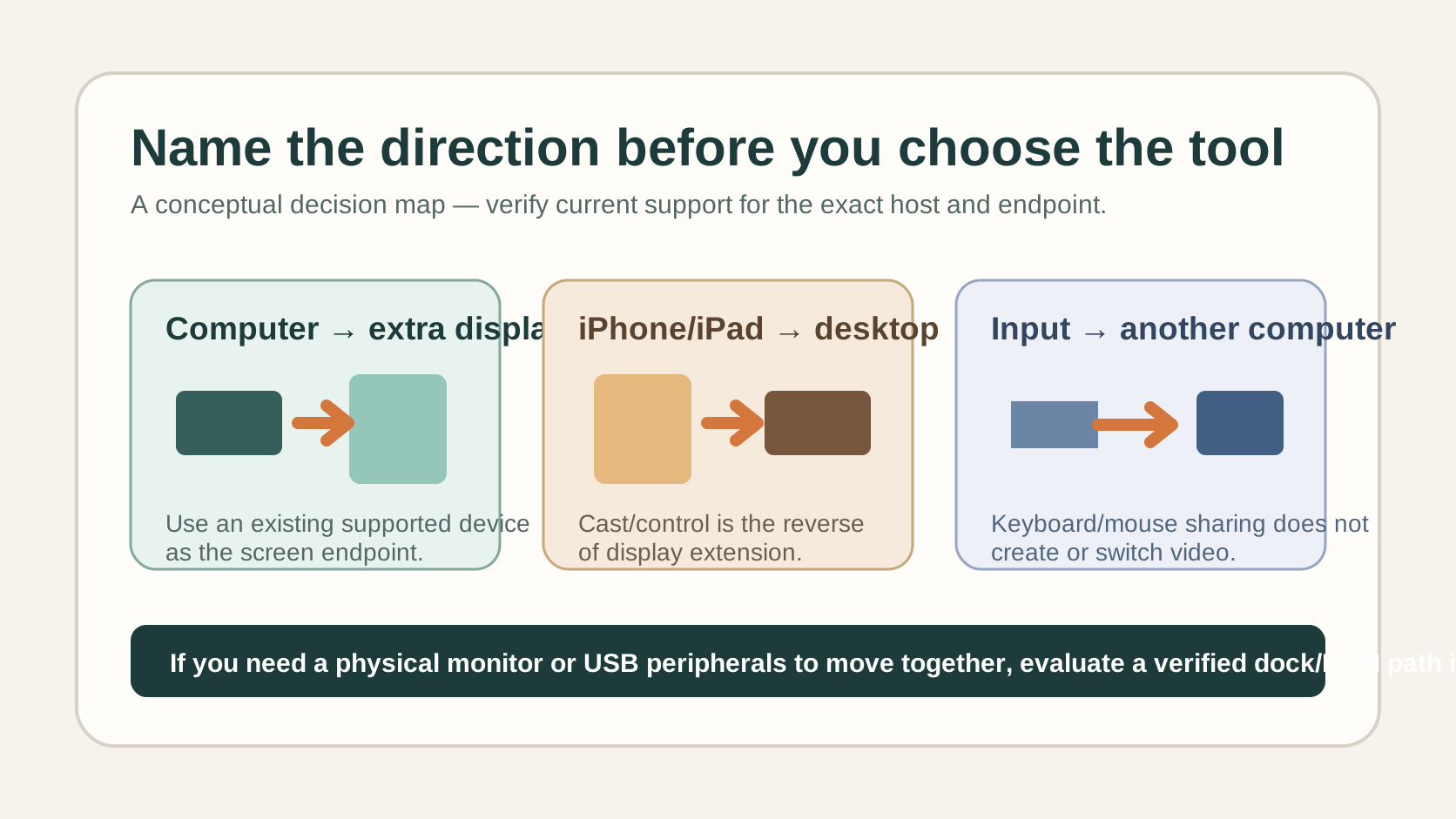
Choose Duet Display when an existing iPad, iPhone, Android device, Mac, or PC is meant to become the display endpoint in your setup. Do not choose it merely to share a keyboard and mouse, switch one monitor between computers, or make a dock carry another display. First name the direction you need: computer → extra display, iPhone/iPad → computer, or keyboard/mouse → another computer.
Duet currently presents separate modes for extending a Mac or PC to another device, putting an iPhone or iPad screen on a Mac or PC, and sharing keyboard/mouse control between two computers. Those are related products, but they are not interchangeable connection paths. This guide helps you select the right path before you create an account, change a desk, or buy hardware. It does not claim that SetupMeld tested Duet on your devices.
Start with the screen direction
The most useful question is not “Does Duet work?” It is: what must appear where? Treat the source device, destination device, and input path as three separate jobs.
| Your actual goal | The path to check | What it does not establish |
|---|
| Use an iPad, phone, another computer, or compatible device as extra workspace for a Mac or PC. | Duet’s Extend/second-display path: computer → additional display device. | It does not switch an existing HDMI/DisplayPort monitor between hosts or add hardware video outputs to a dock. |
| See and control an iPhone or iPad from a Mac or PC. | Duet’s Cast & Control path: iPhone/iPad → desktop. | It is the opposite direction from using the iPad as a second display for a laptop. |
| Use one keyboard, mouse, or trackpad across two computers that already have their own screens. | Duet Keyboard & Mouse Sharing: input → another computer. | It does not create or switch a video signal. The two computers still need usable displays. |
This direction check is SetupMeld’s added decision asset. A product page can list several features, but a desk only has one signal direction at a time. If you cannot draw an arrow from the device that has the work to the device that must show it, pause before subscribing or troubleshooting.
Three fast fit checks
1. You already own the display device
Duet’s current homepage and Extend page describe a Mac or PC using another supported device as an additional display, including a tablet or another computer. That makes it a candidate when an existing portable device is the endpoint you want to use. It is not evidence that every old tablet, operating-system version, resolution, refresh target, drawing workflow, or cable will be suitable. Check the current download/support information for each host and endpoint before depending on it for paid work.
2. Your problem is software display, not video switching
Duet is software. It cannot turn a keyboard/mouse-only USB switch into a video switch, make a USB-C port gain DisplayPort Alt Mode, or override the display-count limits of a host and dock. If your desk must move the same physical monitor, webcam, USB storage, and keyboard/mouse between computers, compare the connection paths in the docking station and KVM compatibility Matrix before replacing hardware.
3. The account and app conditions fit your workflow
For its keyboard/mouse-sharing mode, Duet says to install the app on both computers and use one Duet account; its current page also links MacOS 11+ and Windows 10+ downloads. That is an official product claim, not a guarantee for a managed work device. If an employer controls software installation, local networking, Bluetooth, USB devices, or screen-sharing tools, get approval first. Do not work around those controls for a personal desk setup.
Run a small, reversible trial
- Write the arrow: for example, “Windows laptop → iPad as an extended workspace,” not just “laptop and iPad.”
- Record both ends: host model and OS, endpoint model and OS, Duet version, connection method, and whether you are extending, casting, or sharing input.
- Test the minimum job: place one static window on the endpoint, then try your actual interaction (pointer, drawing input, video call, or remote-control task).
- Change one variable at a time: connection method, endpoint, or app state—not all three. This keeps a later support request useful.
- Stop at the boundary: a failed app connection is not a reason to buy a dock or KVM until you know whether the desired result was a software-display job or a hardware-video job.
The point of this sequence is not to manufacture a benchmark. It prevents a common false comparison: judging a display-extension path by a keyboard-sharing result, or blaming an app for a limitation in the host’s physical video path.
Public user examples: context, not specifications
These are individual public reports, not SetupMeld tests, product specifications, or a promise that the same result will occur on your equipment. They are kept separate from the decision path above because device versions, operating systems, network conditions, app versions, and connection methods matter.
An App Store review from DaveS2424 describes using an iPad vertically as a second monitor for a Mac and says the reviewer preferred a wired connection. That is one identifiable setup/outcome pair; it does not establish latency, support, or compatibility for another Mac/iPad combination.
A separate App Store review from hrajagopalan describes a Windows PC, Surface Pro, iPhone, and iPad Pro. The reviewer reported that a problem with projecting the iPad to Windows was resolved after support supplied a Windows update and the reviewer replaced a Bluetooth receiver. This is a scoped account of one system; the cause was not independently verified by SetupMeld.
There is useful counterevidence too. In an App Store review, Bzzzybeez bby reported that iOS casting to a PC connected briefly and then froze/disconnected after upgrading for that feature. The developer directed the reviewer to support. The differing outcomes are why a trial should record the direction and connection path instead of treating “Duet” as one undifferentiated capability.
When Duet is not the primary answer
- You need to move a physical monitor between two computers: choose a monitor input workflow, KVM, or another verified hardware path; Duet is not a replacement for that video switch.
- You only need shared input: compare software input sharing, a multi-device keyboard/mouse, or a USB switch in Keyboard and Mouse Sharing Software: Choose by Computer Pair. Keep separate-monitor video intact.
- You need a guaranteed display count, resolution, refresh rate, Power Delivery level, or peripheral path: use the Compatibility Matrix and the exact manufacturer specification for the host, dock, cable, and monitor. A software-display app does not certify a hardware chain.
- Your work device is managed: use only an employer-approved method. The right next action is an IT conversation, not a workaround.
Decision in one sentence
Duet Display is a sensible candidate when you need an existing supported device to act as the screen endpoint; it is the wrong tool when your actual requirement is hardware video switching, guaranteed dock capability, or input sharing alone.
Sources and verification
| Fact or example used | Source type | Source and scope |
|---|
| Duet’s distinct product modes and software-only positioning | official_specification | Duet homepage, read 2026-09-30. Marketing performance claims are not used as independent measurements. |
| Second-display/Extend positioning | official_specification | Duet: Extend To A Second Display, read 2026-09-30. |
| Keyboard/mouse sharing setup, one-account claim, and linked download labels | official_support | Duet: Share One Keyboard & Mouse Between Two Computers, read 2026-09-30. |
| Setup/support and release-note entry points | official_support | Duet Help Center, read 2026-09-30. |
| Vertical iPad second-screen outcome; Windows/iPad/Bluetooth-receiver outcome; casting failure | public_user_report | Duet Display App Store ratings and reviews, read 2026-09-30. Three distinct reviewers; each is a scoped report, not a product claim. No report is entered in the Compatibility Matrix from this page. |
SetupMeld does not currently perform in-house hardware testing. This guide separates manufacturer information from traceable public reports; it does not treat a review as a specification or an official statement as proof that every device combination works.