USB-C Monitor With Built-In KVM vs External Switching
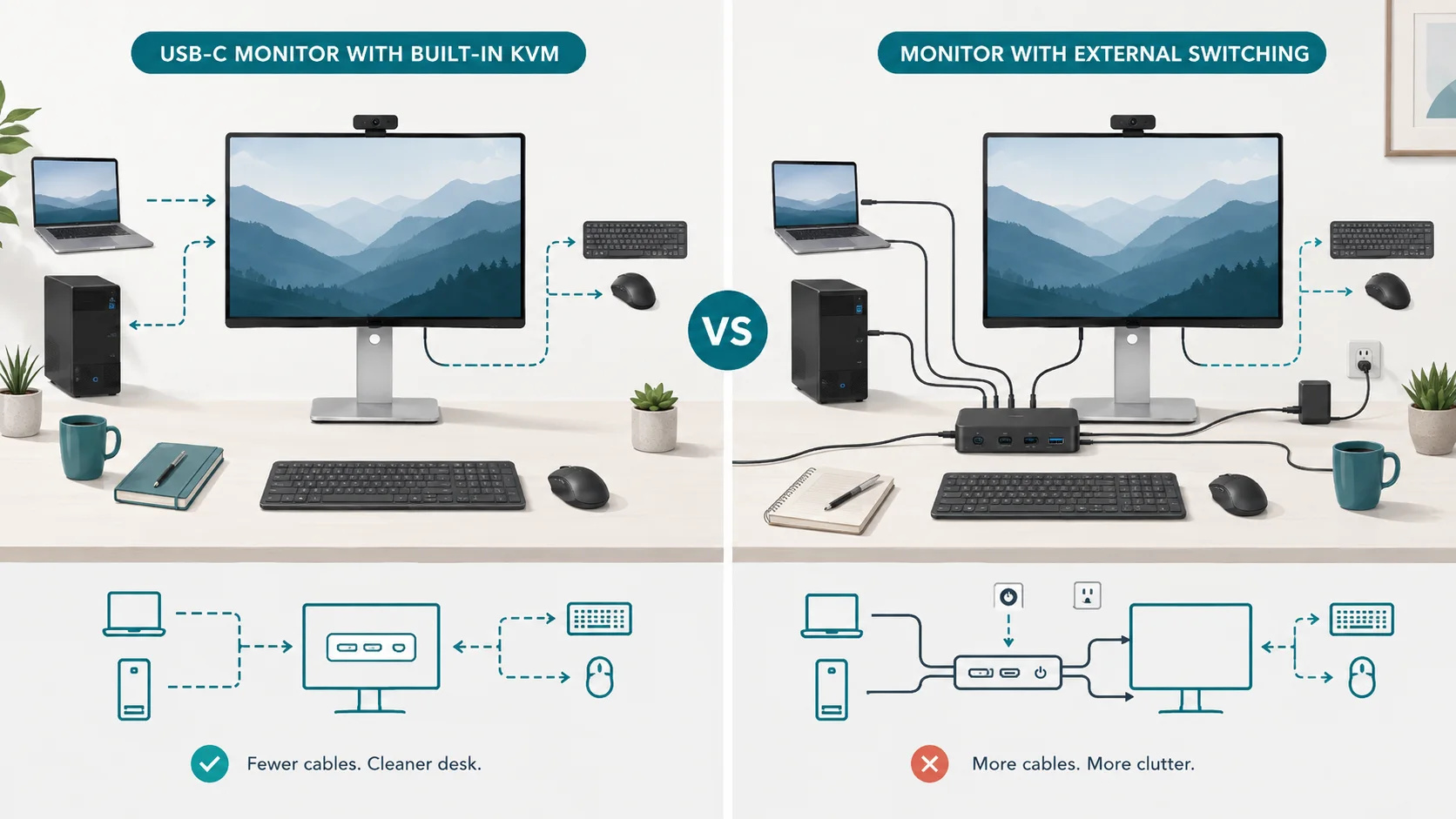
A USB-C monitor with a built-in KVM can replace a separate KVM and some dock functions for two computers, but only when the monitor provides the right path for each job: a video input from each host, a USB upstream connection from each host, downstream USB ports for the shared keyboard and mouse, and enough Power Delivery for whichever laptop is supposed to charge through the monitor.
The key distinction is architectural: video switching and USB switching are related, but they are not the same signal path. A monitor KVM usually changes which computer owns the monitor's downstream USB devices, while the monitor's input selector chooses the displayed video source. “Auto KVM” may coordinate those actions, but the exact pairing rules are model-specific.
What a built-in monitor KVM is actually doing
A common two-computer topology looks like this:
Computer A → USB-C or Thunderbolt → monitor
Video + USB data + optional laptop charging travel over one cable.
Computer B → HDMI or DisplayPort → monitor
Video travels over the display cable, while a second USB upstream cable connects Computer B to the monitor's USB hub.
Keyboard and mouse → monitor downstream USB ports
The monitor's KVM logic assigns those peripherals to the currently selected USB upstream host.
| Function | Can a KVM monitor provide it? | What must be verified |
|---|---|---|
| Switch monitor video between two computers | Usually | Two usable video inputs and the monitor's input-switching behavior |
| Share one keyboard and mouse | Yes, when KVM is implemented | A USB upstream path from each computer and usable downstream USB ports |
| One-cable video + data for a USB-C laptop | Sometimes | USB-C port must explicitly support video/DP Alt Mode or Thunderbolt plus USB data |
| Charge the USB-C laptop | Sometimes | Explicit Power Delivery wattage on the host-facing USB-C/TB port |
| Charge both laptops | Do not assume it | Two independently documented host-charging outputs would be required |
| Replace Ethernet / audio / storage hub | Model-dependent | Exact downstream ports and bandwidth |
| Replace a multi-monitor dock | Often no | Number of displays needed, host display limits, and monitor/dock topology |
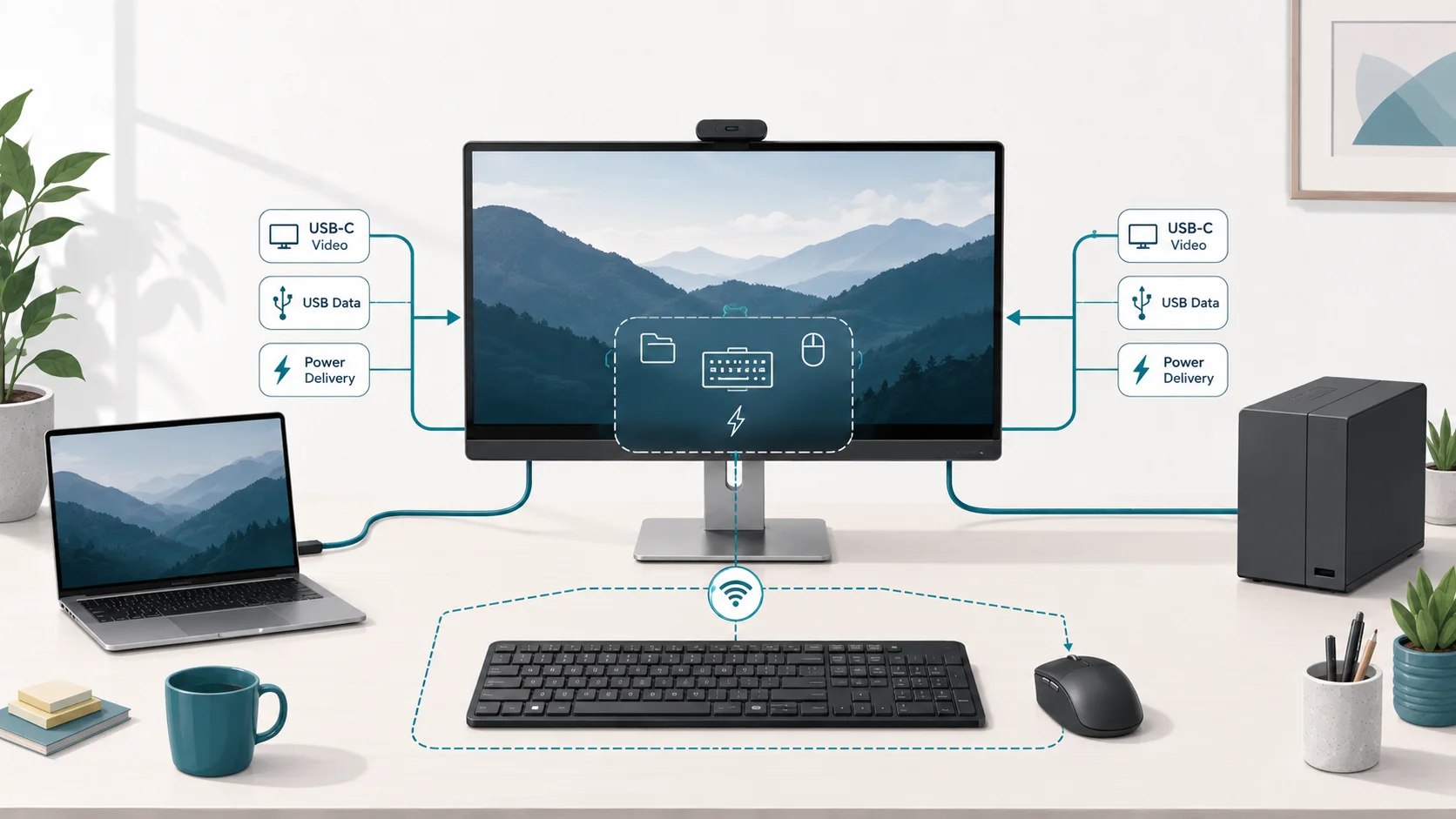
Dell: Thunderbolt and charging for one host, a separate USB path for the other
Dell's UltraSharp U2724DE shows why the phrase “built-in KVM” is not enough by itself.
Dell documents a Thunderbolt 4 upstream port that carries video and data and supplies up to 90W Power Delivery. The monitor also has a separate USB-C upstream connection for USB data. In Dell's two-computer KVM examples, one computer can connect over Thunderbolt for video and USB, while the other uses HDMI or DisplayPort for video plus a separate USB upstream connection for the monitor's USB devices.
The user guide says the built-in KVM can control up to two computers with one keyboard and mouse connected to the monitor. It also documents USB-source pairing and an Auto KVM configuration. Those details matter because the monitor must know which USB upstream belongs with each video input.
There is a useful limitation here: some KVM switching behavior is tied to Picture-by-Picture mode, while Auto KVM has its own setup conditions. Do not carry one manufacturer's “Auto KVM” behavior over to another model.
Charging is asymmetric. The U2724DE's Thunderbolt upstream is the documented 90W charging path; the separate USB-C upstream used in the KVM pairing is a data path. A two-host KVM monitor therefore does not automatically mean two laptops are being powered.
BenQ uses the same basic pattern with a different second upstream
BenQ's PD3225U has a related architecture. Its published specifications list a Thunderbolt 3 upstream port with DisplayPort Alt Mode, data, and 85W Power Delivery, plus a USB Type-B upstream port and downstream USB ports. BenQ also lists KVM support for the monitor.
BenQ's KVM support documentation describes the typical pairing clearly: one computer can connect by USB-C, while the second uses a video cable plus a USB upstream cable. When the active input changes, the monitor can associate the shared USB devices with the corresponding computer.
The KVM feature can therefore eliminate a separate USB switch and, for the Thunderbolt-connected laptop, some ordinary dock functions. The second computer still needs a video connection and its own USB upstream path. If that computer is a laptop that also needs charging, the monitor's KVM function alone does not meet that requirement.
ASUS still requires you to check the second-host wiring
ASUS's current ProArt PA278CGRV advertises Auto KVM, a USB-C input with DisplayPort support, USB data, and up to 96W Power Delivery, plus HDMI, DisplayPort, and a USB hub. ASUS's setup guidance says one host uses USB-C with DP Alt Mode, while the other uses HDMI or DisplayPort for video plus a USB-A-to-C or USB-C-to-C upstream link for KVM control.
In any manual, the decisive question is: How does Host 2 get USB upstream data? If that path is not documented, the topology is not yet verified.
Built-in KVM does not guarantee useful laptop charging
The USB-C connector shape says almost nothing about charging capacity by itself. The manufacturer has to specify Power Delivery on the relevant port.
ASUS, for example, specifies up to 96W PD on the PA278CGRV's primary USB-C host connection. BenQ specifies 85W on the PD3225U's Thunderbolt input. By contrast, Gigabyte's M32U Arm Edition lists USB-C Power Delivery up to 18W while also advertising a KVM feature. Eighteen watts may be useful for a small device, but it is not a substitute for a normal laptop power adapter under many workloads.
Ask two separate questions:
- Can the monitor switch my keyboard and mouse?
- Can the host-facing USB-C port provide the wattage my laptop needs?
A “yes” to the first says nothing about the second.
Can both computers receive charging from the monitor?
Only if the exact monitor documentation says it has two host-facing charging paths with enough Power Delivery for both computers. Do not infer this from “two-computer KVM,” “USB-C hub,” or “Thunderbolt monitor.”
The common architecture in the Dell, BenQ, and ASUS examples above has one full-function USB-C/Thunderbolt host path with meaningful laptop charging and a second host path made from separate video plus USB upstream. That second USB upstream exists so the KVM can route peripherals; it is not automatically a laptop-charging port.
If both computers are laptops and both need continuous power, you may still need a second charger or a dock on one side.
When the monitor can replace external switching
A KVM monitor is a strong fit when all of these are true:
- You use one main monitor for two computers.
- The monitor has a documented video input for each host.
- The monitor has a documented USB upstream path for each host.
- Your keyboard and mouse can remain connected to the monitor's downstream USB hub.
- One laptop can use the monitor's USB-C/Thunderbolt charging output at the required wattage, or charging is handled separately.
- You do not need the external KVM to switch additional monitors or specialized USB devices.
- The monitor's input/KVM switching workflow matches how often you change computers.
Under those conditions, the monitor can take over display switching, basic USB peripheral switching, and perhaps part of a laptop dock's job.
When an external KVM, USB switch, or dock still helps
Keep or add external switching when the requirement falls outside the monitor's architecture.
You need to switch more than one display. A single-monitor KVM does not automatically coordinate a second monitor, and the computer's own display limits still apply.
Both laptops need charging. A second charger or dock may be simpler than trying to make a one-PD-port monitor power two hosts.
You need more I/O than the monitor provides. Ethernet, fast external storage, card readers, audio interfaces, webcams, and high-bandwidth USB devices can exceed a monitor hub's port count or bandwidth design.
You want USB switching independent of video. Some workflows need the keyboard and mouse on Computer A while the monitor shows Computer B. Auto KVM systems are often designed to couple USB ownership to the active video source. Whether independent switching is possible depends on the exact OSD and manual.
One host has awkward video compatibility. A USB-C port is not proof of display output, and a Mac's multi-display behavior cannot be inferred from a monitor's DisplayPort-out or MST feature. Verify the host's video capabilities separately.
You already own a good monitor. Replacing it solely to remove a small USB switch may add cost and e-waste without improving the underlying compatibility. If the existing display is satisfactory, a peripheral-only USB switch or current dock may be the smaller intervention. The keyboard-and-mouse sharing guide covers that narrower setup.
A five-question check before you replace anything
Before treating a KVM monitor as your new switching stack, answer these from the exact manual:
- What video cable does Computer A use? USB-C/TB, HDMI, or DisplayPort?
- What video cable does Computer B use?
- What USB upstream connection gives each computer ownership of the monitor's keyboard and mouse ports?
- Which host-facing port provides Power Delivery, and at what wattage?
- Does the KVM follow the active input automatically, or can USB and video be switched independently?
If the manual cannot answer all five, do not assume the product replaces an external KVM or dock just because “KVM” appears in the feature list.
A built-in KVM is part of the monitor's routing architecture, not a universal replacement for every box. If one required path is missing, keep the existing gear and add only the function you lack. For a wider device-category comparison, see KVM vs Docking Station: Which Do You Actually Need?.
Sources & Verification
| Source | URL | Source role | Last checked |
|---|---|---|---|
| Dell — UltraSharp 27 Thunderbolt Hub Monitor U2724DE product page | https://www.dell.com/en-us/shop/dell-ultrasharp-27-thunderbolt-hub-monitor-u2724de/apd/210-bksj/monitors-monitor-accessories | Port inventory, Thunderbolt upstream, Power Delivery, hub features | 2026-08-25 |
| Dell — U2724DE User's Guide | https://dl.dell.com/content/manual17050394-dell-ultrasharp-27-thunderbolt-hub-monitor-u2724de-user-s-guide.pdf?language=en-us | Exact two-computer KVM wiring, USB-source pairing, Auto KVM and PBP/KVM behavior; Dell support lists guide updated 2024-05-09 | 2026-08-25 |
| Dell — U2724DE Manuals & Documents | https://www.dell.com/support/product-details/en-ms/product/u2724de-monitor/resources/manuals | Freshness / manual revision verification | 2026-08-25 |
| BenQ — PD3225U Specifications | https://www.benq.com/en-us/monitor/creative-pro/pd3225u/spec.html | Thunderbolt 3 85W PD, USB-B upstream, downstream USB, KVM support | 2026-08-25 |
| BenQ Support — KVM switch connection guidance | https://www.benq.com/en-us/support/downloads-faq/faq/pre-sales/technologies/kvm-swich-to-work-with-one-keyboard-mouse-set.html | Two-host USB/video routing architecture for supported BenQ KVM monitors | 2026-08-25 |
| BenQ Support — PD3225U Manuals | https://www.benq.com/en-us/support/downloads-faq/products/monitor/pd3225u/manual.html | Current manual availability; page lists current user-manual revision | 2026-08-25 |
| ASUS — ProArt Display PA278CGRV | https://www.asus.com/us/displays-desktops/monitors/proart/proart-display-pa278cgrv/ | Auto KVM behavior, second-host wiring, full-function USB-C and 96W PD | 2026-08-25 |
| ASUS — PA278CGRV Tech Specs | https://www.asus.com/us/displays-desktops/monitors/proart/proart-display-pa278cgrv/techspec/ | Exact port list, USB-C DP Alt Mode, KVM USB signal path, 96W PD | 2026-08-25 |
| Gigabyte — M32U Arm Edition | https://www.gigabyte.com/us/Monitor/M32U-AE/sp | Exact example showing KVM with relatively low USB-C PD (18W) | 2026-08-25 |