PowerToys Mouse Without Borders Not Working: Fix Connection Failed, Firewall, and Same-Network Problems
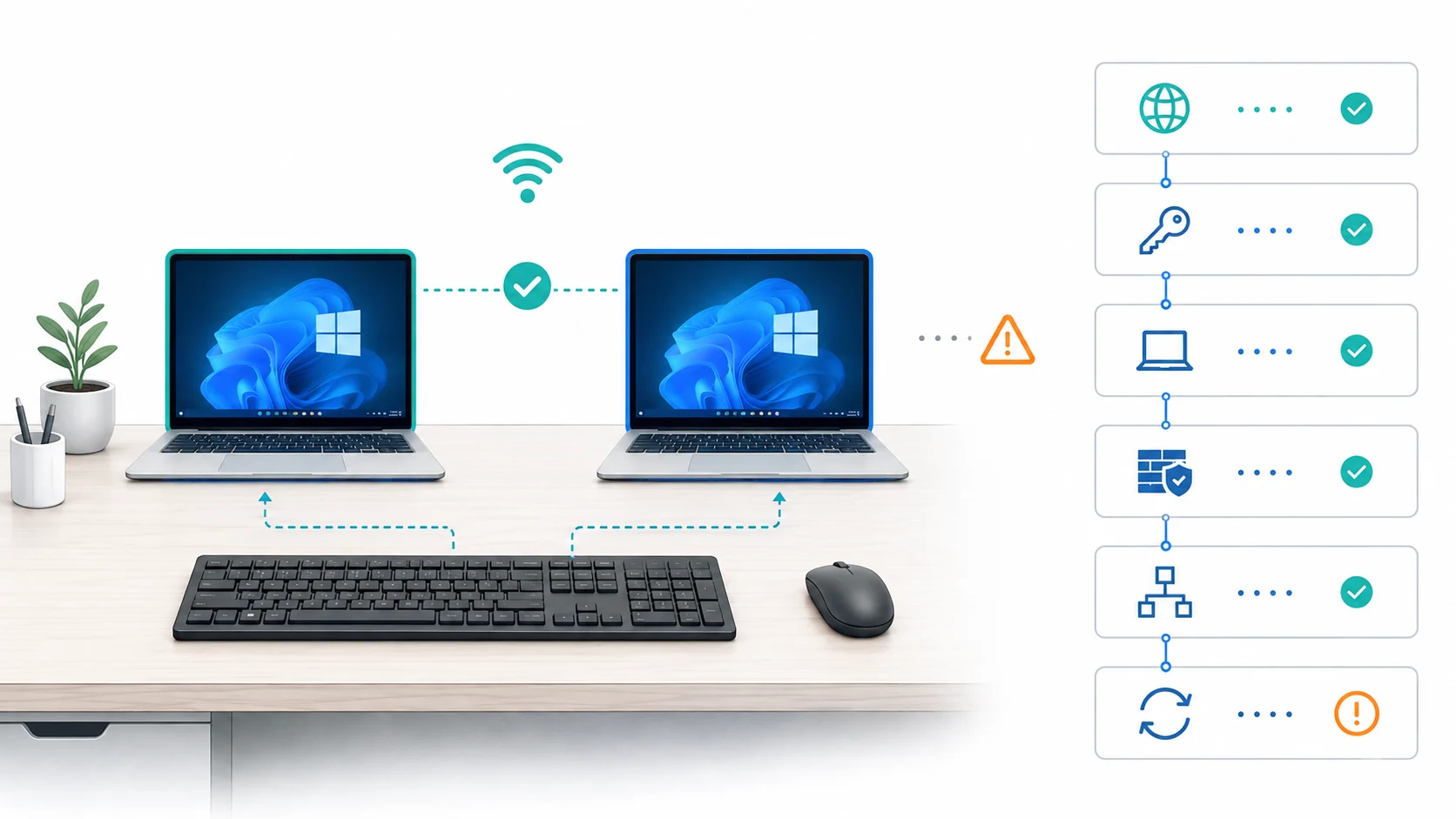
If PowerToys Mouse Without Borders will not connect, start with the basics Microsoft documents: both computers need PowerToys with Mouse Without Borders enabled, both need to be on the same network for initial troubleshooting, and the second computer must use the security key and host name from the first computer. Then check the Mouse Without Borders firewall rule and use Refresh connections.
Do not start by reinstalling Windows, buying hardware, or randomly disabling adapters.
1. Confirm both computers can run Mouse Without Borders
Mouse Without Borders is part of Microsoft PowerToys, a Windows utility. On both PCs, open PowerToys, open Mouse Without Borders, and make sure it is enabled. If one device is a Mac, Chromebook, iPad, or Android device, use a different cross-platform method such as the options in How to Share One Keyboard and Mouse Between a Mac and PC.
2. Re-create the connection with the correct security key and host name
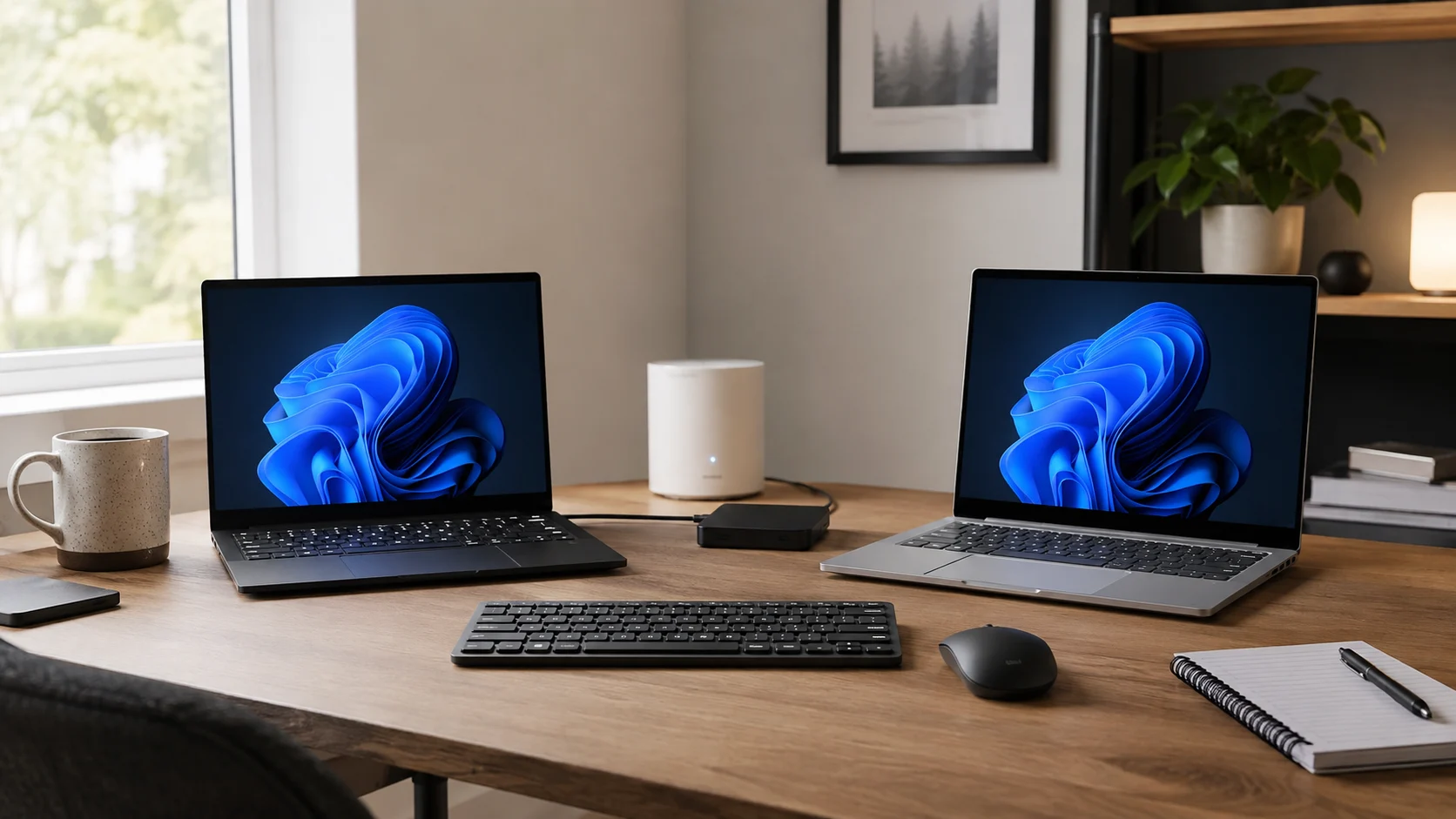
Microsoft’s documented setup flow is specific:
- On the first computer, select New key.
- Copy the generated security key.
- On the second computer, enter that security key and the name of the first computer.
- Select Connect.
PowerToys also shows the local machine’s host name in Mouse Without Borders settings. Use that value rather than guessing the PC name.
If you have changed the key several times while troubleshooting, generate one new key and rebuild the connection cleanly. The New key control resets the current connections, so treat the newest key as the active one.
The connection-status color can also narrow the problem. Microsoft documents states including Resolving, Connecting, Handshaking, InvalidKey, Timeout, SendError, and Connected. An InvalidKey state points you back toward the key. A connection stuck at Resolving makes name/IP resolution worth checking before you change unrelated settings.
3. Make sure both PCs are on the same network
Microsoft’s primary troubleshooting instruction is to make sure all machines are connected to the same network.
Check the actual active connection on each PC. Two computers can both have internet access while sitting on different local networks, such as guest Wi-Fi versus the main LAN.
Run:
ipconfigMicrosoft documents ipconfig as showing addresses, subnet mask, and default gateway. Compare the active adapters on both PCs. “Same Wi-Fi name” does not prove a guest network or isolation rule allows local device-to-device traffic.
4. Check the “Same subnet only” setting
Mouse Without Borders has a Same subnet only setting. Microsoft describes it as allowing connections only to machines in the same intranet. Microsoft’s PowerShell DSC documentation adds an important condition: this setting works when both machines have IPv4 enabled.
If Same subnet only is enabled, compare the active IPv4 address and subnet mask on both PCs. If they are not on the same subnet, that setting can intentionally prevent the connection.
Do not turn the setting off automatically. First decide whether the two PCs are supposed to be on the same local subnet. If they are, correcting the network path is usually cleaner than weakening the restriction.
5. Add or repair the Mouse Without Borders firewall rule
Microsoft explicitly lists the firewall as an initial-connection check and provides an Add a firewall rule for Mouse Without Borders control in the utility.
Run that action on both PCs, then try the connection again.
This is preferable to permanently disabling Windows Firewall just to see whether Mouse Without Borders works. If an endpoint-security product or managed corporate firewall is involved, its rules may need separate review, but the public PowerToys documentation does not provide one universal third-party firewall procedure.
6. If it says “cannot resolve,” verify the host name and DNS path
Mouse Without Borders has an optional Validate remote machine IP setting. Microsoft states that it uses a reverse DNS lookup to validate the remote machine’s IP address.
If the connection is stuck at Resolving, verify the name first:
hostnameMicrosoft documents hostname as returning the host-name portion of the computer name.
Then check the active addresses:
ipconfigFor DNS-specific checks, Microsoft documents nslookup for both name-to-address and address-to-name queries:
nslookup PC-NAME
nslookup 192.168.1.25
If Validate remote machine IP is enabled and reverse lookup is unavailable or returns an unexpected name, that setting becomes a legitimate diagnostic variable. Microsoft documents the switch, but not a universal instruction to disable it, so treat any change as a scoped test.
7. Use Refresh connections after the path is corrected
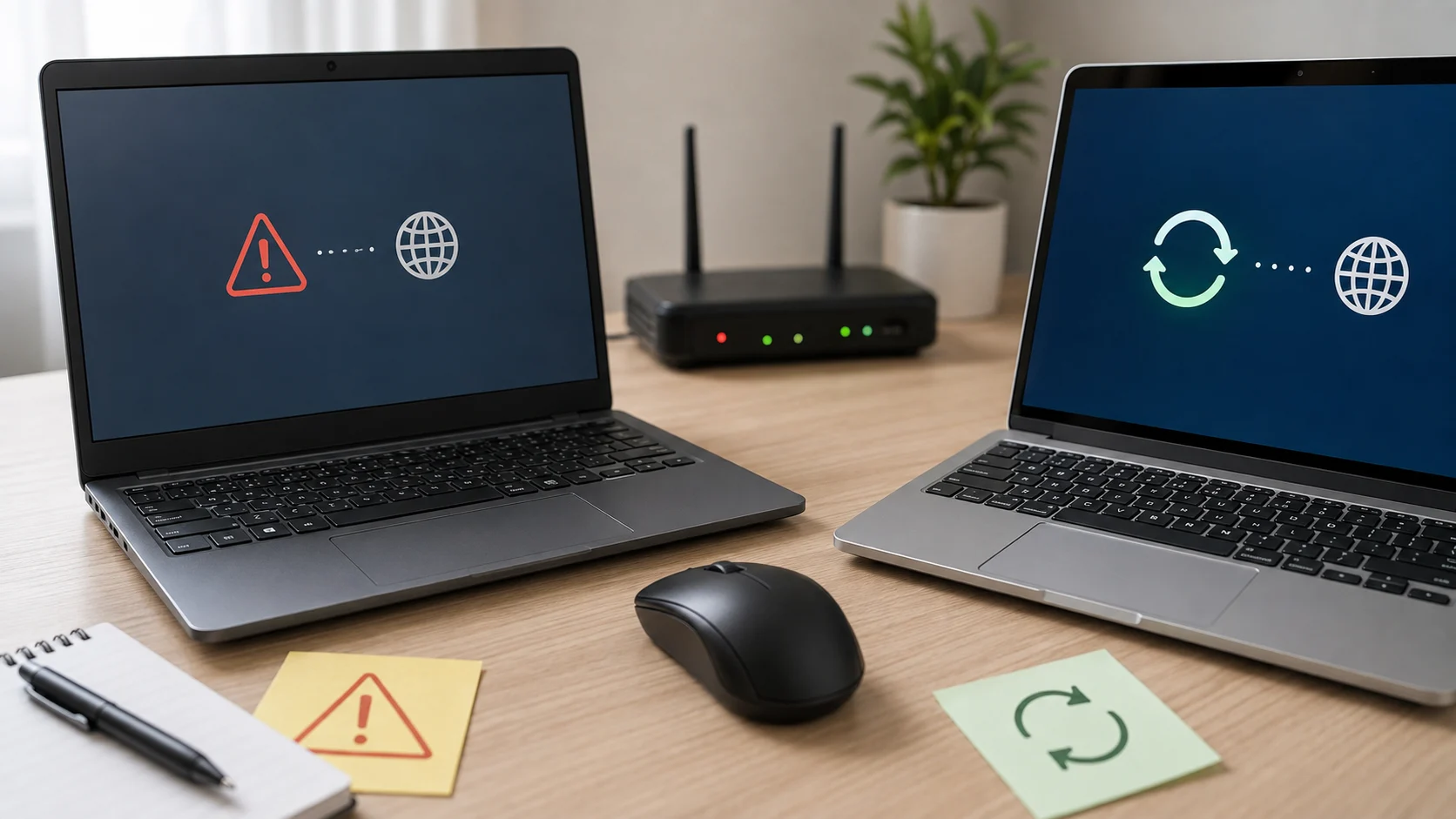
If Mouse Without Borders connected before but later disconnected, Microsoft recommends confirming that the machines are still connected to the network and then selecting Refresh connections. The refresh action is available in Mouse Without Borders settings and can also be triggered from PowerToys Quick Access or the Settings dashboard.
Refresh after fixing the key, hostname, subnet, or firewall path. Repeatedly refreshing before fixing the underlying problem is unlikely to help.
What about VPNs or multiple network adapters?
A VPN or extra adapter can change the active route or address, so ipconfig is useful on multi-adapter PCs. Microsoft does not document “disable your VPN” as a universal fix. Investigate it only when it changes the relevant route, subnet, name resolution, or security policy.
When to stop troubleshooting Mouse Without Borders
If both PCs are supported Windows machines, the key and hostname are correct, the same-network path is valid, the firewall rule is present, and name/subnet settings are understood but the connection still fails, the remaining cause may be version-specific, policy-specific, or environment-specific.
At that point, keep the existing keyboard and mouse if they work normally and decide whether a small USB switch or the hardware options in KVM vs Docking Station: Which Do You Actually Need? are a better fit than spending more time on a software-sharing path.
FAQ
Does Mouse Without Borders require both PCs to be on the same subnet? Microsoft tells users to place the machines on the same network for initial troubleshooting. Separately, the Same subnet only setting can restrict connections to the same intranet/subnet. Whether that restriction is enabled is a configuration choice.
Should I disable Windows Firewall to make Mouse Without Borders work? Not as a permanent fix. PowerToys provides its own Add a firewall rule for Mouse Without Borders action, which should be checked first.
Sources & Verification
Last Checked: 2026-08-28
- Microsoft Learn — Mouse Without Borders<br />https://learn.microsoft.com/en-us/windows/powertoys/mouse-without-borders<br />Verified: initial key/hostname setup, same-network troubleshooting, firewall-rule control, Refresh connections, status states, reverse-DNS validation, Same subnet only.
- Microsoft Learn — Install PowerToys<br />https://learn.microsoft.com/en-us/windows/powertoys/install<br />Verified: current PowerToys Windows platform requirements.
- Microsoft Learn — Configure PowerToys with PowerShell DSC<br />https://learn.microsoft.com/en-us/windows/powertoys/dsc-configure/psdsc<br />Verified: SameSubnetOnly behavior and the documented IPv4 condition.
- Microsoft Learn — PowerToys Group Policy<br />https://learn.microsoft.com/en-us/windows/powertoys/grouppolicy<br />Verified: Same subnet, remote-IP validation, and IP-mapping controls exist as managed Mouse Without Borders settings.
- Microsoft Learn — hostname<br />https://learn.microsoft.com/en-us/windows-server/administration/windows-commands/hostname<br />Verified: Windows command for displaying the local host name.
- Microsoft Learn — ipconfig<br />https://learn.microsoft.com/en-us/windows-server/administration/windows-commands/ipconfig<br />Verified: Windows command for viewing adapter IP configuration.
- Microsoft Learn — nslookup<br />https://learn.microsoft.com/en-us/windows-server/administration/windows-commands/nslookup<br />Verified: forward and reverse DNS diagnostic capability.