Monitor KVM Switches the Picture but Not the Keyboard and Mouse
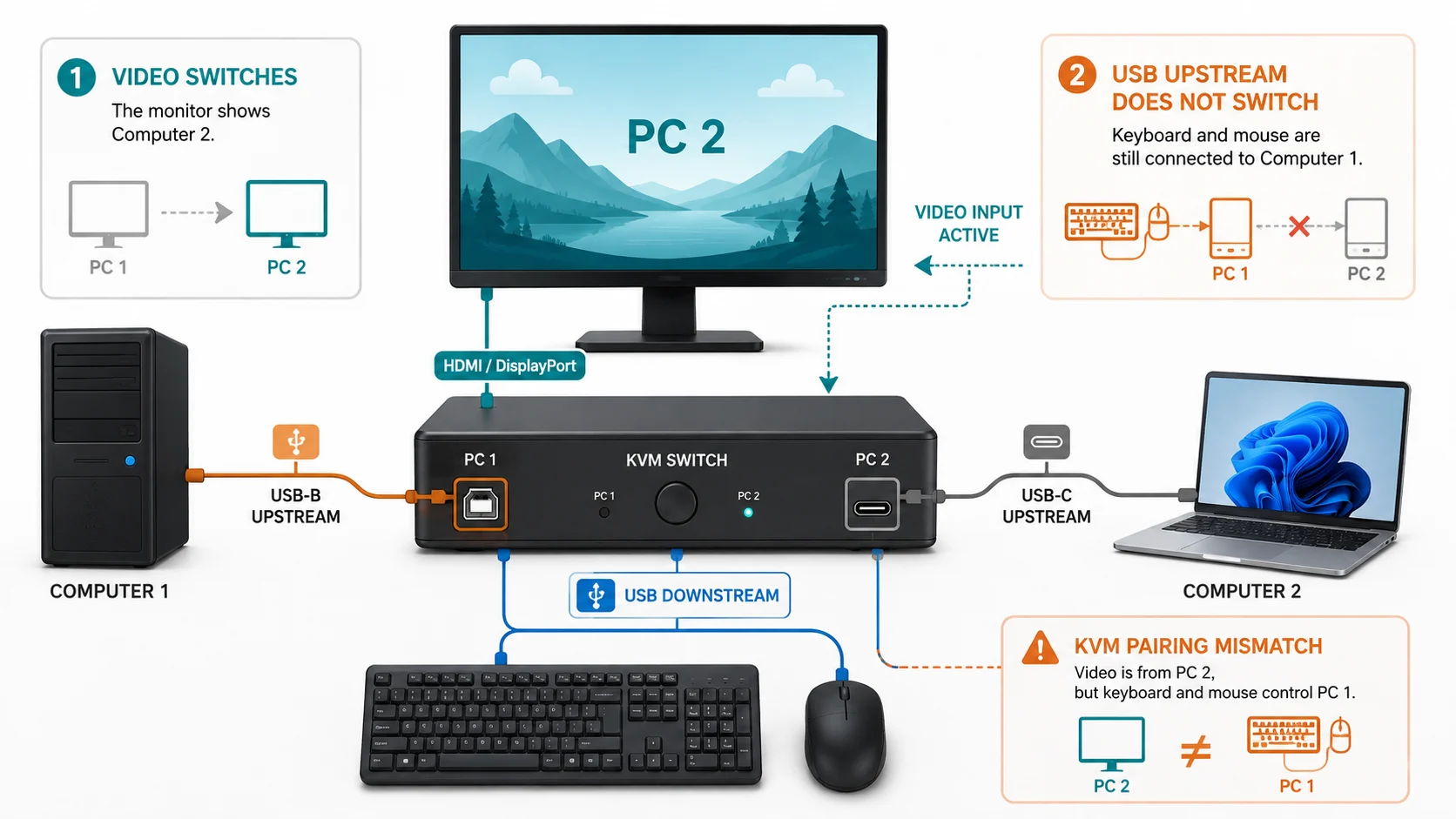
If your monitor switches to the correct computer but the keyboard and mouse stay connected to the other computer—or stop working entirely—the video path is probably switching while the USB upstream path is not.
That distinction is the key to fixing the problem. A monitor can receive video from HDMI, DisplayPort, or USB-C while its built-in USB hub is still connected to a different host. The keyboard and mouse use the monitor’s downstream USB ports, and those ports need an active upstream data connection back to the computer you want to control.
1. Separate the video path from the USB path
For a common two-computer monitor KVM setup, the paths look like this:
Computer 1 video -> HDMI/DisplayPort -> monitor
Computer 1 USB data -> USB-A to USB-B upstream -> monitor

Computer 2 video + USB data -> USB-C -> monitor

Keyboard + mouse -> monitor USB downstream ports
Dell’s KVM setup guidance explicitly separates the two jobs: first connect video from both computers, then connect the USB upstream paths, then attach the keyboard and mouse to the monitor’s downstream USB ports.
BenQ and ASUS document the same pattern on supported models: HDMI/DisplayPort can carry picture while separate USB carries keyboard/mouse data; supported USB-C can combine both. A working picture therefore does not prove the KVM’s USB side is correct. For the broader connection pattern, see USB-C Monitor With Built-In KVM vs External Switching.
2. Check the USB-B upstream connection for the HDMI/DisplayPort computer
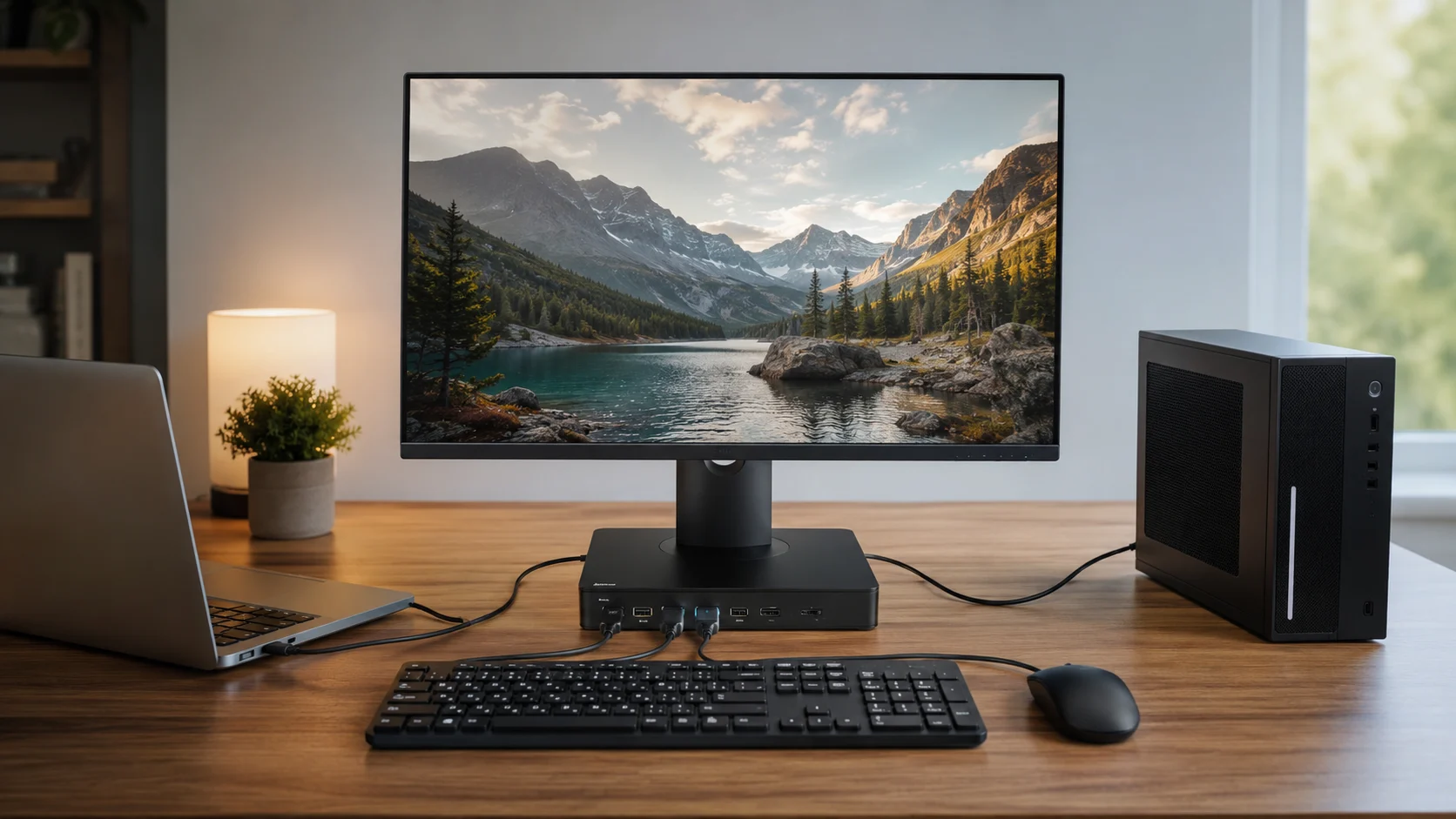
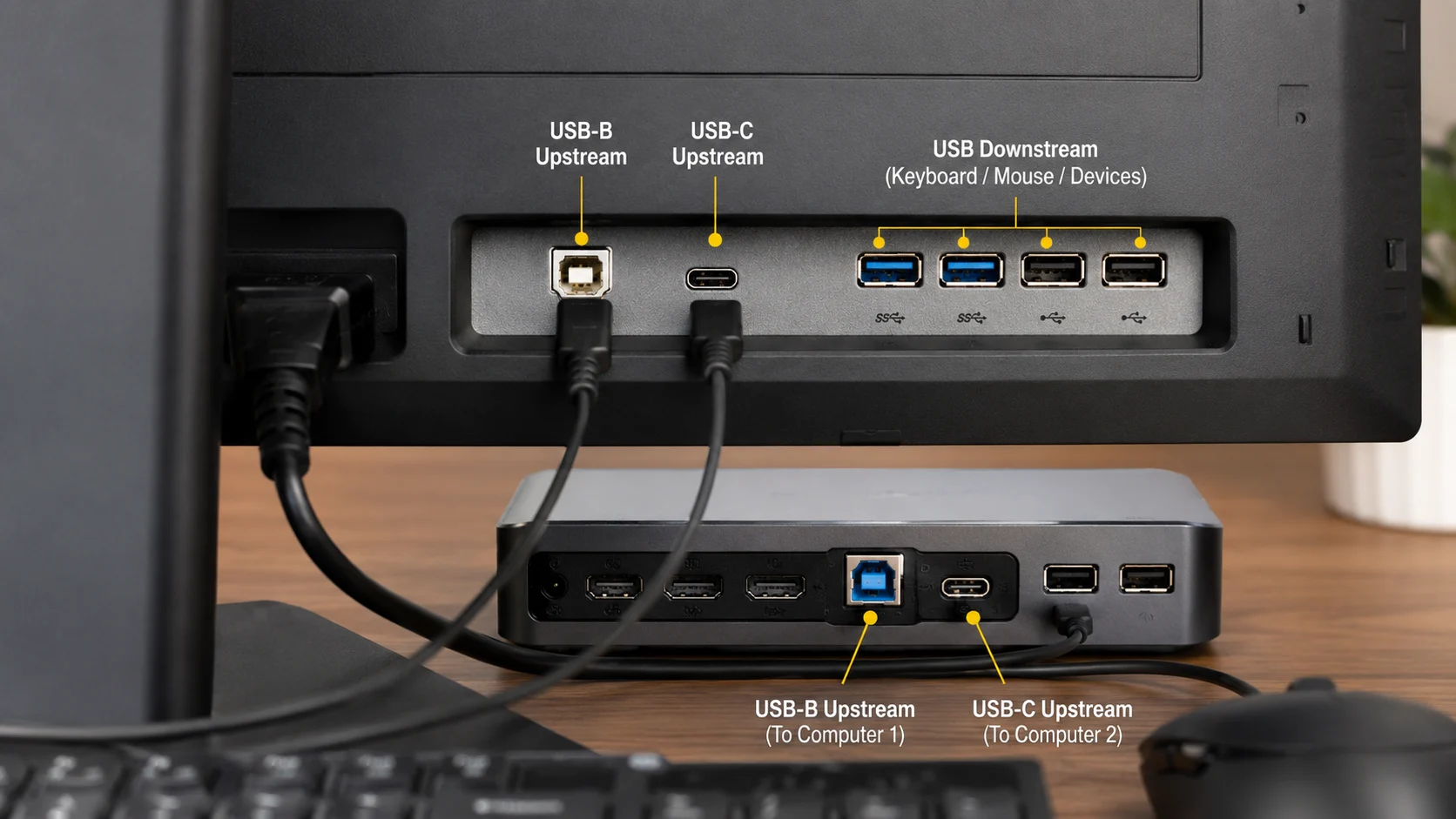
If one computer reaches the monitor by HDMI or DisplayPort, look for the monitor’s USB upstream port. On many KVM monitors this is a square USB-B port.
Acer’s monitor USB guidance describes USB-B upstream as the data bridge between the monitor’s USB hub and the computer. BenQ likewise states that its monitor’s USB-A downstream ports need either a USB-C data connection or a USB-A-to-USB-B upstream connection before the keyboard and mouse can work through the monitor.
Check that USB-B goes to the monitor’s upstream port and USB-A goes to the correct computer, with both ends fully seated. If that cable is missing or attached to the wrong PC, video can switch while the keyboard and mouse remain on the other host.
3. Check whether the USB-C path carries both display and data
USB-C connector shape alone is not enough.
ASUS documents Auto KVM examples where one USB-C upstream supports DP Alt Mode plus data, while another USB-C upstream is data-only and must be paired with HDMI or DisplayPort for video. Acer also warns that not every USB-C port or cable carries the required video and data functions.
For the USB-C host, use the dock compatibility checklist when a dock is involved, and verify that the computer port, monitor upstream port, and cable support the required data path and, when video shares the cable, DisplayPort Alt Mode. Do not substitute a charge-only cable. If video works but USB does not, check the exact port and cable specification.
4. Match the video input to the correct USB upstream source in the OSD
This is the most common configuration mistake after a missing cable.
ASUS documents KVM setups where selecting DisplayPort or HDMI for the picture is a separate step from selecting USB-B or Type-C for KVM control. Acer documents a similar USB Port Select control with choices such as B-Type, C-Type, or Auto on supported models.
That means your monitor can be showing:
Video: Computer 2
USB upstream: Computer 1
and behave exactly as described: picture switches, keyboard and mouse do not.
Open the monitor OSD and look for KVM, USB Select, USB Port Select, USB upstream, or similar. Match each video source to the upstream path for the same computer. Exact labels and pairing options vary by model.
5. Use Auto KVM only when your exact monitor documents it
“Auto KVM” is not one universal behavior.
BenQ documents supported models where Auto or Auto Switch changes the USB ports automatically when the video input changes. ASUS documents Auto KVM on specific ProArt models with defined upstream-port mappings. Acer also documents automatic USB-source selection on selected models.
If your exact monitor supports that feature, verify its required cable layout and OSD setting.
If the manual does not document Auto KVM, do not assume changing the picture should automatically move the USB devices. Manual video switching and manual USB-upstream switching may be separate operations.
6. Test the keyboard and mouse directly before blaming the monitor
Remove the monitor KVM from the path temporarily.
- Connect the keyboard directly to Computer 1.
- Connect the mouse directly to Computer 1.
- Repeat on Computer 2.
If either peripheral fails directly, fix that device or host-side issue first.
Next, reconnect the keyboard and mouse to the monitor’s downstream USB ports and test the monitor USB hub with one computer at a time. Use the correct upstream cable for that host.
This reduces the setup from a two-host KVM problem to a simple USB-hub test.
If the hub works with each computer individually, restore the two-host wiring and focus on OSD pairing or switching logic.
7. Check wireless receivers separately from Bluetooth pairing
A USB wireless receiver may switch as a USB device when the monitor supports it. Bluetooth peripherals paired directly to a computer do not travel through the monitor’s USB upstream path. Dell, for example, supports a USB receiver in its KVM guide but not Bluetooth keyboard/mouse control through that path; do not generalize that rule beyond the documented model family.
8. If it still fails, get the exact monitor manual
At this point you need the exact model, not just the brand.
Look up:
- which ports are upstream versus downstream;
- whether USB-C carries video, data, or both;
- which video input maps to which upstream input;
- whether Auto KVM exists;
- whether the monitor supports two, three, or more upstream hosts;
- whether firmware or monitor software is required for KVM configuration.
Acer, Dell, BenQ, and ASUS all publish KVM instructions that vary by model. A connection diagram for one monitor can be wrong for another monitor from the same brand. If the monitor cannot provide the switching behavior you need, compare the alternatives in KVM vs Docking Station: Which Do You Actually Need?.
FAQ
Why does HDMI switch correctly but my mouse stays on the old PC? HDMI is carrying the picture, while the mouse uses USB. The monitor’s USB hub may still be mapped to the old computer or the new computer may be missing its USB upstream connection.
Do I always need USB-B for a monitor KVM? No. Some setups use USB-B upstream for the HDMI/DisplayPort host and USB-C for the second host. Other monitors use different upstream arrangements. Follow the exact monitor manual.
Sources & Verification
Last Checked: 2026-08-28
- Dell Support — KVM Setup for Dell Monitors<br />https://www.dell.com/support/contents/en-us/article/product-support/self-support-knowledgebase/monitor-screen-video/kvm-setup-guide-dell-monitors<br />Verified: separate video and USB upstream setup, downstream keyboard/mouse connection, model-specific KVM configuration.
- BenQ — KVM Switch Monitors: One Switch to Control Your PC and Mac System<br />https://www.benq.com/en-us/knowledge-center/knowledge/one-set-to-control-two-systems-with-kvm.html<br />Verified: USB-C/Thunderbolt or HDMI/DP plus USB-upstream architecture; Auto/Auto Switch behavior on supported models.
- BenQ Support — Why isn’t my keyboard/mouse working on the monitor’s built-in USB hub?<br />https://www.benq.com/en-us/support/downloads-faq/faq/product/application/monitor-faq-k-00028.html<br />Verified: monitor USB downstream ports require a USB upstream connection; USB-C and USB-B examples.
- ASUS Support — KVM switch support setting introduction<br />https://www.asus.com/us/support/faq/1045604/<br />Verified: separate input-source and USB KVM selection; USB-B versus Type-C mappings on supported XG models.
- ASUS Support — Auto KVM function usage and connection setup<br />https://www.asus.com/support/faq/1055284/<br />Verified: model-specific upstream-port roles, DP Alt Mode plus data, data-only USB-C upstream, Auto KVM configuration.
- Acer Support — How to Fix USB Ports Not Working on an Acer Monitor<br />https://community.acer.com/en/kb/articles/19595-how-to-fix-usb-ports-not-working-on-an-acer-monitor<br />Verified: upstream/downstream USB distinction, USB-B and USB-C data paths, OSD USB-source selection, built-in KVM setup pattern.