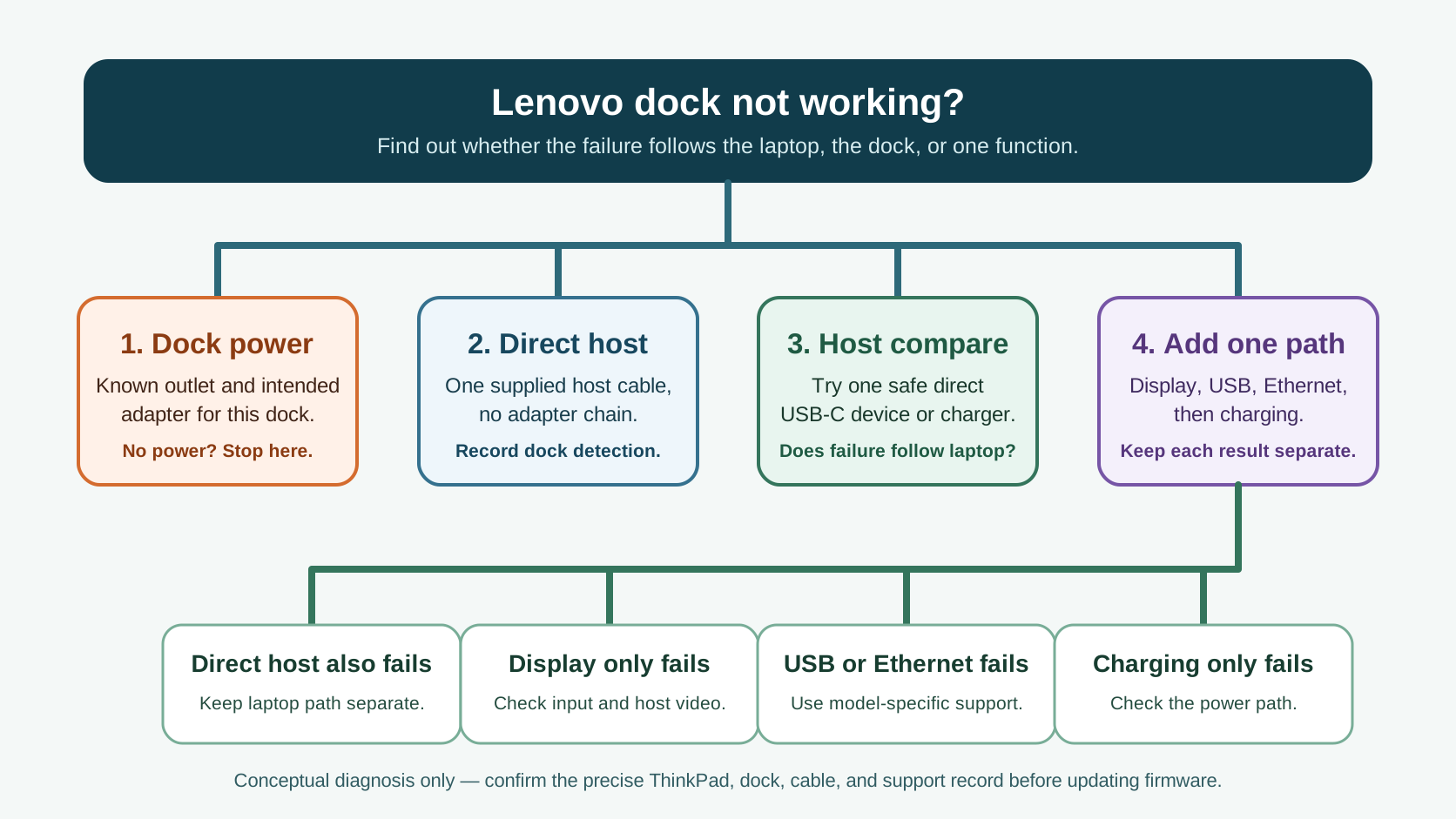
First find out whether the failure follows the laptop, the dock, or one dock function. Power the dock, connect it directly to the ThinkPad with every accessory removed, then add back one display, USB device, Ethernet cable, and charging check at a time. If a direct USB-C device also fails on that laptop, stop treating it as a dock-only problem.
This guide is for Lenovo USB-C and Thunderbolt docks, not a promise that every Lenovo laptop and dock share the same ports, firmware, display capability, or enterprise policy. Use the exact model support record before changing firmware or BIOS settings.
Start with the failure-follow test
| What the minimal test shows | First conclusion to test | Do not assume |
|---|
| The dock is unpowered and no dock function responds | Dock AC input, intended adapter, outlet, and the exact dock power port | That a driver update can restore missing input power |
| The laptop also cannot use a simple direct USB-C device or charger | The laptop-side USB-C or Thunderbolt path, its firmware, or its policy boundary | That replacing the dock alone proves a fix |
| The dock is detected and USB works, but a display is blank | Monitor input, one display cable, display configuration, and host video capability | That the complete dock has failed |
| Only USB, Ethernet, or charging fails | That one function's exact model and software branch | That a working display establishes every dock function |
This is SetupMeld's diagnostic asset: record each path as works, fails, or not checked while you keep the same direct host cable. It avoids the ambiguous result created by changing the laptop, cable, monitor, dock power, and firmware at the same time.
1. Prove the dock and host connection with a minimal setup
- Save work and disconnect storage. Remove displays, USB accessories, Ethernet, and the laptop from the dock.
- Connect the dock to its intended Lenovo power adapter and a known-working outlet. Use the cable supplied with the dock where Lenovo requires it; a cable that fits is not necessarily an equivalent host cable.
- Connect the dock directly to the laptop. Leave extension cables, monitor hubs, adapters, and KVMs out of this check.
- Check whether the operating system sees the dock or one basic USB device through it. Then compare the same laptop port with a simple, known-good direct USB-C device or charger if that comparison is safe for your hardware.
Lenovo's dock guidelines say that USB-C functionality and display capability depend on the host system design and connection topology. They also tell readers to check the correct system port, bundled cable, power adapter, host firmware/drivers, and dock firmware as separate conditions. That supports a controlled comparison; it does not make every Lenovo dock interchangeable or turn a successful charger test into a display-support claim.
2. Add back one path at a time
| Add next | What to observe | Keep this boundary |
|---|
| One basic USB device | Whether it is recognized through the dock and directly at the laptop | If direct USB works but dock USB does not, preserve the dock model and host details for the USB branch. |
| One display | Selected monitor input, picture, and resolution before adding a second display | If USB still works, diagnose the video path rather than calling it a full dock failure. |
| Ethernet | Whether the dock network adapter appears before testing the network cable or policy | A missing adapter is different from an adapter that appears but cannot reach the network. |
| Charging | Whether the laptop reports charging with the intended dock adapter | Display or USB success does not prove the available power meets the laptop's requirement. |
Only add a second display after the first is stable. At the point where you are deciding whether the current dock and laptop can meet your monitor, USB, and power needs, compare host support, display count × resolution × refresh rate, interfaces, switching, USB, clamshell support, Power Delivery, and known non-working combinations in the Compatibility Matrix.
Use model-specific Lenovo boundaries—not a blind update loop
Lenovo documents several distinct cases that illustrate why the failed path matters. Its ThinkPad no-display workflow first asks whether the display works directly on the computer and, with multiple monitors, whether the issue affects one screen before checking display configuration. Its ThinkPad Hybrid USB-C with USB-A Dock (40AF) record says that dock display can be unavailable during BIOS or boot because that model needs its driver before the operating system loads; a blank pre-boot screen is not automatically a broken dock.
Lenovo also records a specific Universal USB-C Dock (40AY) firmware-version incident in which monitor video, dock keyboard/mouse, and wired network could all stop after a named firmware update. The documented workaround is model- and update-specific. Likewise, Lenovo's April 2026 support record for certain vPro ThinkPads on Windows 11 25H2 limits an Ethernet yellow-warning symptom to Thunderbolt 4 Workstation Dock and Thunderbolt 5 Smart Dock 7500 combinations. Those records justify finding the exact host, dock, Windows version, and updater state first; they do not justify flashing another dock's package.
For a work-managed ThinkPad, ask IT before changing BIOS, Thunderbolt security, AMT, device-control, or network-policy settings. Do not disable a security control to force a peripheral to enumerate.
When one function still fails
Display only
Verify the selected input and one known-good cable, then confirm the display works directly with the laptop if that connection is available. Lenovo's guidance makes display capability host-topology dependent, so record the ThinkPad model, dock model, monitor count, resolution, refresh rate, connection type, and whether the screen is blank before Windows, only after sleep, or only at a particular configuration.
USB only
Lenovo's dock guideline starts with reconnecting the dock, trying another dock USB port, then disconnecting the dock from the computer, removing dock AC power, reconnecting AC power, and reconnecting the dock to the computer. Use that as a reversible isolation sequence. If a direct laptop USB device also fails, do not keep repeating dock resets; capture the host-side result for Lenovo support.
Ethernet only
First note whether the dock network adapter appears. If it does, keep cable, switch/router, VPN, and managed-network policy checks separate from dock enumeration. If Device Manager shows a warning, use the Lenovo support article for the exact dock, host class, and Windows release rather than applying a vPro-specific driver or BIOS workaround to another ThinkPad.
Charging only
Keep charging separate from the rest of the dock. Record the laptop, dock, supplied adapter, battery message, and workload; then use the dock charging diagnostic for the power-path sequence. A laptop that charges while a display remains blank has not passed the video test.
What original users reported—and what it cannot prove
One original ThinkPad report described a P14s Gen 6 that stopped working with a CalDigit TS5 after Windows updates; the owner said the dock still worked with a Mac, tried two Thunderbolt-certified cables, and later reported that a Lenovo-tested BIOS version restored the setup and dual-monitor use. This is a single, scoped public-user outcome for that laptop, third-party dock, update state, cables, and reported result—not a Lenovo dock specification or a reason to install an unpublished BIOS build.
A separate original P1 Gen 6 report described an owner whose USB-C ports stopped carrying dock display and peripherals; after an emergency-reset step, the author reported normal dock use returned. The thread does not identify a single dock model or establish a cause, so it remains weak contextual evidence, not a general repair instruction. Treat both reports as questions to isolate the host path, while Lenovo's official model-specific support defines the actionable limit.
When to stop troubleshooting
Stop changing variables once you can state the first failure precisely: “dock has no input power,” “this laptop's direct USB-C path also fails,” “only one display is blank,” “only dock USB fails,” or “only the network adapter is missing.” Do not open a power adapter, use damaged cables, or flash firmware for a different dock family.
Give Lenovo support or IT the laptop machine type, dock type/part number, adapter label, operating-system version, host port used, the direct comparison result, the works/fails/not-checked log, and any exact updater error. Consider a replacement only after that failing path is known. If the documented host and dock cannot meet the display, USB, or power behavior your desk needs, use the Compatibility Matrix before buying another dock.
Sources & verification
Official support and original public-user reports were checked October 8, 2026. SetupMeld does not perform in-house hardware testing. Lenovo support records define model scope and procedures; public reports describe only the named author's setup and outcome.
Originality accounting: 8 of 13 substantive blocks are SetupMeld's failure-follow test, controlled add-back matrix, branch boundaries, evidence interpretation, escalation checklist, and replacement decision: 62%. Source lists, disclosures, and generic product definitions are excluded.