Last verified September 11, 2026 · Published September 11, 2026
Software vs Multi-Device Keyboard and Mouse for Two Windows PCs
If you already own a keyboard and mouse that can switch between multiple computers, keep them unless manual host switching is the part that annoys you.
For two Windows PCs, the decision is usually this:
Use the multi-device feature you already have when pressing a host button is acceptable and you do not want the two PCs to depend on the same network or sharing software.
Use software such as PowerToys Mouse Without Borders when you want the pointer to move directly from one Windows PC to the other without pressing a device-switch button.
Neither method switches monitor video. If the real requirement is “change the monitor and keyboard/mouse together,” this is no longer just an input-sharing decision.
Quick decision table Situation Better starting point Why You already own a multi-device keyboard and mouse Keep existing gear No new hardware and no host-to-host network dependency for basic switching You move between both Windows PCs constantly Software Cursor-edge switching is more fluid than manually changing device channels The two PCs are on separate or restricted networks Multi-device peripherals Basic host switching happens at the keyboard/mouse rather than over the LAN You want shared clipboard or simple file transfer Software Mouse Without Borders documents clipboard and limited file-transfer features Employer policy blocks extra software Multi-device peripherals, if approved Basic paired-device switching can avoid installing an input-sharing application You need monitor video to switch too Neither by itself Move to the USB-switch/KVM architecture decision The real difference: where the switching happens
Both approaches can let one physical keyboard and mouse serve two Windows PCs, but the architecture is different.
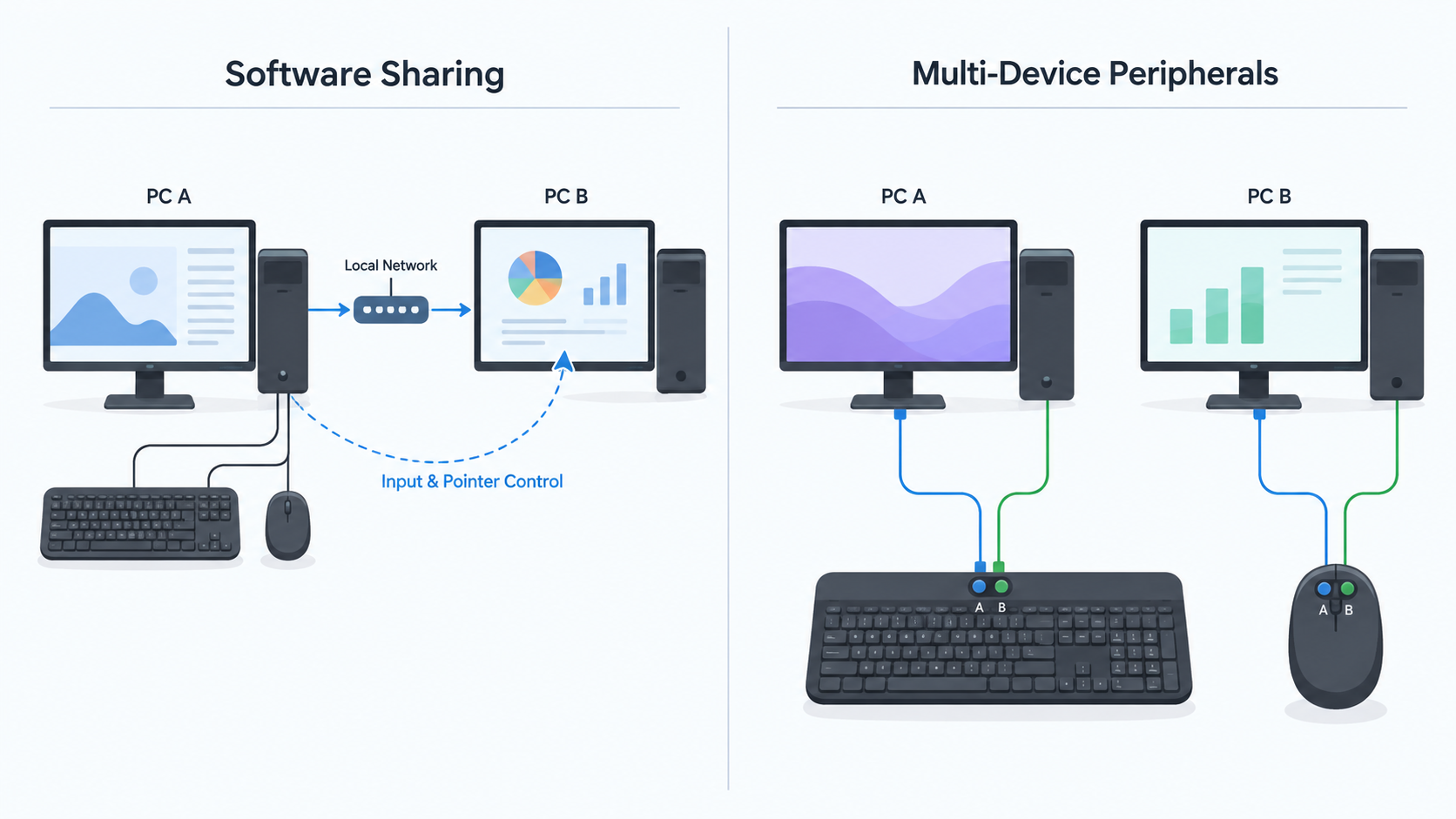
With software sharing
The keyboard and mouse are used on one computer, while software sends input to the other computer over the network.
A simplified path looks like this:
Keyboard + mouse ↓ Windows PC A ↓ input-sharing software over the local network ↓ Windows PC B
Microsoft PowerToys Mouse Without Borders is the clearest Windows example. Microsoft documents that it can control up to four computers and lets you move between them by pushing the pointer through the edge of a screen.
That is why software can feel almost like one large multi-screen desktop even though the PCs remain separate computers.
With multi-device peripherals
The keyboard and mouse are paired directly to more than one host. You change which computer each peripheral is talking to.
┌─ Windows PC A Keyboard ──────┤ └─ Windows PC B
┌─ Windows PC A Mouse ─────────┤ └─ Windows PC B
A current example is Logitech's Pebble Keys 2 K380s, which Logitech documents as switching among up to three devices with its Easy-Switch buttons. The Pebble Mouse 2 M350s similarly documents Easy-Switch support for up to three devices.
The two PCs do not need a host-to-host LAN connection just for that basic channel switching. The input device changes its active host instead.
That architectural difference drives most of the practical trade-offs.
Why software feels better when you switch frequently
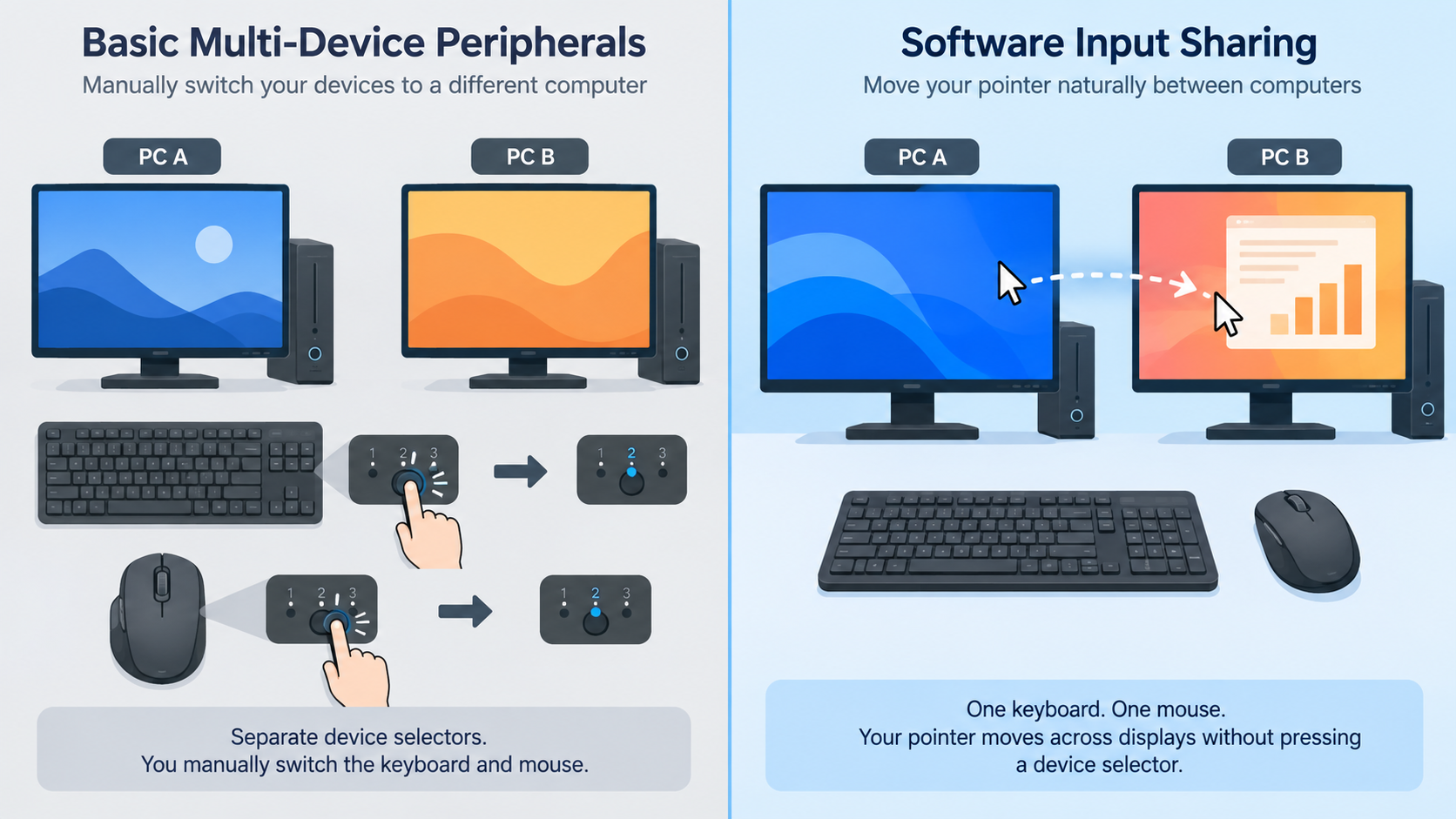
If the two PCs sit side by side and you move between them throughout the day, software has one major usability advantage: you do not have to stop and press a device-selection button every time.
With Mouse Without Borders, Microsoft documents edge-to-edge pointer movement. Arrange the computers to match the physical desk, then move the cursor beyond one screen edge to control the next PC.
That can be useful for workflows such as:
documentation on one PC and a work app on the other;
a desktop plus a secondary Windows laptop;
two machines used for separate accounts or environments;
frequent copy-and-paste between systems.
Mouse Without Borders also documents shared clipboard capability and limited file transfer. Those are functions that a basic multi-device keyboard and mouse do not create on their own.
The important point is not that software is “more advanced.” It is that software can coordinate the transition between computers, while basic multi-device peripherals simply change which host receives the input.
Why multi-device peripherals can be the simpler architecture
Software removes the physical switching action, but it adds several dependencies.
A multi-device keyboard and mouse can be simpler when you value independence between the PCs.
No host-to-host network requirement for basic switching
A paired multi-device keyboard or mouse can change from PC A to PC B even if the computers are not on the same local network.
That matters when:
one PC uses Ethernet and another is isolated on a different network;
a work PC is behind a corporate VPN or segmented network;
guest Wi-Fi prevents local device-to-device communication;
you simply do not want input-sharing traffic between the computers.
The peripherals still need their own supported connection to each PC, such as Bluetooth or a compatible receiver, but the PCs do not need to relay input to each other over the LAN.
No input-sharing application is required for the basic host change
For the exact Logitech examples above, the Easy-Switch control is a device-level host selector.
That can be valuable on a managed Windows computer where installing PowerToys or another sharing utility is not allowed.
Do not turn that into a guarantee that every employer-managed computer will accept every Bluetooth or receiver-based peripheral. IT policy can still restrict devices, drivers, wireless use, or USB access. The point is narrower: basic multi-device switching does not inherently require a network input-sharing application.
The biggest multi-device downside: you may have to switch twice
A common annoyance with a multi-device keyboard-and-mouse pair is that the keyboard and mouse may each have their own host selector.
For example, Logitech currently documents separate Easy-Switch controls on Pebble Keys 2 K380s and Pebble Mouse 2 M350s. In a basic setup, changing computers can therefore mean:
switch the keyboard to PC B;
switch the mouse to PC B.
That is still simple, but it is not as fluid as moving the pointer through a screen edge.
Do not generalize this to every product. Some current ecosystems offer software-assisted or enhanced switching that can coordinate supported devices. Logitech, for example, documents enhanced Easy-Switch behavior on supported MX products through Logi Options+.
That is product-specific functionality, not a universal feature of “multi-device keyboard and mouse.”
Software also has a failure path that manual switching does not
The seamless experience only exists while the software path is healthy.
For Mouse Without Borders, Microsoft documents initial setup using a security key and computer name. Microsoft also tells users to check that the machines are on the same network and provides a firewall-rule control for connection problems.
So software sharing can be interrupted by:
local-network isolation;
firewall rules;
VPN or routing changes;
software not running;
sleep or shutdown state;
corporate security policy;
an installation or update problem.
That does not make the software unreliable by definition. It simply means the switching layer now depends on Windows and the network instead of only on the peripheral-to-host pairing.
If your goal is “this keyboard should still change computers even when the LAN path is broken,” multi-device hardware is the cleaner architecture.
What about login screens, UAC, and elevated apps?
This is an area where category-level promises are risky.
Microsoft provides a Use Service option for Mouse Without Borders so it can control the lock screen and elevated applications. Microsoft also explicitly warns that service mode adds security risk because the software runs with greater privilege.
Do not enable that mode merely because it exists.
If you need pre-login or elevated control, decide whether that requirement is important enough to justify the extra privilege and verify it against your security policy.
A multi-device keyboard or mouse may avoid some software-session dependencies, but do not assume every Bluetooth or receiver path works in BIOS/UEFI, at every login screen, or before Windows has loaded the relevant connection stack. That behavior depends on the exact device and connection method.
Which option is better for a work PC plus personal PC?
Start with company policy, not convenience.
If the work PC allows PowerToys and local-network communication to the personal PC, software can provide a very smooth desk experience.
If the work PC does not allow that, do not bypass the restriction. A multi-device keyboard and mouse may be a better fit if those peripherals are permitted because the host change can happen at the device level.
The safest decision order is:
check whether the company permits the peripheral;
check whether it permits the software;
check whether the two PCs are allowed to communicate over the required network path;
choose the smallest method that fits those rules.
A software feature is not useful if policy prevents you from using it.
Which option is better if you already own multi-device gear?
Usually: keep it first.
If your keyboard and mouse already support both Windows PCs, ask one question:
Is pressing the host selector actually a problem?
If the answer is no, there is little reason to add another software layer.
If the answer is yes because you move between the computers dozens of times per day, then software becomes useful even though the hardware already works.
That distinction keeps this from becoming a “buy something better” article. The existing peripherals may already be the correct answer.
Which option is better if you do not own multi-device gear?
For two supported Windows PCs, software deserves to be checked before buying replacement peripherals.
PowerToys Mouse Without Borders can solve the exact input-sharing problem with the keyboard and mouse you already use, provided that:
PowerToys can be installed on both PCs;
the PCs can communicate over the required network path;
the security model is acceptable;
you do not need monitor video to switch with the input devices.
If those conditions fail, then multi-device peripherals or a hardware switching layer may make more sense.
The decision is not “software is free, hardware costs money.” Prices and promotions change. The durable question is whether your current equipment already solves the problem without adding another dependency.
What if one computer is a Mac?
This article is intentionally Windows-to-Windows.
If one of the computers is a Mac, use How to Share One Keyboard and Mouse Between a Mac and PC instead. Cross-platform software, macOS permissions, and hardware compatibility create a different decision.
What if the monitor also needs to switch?
Neither Mouse Without Borders nor a multi-device keyboard/mouse changes HDMI, DisplayPort, USB-C video, or monitor input ownership.
If the requirement becomes:
“I want the screen and the keyboard/mouse to change computers together,”
move to the hardware architecture question instead.
SetupMeld's KVM vs USB Switch: Which Do You Actually Need? guide owns that decision. Do not add a KVM just because you have two computers; add video switching only when video is actually part of the problem. If the hardware path also adds docking or display routing, use the dock and KVM compatibility matrix for host video, monitor, USB, and power requirements before choosing it.
Simple decision tree
Do you already own a keyboard and mouse that can switch between both PCs?
Yes → use them first.
No → continue.
Can you install software on both Windows PCs and let them communicate over the local network?
Yes → try Mouse Without Borders before buying replacement peripherals.
No → evaluate approved multi-device peripherals or another physical input-sharing method.
Do you switch computers constantly and want the cursor to move between screens?
Yes → software has the stronger workflow advantage.
No → manual device-channel switching may be simpler.
Do you need shared clipboard behavior?
Yes → software is the more capable category.
No → either method can solve the basic keyboard/mouse problem.
Does monitor video also need to switch?
Yes → this is now a KVM/USB-switch architecture question.
Bottom line
For two Windows PCs, neither software nor a multi-device keyboard and mouse is universally better.
Choose multi-device peripherals when you already own them, manual host switching is acceptable, and you want the input devices to remain independent of host-to-host network communication.
Choose software, especially PowerToys Mouse Without Borders, when both Windows PCs can run it and you value seamless cursor movement, shared clipboard features, and frequent switching more than the extra network/software dependency.
The existing-device-first answer is simple: do not replace working multi-device gear merely because software exists, and do not buy new multi-device gear before checking whether software can solve the problem with the keyboard and mouse you already have.
Sources & Verification
Last checked: 2026-09-11
Microsoft Learn — Mouse Without Borders https://learn.microsoft.com/en-us/windows/powertoys/mouse-without-borders
Verified: control of up to four computers, cursor-edge switching, security-key/hostname setup, shared clipboard and file-transfer features, same-network troubleshooting, firewall controls, service mode, and Microsoft's service-mode security warning.
Verified: enhanced Easy-Switch is available only on supported devices, reinforcing that coordinated switching is product/software specific rather than universal.
No hands-on testing is claimed. Multi-device host limits, connection methods, managed-device policy, pre-login behavior, vendor software requirements, and exact switching behavior remain product-specific.