Last verified September 11, 2026 · Published September 11, 2026
How to Share One Keyboard and Mouse Between Two Windows PCs With Software
If both computers run Windows and each already has the display setup it needs, software can let one keyboard and mouse control both PCs without adding a KVM or USB switch.
For most two-PC Windows desks, the first option to check is Microsoft PowerToys Mouse Without Borders. It is built for Windows, can control up to four computers, and lets the pointer move from one PC to the next as if the screens were part of one larger desk.
Other software can make sense in narrower cases:
Logitech Flow if you already use a compatible Logitech Easy-Switch mouse and Logi Options+;
Deskflow if you prefer a free, open-source option;
Synergy if you want a commercial cross-platform product or may later mix Windows with macOS or Linux.
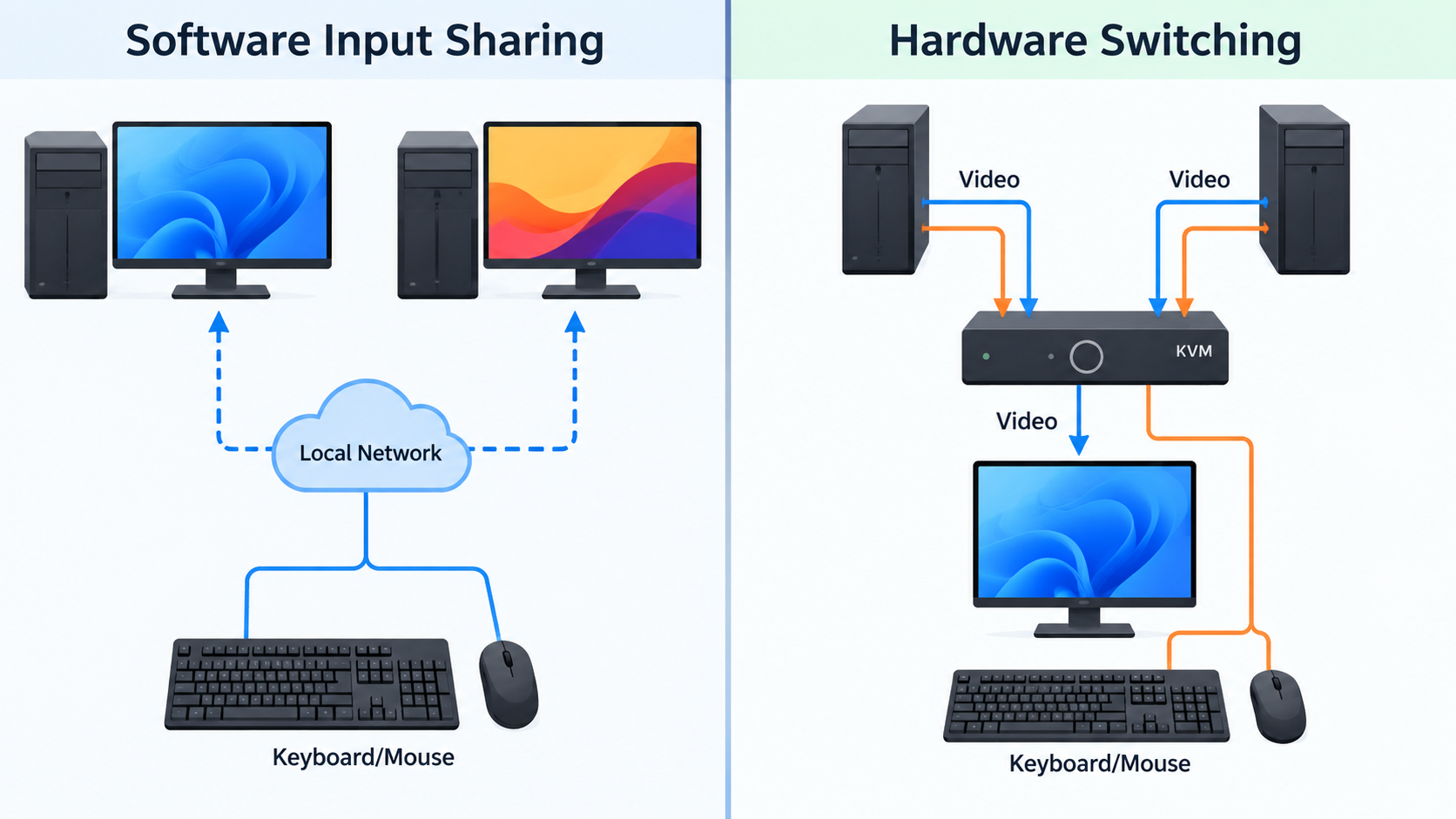
The important boundary is this: software input sharing does not switch monitor video. Each PC normally keeps its own screen. If your real problem is switching one monitor, two monitors, or USB peripherals without relying on software, that is a hardware decision instead.
Quick decision table
Situation
Best starting point
Why
Two Windows PCs, software allowed, same local network
PowerToys Mouse Without Borders
Windows-first option with keyboard/mouse sharing and simple edge-to-edge switching
You already own a compatible Logitech Easy-Switch mouse
Logitech Flow
Uses the hardware you already own and can move the pointer between PCs
You want free/open-source software
Deskflow
Open-source keyboard/mouse sharing with Windows support and TLS enabled by default
You may later mix Windows, macOS, or Linux
Synergy
Commercial cross-platform input sharing over the local network
Work PC blocks software or local-device communication
Use an approved hardware path
Software sharing depends on installation, network access, and policy
Monitor video also has to switch
Evaluate USB switch / KVM architecture
Input-sharing software does not switch HDMI, DisplayPort, or USB-C video
What software sharing actually does
These tools do not merge two Windows PCs into one computer.
Each machine keeps:
its own Windows session;
its own applications;
its own display or displays;
its own files and permissions unless the software provides a separate clipboard or file-transfer feature.
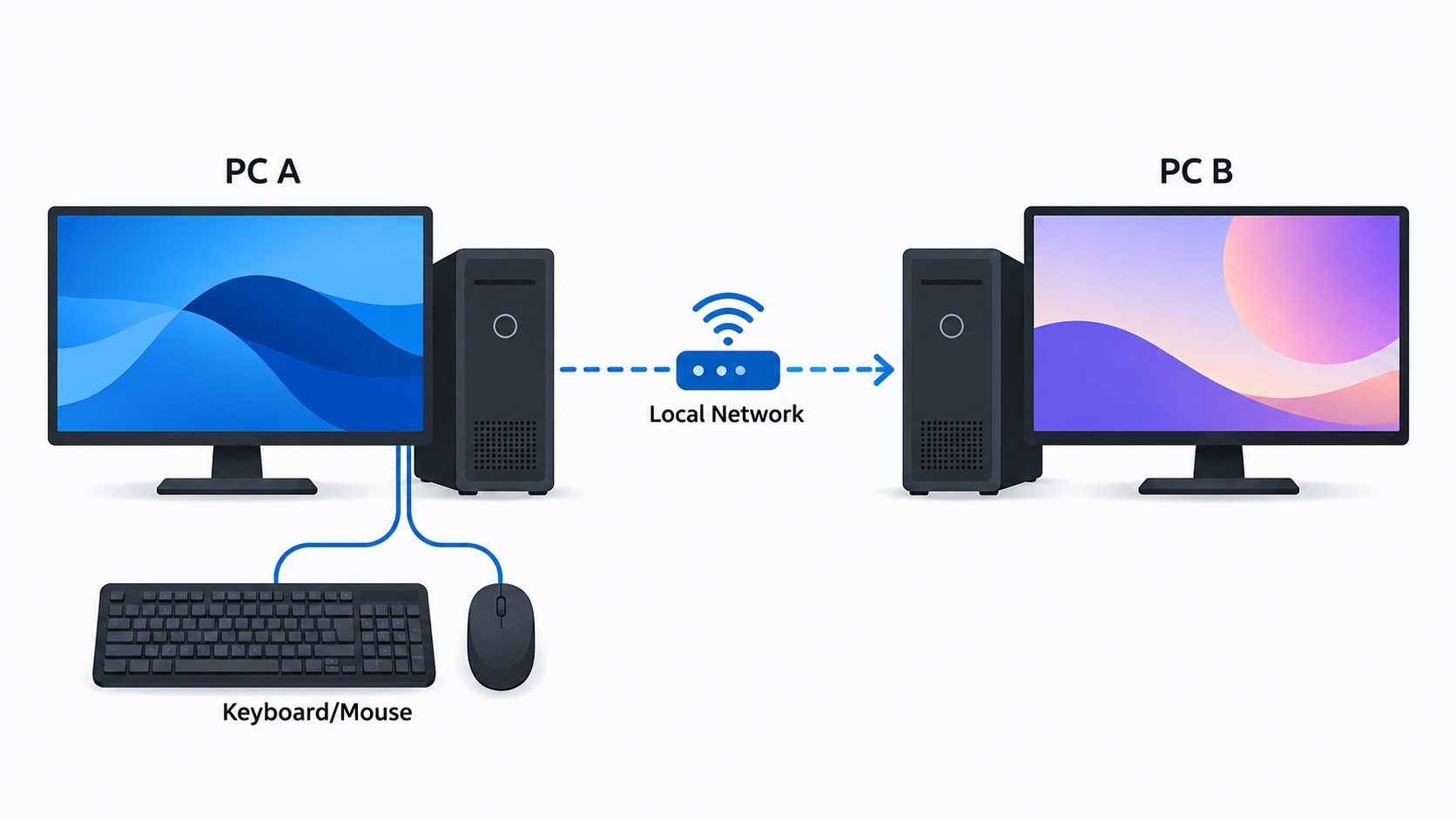
The shared keyboard and mouse are logically connected through software over the network. When the pointer crosses the configured edge of one screen, input is sent to the other PC.
That makes software especially useful for a desk like this:
PC A -> its own monitor
PC B -> its own monitor

One keyboard + mouse
        ↓
input-sharing software over local network
        ↓
PC A / PC B
If you have only one monitor and want the picture to change computers too, software input sharing does not solve the whole problem by itself. You still need the monitor's own input selector, a hardware KVM, or another video-switching architecture.
Option 1: PowerToys Mouse Without Borders — the Windows-first choice
For two Windows PCs, Mouse Without Borders is the most direct place to start.
Microsoft currently includes it in PowerToys and documents support for controlling up to four computers with the same keyboard and mouse. It can also share clipboard content and transfer files, although those extras have their own limitations.
Current PowerToys system requirements include:
Windows 11, or Windows 10 version 2004 / build 19041 or newer;
a 64-bit x64 or ARM64 processor.
Basic setup
Keep the first setup simple:
Install current PowerToys on both Windows PCs.
Open Mouse Without Borders in PowerToys on the first PC and select New key.
On the second PC, enter that security key and the first PC's displayed host name.
Select Connect, then arrange the computers in the on-screen layout to match the physical desk.
Once connected, moving the pointer through the edge of one screen can move control to the other computer.
Microsoft also provides settings for clipboard sharing, file transfer, reconnecting, device layout, and keyboard shortcuts. Those are optional refinements rather than requirements for the basic two-PC workflow.
If Mouse Without Borders will not connect, do not reproduce an entire network-debugging process here. Use the dedicated PowerToys Mouse Without Borders Not Working or Connecting guide for security-key, hostname, firewall, subnet, DNS, and reconnect troubleshooting.
What about the lock screen or UAC prompts?
Microsoft provides a Use Service option that can extend Mouse Without Borders control to the lock screen and elevated applications.
That is not a setting to enable casually. Microsoft explicitly warns that running Mouse Without Borders as a system service adds security risk because it gives the software more privileged control of the target computer.
For an ordinary personal two-PC desk, start without service mode. Enable elevated control only when you actually need it and understand the security trade-off.
Option 2: Logitech Flow — best when compatible Logitech gear is already on the desk
Logitech Flow is not a generic keyboard-and-mouse sharing program that works with any hardware.
It is part of the Logitech ecosystem. Current Logitech setup guidance requires:
Logi Options+ on the computers;
a compatible Logitech Easy-Switch mouse paired to the computers on separate channels;
the PCs connected to the same wired or wireless network;
an active internet connection for the initial Flow connection.
Depending on the mouse, Flow can work across two or three computers.
Once configured, moving the pointer to the edge of one screen can move control to the next computer. Compatible keyboard behavior can also follow the mouse when supported by the Logitech setup.
When Flow is the better answer
Flow is attractive when you already own the compatible hardware. In that case, the smallest solution may be to use the feature already built around your mouse instead of installing a second software-sharing stack.
It is less attractive when:
neither PC already uses compatible Logitech gear;
the corporate PC cannot install Logi Options+;
the network blocks Flow's discovery or communication ports.
Logitech specifically notes that office firewalls and network restrictions can block Flow and may require help from the network administrator.
Option 3: Deskflow — a free, open-source alternative
Deskflow is a current open-source keyboard-and-mouse sharing project for Windows, macOS, and Linux.
The project describes itself as a software KVM without video: one keyboard, mouse, or trackpad can control nearby computers while each computer keeps its own screen. The official project also states that TLS encryption is enabled by default and clipboard sharing is supported.
For Windows, the project notes a dependency on the Microsoft Visual C++ Redistributable.
Deskflow is a reasonable fit when:
you specifically prefer open-source software;
you are comfortable configuring a third-party network utility;
you want a path that is not limited to Windows if your desk changes later.
Do not treat open source as an automatic security guarantee or an automatic enterprise approval. A managed Windows PC may still block the installation or the network communication.
Option 4: Synergy — useful when cross-platform support or a commercial product matters
Synergy is another software input-sharing architecture.
Symless currently documents Synergy 3 support for Windows 10 and Windows 11 as well as supported macOS and Linux versions. The computers need a network connection where they can see each other, and each computer keeps its own screen because Synergy does not provide monitor-video sharing.
Symless also documents its architecture more explicitly than many consumer utilities: input events are sent directly between the local computers over an encrypted connection, with no Synergy cloud service in the input path.
For a Windows-only home desk, that extra product layer may be unnecessary if Mouse Without Borders already solves the problem. Synergy becomes more interesting when:
your environment is or may become cross-platform;
you want a commercial product rather than a Microsoft utility or open-source project;
the documented local-network architecture fits your security requirements.
Software input sharing is convenient because it can remove a physical switch box. But it adds dependencies that hardware switching does not have.
Both computers must be available on the network
If the two PCs cannot communicate over the relevant local network, software sharing cannot pass the input between them.
Guest Wi-Fi isolation, corporate segmentation, firewall rules, VPN routing, or security software can all affect that path. Do not weaken a work network or security policy just to make a keyboard-sharing utility connect.
Both computers usually need the software installed and running
That can be a deal-breaker on an employer-managed machine.
If IT policy blocks PowerToys, Logi Options+, Deskflow, Synergy, or the required firewall communication, the correct answer is not to work around those controls. Use an approved method instead.
Sleep, lock, elevation, and startup behavior are separate requirements
Do not assume that because software works after login it will also control:
BIOS or UEFI;
every Windows lock-screen state;
every UAC prompt;
a sleeping or powered-off PC.
Mouse Without Borders provides a documented service mode for some elevated and lock-screen control, but that mode has an explicit security warning. Other products have their own elevation/startup behavior.
If pre-login control is a hard requirement, verify it for the exact software and security policy rather than treating it as a generic software feature.
When a USB switch or KVM is the better architecture
Move away from software when the requirement is physical rather than network-based.
If you need one monitor plus the keyboard and mouse to switch between two computers, the AV Access KVM Switch 1 Monitor 2 Computers is one available hardware option in this category, but check its ports and display requirements against both PCs and your monitor before choosing it. AV Access KVM Switch 1 Monitor 2 Computers, 10K HDMI 2.1 KVM with USB 3.0
A USB switch is often a better fit when:
software installation is not allowed;
you want ordinary USB keyboard/mouse switching without a LAN dependency;
you want a simple physical button that changes which PC owns the peripherals.
A KVM becomes relevant when the monitor video must switch along with the keyboard and mouse.
It matches the operating-system pair directly, comes from Microsoft, and solves the exact one-keyboard/one-mouse problem without adding hardware.
You already own compatible Logitech Easy-Switch gear
Try Logitech Flow before adding another utility. You may already have the required device ecosystem.
You specifically want open-source software
Evaluate Deskflow. Verify its current Windows package requirements and whether both PCs are allowed to run it.
You want a commercial cross-platform path
Evaluate Synergy, especially if your future desk may include macOS or Linux as well as Windows.
One PC is employer-managed
Check policy first. The best technical solution is irrelevant if the required software or network communication is not permitted.
You need the monitor to switch too
Stop treating this as a software-only input problem. Move to the hardware architecture decision.
Bottom line
For two Windows PCs that already have their own displays, PowerToys Mouse Without Borders is the strongest first software option to check. It is designed for Windows, can control multiple PCs from one keyboard and mouse, and does not require buying a hardware switch.
Logitech Flow can be the smaller answer if compatible Logitech hardware is already on the desk. Deskflow provides an open-source alternative. Synergy is useful when cross-platform support or a commercial product matters.
But software is not automatically simpler in every environment. It depends on installation permission, local-network communication, security policy, and the state of both computers.
If software is blocked—or if the monitor video must switch too—keep the existing PCs and peripherals and change only the missing switching layer. That is the point where a USB switch or KVM becomes the more appropriate architecture.
Sources & Verification
Last checked: 2026-09-11
Microsoft Learn — Mouse Without Borders
https://learn.microsoft.com/en-us/windows/powertoys/mouse-without-borders Verified: up to four computers, keyboard/mouse sharing, clipboard/file features, security-key and host-name setup, device layout, firewall/reconnect controls, service mode, and Microsoft's service-mode security warning.
Microsoft Learn — Install PowerToys
https://learn.microsoft.com/en-us/windows/powertoys/install Verified: current Windows 11 / Windows 10 version 2004+ and x64/ARM64 PowerToys requirements.
Logitech Support — What is Logitech Flow and how do I set it up and troubleshoot it?
https://support.logi.com/hc/en-us/articles/1500005634742 Verified: Logi Options+, compatible Easy-Switch mouse requirement, two/three-computer behavior, same-network requirement, initial internet requirement, and firewall/network-admin caveats.
Deskflow — official project README
https://github.com/deskflow/deskflow Verified: Windows/macOS/Linux keyboard-and-mouse sharing, software-KVM-without-video positioning, TLS enabled by default, clipboard sharing, and Windows Visual C++ Redistributable requirement.
Symless Support — Operating system and hardware requirements
https://support.symless.com/hc/en-us/articles/33562793892497-Operating-system-and-hardware-requirements Verified: Synergy 3 Windows 10/11 support, local-network visibility requirement, cross-platform scope, and no video-sharing function.
Symless Support — Security and Architecture Overview
https://support.symless.com/hc/en-us/articles/48326695360529-Security-and-Architecture-Overview Verified: direct local-network input relay, encrypted connection, and no cloud service in the input path.
No hands-on testing is claimed. Network policy, software permissions, product versions, and the exact Windows environment still control whether a software-sharing method is appropriate.