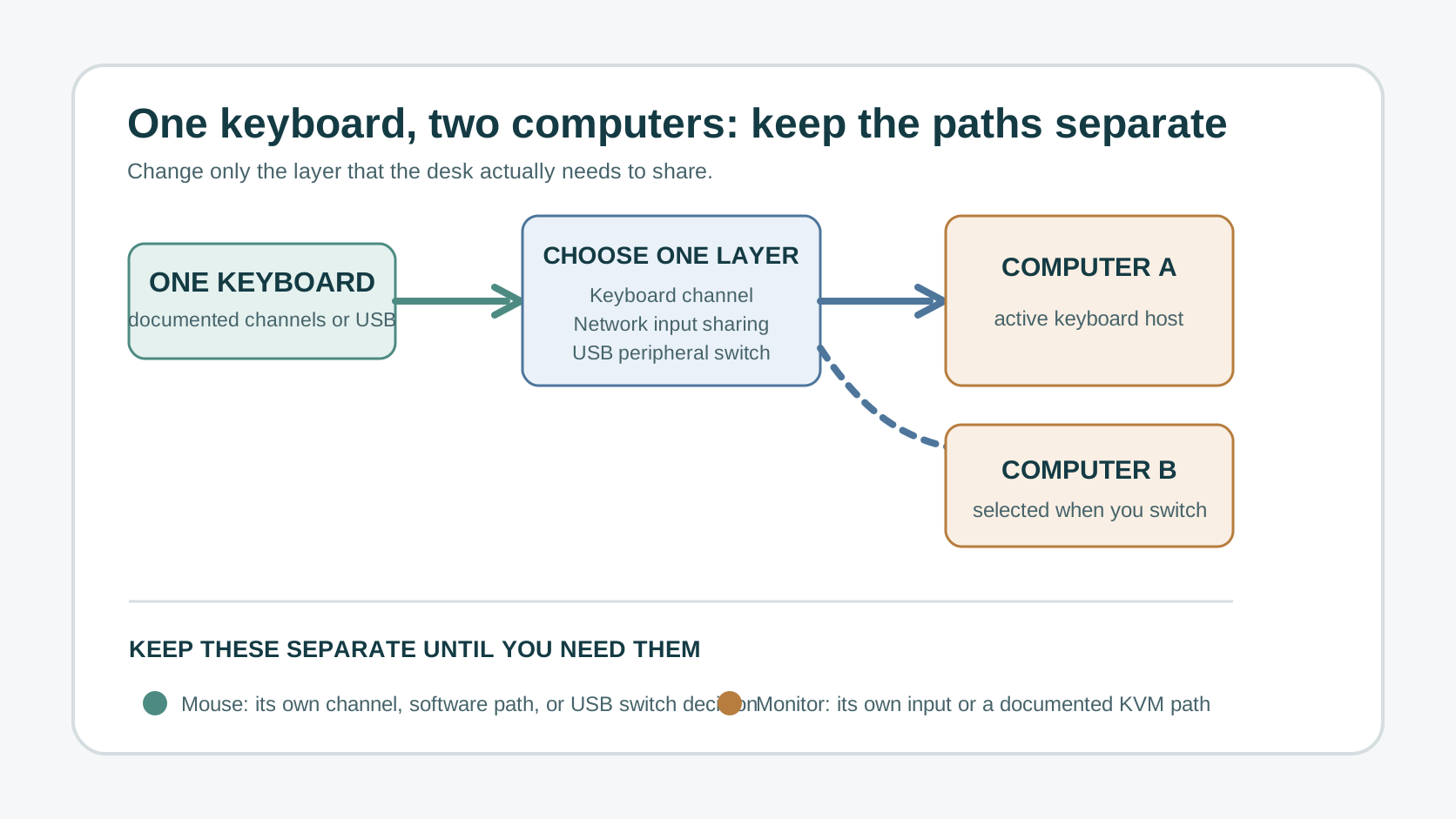
If you want one keyboard for two computers, begin by separating three jobs: which computer receives keystrokes, where the mouse points, and which screen is visible. A multi-device keyboard can switch its own connection; keyboard-sharing software can move input over the local network; and a USB switch can hand an ordinary USB keyboard to one host at a time. None of those choices changes monitor video automatically.
The smallest working answer is usually best: use the keyboard's documented multi-device channel if you already have it; use software only when both computers are allowed to communicate on the same network; use a USB switch for an ordinary wired keyboard or USB receiver when you want physical host selection. Add a KVM only if the display must switch in the same action.
Choose the keyboard path first
| Your desk requirement | Start with | What stays separate |
|---|
| Your keyboard has documented multi-device buttons and both computers already have their own screens | Keyboard channel switching | The mouse may need its own channel; the monitor keeps its current input. |
| Two Windows PCs can run approved software on the same local network | Mouse Without Borders | Each PC retains its own session and monitor video. |
| You have a standard wired keyboard or a compatible USB receiver and want a button-controlled handoff | Two-host USB peripheral switch | It switches USB ownership, not HDMI, DisplayPort, or USB-C video. |
| The keyboard, mouse, and active monitor must all move together | Check a KVM or documented monitor KVM | This is now a video-and-input compatibility question, not a keyboard-only one. |
This table is deliberately keyboard-first. It prevents a common desk-design mistake: buying a video switch when only the keyboard needs to move, or buying a keyboard when the actual requirement is a coordinated display switch.
Map the three paths before you buy anything
Write one short line for each path:
- Keyboard path: keyboard → computer A, computer B, or a sharing layer.
- Mouse path: mouse → computer A, computer B, or its own separate switching method.
- Video path: computer A/B → the current monitor input or inputs.
When only the first line needs to change, keep the other two paths stable during setup. This is SetupMeld's connection-isolation method: after every change, test typing into a text field on the selected computer, then test the mouse, then confirm the display state. A successful keyboard switch does not prove that the mouse, clipboard, USB receiver, or monitor path also moved.
1. Use a documented multi-device keyboard
If your existing keyboard explicitly supports more than one host, this is often the no-new-box option. Logitech's current Easy-Switch documentation is one example: compatible keyboards can pair with up to three devices and change the active device with a numbered button. The device itself must support the feature; Bluetooth alone does not prove that a keyboard remembers multiple hosts.
For a compatible Easy-Switch keyboard, Logitech instructs you to hold a numbered button for three seconds to pair that channel, then repeat with a different numbered button for the other computer. The same button subsequently selects that connection. Depending on the model, the connection can use Bluetooth or a Logitech receiver; read the exact keyboard's support page before assuming either option is available.
What this method solves: deliberate keyboard switching without a local-network dependency. What it does not solve: a separate mouse may remain on the first computer, and the monitor does not change input merely because the keyboard changes channels.
2. Use software when you need seamless typing between two Windows PCs
Software sharing is different from device-channel switching. Microsoft PowerToys Mouse Without Borders lets one keyboard and mouse control up to four computers. After the machines are connected, moving the pointer beyond a screen edge moves control to the next machine, so typing follows the active input focus instead of a keyboard button press.
Microsoft's documented first connection requires a security key and computer name, and its troubleshooting sequence starts with the same network, the key and host name, and the firewall. This is a good fit only when both Windows PCs may run the tool and the local network path is permitted. Do not weaken a work computer's policy, firewall, or network segmentation to make a personal desk workflow work.
Keep the software boundary clear: it shares input, clipboard, and limited file-transfer features; it does not switch HDMI, DisplayPort, USB-C video, or the monitor's selected input. If the keyboard switches but the picture does not, that may be the expected design—not a keyboard failure.
3. Use a USB switch for an ordinary USB keyboard
A two-host USB peripheral switch is the physical alternative when the keyboard has no documented multi-device mode or you do not want the switch to depend on the LAN. Connect the keyboard, or a compatible wireless receiver, to the switch's peripheral side; connect each host port to one computer; then use the selector to give USB focus to one host.
IOGEAR's GUS402 illustrates the category: it documents two computers sharing up to four USB peripherals, including keyboards and mice, through a remote selector button. Treat that as an architecture example, not a blanket device recommendation. Check the exact switch, host-port adapters, keyboard receiver, operating system, and employer policy before purchasing.
Start with the keyboard alone. After the switch reliably changes typing between the two computers, add a mouse or receiver only if the switch documentation and your peripherals support that arrangement. Adding every peripheral at once hides the first failure point.
A keyboard-only decision tree
- Does the keyboard document two or more host channels? If yes, pair each host to a different documented channel and test the channel buttons first.
- Do you need pointer-edge movement and typing to follow between two Windows PCs? If yes, determine whether approved input-sharing software and a permitted local-network path are available.
- Is the keyboard ordinary USB, or does policy rule out software? If yes, evaluate a two-host USB peripheral switch and test the keyboard before adding anything else.
- Must the display change at the same time? If yes, stop treating this as a keyboard-only purchase. Check the monitor's inputs and USB upstream path, then use the KVM versus USB switch decision guide and the compatibility matrix.
This order protects the part of the desk that already works. It also creates useful observations: a channel-button failure stays with pairing or the keyboard; a software failure stays with the app, host name, firewall, or network; a USB-switch failure stays with USB ownership, cabling, or the selected peripheral.
If the keyboard does not follow, isolate one layer at a time
| What you observe | First check | Do not assume |
|---|
| A multi-device keyboard will not type on computer B | Confirm that B was paired to its own documented channel and that its Bluetooth or receiver connection is active. | That any Bluetooth keyboard can retain multiple hosts. |
| Mouse Without Borders does not connect | Check same-network access, security key, host name, then firewall as Microsoft documents. | That replacing the keyboard will fix a network handshake. |
| A USB switch moves the keyboard but not the mouse | Test the mouse or its receiver separately and consult the exact switch/peripheral documentation. | That keyboard success guarantees every USB device will behave alike. |
| The keyboard changes computer but the screen stays put | Check the monitor's own input selector or the documented video-switching layer. | That a keyboard channel or normal USB switch carries video. |
For a Windows-only connection problem after you have chosen software, use the dedicated Mouse Without Borders connection guide. For a Mac-and-PC desk, the operating-system and permissions choices differ; use the Mac and PC keyboard-and-mouse guide before treating a Windows utility as a cross-platform answer.
What the fixed benchmark covers—and what this page adds
The fixed benchmark uses already-read material dated September 22, 2026: Lifehacker's relevant pieces compare broad software, multi-device, and KVM approaches; Duet documents its account- and subscription-dependent input-sharing mode; a Reddit discussion supplies individual setup leads but not a general compatibility guarantee. The relevant Lifehacker material was read from the project's traceable local research archive; Duet and Reddit were last read in that benchmark record on September 22.
This page does not treat an unreadable or unreviewed competitor page as absent. Its addition is narrower: a keyboard-first three-path map, a separate keyboard/mouse/video record, and a reversible test order that identifies whether a failed switch belongs to pairing, the network software, USB ownership, or the monitor path. These are SetupMeld editorial analysis based on the official boundaries below, not claims of hands-on testing.
Bottom line
One keyboard can serve two computers without rebuilding the desk. Start with documented keyboard channels if your keyboard has them; use Windows input-sharing software only when the hosts and local network allow it; use a USB peripheral switch when you need a physical handoff for ordinary USB gear. Keep the mouse and video paths separate until the requirement explicitly says they must switch too.
Sources and verification
The external official pages below were reopened on September 24, 2026. SetupMeld does not claim in-house hardware testing. Product behavior remains dependent on the exact keyboard, receiver, host, operating system, network policy, USB switch, and monitor connection.
| Fact used | Official source | Source type |
|---|
| Easy-Switch keyboards can pair with up to three devices; the numbered button is used for pairing and later selection; connection can use Bluetooth or compatible Logitech receiver paths. | Logitech Easy-Switch setup and K780 switching support | official_support |
| Mouse Without Borders controls up to four computers with one keyboard/mouse; initial setup uses a security key and computer name; same-network and firewall checks are part of troubleshooting. | Microsoft Learn: Mouse Without Borders | official_support |
| A two-host USB peripheral switch can share keyboard and mouse devices through a selector button; its USB path is distinct from video switching. | IOGEAR GUS402 product documentation | official_specification |