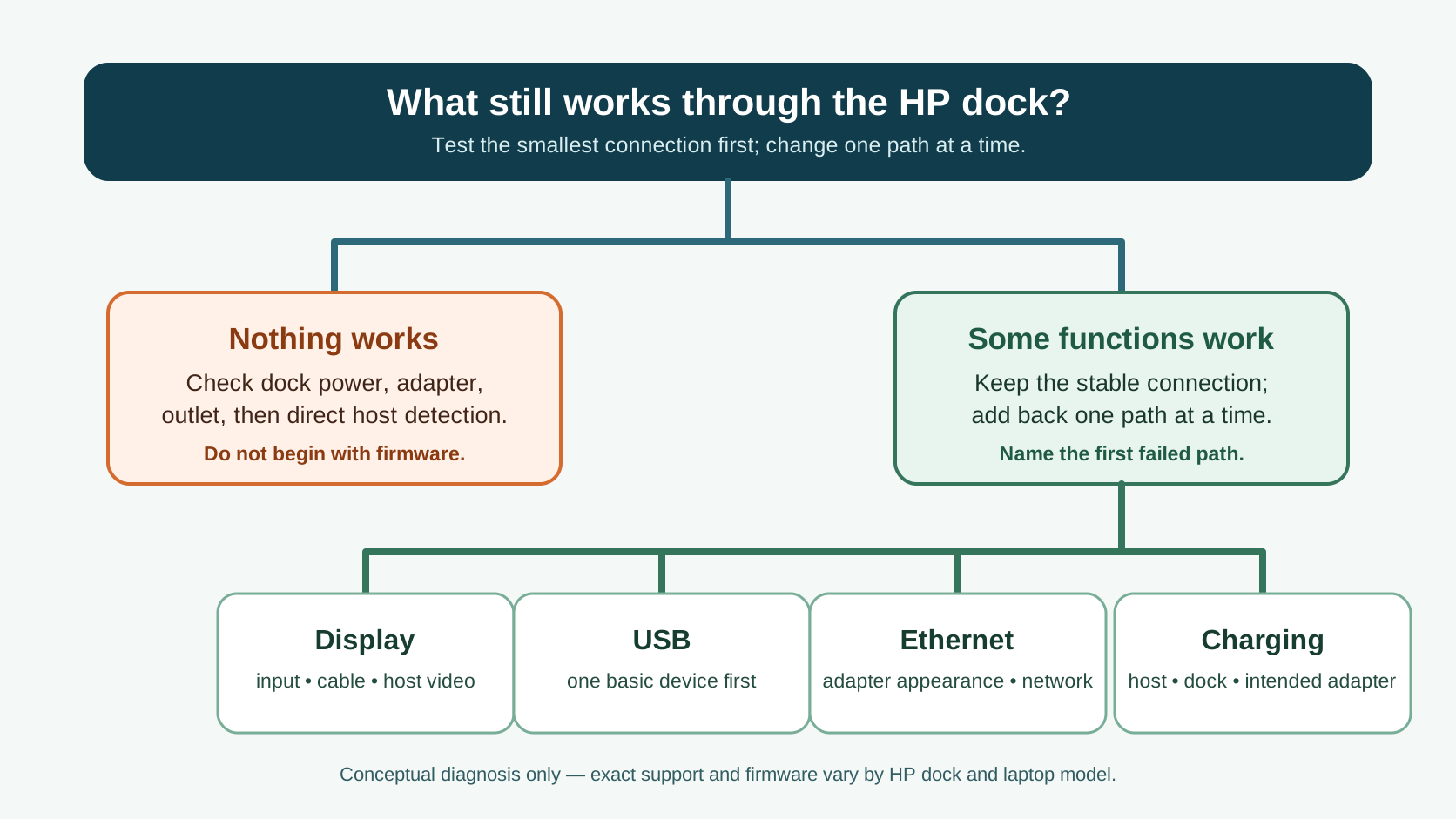
Do not update or replace the dock until you know whether the whole dock has failed or only one path has. First test dock power and direct host detection with displays and accessories disconnected. If the computer sees the dock, add back one display, USB device, Ethernet cable, and charging check at a time. The first function that fails determines the next check.
This guide applies to HP USB-C and Thunderbolt docks, including common G5 and G2 families, but it is not a substitute for the exact manual and firmware package for your dock and laptop. An HP connector that fits is not proof that every video, USB, charging, or network feature is supported.
Start with the symptom split
| What still works? | Start here | Do not assume |
|---|
| Nothing: no dock power indication and no peripheral response | Dock AC adapter, wall outlet, and the exact dock model | That a driver reinstall can restore missing input power |
| The dock has power, but the laptop does not detect it | One direct host-to-dock connection with all accessories removed | That a lit dock proves the laptop's USB-C or Thunderbolt path is working |
| USB or Ethernet works, but a display is black | Monitor input, each display cable, and the host's documented display capability | That the entire dock is broken |
| Display or USB works, but charging or Ethernet does not | The one failed path and its model-specific firmware/support record | That a nearby dock or adapter establishes compatibility |
This symptom split is SetupMeld's diagnostic asset: it prevents the common but costly move of changing the adapter, laptop, monitor, cable, and firmware all at once. Record each result as works, fails, or not checked; an untested function is not a failed one.
1. Prove power and host detection with a minimal setup
- Save work and disconnect storage. Unplug every display, USB accessory, Ethernet cable, and the laptop from the dock.
- Check that the dock is connected to its intended HP power adapter and a known-working outlet. Do not borrow an unidentified USB-C charger just because its connector fits.
- With the dock powered, connect its host cable directly to the laptop—no extension, adapter chain, monitor hub, or KVM in between.
- Check whether the operating system now sees the dock or a simple USB device attached to it. If it does, leave the connection in place and add one function back at a time.
If the dock never receives power, stop at the power path. If it has power but the laptop never sees it, stop at host detection. Those are different faults from a second monitor, network, or charging failure. HP's current support record includes model-specific dock support and firmware paths; use the exact product name or product number rather than applying a G5 package to a different dock family.
2. Add back one path at a time
| Add this next | What to observe | Next boundary |
|---|
| One basic USB device | Whether the computer recognizes it through the dock | If it fails while direct laptop USB works, preserve the host/dock model and firmware details for support. |
| One display | Selected monitor input, picture, and audio separately | If USB still works, troubleshoot the display path instead of calling it a no-power failure. |
| Ethernet | Whether the network adapter appears and gets a connection | If the adapter appears but no connection is made, keep the cable/network branch separate from dock recognition. |
| Charging | Whether the laptop reports charging with the intended adapter | If other functions work, identify the exact laptop, dock, adapter, and firmware—not just “USB-C charging.” |
Only reconnect the second display after the first display is stable. Then compare the required monitor count, resolution, refresh rate, interfaces, switching method, USB behavior, clamshell support, Power Delivery, and known non-working combinations in the SetupMeld Compatibility Matrix. A port shape alone cannot prove a multi-display path.
3. Update only after you identify the exact model and branch
HP publishes a supported-dock firmware procedure; it lists different paths by operating system and supported product. HP also provides a dedicated USB-C Dock G5 firmware and driver page. Those sources support checking for the correct package—not installing firmware as a blind first step.
There are real model-and-host boundaries. For example, HP's April 2021 BIOS release notes for specific 2020 notebook models describe fixes for charging through the USB-C Dock G5/USB-C/A Dock G2 and for G5 networking after BIOS updates. That is evidence that host firmware can matter in some named combinations; it is not proof that any HP dock symptom will be fixed by a BIOS update. Check the laptop's exact HP support page and release notes before updating.
For a work-managed laptop, let IT choose and apply approved BIOS, driver, and dock updates. Do not disable endpoint protection, Thunderbolt security, or company network controls to force a dock connection.
If the dock is powered but not detected
Keep the test minimal: dock power, one direct host cable, and no other accessories. Confirm whether that same laptop USB-C or Thunderbolt port can see a simple known-good device. If it cannot, the result points to the laptop-side path or its policy/firmware boundary, not automatically to the dock.
HP has published a specific support item for certain ProBook 445/465 G11 systems where an HP USB-C or USB-C/A Universal dock is not detected; its remedy is tied to named product and firmware records. Treat that as a reason to obtain the exact laptop and dock identity, not as a generic reset instruction for every HP dock.
What original users reported—and what it does not prove
One original HP community report described EliteBook G8/G9 users with USB-C G5 and Thunderbolt G2 dock problems involving charging, network, and dock USB devices. The poster reported that reboots or disconnecting dock power sometimes helped only temporarily, and the thread includes several model-specific outcomes after updates. This is a scoped public-user report, not an HP specification or a reproducible fix.
A separate original G4 dock report describes a different owner whose dock later worked after replacement and a model-specific setup/update sequence. It does not prove that replacement, a power-button hold, or a USB4 setting will solve a different laptop and dock. The two reports are separate user accounts, but neither gives a population failure rate; this article labels them single, scoped reports, not corroborated hardware testing.
When to stop troubleshooting
Stop changing variables once you have a clear observation such as “dock has no input power,” “host never detects the dock with a direct connection,” or “only the second monitor fails.” Do not open the power adapter, use damaged wiring, or flash a package intended for another dock. Send HP support or IT the dock product number, laptop model, adapter label, operating system, the one direct connection tested, each path result, and any exact updater error.
Only consider replacement after the actual failing path is known. If the laptop or dock cannot document the video, power, or USB behavior your desk requires, use the Compatibility Matrix before buying a new dock. That is a purchase decision—not a repair step.
Sources & verification
Official sources and original public-user reports were checked October 2, 2026. SetupMeld does not perform in-house hardware testing. Official product/support documents define supported update and model boundaries; user reports describe only the author's reported setup and outcome.
Originality accounting: 6 of 11 substantive information blocks are SetupMeld's diagnostic sequence, symptom split, controlled add-back table, stop conditions, and replacement boundary: 55%. Source lists, disclosures, and generic product definitions are excluded.