Can You Use a USB Switch With a Docking Station? What Works — and What Doesn’t
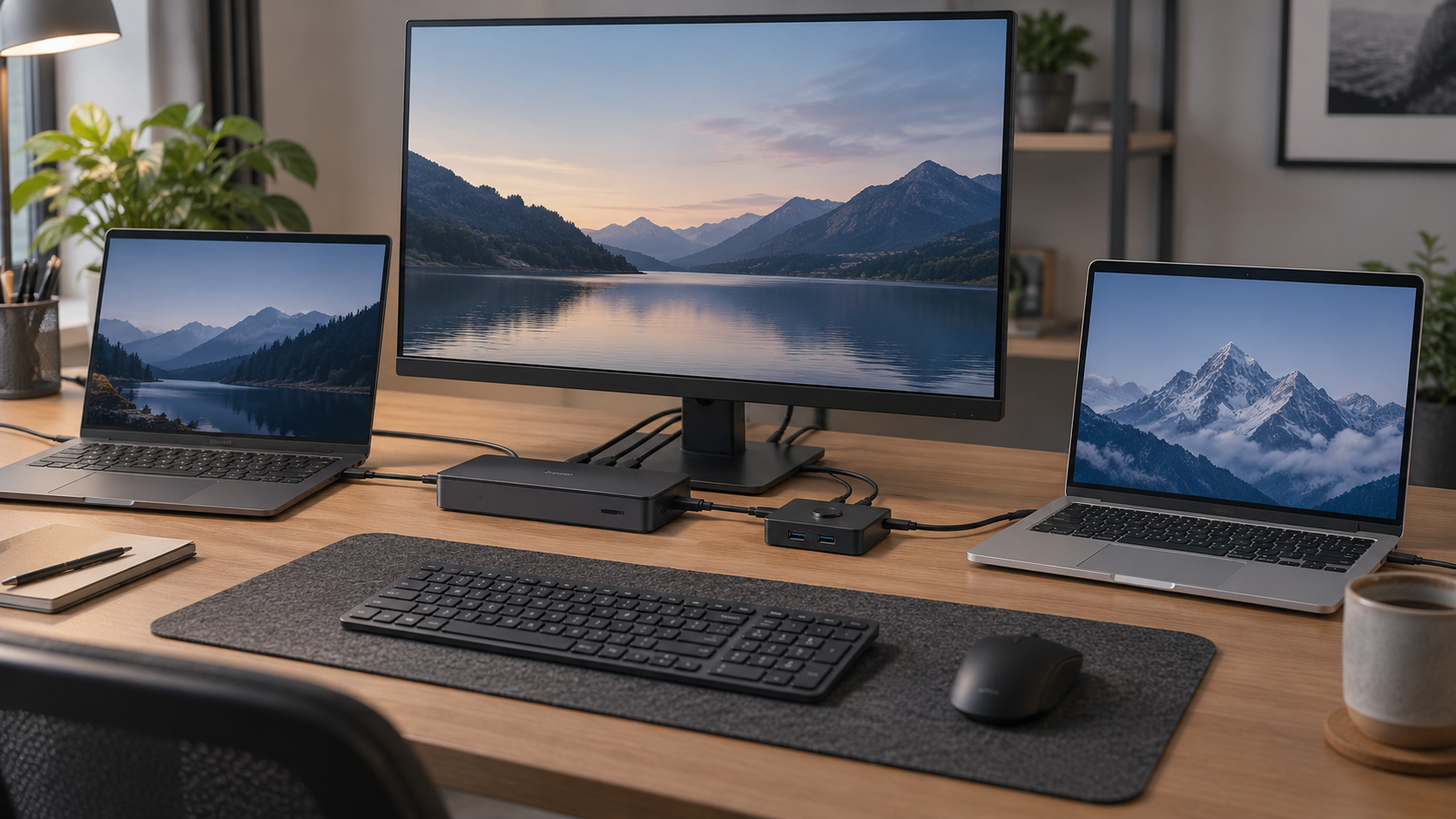
Yes — but only in specific dock architectures.
A USB sharing switch can sit upstream of certain explicitly supported USB 3.0 DisplayLink docks. Plugable currently documents this topology for compatible DisplayLink docks used with its USB3-SWITCH2.
But that does not mean a generic USB switch can share a USB-C, USB4, or Thunderbolt dock. Those docks can depend on DisplayPort Alt Mode, Thunderbolt/USB4 signaling, and Power Delivery — functions a normal USB data switch does not provide.
The first question is therefore not:
“Does the plug fit?”
It is:
What does the dock’s host connection actually carry?
Quick answer
| Dock / topology | Use a normal USB switch? | Why |
|---|---|---|
| Keyboard/mouse only, dock stays with one laptop | Often yes | The USB switch is sharing only peripherals, not the dock’s display/power path |
| Compatible USB 3.0 DisplayLink dock with standard USB-data host path | Possible when explicitly supported | DisplayLink can carry display data over ordinary USB data; Plugable documents this exact architecture |
| USB-C dock using DisplayPort Alt Mode | Do not assume it | A normal USB data switch does not carry the full USB-C video/PD path |
| USB4 dock | Do not assume it | USB4 signaling/topology is beyond a basic USB 3 sharing switch |
| Thunderbolt dock | No, unless an exact product explicitly supports that topology | Thunderbolt is not interchangeable with a standard USB data switch |
| Dock expected to charge the selected laptop through the switch | Usually no with a normal USB switch | USB sharing switches generally do not provide the dock’s host Power Delivery path |
There are two very different ways to combine a USB switch and a dock
Most confusion comes from treating these as the same setup.
Setup A: Share only the keyboard and mouse
This is the simpler architecture:
Work laptop ──> Dock ──> monitor / Ethernet / other dock devices
Gaming PC ─────────────> monitor or its own display path

Keyboard ─┐
Mouse ────┼─> USB switch ──> Work-laptop side / Gaming PC
Other USB ┘
The dock remains attached to one computer. The USB switch moves only the peripherals that actually need to be shared.
This is often the better SetupMeld answer because it avoids asking the switch to carry video, charging, network, storage, and USB all at once.
If your problem is only “I want one keyboard and mouse for both computers,” solve only that problem.
Setup B: Put the entire docking station behind the USB switch
This is much more demanding:
Computer A ──┐
             ├─> USB switch ──> Dock ──> monitors / Ethernet / USB / audio
Computer B ──┘
Now the switch is not merely changing keyboard ownership. It is disconnecting the entire dock from one computer and presenting it to the other.
That can work — but only when the dock’s complete host path is compatible with the switch.
Plugable documents one supported class: compatible USB 3.0 DisplayLink docks
Plugable’s current support documentation gives a concrete example rather than a theoretical one.
For a compatible USB 3.0 DisplayLink docking station, Plugable documents this topology:
Computer A ──┐
             ├─> Plugable USB3-SWITCH2 ──> compatible USB 3.0 DisplayLink dock
Computer B ──┘                                  │
                                               ├─> displays
                                               ├─> keyboard/mouse
                                               ├─> Ethernet
                                               └─> other dock devices
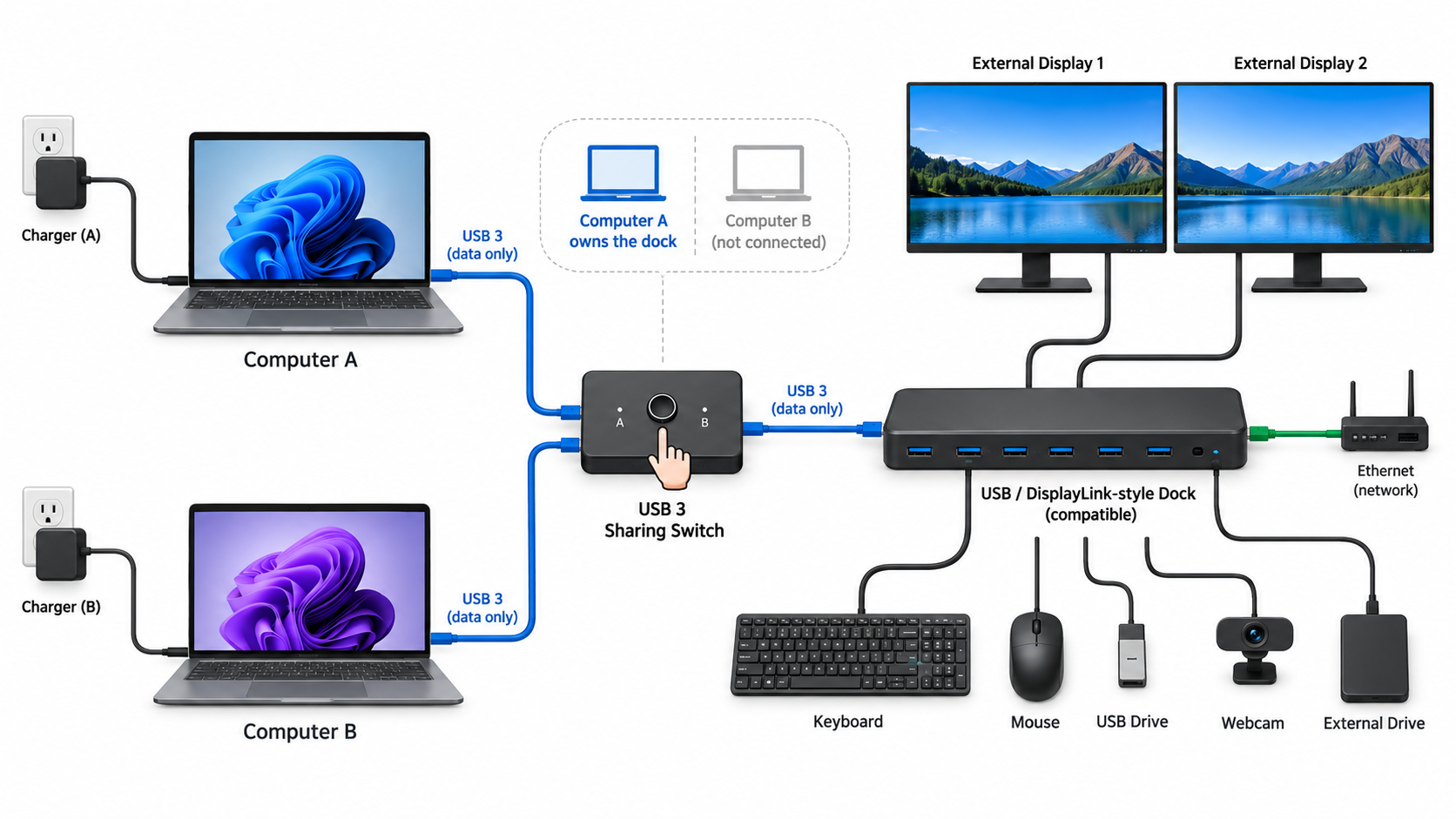
The switch selects which computer owns the dock.
Plugable describes the switching event as effectively unplugging the dock from one computer and connecting it to the other. That means a short reconnect delay while displays, Ethernet, audio, and USB devices return is normal.
This works because DisplayLink graphics can travel through an ordinary USB data connection rather than relying on native DisplayPort Alt Mode through USB-C.
That distinction is the entire reason the architecture can work.
Why DisplayLink changes the answer
A DisplayLink dock uses a software-assisted display architecture.
Instead of depending entirely on a native DisplayPort video stream from the host, compatible DisplayLink hardware receives display data over USB. The computer runs DisplayLink software, and the dock’s DisplayLink hardware turns that USB data into display output.
For a compatible USB 3.0 DisplayLink dock, the upstream connection can therefore behave like a high-bandwidth USB device.
That makes a supported USB 3 sharing switch technically plausible.
But several conditions come with it:
- both computers must support the exact DisplayLink dock;
- both may need current DisplayLink software;
- the USB 3 switch needs enough bandwidth and explicit dock support;
- the laptops usually keep their own chargers because the switch is not supplying dock-to-host Power Delivery;
- switching causes the dock to disconnect from one OS and reconnect to the other;
- display arrangement and scaling may be stored separately on each computer;
- active storage transfers must be stopped before switching.
This is a compatibility solution, not magic host sharing.
Why the same trick does not generalize to USB-C docks
A USB-C connector can carry several independent functions:
- ordinary USB data;
- DisplayPort Alt Mode video;
- USB Power Delivery;
- USB4;
- sometimes Thunderbolt, depending on the host and dock.
A basic USB sharing switch usually handles only ordinary USB data.
So even if an adapter makes the connectors physically fit, that does not mean the switch preserves the capabilities the dock needs.
Plugable’s current USB3-SWITCH2 documentation is explicit: the switch is not compatible with USB-C or Thunderbolt docks and hubs, even when adapters are used.
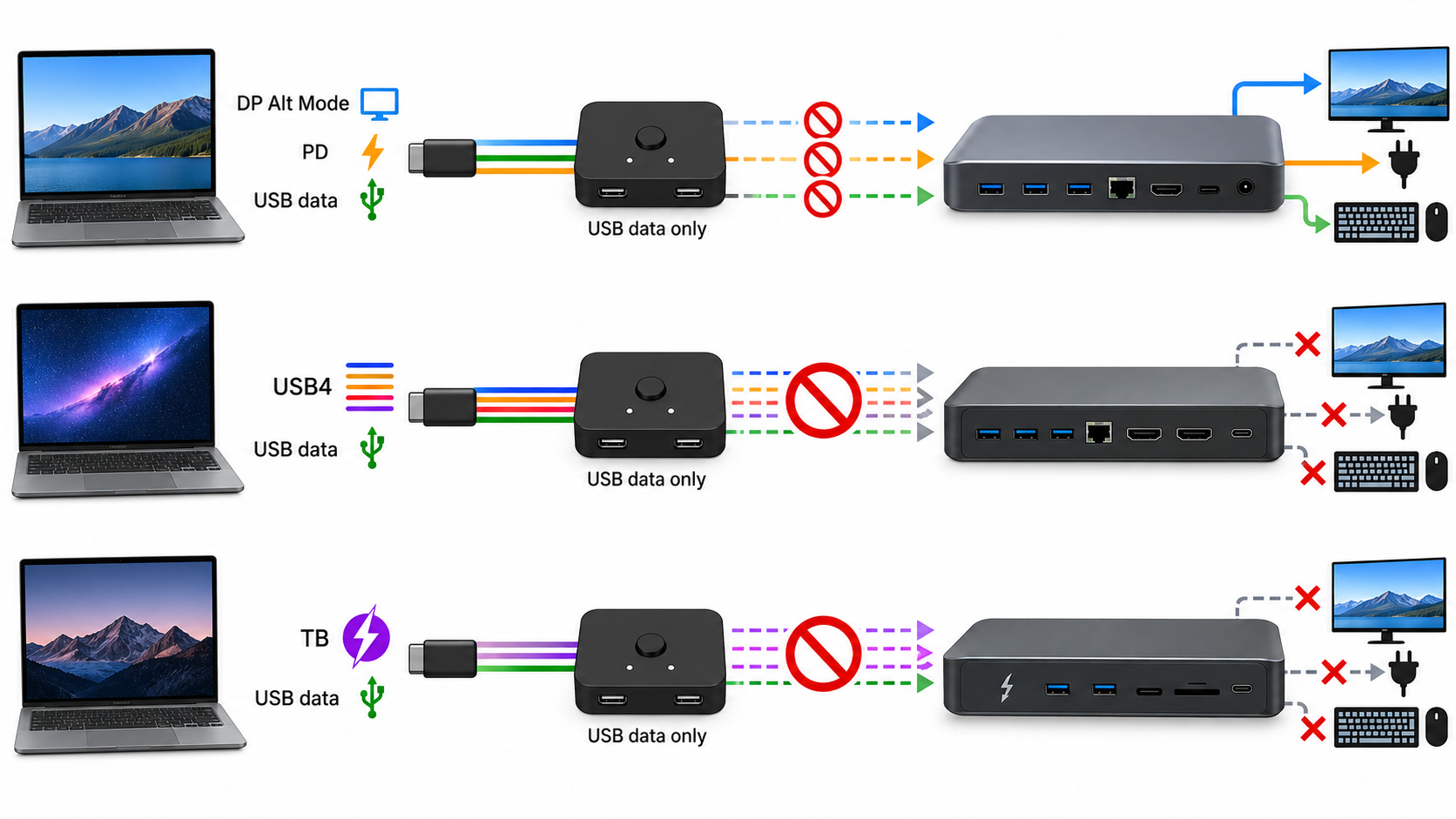
That is the boundary SetupMeld should preserve.
USB-C DisplayPort Alt Mode docks: the video path is the problem
A native USB-C dock may receive display output from the laptop through DisplayPort Alt Mode.
That signal is not just another ordinary USB device behind a hub. The host port, cable, intermediary, and dock all have to preserve the video path.
A normal USB 3 switch designed for keyboards, storage, or USB peripherals does not automatically carry DisplayPort Alt Mode.
Therefore:
Do not put an unnamed USB sharing switch between the laptop and a USB-C video dock and assume the displays will keep working.
If the manufacturer does not document that complete topology, mark it UNKNOWN.
USB4 and Thunderbolt docks: do not infer compatibility
USB4 and Thunderbolt docks can depend on host-link features beyond ordinary USB data. Plugable explicitly states that USB3-SWITCH2 does not support USB-C Power Delivery, DisplayPort Alt Mode, USB4, or Thunderbolt features, so those docks should not be assumed compatible with this switching path.
For these docks, the safe options are usually:
- move the dock’s host cable manually;
- keep the dock dedicated to one computer;
- keep video on separate direct paths and share only keyboard/mouse with a USB switch;
- use a purpose-built dual-host KVM dock whose documentation explicitly covers the required hosts, displays, USB, charging, and software.
That is also why the existing Can You Share One Dock Between Two Laptops? guide treats pre-dock switching as a topology that must be proven, not assumed.
What about USB 2.0 switches?
Do not use the phrase “USB switch” without checking the generation.
Plugable’s current USB2-SWITCH2 documentation says the USB 2.0 model is not suitable for docking stations or USB graphics adapters. USB 2.0 provides up to 480Mbps, which is far below USB 3.0’s 5Gbps class and is not the intended path for this dock-sharing use.
Plugable instead points users toward its USB3-SWITCH2 for compatible USB 3.0 docks.
So this topology:
Two computers ──> generic USB 2.0 switch ──> DisplayLink dock
should not be treated as equivalent to the documented USB 3 setup.
Charging is a separate problem
A normal USB sharing switch usually does not replace the dock’s laptop-charging path.
In Plugable’s documented shared-DisplayLink-dock setup, the guidance is to keep each laptop connected to its own charger if charging is needed.
That matters because people often want the dock to do three jobs at once:
- switch between laptops;
- drive the displays and peripherals;
- charge the selected laptop.
A USB data switch may solve the first two for a specific USB 3 DisplayLink dock while not solving charging at all.
Keeping the OEM chargers is a valid simplification.
Be careful with USB storage when switching the whole dock
When the dock moves from Computer A to Computer B, its downstream USB devices disconnect from the first computer.
That includes storage.
Do not press the switch while a file is actively being written to an SSD, flash drive, card reader, or other storage device attached through the dock. Disconnecting a storage path during a write risks data loss or corruption.
The same practical caution applies to other devices that do not tolerate sudden disconnects well.
What if one computer is a locked-down work laptop?
The supported USB 3 DisplayLink-dock topology may still be a poor fit if the work laptop cannot install or run DisplayLink software.
Do not bypass IT restrictions to make the hardware architecture work.
A simpler allowed layout may be:
Work laptop ──> approved dock ──> work display path
Personal PC ───────────────────> direct display path

Keyboard/mouse ──> simple USB switch ──> both computers
That keeps the employer-approved dock on the work side while sharing only basic peripherals.
If the organization blocks a peripheral or driver, the company policy wins. Microsoft documents that managed Windows systems can restrict installation of devices and device classes.
How to identify which kind of dock you have
Before adding a switch, check the dock documentation for the host side.
Clues that the documented Plugable-style USB 3 topology might apply
- the dock is described as a USB 3.0 dock rather than a full USB-C/TB dock;
- it uses DisplayLink for its display outputs;
- its upstream host path is standard USB data;
- it does not depend on USB-C DP Alt Mode for video;
- laptop charging is not expected through the shared switch path;
- the manufacturer explicitly supports use with a USB 3 sharing switch.
Clues that a normal USB switch is the wrong intermediary
- Thunderbolt is required;
- USB4 is required;
- the dock drives native displays through USB-C DP Alt Mode;
- the laptop expects Power Delivery through the same host cable;
- the documentation requires a direct full-featured USB-C host connection;
- no manufacturer documents an intermediary switch topology.
If you cannot identify the architecture, stop at not enough information rather than trying random adapters.
The safest decision order
Use this sequence:
1. Do you need to share the whole dock?
If no, keep the dock attached to one computer and use a USB switch only for keyboard/mouse or other ordinary peripherals.
2. Is the dock a compatible USB 3.0 DisplayLink dock with an explicitly supported USB switch topology?
If yes, the full-dock sharing path may be valid under the documented conditions.
3. Is it a USB-C, USB4, or Thunderbolt dock?
Do not assume a normal USB sharing switch can sit upstream. Use a documented dual-host architecture, direct connection, or separate peripheral switching instead.
4. Does the setup depend on charging or unapproved software?
Keep chargers separate and respect the work computer’s software/device policy.
Bottom line
A USB switch can work with a docking station, but “USB switch + dock” is not one universal topology.
If you only want to share keyboard and mouse, keep the dock where it is and switch the peripherals. That is the lowest-risk architecture.
If you want to share the entire dock, Plugable currently documents a real supported case: a compatible USB 3.0 DisplayLink dock connected through the USB3-SWITCH2. The active computer receives the dock, switching behaves like a disconnect/reconnect, and each laptop keeps its own charger.
Do not transfer that result to USB-C, USB4, or Thunderbolt docks. Those host paths can depend on native video, high-speed tunneling, and Power Delivery that a normal USB data switch does not carry.
Identify the dock architecture first. Then add only the switching layer the manufacturer actually supports.
Sources & Verification
Last checked: 2026-09-09
-
Plugable Knowledge Base — Can I Use My DisplayLink-Based Docking Station in Conjunction With a KVM Switch?
https://kb.plugable.com/en_US/docking-stations-and-video/can-i-use-my-displaylink-based-docking-station-in-conjunction-with-a-kvm-(keyboard%2C-video-and-mouse)-switch Updated July 2026. Verifies the compatible USB 3.0 DisplayLink dock + USB3-SWITCH2 topology, reconnect behavior, separate charging, storage warning, and explicit USB-C/Thunderbolt exclusion. -
Plugable — USB3-SWITCH2
https://plugable.com/products/usb3-switch2 Verifies two-computer USB 3.0 switching and current product compatibility notes. -
Plugable — USB2-SWITCH2
https://plugable.com/products/usb2-switch2 Verifies that Plugable does not recommend the USB 2.0 model for docking stations/USB graphics and directs users toward the USB 3 model for compatible dock use. -
SetupMeld — How to Check If a Docking Station Will Work With Your Laptop?
/guides/docking-station-laptop-compatibility/
Existing SetupMeld reference for distinguishing native video, MST, DisplayLink, USB-C, Thunderbolt, cables, power, and software conditions.
No hands-on testing is claimed. The Plugable result applies only to the architectures and models the manufacturer documents; it is not evidence that other brands or full-featured USB-C/TB docks will behave the same way.