Two Laptops, One Monitor, One Keyboard and Mouse: 4 Ways to Share One Desk
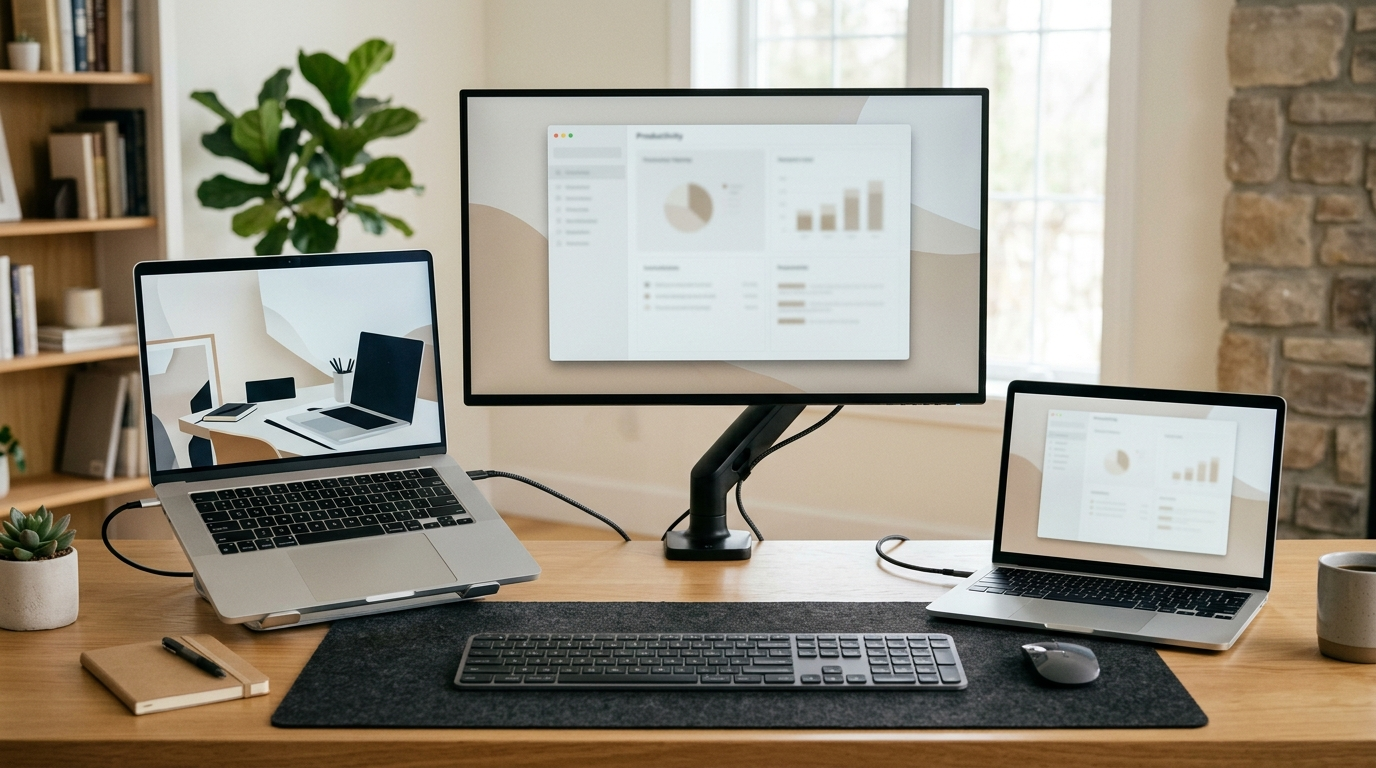
If you have two laptops, one monitor, and one keyboard and mouse, do not start by buying a large KVM dock. With only one shared display, the simplest setup is often to keep each laptop connected directly to a different monitor input and switch only the keyboard and mouse.
Use this order:
- Check whether the monitor already has two usable inputs.
- Check whether your keyboard and mouse already support multiple computers.
- If not, add a small USB switch for the peripherals.
- Move to a KVM only when you want video and USB to switch together.
- Consider a KVM dock only when you also need docking, charging, Ethernet, or other laptop expansion.
That order keeps the video path simple and avoids buying functions you do not actually need.
Quick decision table
| Your situation | Best starting point | Why |
|---|---|---|
| Monitor has two inputs and your keyboard/mouse already switch hosts | Keep existing gear | You may need no new hardware |
| Monitor has two inputs but ordinary USB keyboard/mouse | Monitor inputs + USB switch | Keeps video direct and switches only peripherals |
| You want one button to change monitor + keyboard + mouse | Single-monitor KVM | Coordinates video and USB switching |
| Your monitor already has a built-in KVM | Use the monitor KVM first | It may replace a separate switch box |
| A laptop also needs charging, Ethernet, ports, and one-cable desk connection | Evaluate a KVM dock | Combines docking and switching, with more compatibility checks |
| Employer-managed laptop blocks software or unapproved devices | Prefer the simplest permitted hardware path | Avoid depending on software or unsupported device installs |
| You switch only occasionally | Manual monitor input + existing gear | Another switching layer may not be worth adding |
Option 1: Use the monitor’s two inputs and switch only USB
This is the first architecture to check because it separates two different jobs.
Video path:
Laptop A ── HDMI / DisplayPort / USB-C video ──> Monitor input 1
Laptop B ── HDMI / DisplayPort / USB-C video ──> Monitor input 2
Keyboard and mouse path:
Keyboard ─┐
Mouse ────┼─> USB sharing switch ──> Laptop A / Laptop B
Other USB ┘
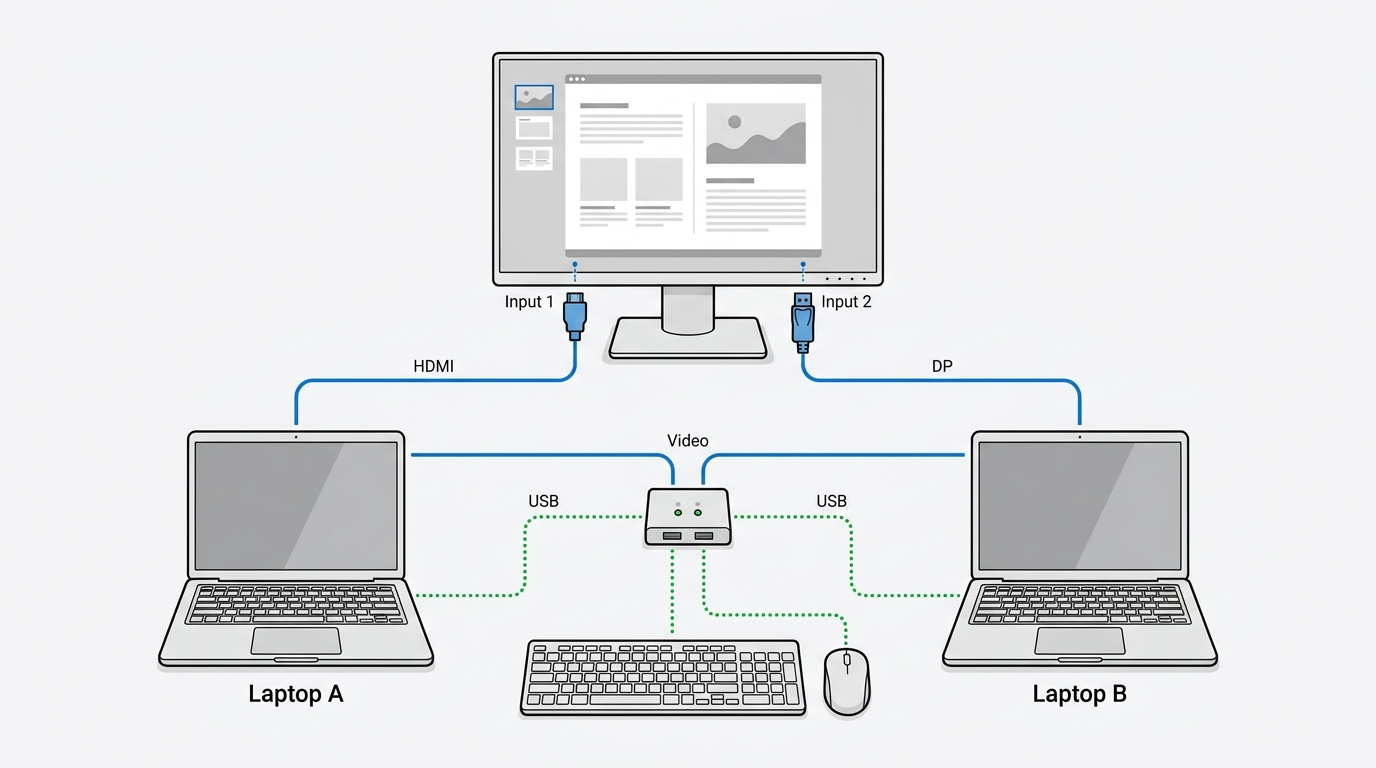
The monitor changes which laptop you see. The USB switch changes which laptop owns the keyboard and mouse.
That means the USB switch does not need to understand HDMI, DisplayPort, refresh rate, HDR, or the laptop’s display protocol. Current UGREEN USB-sharing documentation makes the boundary explicit: its two-computer USB switches are for data/peripheral sharing and do not carry monitor video. SABRENT’s USB-SW30 is another exact category example: two computers share USB devices through a push-button USB 3.0 switch, with data rates up to 5Gbps.
This architecture is especially attractive when the monitor already has, for example, DisplayPort for one laptop or dock and HDMI/USB-C for the other.
First check whether you even need the USB switch
If your keyboard and mouse already support multiple hosts, use that feature first. Some peripherals can remember more than one Bluetooth or receiver connection and switch channels with a button.
Do not assume that every Bluetooth keyboard or mouse is multi-device. Check the exact model. But if the feature is already there, the result may be:
Buy Nothing.
The tradeoff is that you may need to change the monitor input and the peripheral channel separately. For a desk that changes computers once or twice a day, that may be perfectly acceptable.
SABRENT USB-SW30 is one hardware example for this peripheral-only architecture. It fits when monitor video stays on the existing direct connections and only USB peripherals need to move between the two laptops. It is not a KVM and does not replace the monitor-input switching path.
Disclosure: SetupMeld may earn a commission if you purchase through links on this page, at no additional cost to you. Product inclusion is based on compatibility with the setup described, not commission rates.
Option 2: Use a normal single-monitor KVM
A KVM combines the two switching jobs:
Laptop A video + USB ──┐
                       ├─> KVM ──> monitor + keyboard + mouse
Laptop B video + USB ──┘
Pressing the KVM’s button or hotkey changes the selected computer’s video and USB together.
This is the better fit when the inconvenience is not the cables themselves but the repeated sequence of:
- change monitor input;
- change keyboard/mouse host;
- confirm the right computer owns the USB devices.
A KVM can turn that into one action.
But “single-monitor KVM” is a category, not a compatibility verdict. Verify the exact model for:
- the video connector each laptop can supply;
- the monitor connector you want to use;
- target resolution and refresh rate;
- HDR or variable-refresh features if they matter;
- USB port count and speed;
- keyboard/mouse or receiver compatibility;
- EDID/display reconnect behavior if desktop rearrangement matters;
- switching method;
- charging only if the exact KVM documents it.
Do not assume a KVM will reduce video quality merely because it is a KVM. Current exact products exist with documented 1440p/144Hz and higher modes. The correct question is whether this KVM, these cables, these laptop outputs, and this monitor mode match end to end.
If your real decision is whether you need switching or laptop expansion/charging, use KVM vs Docking Station: Which Do You Actually Need? for that category boundary.
Option 3: Use the KVM already built into the monitor
Before adding another box, check the monitor manual.
Some monitors have their own USB hub plus a built-in KVM. In that design, the monitor handles both the active video input and which computer owns the keyboard and mouse connected to its downstream USB ports.
For the detailed built-in-monitor architecture and its USB-upstream rules, see USB-C Monitor With Built-In KVM vs External Switching.
Dell’s current KVM guidance shows the important wiring rule: both computers need a video path, and both need a USB upstream data path to the monitor. When one computer uses USB-C for both video and USB, the second computer may use HDMI or DisplayPort for video plus a separate USB upstream cable.
A typical layout looks like this:
Laptop A ── USB-C video + USB data ───────> Monitor
Laptop B ── HDMI/DP video ────────────────> Monitor
Laptop B ── separate USB upstream ────────> Monitor

Keyboard + mouse ──> Monitor USB downstream ports
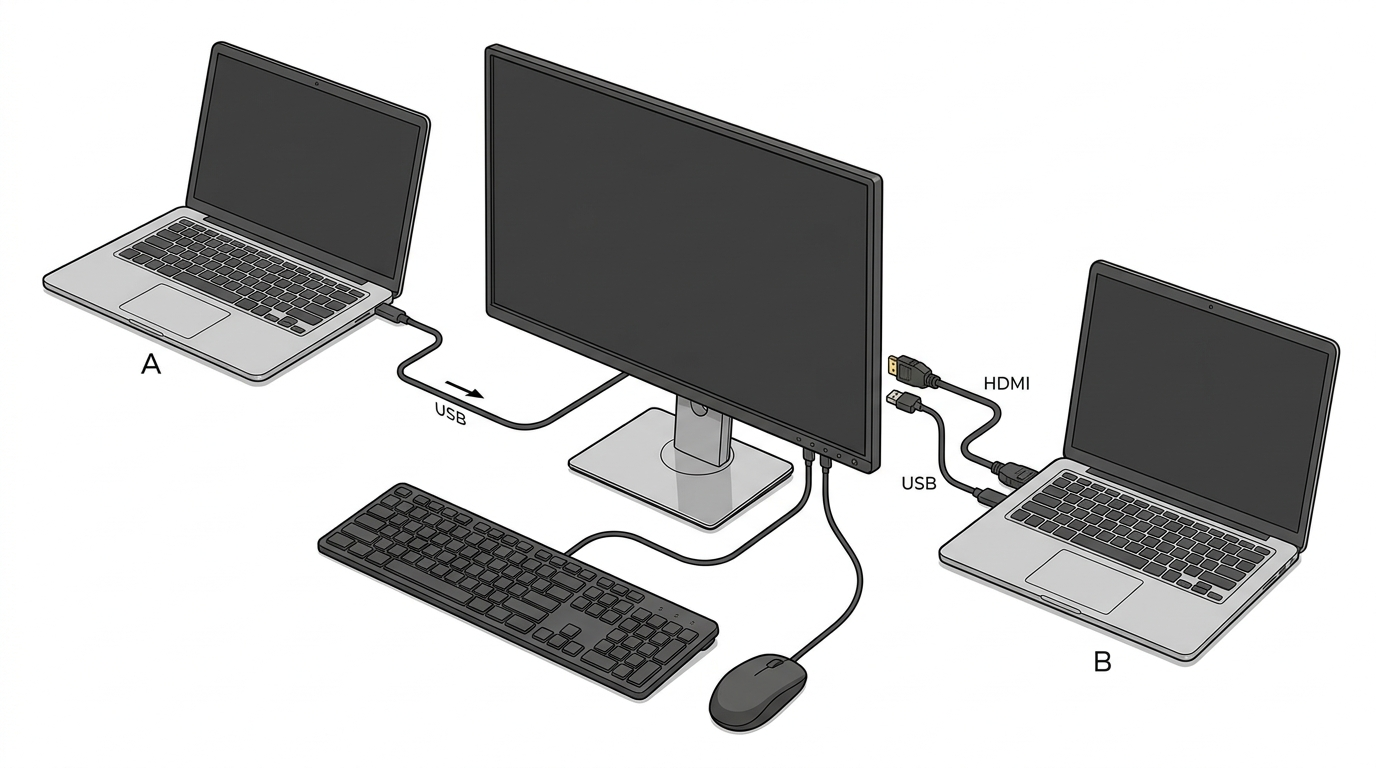
ASUS documents the same basic pattern on the ProArt PA278CGRV: one host can use USB-C with DisplayPort Alt Mode, while the other uses HDMI or DisplayPort for video plus a separate USB upstream connection. Its Auto KVM then links the monitor’s peripheral routing to the selected source.
Why this can be the cleanest one-monitor setup
If your monitor already has the feature, a built-in KVM can mean:
- no external USB switch;
- no external KVM box;
- fewer visible cables on the desk;
- one place to manage the active source.
But do not replace a good monitor just to remove a small USB switch unless the monitor upgrade is useful for other reasons too. Existing-device-first still applies.
Also verify whether the KVM can be configured through the monitor’s own OSD. Dell, for example, documents OSD configuration as well as its management software. That distinction matters when one laptop is employer-managed and custom software cannot be installed.
Option 4: Use a KVM dock only when you need dock functions too
A KVM dock combines switching with functions such as:
- USB-C laptop connection;
- charging;
- Ethernet;
- extra USB ports;
- audio;
- display output;
- sometimes multiple displays.
That can make a desk look cleaner because one laptop may connect with one USB-C cable. It can also make compatibility harder because one device now has to satisfy the laptop’s video, USB, power, operating-system, and switching requirements at the same time.
For a one-monitor desk, ask what the dock is solving that a monitor input plus USB switch cannot.
A KVM dock becomes reasonable when the answer is specific, such as:
- the work laptop needs Ethernet and several USB devices every day;
- you need meaningful USB-C charging at the desk;
- the laptop does not have a convenient direct monitor output;
- one-button switching is important enough to justify more complex hardware.
If the only requirement is “use the same monitor, keyboard, and mouse,” a full KVM dock is often more device than the problem requires.
What if one laptop is locked down by work IT?
A work laptop can change the architecture decision.
If company policy prevents installing software, avoid designing the desk around software-only keyboard/mouse sharing or a dock that requires an unapproved graphics driver.
Hardware switching can reduce software dependence, but it is not a guarantee that every device is permitted. Microsoft documents that administrators can allow or prevent device installation on managed Windows computers by device ID, instance ID, or device class. Company policy therefore remains the authority.
Do not disable security software, bypass MDM rules, or weaken device controls just to make a shared desk more convenient.
A practical order is:
- Use a monitor input the work laptop already supports.
- Keep the laptop’s approved charger if Power Delivery is uncertain.
- Use approved standard keyboard/mouse hardware.
- Add a simple hardware USB switch only if the organization permits the attached devices.
- Ask IT before depending on a driver-based dock, unusual USB device, or software KVM.
For a managed laptop, simpler can be more compatible.
Which setup adds the least hardware?
The smallest added-hardware path is usually:
existing monitor inputs + existing multi-device keyboard/mouse.
If your peripherals cannot switch hosts, the next-smallest change is usually:
existing monitor inputs + USB switch.
That keeps the monitor and video cables you already own and adds only the missing peripheral-switching function.
Do not interpret this as a permanent price ranking. The point is architectural: you are buying one smaller function instead of replacing the monitor or adding a box that also handles video and docking.
Which setup uses the fewest cables?
If the monitor already has a built-in KVM and a full-function USB-C port for one laptop, that can produce the cleanest desk with the fewest extra boxes.
A compatible KVM dock can also reduce visible laptop cabling, especially when it supplies charging and ports over one host cable.
But fewer cables does not automatically mean fewer compatibility conditions. A simple monitor-input + USB-switch setup may have more separate cables while being easier to understand and troubleshoot.
Which setup is most convenient?
If you switch many times per day, coordinated switching matters more.
Choose an exact KVM when you want the monitor, keyboard, and mouse to move together in one action.
Choose an exact KVM dock when you also need laptop docking and charging in that same action.
If you switch once in the morning and once after work, the manual monitor-input + USB-switch path may already be convenient enough.
Bottom line
For two laptops and one monitor, start smaller than you think.
Use the monitor’s existing inputs first. If your keyboard and mouse can already switch between computers, keep them and buy nothing. If they cannot, a USB sharing switch can solve only the missing peripheral problem while leaving video direct.
Move to a KVM when one-button video + USB switching is the actual requirement. Use a built-in monitor KVM before adding another box if your monitor already supports the correct two-host wiring. Choose a KVM dock only when docking, charging, Ethernet, or other laptop expansion is also part of the problem.
If your second display becomes part of the requirement later, the architecture changes. Continue with Two Laptops, Two Monitors, One Keyboard and Mouse rather than assuming the one-monitor answer scales automatically.
Sources & Verification
Last checked: 2026-09-09
-
Dell Support — KVM Setup for Dell Monitors
https://www.dell.com/support/contents/en-us/article/product-support/self-support-knowledgebase/monitor-screen-video/kvm-setup-guide-dell-monitors Verifies two-computer monitor-KVM video wiring, USB upstream/downstream paths, OSD configuration, and receiver caveats for supported Dell monitors. -
ASUS — ProArt Display PA278CGRV
https://www.asus.com/us/displays-desktops/monitors/proart/proart-display-pa278cgrv/ Verifies Auto KVM, USB-C DP Alt Mode/data, second-host HDMI/DP + USB upstream topology, and 96W USB-C Power Delivery for this exact model. -
SABRENT — USB-SW30 USB 3.0 Sharing Switch
https://sabrent.com/products/usb-sw30 Verifies two-computer USB-device sharing, push-button switching, plug-and-play operation, and up to 5Gbps data rate for the exact switch. -
UGREEN — USB Switch for Two Computers
https://us.ugreen.com/products/ugreen-usbc-switch-2-port Verifies the category boundary: USB data/peripheral switching only; no monitor/video transport. -
Microsoft Learn — Manage Device Installation with Group Policy
https://learn.microsoft.com/en-us/windows/client-management/client-tools/manage-device-installation-with-group-policy Verifies that administrators can allow or prevent device installation on managed Windows PCs by device identity/class policy.
No hands-on testing is claimed. Exact laptop ports, monitor inputs, cables, USB devices, employer policy, and product revisions still control the final compatibility result.