How to Share One Keyboard and Mouse Between Two Macs: Universal Control, Multi-Device Gear, or a USB Switch
If you want to share one keyboard and mouse between two Macs, start with Universal Control before buying anything. When both Macs meet Apple’s requirements, one Mac’s keyboard, mouse, or trackpad can control the other Mac while each computer keeps its own screen, apps, and operating environment.
If Universal Control is blocked by Apple Account, work-device, security, or Continuity requirements, check whether your existing keyboard and mouse already support multiple hosts. If they do not, a small two-host USB sharing switch can be the simplest hardware fix.
A full KVM is usually unnecessary unless you also want the monitor or monitors to switch between the two Macs.
Quick decision table
| Situation | Best starting point | Why |
|---|---|---|
| Two compatible personal Macs on the same Apple Account | Universal Control | You may be able to share input without adding hardware |
| Your keyboard and mouse already support multiple hosts | Keep existing gear | Manual channel switching may already solve the problem |
| Work Mac and personal Mac use different Apple Accounts | Hardware switching may fit better | Universal Control requires the same Apple Account |
| Ordinary USB keyboard and mouse must physically move between Macs | USB switch | It switches the USB peripherals between two hosts |
| Keyboard/mouse and monitor must switch together | Evaluate a KVM | The requirement now includes video switching |
| Switching is rare and separate peripherals are acceptable | Buy nothing | Another switching layer may add more complexity than value |
Option 1: Universal Control — check this first
Apple’s Universal Control is the most important difference between a two-Mac desk and a Mac-plus-Windows desk.
Apple currently documents Universal Control as a way to use the keyboard, mouse, or trackpad of one Mac to control up to two other nearby supported Mac or iPad devices. Each device continues to show its own screen and its own apps. You move the pointer from one device to another and type into whichever device is active.
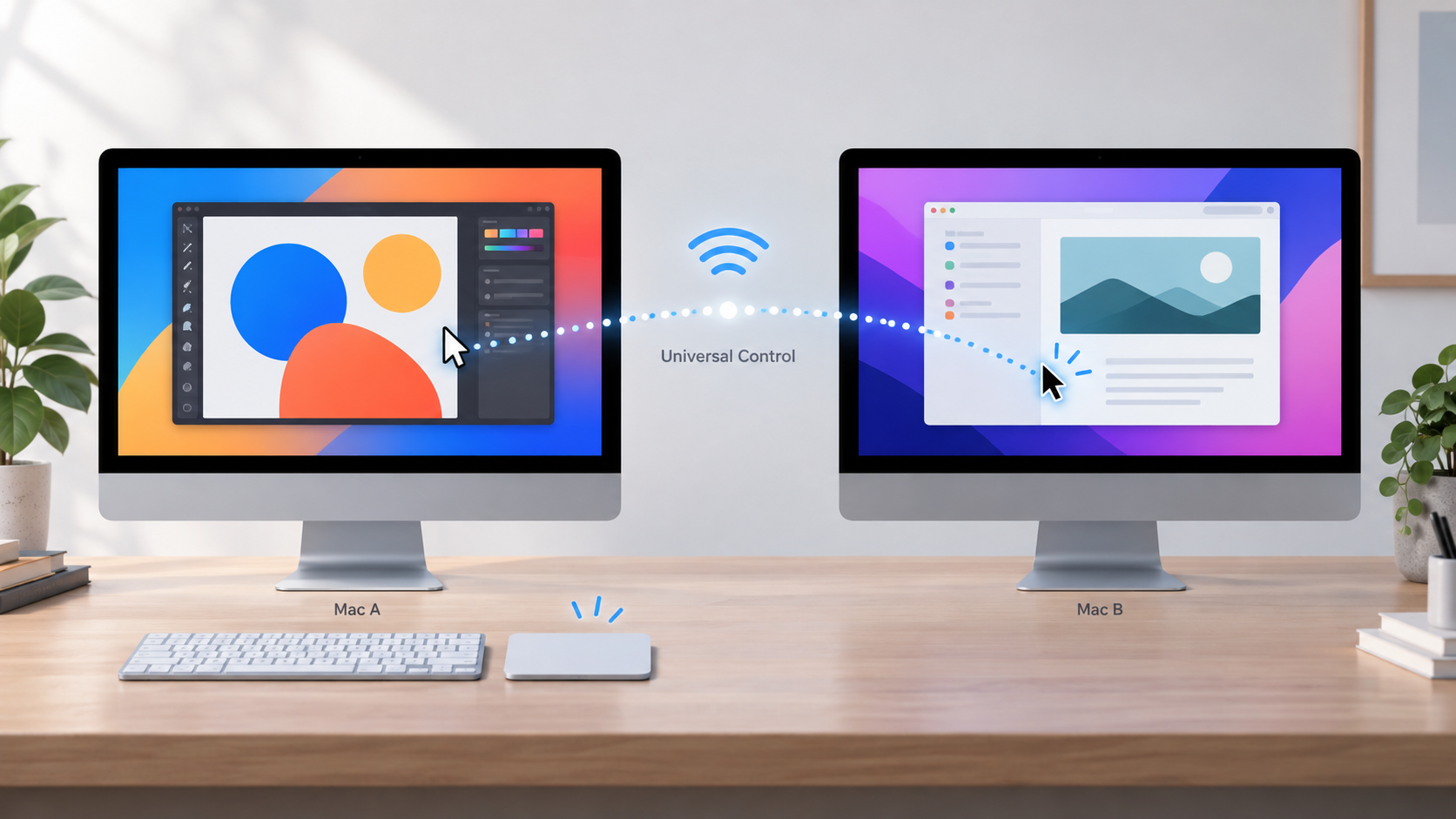
That makes Universal Control an input-sharing workflow, not a KVM, remote desktop, screen-sharing system, or monitor switch. It also is not Sidecar: Sidecar is for extending or mirroring a Mac desktop onto an iPad, while Universal Control leaves each device running independently.
For a desk with a MacBook and Mac mini, two MacBooks, or a MacBook and iMac, that distinction matters. If both Macs already have the displays they need, the problem may only be “how do I share input?” Universal Control can solve exactly that without adding another box or cable path.
What Universal Control currently requires
As of September 4, 2026, Apple’s current support documentation lists these requirements for Mac-to-Mac Universal Control:
- macOS Monterey 12.4 or later;
- supported Mac hardware — generally Mac models introduced in 2016 or later, with Apple’s stated exceptions and the additional supported Late 2015 27-inch Retina 5K iMac;
- the same Apple Account signed in on each device;
- two-factor authentication on that Apple Account;
- Bluetooth, Wi-Fi, and Handoff turned on;
- the devices within 10 meters (30 feet) of each other;
- the Mac must not be sharing its Internet connection while Universal Control is in use.
Do not assume that “both computers are Macs” is enough. Check Apple’s current Universal Control system-requirements list for both exact models.
On current macOS versions, Universal Control settings are under System Settings → Displays → Advanced, where you can allow the pointer and keyboard to move between nearby Macs or iPads. Apple also provides controls for connecting by pushing the pointer through the edge of a display and for automatically reconnecting to nearby devices.
Best fit: two compatible personal Macs on the same Apple Account, where both screens remain independently useful and you want seamless pointer and keyboard movement between them.
When Universal Control is not a good fit
The biggest practical limitation is often not hardware. It is the account and security model.
Consider a personal MacBook next to an employer-managed MacBook. Universal Control requires both devices to be signed in with the same Apple Account using two-factor authentication. If the work Mac uses a company-managed account, prohibits a personal Apple Account, or has Continuity features restricted by policy, the no-hardware path may simply not fit.
The same applies if company management disables Handoff, restricts Bluetooth or Wi-Fi behavior, or security software interferes with the connection. Apple’s troubleshooting guidance also says to check VPN and third-party security software and notes that the Mac firewall should not be configured to block all incoming connections.
Do not weaken corporate security controls, MDM policy, firewall rules, or account-security practices just to make Universal Control work. If organizational policy blocks it, choose an architecture that does not depend on those Continuity requirements.
Universal Control is also not the strongest choice when you need a physical switch that works independently of the signed-in user session. Apple’s public documentation establishes the normal Continuity workflow, but it does not justify a blanket promise about every login, wake, locked-screen, or managed-device state.
Option 2: Use the multi-device gear you already own
Universal Control and a multi-device keyboard or mouse solve the problem in different ways.
With Universal Control, the input device is connected to one Mac and Apple’s Continuity system lets that input move to another supported Mac.
With a multi-device peripheral, the keyboard or mouse itself remembers more than one host and changes its active Bluetooth or receiver channel. No Universal Control relationship between the Macs is required.
This can be the better Buy Nothing answer when your work Mac and personal Mac cannot share the same Apple Account but your existing peripherals already support both computers.
Check the exact keyboard and mouse documentation before relying on this path. Bluetooth support by itself does not prove that a device can remember and switch among several hosts. Some products support multiple Bluetooth channels; others pair with only one host at a time. Keyboard and mouse switching may also be independent, meaning you may need to change the active channel on each device separately.
Best fit: you already own documented multi-device peripherals and manual channel switching is acceptable.
Option 3: Use a USB switch
If you have an ordinary USB keyboard and mouse — or a compatible wireless receiver that appears to the computer as a USB device — a two-host USB sharing switch provides a simple physical architecture:
Keyboard / mouse / compatible USB receiver
                 ↓
          USB sharing switch
             ↙       ↘
          Mac A     Mac B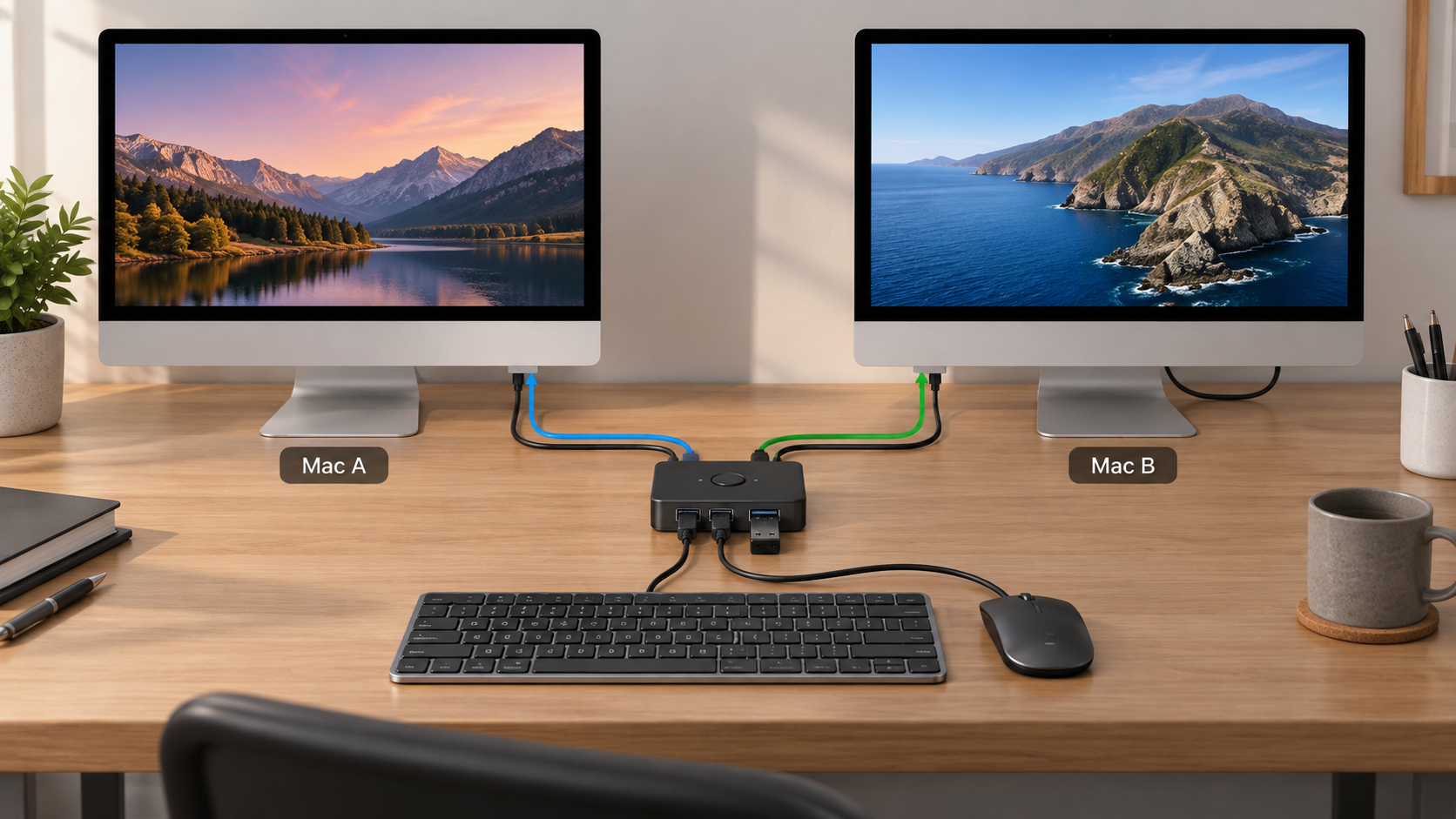
The switch changes which Mac owns those USB devices.
Current first-party examples show the category clearly. IOGEAR’s GUS402 is a two-computer, four-device USB peripheral sharing switch with push-button host selection and Mac support. ATEN’s US3324 similarly lets two computers share four USB devices through a remote selector and documents Windows, Linux, and Mac support.
These are category examples, not SetupMeld product recommendations.
The important boundary is video: a normal USB peripheral sharing switch does not automatically change the monitor input, HDMI path, DisplayPort path, or USB-C video source. If each Mac already has its own display, or both are permanently connected to separate monitor inputs, that may be exactly what you want.
A wireless receiver may work as the shared USB device when the receiver and peripherals support that arrangement, but do not assume universal compatibility. Bluetooth-only peripherals with no shareable USB receiver do not become USB-switch devices merely because they are wireless.
Best fit: you want a physical, account-independent way to switch ordinary USB peripherals between two Macs while leaving video separate.
Do you actually need a KVM?
Only escalate to a KVM when the requirement expands beyond input sharing.
If the real request becomes:
“I want one control to switch the monitor and the keyboard/mouse together,”
then a KVM may be appropriate because video is now part of the switching problem.
If your monitor already has a built-in KVM, check whether its video inputs and USB upstream paths match both Macs before adding another switch. SetupMeld’s USB-C Monitor With Built-In KVM vs External Switching guide covers that architecture.
For the broader category decision, see KVM vs Docking Station: Which Do You Actually Need?.
If the second computer is Windows rather than another Mac, use How to Share One Keyboard and Mouse Between a Mac and PC instead; Universal Control is not the cross-platform answer.
Which option should you choose?
Use this order:
- Both Macs meet Apple’s Universal Control requirements? Try Universal Control first. You may need no new hardware.
- Universal Control is blocked or undesirable, but your keyboard and mouse already support multiple hosts? Keep your existing gear and switch channels manually.
- You need physical switching for ordinary USB peripherals? Use a two-host USB sharing switch and leave video on its existing path.
- You rarely switch? Separate peripherals may still be simpler than adding another switching layer.
- You also need the display to change computers at the same time? Now evaluate a KVM or a monitor with a properly documented built-in KVM.
The smallest compatible solution is the right one. Two Macs do not automatically require a KVM, and an affiliate product should not displace a working no-buy solution.
Bottom line
For two Macs, Universal Control is the first thing to check because it can let one keyboard, mouse, or trackpad control both computers while each Mac keeps its own screen and apps.
If the same-Apple-Account or Continuity requirements do not fit — especially with a managed work Mac — do not fight the security model. Use existing multi-device peripherals if you already own them, or add a small USB sharing switch when you need physical peripheral switching.
Move to a full KVM only when the problem has expanded from “share my keyboard and mouse” to “switch my display and input devices together.”
Sources & Verification
Last checked: 2026-09-04
- Apple Support — Universal Control: Use a single keyboard and mouse between Mac and iPad
https://support.apple.com/en-ca/102459
Verifies current Universal Control behavior, supported Mac generations, macOS Monterey 12.4+ requirement, same Apple Account with two-factor authentication, Bluetooth/Wi-Fi/Handoff, proximity, Internet Sharing restriction, current Displays setup, and troubleshooting boundaries. - Apple Support — Continuity features and requirements for Apple devices
https://support.apple.com/en-au/108046
Verifies Universal Control as a current Continuity feature and the supported Mac generation / OS baseline. - IOGEAR — GUS402 2x4 USB 2.0 Peripheral Sharing Switch
https://iogear.com/products/gus402
Verifies the two-host/four-USB-device sharing architecture, button switching, and Mac support. - ATEN — US3324 2 x 4 USB 3.2 Gen1 Peripheral Sharing Switch
https://www.aten.com/us/en/products/usb-solutions/docks-and-switches/us3324/
Verifies two-computer/four-USB-device sharing, remote host selection, and Mac support.