Gaming PC + Work Laptop: How to Share Monitors, Keyboard, and Mouse Without Breaking Your Gaming Setup
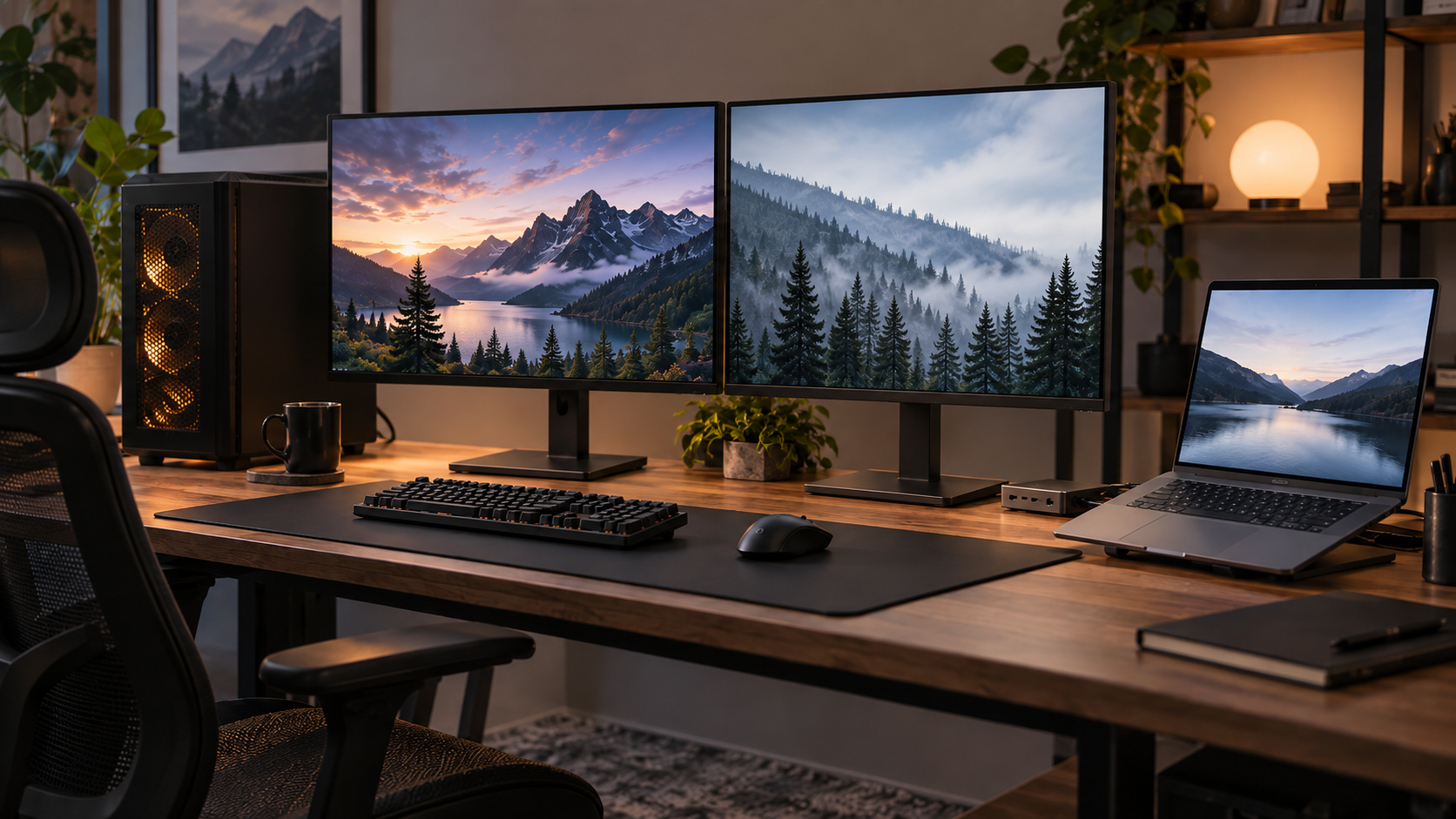
If you use a gaming desktop after hours and a work laptop during the day, do not force both computers through the same box just because you want one desk.
The two computers usually have very different needs:
- the gaming PC may need a direct high-refresh, VRR, HDR, or low-friction display path;
- the work laptop may need a dock, charging, Ethernet, and employer-approved hardware or software;
- both may only need to share the keyboard and mouse.
For many desks, the smallest answer is:
keep the gaming PC connected directly to the monitor, connect the work laptop or its dock to another monitor input, and use a USB switch for the shared keyboard and mouse.
For the generic device-category choice behind that layout, see KVM vs USB Switch: Which Do You Actually Need?. This guide stays focused on the full gaming-desktop + work-laptop scenario.
A KVM becomes more attractive when you switch frequently and want the displays and peripherals to change computers together. A KVM dock becomes attractive only when the work-laptop side also needs docking and you want those functions consolidated.
Start with these six questions
Before buying anything, write down:
- One monitor or two?
- What gaming mode must stay intact? For example 1440p/144Hz, 165Hz, 240Hz, 4K/120Hz, HDR, VRR, G-Sync, or FreeSync.
- Does each monitor already have enough inputs for both computers?
- Can the work laptop drive the required monitors by itself or through its approved dock?
- Can you install software or drivers on the work laptop?
- How many times per day do you actually switch computers?
Those answers determine whether you need a USB switch, KVM, built-in monitor KVM, KVM dock, or nothing new.
Quick architecture table
| Scenario | Best starting point | Why |
|---|---|---|
| One gaming monitor with spare input + work laptop | Direct monitor inputs + USB switch | Keeps gaming video direct and switches only peripherals |
| One monitor with built-in KVM | Use the monitor KVM | May remove an external switch box |
| One monitor, frequent switching, no built-in KVM | Exact single-monitor KVM | One action can move video + USB together |
| Two monitors, each has spare inputs | Direct inputs + USB switch | Lowest-assumption video path, but more manual input changes |
| Two monitors, frequent switching | Exact dual-monitor KVM | Coordinates both displays and USB |
| Work laptop also needs charging, Ethernet, ports, and one-cable desk connection | Keep its current dock or evaluate a KVM dock | Docking is a separate requirement from switching |
| Work laptop blocks software/drivers | Hardware-first, employer-approved path | Avoid depending on unapproved software architecture |
One monitor: keep the gaming video path simple first
Suppose you have:
- gaming desktop;
- one 1440p 144Hz or faster monitor;
- work laptop;
- one keyboard and mouse.
If the monitor has two suitable inputs, this is the first topology to check:
Gaming PC ── DisplayPort / HDMI ──> Monitor input 1
Work laptop or dock ──────────────> Monitor input 2

Keyboard ─┐
Mouse ────┼─> USB switch ──> Gaming PC / Work laptop
Other USB ┘
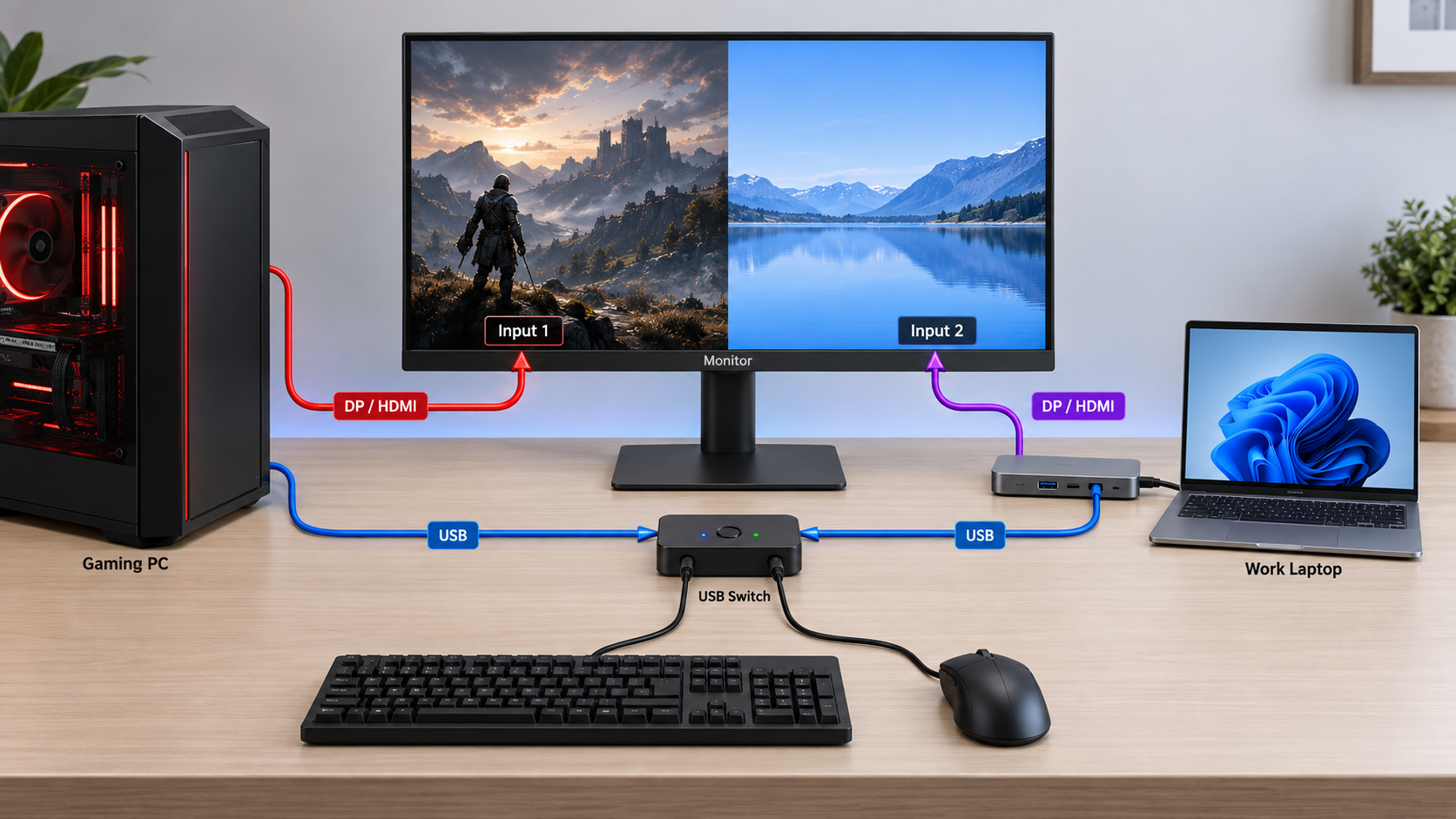
The important advantage is architectural, not magical performance.
The gaming GPU remains directly connected to the gaming monitor. The USB switch never has to understand the gaming video mode. When you finish work, change the monitor input and press the USB switch.
For one or two switches per day, that may be all the desk needs.
Why real users keep arriving at this design
This is not a hypothetical SetupMeld scenario. In an August 2026 r/buildapc thread, a user described a gaming desktop with a 1440p/144Hz monitor, a second display, and an incoming work laptop. One prominent alternative discussed was keeping video on the monitor inputs and using a USB switch for peripherals.
A separate April 2026 thread involved 1440p/240Hz G-Sync/FreeSync and 1440p/165Hz monitors with a gaming PC and work laptop. Again, direct monitor connections plus USB switching appeared as the simpler alternative.
Those discussions establish the reader problem and wording, not universal technical behavior. Compatibility still has to be verified from first-party hardware documentation.
High refresh does not automatically rule out a KVM
Do not turn “keep the gaming path direct” into “KVMs cannot handle gaming.”
Current exact KVMs show why that would be wrong.
StarTech currently documents DisplayPort KVM models with configurations up to 4K/144Hz. AV Access documents the 8KSW21-KVM with 1440p 144/165Hz and higher modes plus listed HDMI 2.1 gaming features such as VRR. AV Access also markets its iDock B10 specifically around a work-laptop + gaming-desktop dual-monitor workflow, with high-refresh modes documented for its exact input paths.
So the real choice is:
Direct video path: fewer video intermediaries and fewer compatibility assumptions.
KVM video path: more convenient coordinated switching, but the exact KVM has to match the gaming mode end to end.
For a KVM, verify:
- HDMI or DisplayPort version;
- resolution and refresh combination;
- color depth/chroma conditions if documented;
- HDR;
- VRR / G-Sync / FreeSync support where required;
- DSC conditions if relevant;
- EDID emulation or display-disconnect behavior;
- cable specifications;
- the gaming GPU output;
- the work laptop or dock output;
- the monitor input.
The label “8K KVM” does not automatically prove your exact 1440p/240Hz or ultrawide mode.
One monitor: use a built-in KVM before adding another box
If your gaming monitor already has a built-in KVM, check the manual before buying an external USB switch or KVM.
A monitor KVM normally needs two separate kinds of path:
- video from each computer;
- USB upstream data from each computer.
The keyboard and mouse connect to the monitor’s downstream USB ports.
Dell’s current KVM guidance documents a common design: one computer may use USB-C while the second uses HDMI or DisplayPort for video plus a separate USB upstream cable. The monitor can then assign its keyboard and mouse to the active host.
ASUS documents a similar topology on the ProArt PA278CGRV: one host uses USB-C with DisplayPort Alt Mode, while the second uses HDMI/DisplayPort plus another USB upstream path.
For a gaming-PC + work-laptop desk, that can be excellent if:
- the gaming PC can use the monitor’s preferred high-refresh input;
- the laptop has a compatible second input path;
- the USB upstream mapping works for both;
- any laptop charging requirement is handled correctly;
- the monitor’s switching behavior is convenient enough.
Do not replace a good gaming monitor solely to remove a small USB switch unless the new monitor solves other needs too.
Two monitors: first ask whether both can stay directly connected
Two monitors add one more switching problem, but a KVM is still not automatic.
If both monitors have spare inputs and the work laptop can actually drive both, a low-assumption layout is:
Gaming PC ──> Monitor 1 input A
          └─> Monitor 2 input A

Work laptop / dock ──> Monitor 1 input B
                   └─> Monitor 2 input B

Keyboard + mouse ──> USB switch ──> both computers
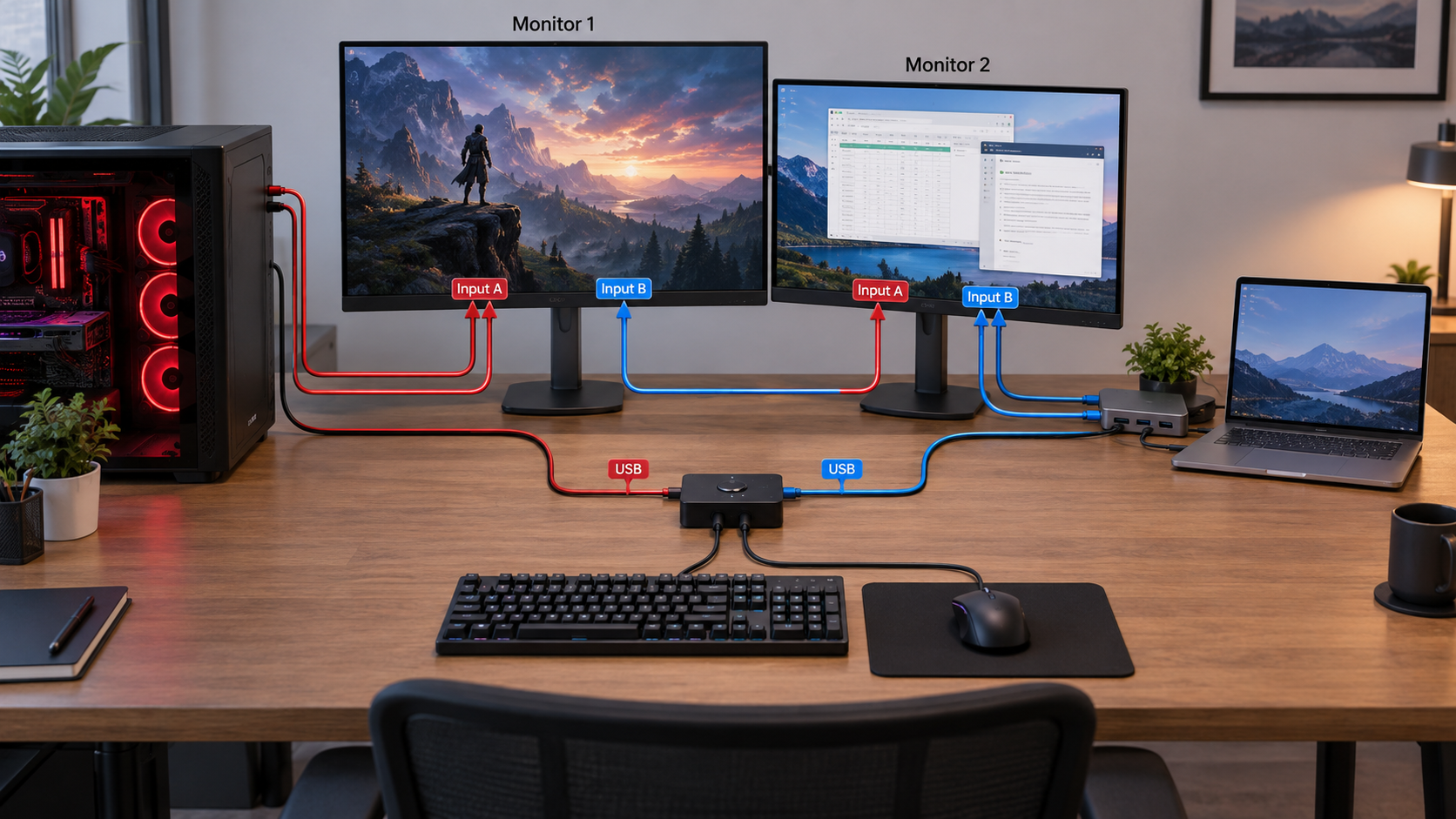
This keeps the gaming PC’s video outside a KVM.
The tradeoff is convenience: you may need to change two monitor inputs plus the USB switch whenever you move between work and gaming.
If you change modes only at the start and end of the workday, that may be acceptable.
If you switch repeatedly during the day, the friction can justify a dual-monitor KVM.
The work laptop must be able to drive both monitors before the KVM matters
A KVM cannot manufacture a second independent display signal.
If the work laptop needs a dock or adapter to produce two outputs, prove that path first. The exact laptop, host port, dock, operating system, driver, and display mode must support both monitors before a conventional dual-monitor KVM can switch them.
For a deeper two-monitor architecture, use Two Laptops, Two Monitors, One Keyboard and Mouse as the topology reference even though this Hub’s computers are asymmetric desktop + laptop rather than two laptops.
Should the work laptop keep its dock?
Often, yes.
The work laptop may need a dock for:
- Ethernet;
- two monitor outputs;
- webcam and headset;
- company-approved peripherals;
- USB expansion;
- charging;
- a one-cable desk connection.
The gaming desktop usually does not need those dock functions.
There is no rule that both computers must enter the shared desk through identical hardware.
A perfectly reasonable architecture is:
Work laptop ──> approved dock ──> monitor inputs / KVM inputs
Gaming PC ──────────────────────> monitor inputs / KVM inputs
Keep the existing work dock if it already solves the laptop-side requirements. Then choose the smallest separate layer for sharing displays and peripherals.
This is one of the biggest reasons a scenario-first answer is better than simply shopping for “a KVM dock.”
When a KVM dock makes sense
A KVM dock combines two jobs:
- laptop docking/expansion;
- multi-computer switching.
That can be compelling when you want one device to handle:
- work-laptop USB-C connection;
- laptop charging;
- shared monitors;
- keyboard and mouse;
- Ethernet and additional USB devices;
- desktop/gaming-PC switching.
AV Access iDock B10 is a current exact example designed around a USB-C laptop plus desktop/gaming PC and two monitors. The manufacturer documents high-refresh modes, laptop charging, switching, and shared peripherals for that model.
Treat that as proof that the architecture exists, not as a universal compatibility recommendation.
AV Access iDock B10 is one exact example of the laptop + desktop KVM-dock architecture described here. It is relevant when the work laptop needs docking and charging while the gaming desktop also needs shared dual-monitor and peripheral switching. Compatibility still depends on the exact laptop, desktop outputs, monitors, cables, target display modes, and operating-system behavior.
Disclosure: SetupMeld may earn a commission if you purchase through links on this page, at no additional cost to you. Product inclusion is based on compatibility with the setup described, not commission rates.
A KVM dock adds more conditions than a USB switch:
- exact work-laptop USB-C capability;
- exact gaming-PC video outputs;
- monitor resolution/refresh combinations;
- charging requirements;
- USB bandwidth and devices;
- operating-system behavior;
- EDID behavior;
- cables and firmware.
Choose the consolidation only when it solves enough real problems to justify those checks.
What if the work laptop is locked down?
This is one of the most important reasons to keep the two computer paths asymmetric.
A managed work laptop may not allow:
- custom keyboard-sharing software;
- third-party display drivers;
- unapproved docking software;
- some USB devices;
- removable storage;
- changes to security or firewall settings.
Microsoft documents that administrators can control device installation on Windows through Group Policy and MDM policies based on device IDs and classes.
Do not disable security controls to make a home setup work.
A safer decision order is:
- Keep the company-approved laptop/dock connection.
- Keep the laptop’s approved charger if dock/KVM charging is uncertain.
- Send work-laptop video through a documented output or approved dock.
- Share only permitted keyboard/mouse hardware.
- Prefer monitor OSD or physical switch controls when custom software is not allowed.
- Ask IT before relying on a driver-based display or unusual USB device.
A conventional hardware KVM or USB switch may be driverless itself, but downstream devices and corporate policy still matter.
Which architecture should you choose?
One monitor + gaming mode matters + switching is occasional
Direct monitor inputs + USB switch.
This is the first path to evaluate because it keeps gaming video direct and adds the smallest switching layer.
One monitor + frequent switching
Built-in monitor KVM if you already have one. Otherwise evaluate an exact single-monitor KVM that supports the required gaming mode.
Two monitors + switching only morning and evening
Direct monitor inputs + USB switch can still be reasonable if both monitors have enough inputs and both computers can drive them.
Two monitors + switching constantly
Dual-monitor KVM becomes much more attractive because it replaces multiple input changes with coordinated switching.
Work laptop needs dock + you want one-box convenience
Keep the existing dock if it works. If reducing boxes is a real priority, evaluate a purpose-built laptop + desktop KVM dock and verify every path.
Work laptop cannot install software
Favor hardware-first, approved switching. Avoid designing the desk around software KVM or a driver-dependent display architecture unless IT already permits it.
A practical upgrade path
Do not jump straight to the most complex hardware.
Stage 1 — Buy nothing
Use existing monitor inputs and existing multi-device peripherals if they already solve the desk.
Stage 2 — Add only USB switching
Keep video direct. Add a USB switch if keyboard/mouse are the only shared devices.
Stage 3 — Add coordinated KVM switching
If separate monitor-input changes become annoying, choose an exact KVM that matches the gaming and work video paths.
Stage 4 — Consolidate into a KVM dock
Only when laptop docking, charging, ports, network, and switching all need to be solved together.
This sequence lets the desk become more complex only when the workflow actually earns that complexity.
Bottom line
For a gaming PC and work laptop, the best shared-desk architecture is often asymmetric on purpose.
Let the gaming desktop keep the display path that preserves its required resolution, refresh rate, HDR/VRR features, and stability. Let the work laptop keep the approved dock, charger, and software environment it needs. Then share only the pieces that truly need to be shared.
For many one-monitor or even two-monitor desks, that means:
direct monitor inputs + USB switch.
When switching frequency makes that annoying, move to a verified KVM. When docking, charging, and switching all need consolidation, evaluate a KVM dock.
Do not buy the most integrated device first. Start with the gaming mode, work-laptop restrictions, monitor inputs, and switching frequency — then add only the layer that solves the remaining problem.
Sources & Verification
Last checked: 2026-09-09
-
StarTech.com — D86A2-series DisplayPort KVM
https://www.startech.com/en-us/kvm-switches-accessories/d86a2-4-port-8k-kvm Verifies exact high-refresh KVM capability including documented 4K/144Hz configurations. -
AV Access — 8KSW21-KVM
https://www.avaccess.com/products/8ksw21-kvm/ Verifies exact HDMI 2.1 KVM modes including 1440p 144/165Hz and listed VRR-related features. -
AV Access — iDock B10
https://www.avaccess.com/products/idock-b10/ Verifies a current purpose-built work-laptop + gaming-desktop KVM-dock architecture, documented high-refresh modes, dual-monitor routing, shared peripherals, and laptop charging for the exact model. -
Dell Support — KVM Setup for Dell Monitors
https://www.dell.com/support/contents/en-us/article/product-support/self-support-knowledgebase/monitor-screen-video/kvm-setup-guide-dell-monitors Verifies built-in monitor KVM video/USB upstream topology and supported OSD configuration. -
ASUS — ProArt Display PA278CGRV
https://www.asus.com/us/displays-desktops/monitors/proart/proart-display-pa278cgrv/ Verifies one current Auto KVM monitor architecture with USB-C DP Alt Mode and a separate second-host video + USB upstream path. -
Microsoft Learn — Manage Device Installation with Group Policy
https://learn.microsoft.com/en-us/windows/client-management/client-tools/manage-device-installation-with-group-policy Verifies administrator controls over device installation on managed Windows PCs. -
Reddit r/buildapc — “Is a KVM switch worth it for swapping between gaming PC and work laptop?” — 2026-08-16
https://www.reddit.com/r/buildapc/comments/1vq0yuu/is_a_kvm_switch_worth_it_for_swapping_between/ Used only as scenario and search-language evidence, not as technical authority. -
Reddit r/buildapc — “Looking for a KVM switch for dual 1440p high refresh + G-Sync” — 2026-04-12
https://www.reddit.com/r/buildapc/comments/1sjnijt/looking_for_a_kvm_switch_for_dual_1440p_high/ Used only as scenario and search-language evidence, not as technical authority.
No hands-on testing is claimed. Exact gaming modes, laptop outputs, dock architecture, cables, monitor inputs, device policy, operating systems, and product revisions must still be verified for the reader’s setup.